SOLIDWORKS Cloud
Introduction
Open iT supports SOLIDWORKS Cloud product assignment reporting by poll parsing starting from Open iT version 10.2.610.
For this collection, the data source is through an API. The license status utility/data preprocessor requests the product assignment and inventory information from the license manager portal every midnight, triggering the data collection process. After the license manager portal provides the requested information, the license status utility/data preprocessor processes the data, preparing it for transmission. Finally, the product assignment data is sent to the Core Server for further storage, completing the product assignment data collection and processing.
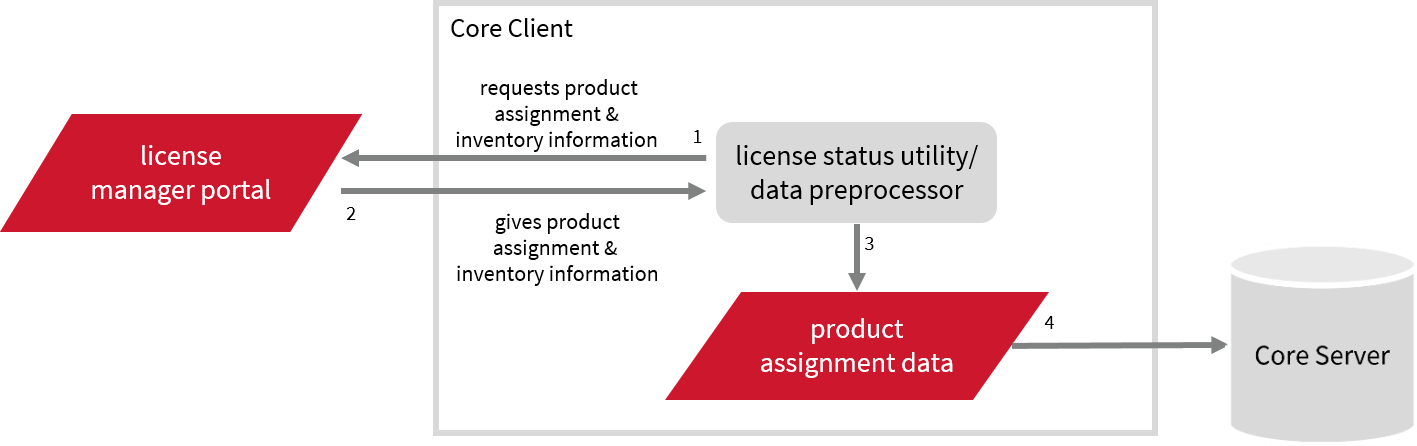
This will produce the following aggregated data types used for historical reporting:
Apply the configurations shown in the Open iT Core Client.
Requirements
- An Open iT Core Client connected to an Open iT Core Server or a coexistent Open iT Core setup
- Activated LicenseAnalyzer collection
- Non-SSO SOLIDWORKS cloud account with administrator access to the 3DEXPERIENCE platform, which is https://www.solidworks.com/product/solidworks-xdesign by default
- 3DEXPERIENCE platfrom ID
- Configured Microsoft Entra Credentials
- Configured application sign-in to vendor license mapping
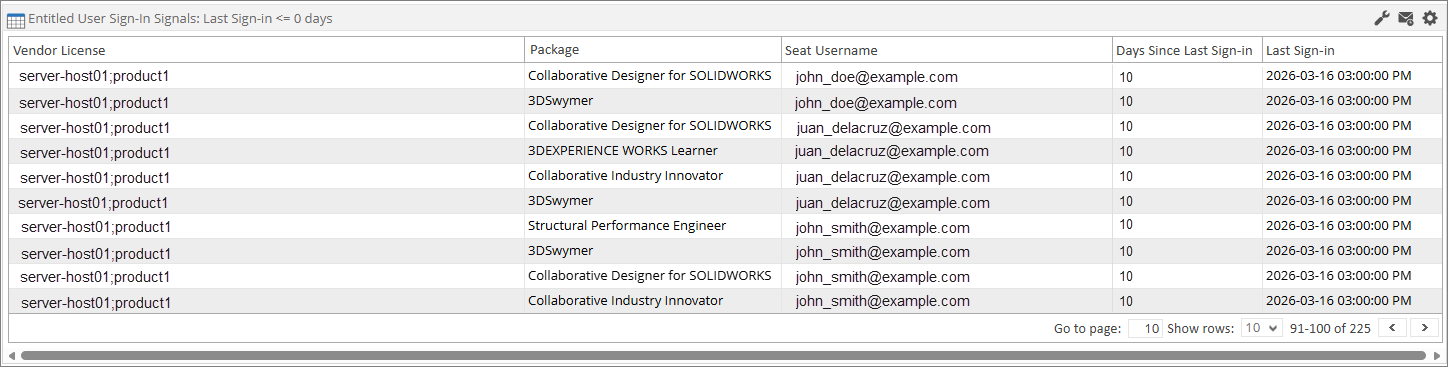
For a comprehensive Entitled User Sign-in Signals portlet report, make sure that the Microsoft Entra HR Roster collection is configured properly, as it plays a crucial role in providing essential sign-in data.
Getting the Platform ID in 3DEXPERIENCE
The Platform ID is a unique identifier for your 3DEXPERIENCE platform (tenant). It is required when configuring connections, authenticating, or integrating with the platform.
-
Open your 3DEXPERIENCE platform in a web browser.
-
Log in using your administrator credentials.
-
Check the URL in the address bar.
The Platform ID is typically part of the URL.
Examplehttps://mycompany-platform.3dexperience.3ds.comIn this example:
Platform ID = mycompany-platform
noteThe Platform ID is typically part of the platform URL but may exclude regional or infrastructure suffixes (such as
-eu1or-us2). It is unique to each organization and may follow different naming conventions or patterns. If you are unsure of the Platform ID, verify it with your administrator or IT team.
Configuring Poll Parsing
Setting up Solidworks Cloud Data Collection
These are the required steps to set up data collection from the Solidworks portal.
-
Open a command prompt with Administrator level privileges.
-
Go to the bin directory, which is by default in
C:\Program Files\OpeniT\Core\bin, run the command:Command Syntaxcd <bin_dir>Examplecd C:\Program Files\OpeniT\Core\bin -
Run the command:
Command Syntaxopenit_solidworkscloud.exe --init -
Type in the username (or email) for accessing the 3DEXPERIENCE platform when prompted.
Example: Entering Username--- SolidWorks Cloud Credentials Setup ---
Enter username to use: john_doe@example.comthen press Enter.
-
Type in the password for the user account to be used for accessing the 3DEXPERIENCE platform when prompted.
Enter password: **********then press Enter.
-
Type in the platfrom ID of the 3DEXPERIENCE platform when prompted.
Enter platfrom ID: **********then press Enter.
noteOpen iT saves the hashed SOLIDWORKS Cloud credential file,
credential.jsoninC:\ProgramData\OpeniT\Data\var\Solidworks\.
Optional Parameters
| Parameter | Description |
|---|---|
--platformid <platform_id> | Use this to specify the unique identifier of the 3DEXPERIENCE platform to connect to. |
-t <temp_dir>, --tempdir <temp_dir> | Use this to specify the path to directory where the program will store temporary files. The default value is C:\ProgramData\OpeniT\Data\temp\SolidWorks.Cloud. |
-o <outdir>, --outdir <outdir> | Use this to specify the path to directory where the program will save its output. The default value is C:\ProgramData\OpeniT\Data\temp\SolidWorks.Cloud\out. |
---headless {true,false} | Use this to activate headless browser mode, where: <options> - true or false; the default mode is true. |
--datatype {subscription,user} | Use this to specify the datatype to collect and parse. |
--login-timeout <seconds> | Use this to specify the maximum time to wait for login (in seconds). The default value is 30. The minimum value is 30, and the maximum is 180. |
-b <browser>, --browser <browser> | Use this to specify which common playwright-supported browser to use (e.g., -b firefox, --browser firefox). The system will automatically install the specified browser if it is not present in the local setup; the default browser is Chromium. You can use Chromium, WebKit, or Firefox. Make sure that the browser you choose is not blocked or restricted by endpoint security policies, firewalls, or application whitelisting tools in your company's environment. Firefox browser support relies on a Windows API component that is available in newer Windows versions. On systems where the required library is not present, commands that use the --browser firefox parameter may not execute successfully. Ensure that the target environment meets the operating system requirements before using this option. |
--browserpath "<browser_path>" | Use this to specify the full path to a local browser executable (e.g., --browserpath "C:/path_to_browser/browser.exe"). Applicable to Google Chrome and Brave browsers. |
-d, --debug | Use this to turn on debug logging. |
-h, --help | Use this to display the help text. |
Activating Data Collection
These are the required steps to activate collection of SOLIDWORKS data.
-
Open a command prompt with Administrator level privileges.
-
Go to the bin directory, which is by default in
C:\Program Files\OpeniT\Core\bin, run the command:Command Syntaxcd <bin_dir>Examplecd C:\Program Files\OpeniT\Core\bin -
Once in the directory, activate the collection of SOLIDWORKS data, run the command:
Command Syntaxopenit_oconfinit -u "collect_license_solidworks-cloud.root.scheduler.jobs.collect_solidworks.general.active=true"
Advanced Configuration
The collection runs every midnight by default. To configure the intervals, locate the instances attribute under collect_solidworks or transfer_solidworks_parsed in the same file and configure the attributes.
Refer to the SOLIDWORKS Job Scheduler Instances Configuration table to learn the attributes used to configure SOLIDWORKS data collection and transfer.
| Attribute Name | Accepted Value | Description |
|---|---|---|
| max-instances | Uint (e.g., 5, 8, 9) | The number of instances allowed to run at the same time. |
| max-handling | String (end-oldest, end-all-old, or end-new) | The action done upon reaching the maximum number of instances:
|
| end-timeout | Timespan (e.g., P30S, P5M, P1H) | The maximum waiting time before terminating a running instance. |
| quarantine | Timespan (e.g., P30S, P5M, P1H) | The waiting time before starting a new instance after a previous one. |
Verifying Data Collection
After configuration, you can verify that the data is collected by following these steps:
-
Open a command prompt with Administrator level privileges.
-
Go to the bin directory, which is by default in
C:\Program Files\OpeniT\Core\bin, run the command:Command Syntaxcd <bin_dir>Examplecd C:\Program Files\OpeniT\Core\bin -
Run the command:
Command Syntaxopenit_solidworkscloud.exe -
Verify that the temp directory, which is by default in
C:\ProgramData\OpeniT\Data\tempcontains a SolidWorks.Cloud directory. Confirm that this directory includes thesession_state.jsonfile and an out subfolder containing.datafiles.
Sample Reports
License Entitlements Overview
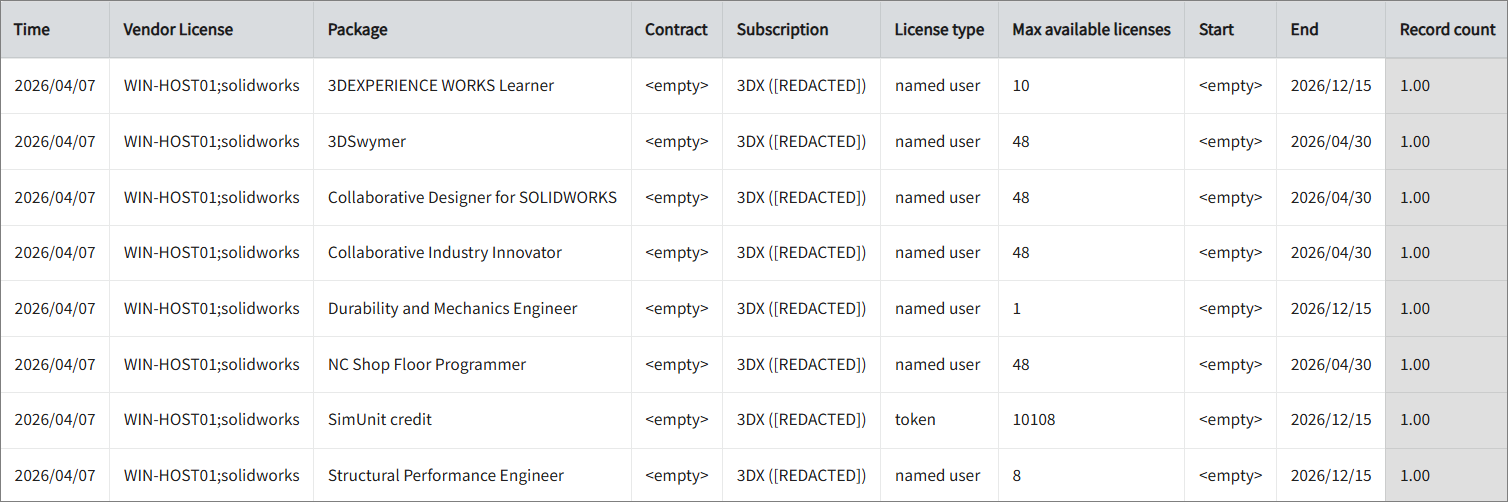
This report provides a detailed view of license entitlements per package, including license type, maximum available licenses, and subscription validity.
It offers several key benefits:
- Centralized License Visibility – Gives a clear overview of all licensed packages, making it easy to track what is available across vendors and environments.
- Accurate Entitlement Tracking – Displays maximum available licenses per package, ensuring alignment with purchased entitlements.
- Subscription Monitoring – Highlights license end dates, helping you stay ahead of expirations and renewals.
- License Type Insights – Differentiates between named user and token-based licenses, supporting better management strategies.
- Capacity Awareness – Helps identify which licenses have limited availability and may require expansion.
- Audit & Compliance Support – Provides documented proof of entitlements and subscription details for audits and vendor reviews.
- Proactive Renewal Planning – Enables early action on upcoming expirations to avoid interruptions in access.
Portlet Report
This report shows the most recent sign-in activity of entitled users per package and vendor license, based on the latest RunEtl processing.
- Recent Activity Monitoring – Tracks latest user sign-in based on processed data, providing up-to-date (but not real-time) visibility.
- Automated Alerting – Sends email notifications after RunEtl, reducing the need for manual monitoring.
- Threshold-Based Tracking – Supports configurable inactivity thresholds to flag users based on recency of access.
- Feature-Level Activity Insights – Shows which specific packages or features users last accessed.