Inactive User Applications
A portlet that displays tabular information about the individual users and application that has been inactive within the set duration. This portlet sends an email alert every 1 hour and 10 seconds.
Run ETL ResetSchedule to activate the dashboard alert for the Inactive Application User portlet.
To use and configure the Inactive User Applications portlet, make sure the Root.Level configuration value is set to Level 3.
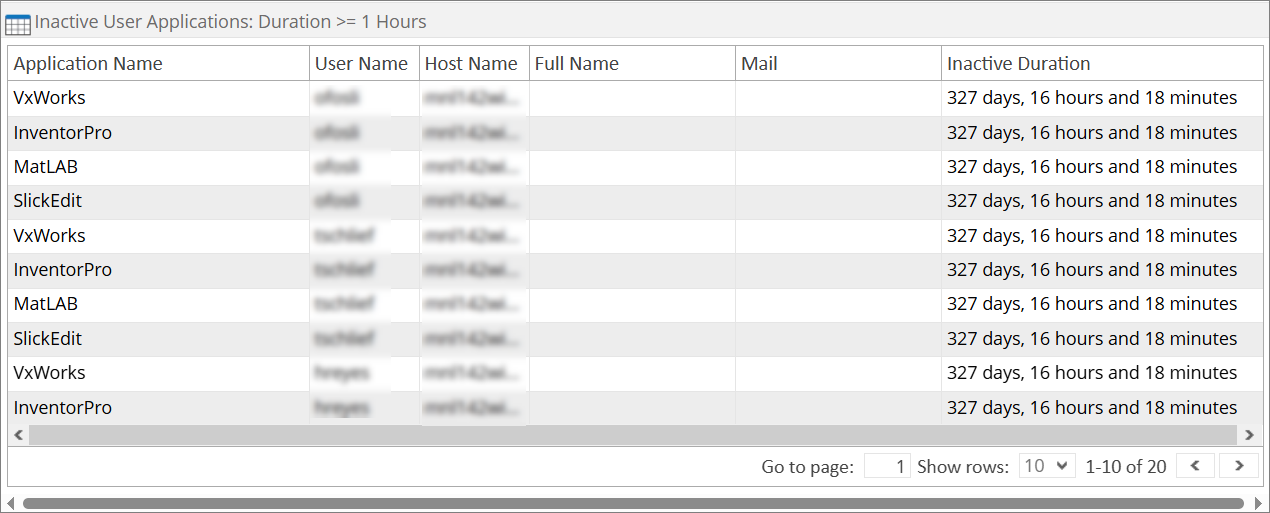
The table contains Application Name, User Name, Host Name, Full Name, Mail, and Inactive Duration.
Use the page navigator and number of rows option located at the bottom-right corner of the portlet to manipulate the displayed data.
How to configure
When configuring a table-type portlet, the configuration is separated into two parts - Filters and Alerts settings. Filters consists of configuration for refining the selected classifications and setting the threshold to display in the portlet. While Alerts consists of scheduling of sending email alerts and specifying the desired formatting of the messages.
Filters
To configure the Filters, follow these instructions:
-
In the upper-right corner of the portlet, click the gear icon.
The configuration dialog should appear.
-
Provide the Label or the text displayed in the title bar of the portlet. The initial value is Inactive User Applications: Duration >= 1 Hours.
-
Select among the available Vendor License, Package, and Feature.
-
Provide the Threshold or the value to limit the rendered data. The value should be in hours.
-
(Optional) Expand the Extended Filters section to narrow down the report by choosing which hostnames to show. You can use wildcard patterns (like *server*) to match hostnames. If you want to include more than one pattern, separate them with commas.
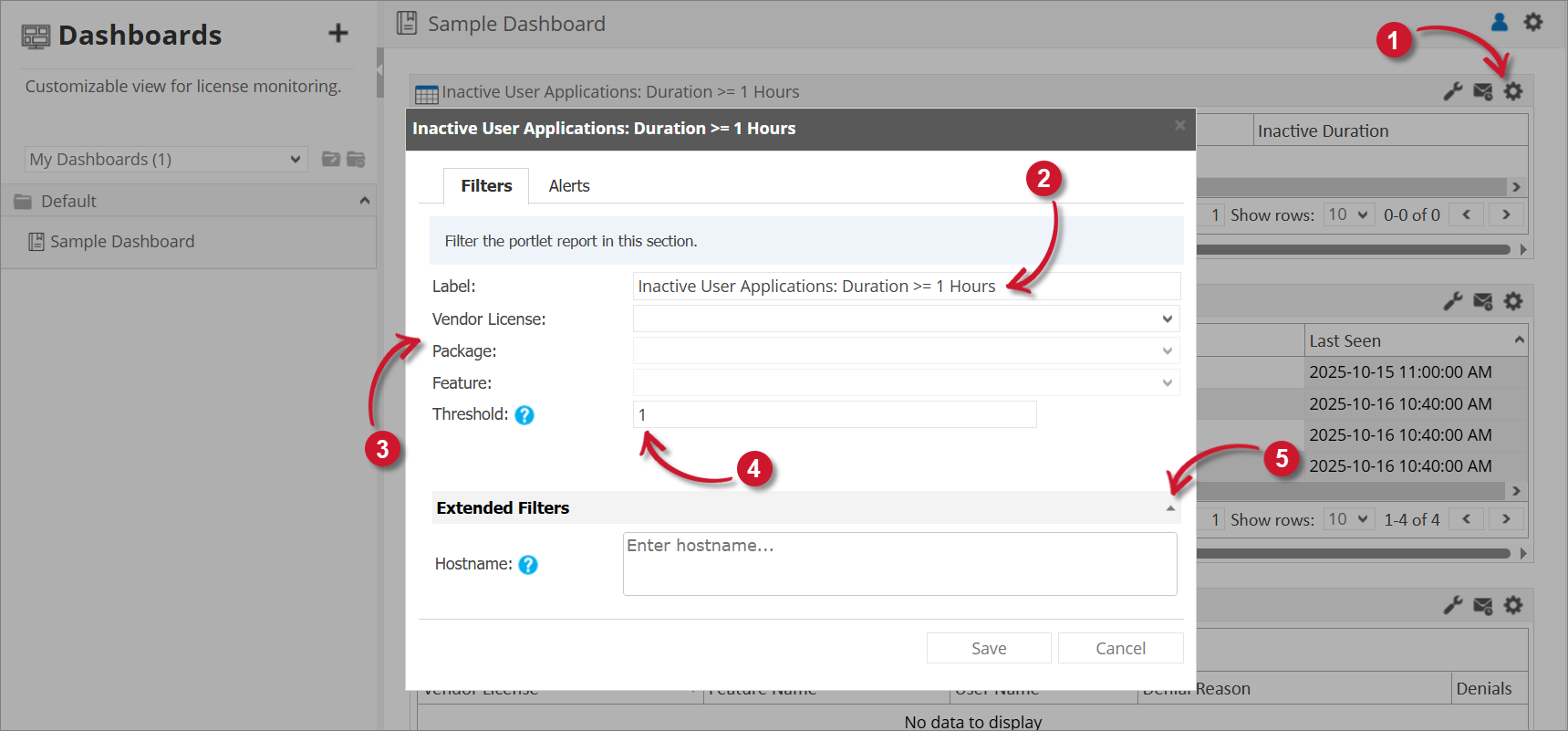 Long Checkout Filter Settings
tipYou may save the changes and use the default configuration for the Alerts or proceed with the Alerts configuration.
Alerts
Please make sure to accomplish the necessary configurations for Alerts Scheduling in Alert Settings Configuration section.
To configure the Alerts, follow these instructions:
-
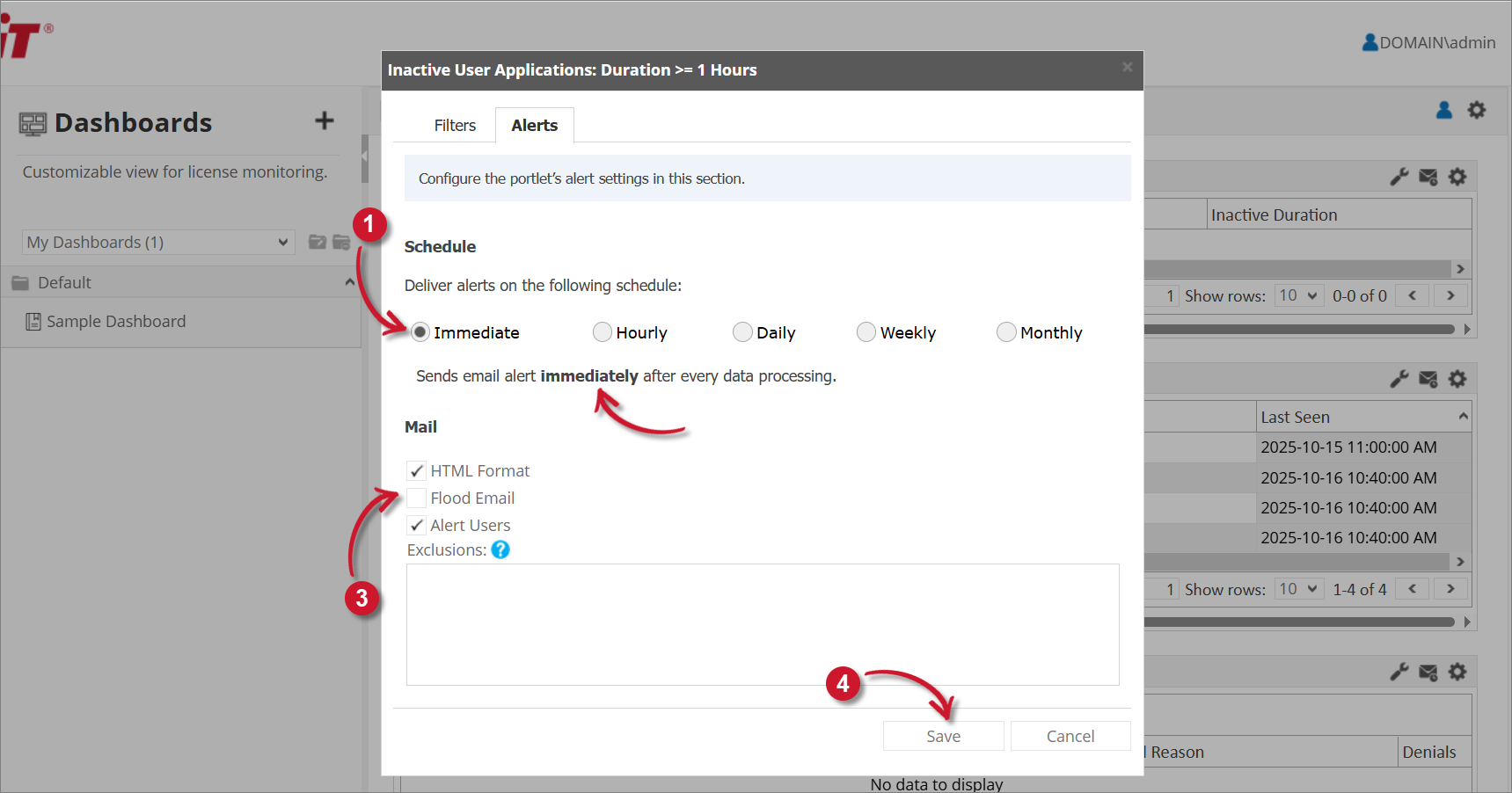
Go to the Alerts tab and choose from the available schedule options. Immediate is selected by default.
Use the statement provided describing the schedule as a guide.
-
If Hourly, the option Only send during this time is checked by default. Set the start and end times to set limitations (e.g., office hours) for sending email alerts.
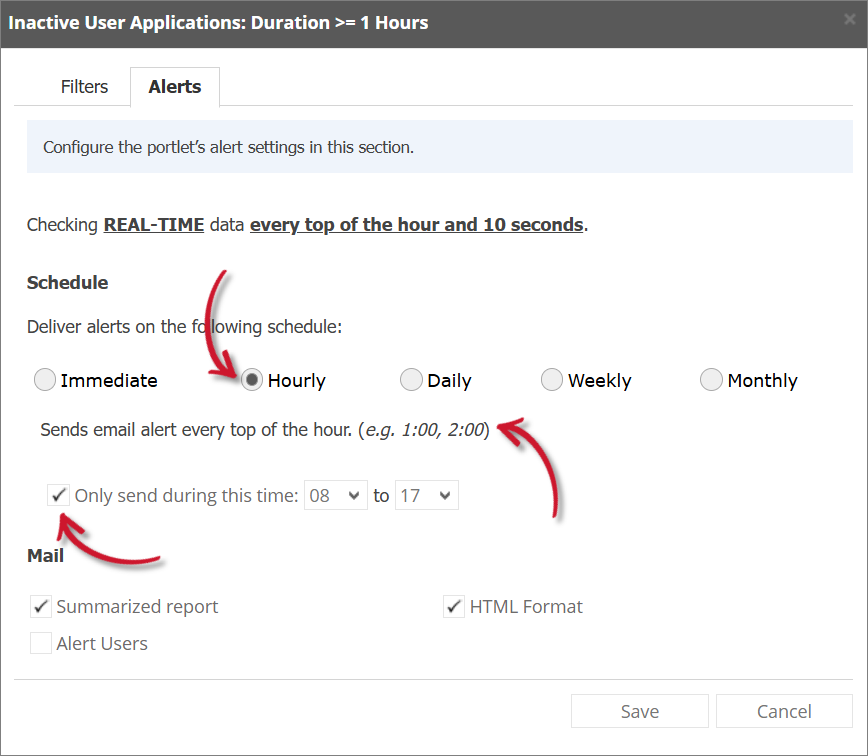 Inactive User Applications Alert Settings Hourly
If Daily, provide the time of the day the email will be sent.
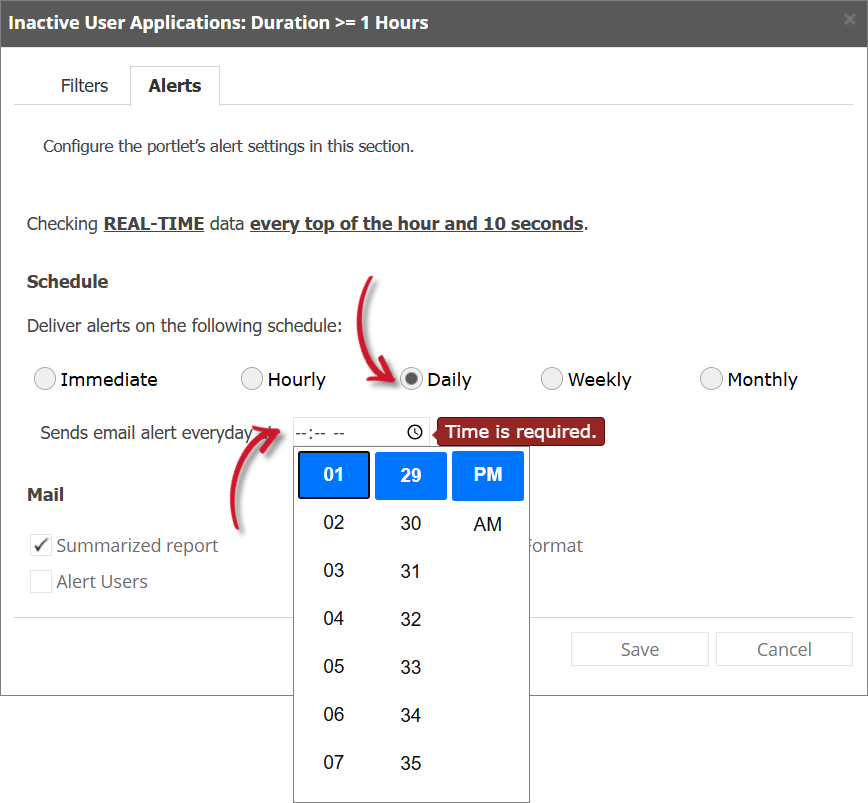 Inactive User Applications Alert Settings Daily
If Weekly, provide the specific day of the week and the time of the day the email will be sent.
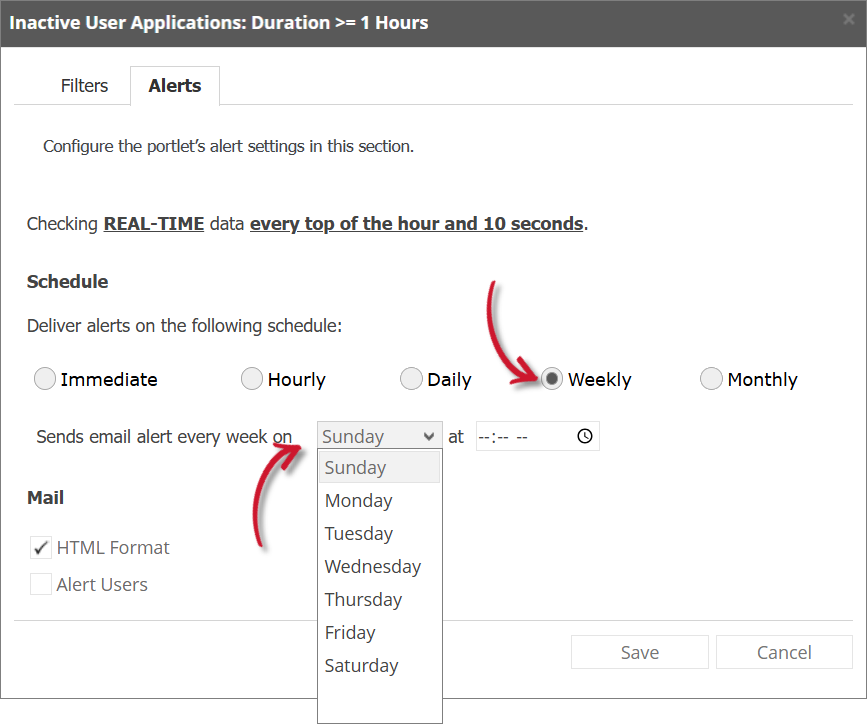 Inactive User Applications Alert Settings Weekly
If Monthly, provide the specific day of the month and the time of the day the email will be sent.
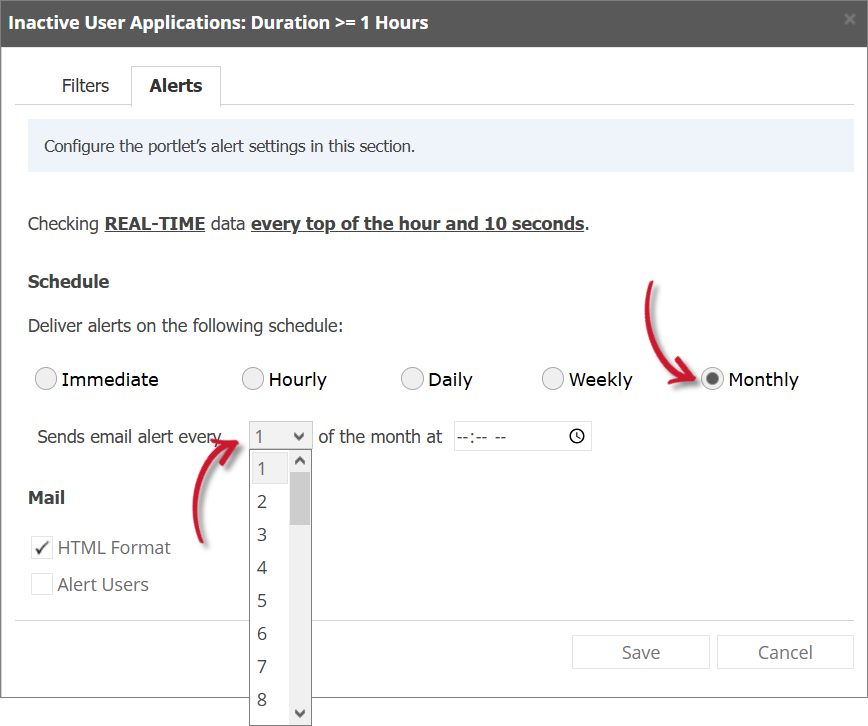 Inactive User Applications Alert Settings Monthly
 -
Check the following options to enable the functionality:
-
Summarized Report - the report included in the email message is in summarized form; otherwise, will be in detailed form. Only available in Hourly and Daily schedules.
infoA warning will be displayed when Summarized Report is unchecked. Please read carefully.
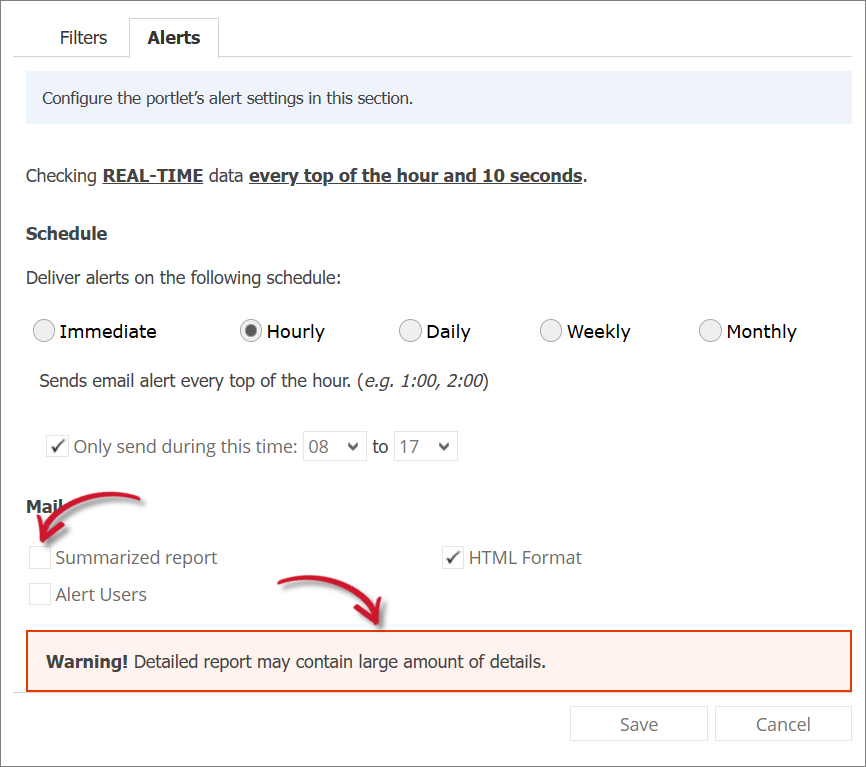 Inactive User Applications Alert Settings Warning
 -
HTML Format - the email alert template is formatted as HTML.
-
Alert Users - alerts all users included in the table. You can exclude specific users from receiving the alert if needed. Use wildcard patterns (e.g., *admin*) to match usernames. If you want to include more than one pattern, separate them with commas.
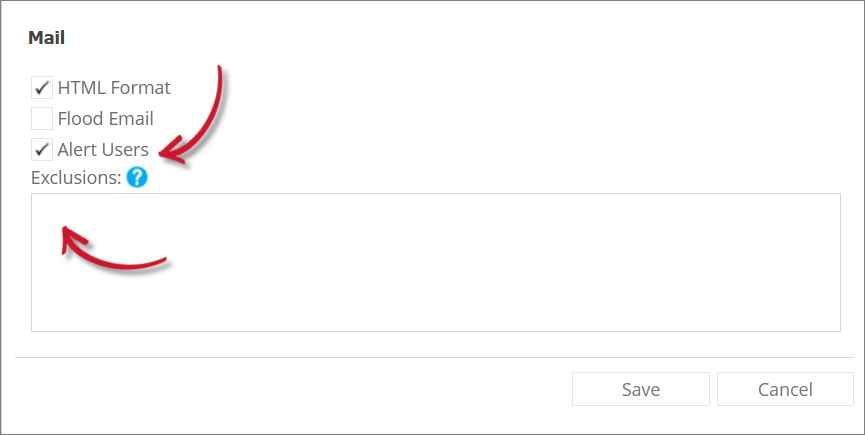 Inactive User Applications Alert Settings Exclude Users
 -
Flood Email - all subscribed users will receive email alerts even if there is no new data. Only available in Immediate schedule.
-
-
Click Save to continue.
 Inactive User Applications Alert Settings