Upgrade
Review the ServiceNow Adapter installation requirements before proceeding.
Make sure that the Open iT SSAD connection is active before performing an upgrade.
Upgrading through the Windows Installer Interface
-
Right-click the
openit_servicenow_adapter_<version>_x64.msiinstaller file, then click Run as Administrator.Allow the app to make changes to the device to begin. A setup wizard will be displayed.
Click Next.
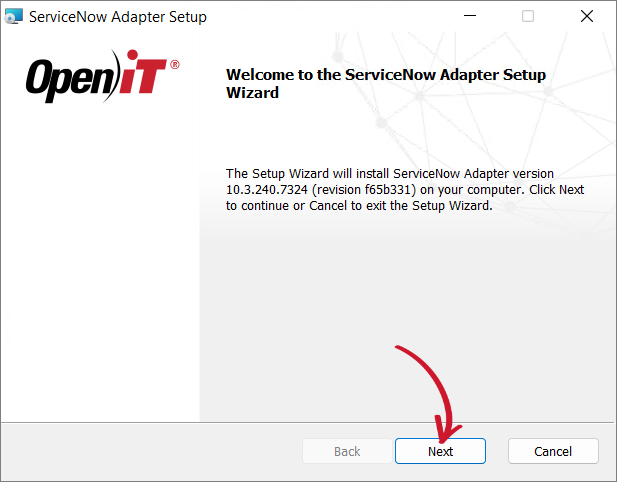 Installation Wizard
-
Read the End-User License Agreement before accepting the terms, then click Next.
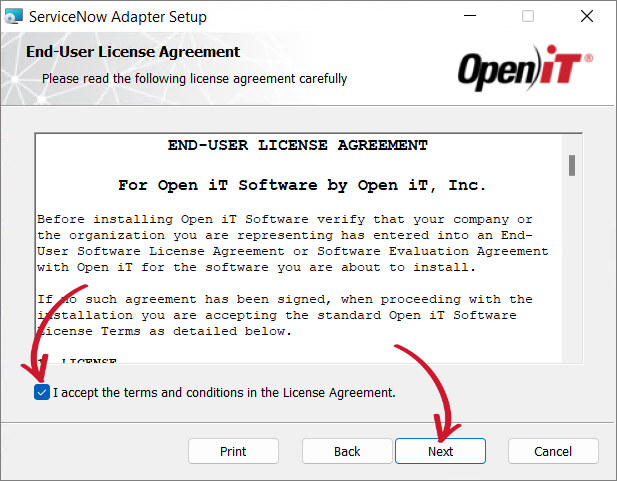 End-User License Agreement
-
Specify the path to a valid Open iT license with
SERVICENOWlicense key.The installation directory is automatically set to the parent directory of the Open iT Analysis Server, as the adapter relies on the server’s configurations.
Click Next.
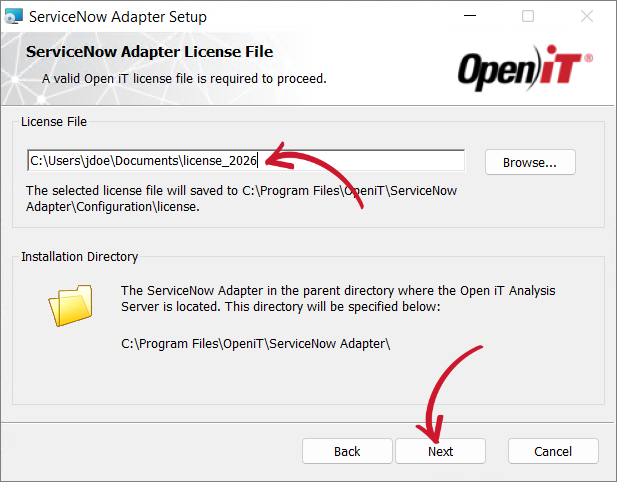 License File
-
Specify a valid ServiceNow Instance URI.
Select the Authentication Type that will be used to connect to the ServiceNow instance and the Application Scope that determines the Open iT application in the ServiceNow instance.
Click Next.
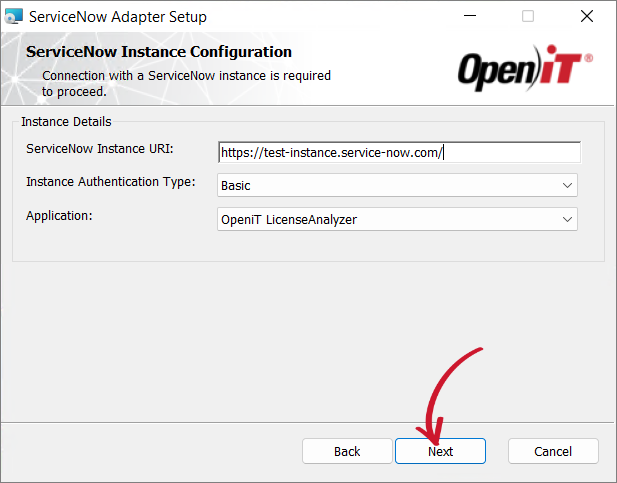 ServiceNow Instance Configuration
-
Specify the necessary credentials based on the pre-selected authentication type, then click Next.
- Basic - requires a Username and Password to connect to the ServiceNow instance
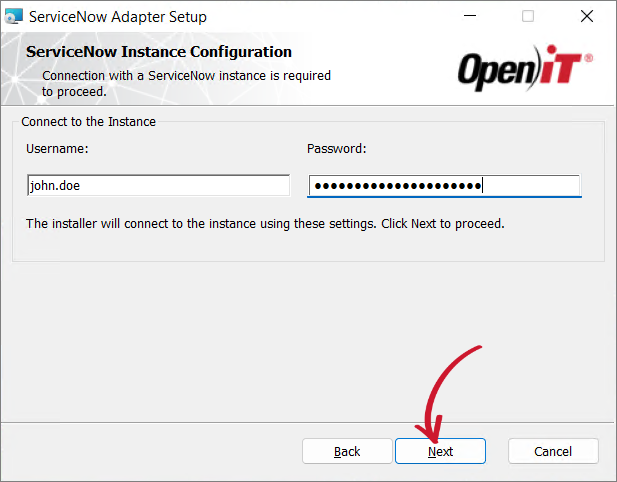 ServiceNow Instance Configuration - Basic
- Bearer Token - requires a Bearer Token to authenticate the connection
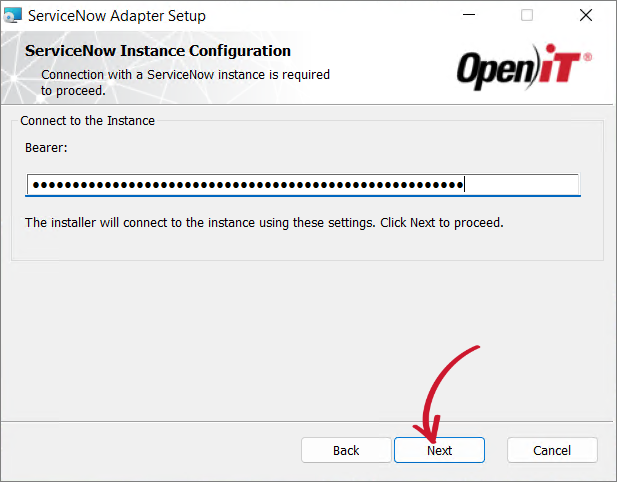 ServiceNow Instance Configuration - Bearer Token
noteRefer to the How to Get the Access Token Credential from ServiceNow guide for the Bearer Token setup.
warningWhen using bearer token authentication, whether during the initial installation or when configuring the adapter post-installation, be aware that bearer tokens have a limited lifespan. Once the token expires, any process that depends on it will fail.
To avoid service interruptions, make sure to:
- Monitor the token’s expiration timeline.
- Renew or replace the bearer token before it expires.
- Update the adapter configuration with the new token as needed.
- OAuth 2.0 - requires the following details to connect to the ServiceNow instance:
- Username and Password - valid credentials with specific roles
- Client ID - the generated ID once an Application Registry is created in the ServiceNow instance
- Client Secret - an encrypted key which is generated once an Application Registry is created in the ServiceNow instance
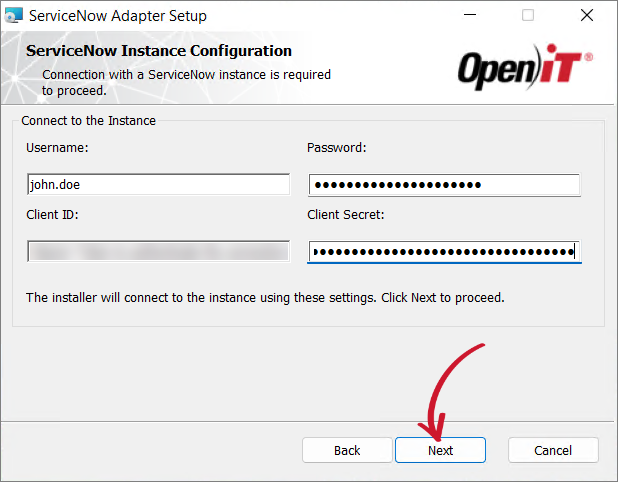 ServiceNow Instance Configuration - OAuth 2.0
noteTo obtain the Client ID and Client Secret, follow the steps in Configuring Application Registry in the ServiceNow Instance if you'll use only one Open iT store application.
If you plan to use both Open iT store applications, follow the steps in Configuring Application Registries with the Same Credentials instead.
The installation tests the connection to the ServiceNow instance using the provided authentication type and credentials.
- Basic - requires a Username and Password to connect to the ServiceNow instance
-
Specify the gRPC port for the Open iT ServiceNow Adapter. The default value is 4267.
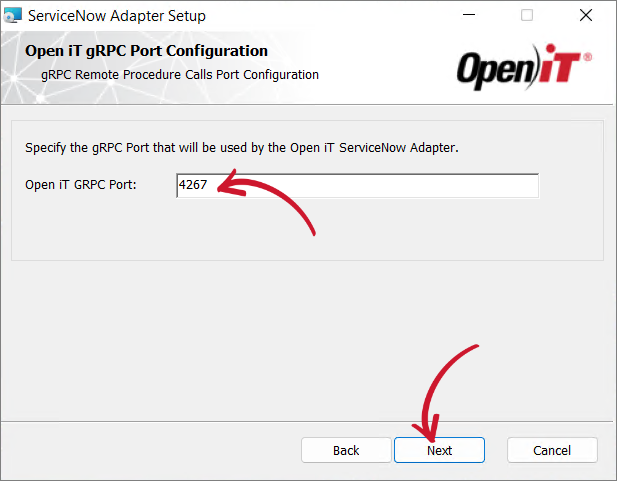 Open iT gRPC Port Configuration
-
Click Install to start the installation process. If a review of the entries is needed, click Back.
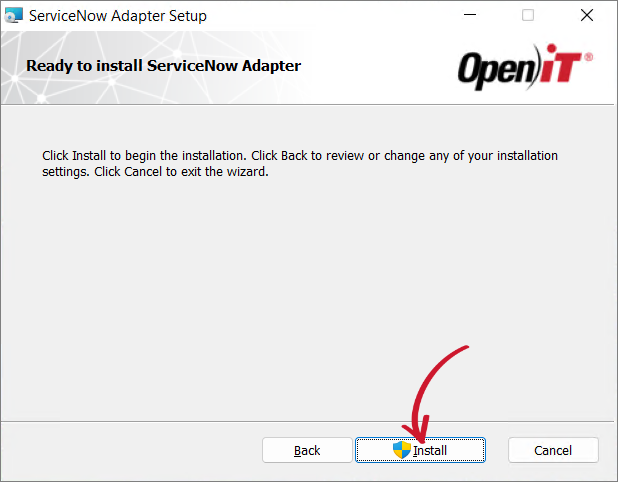 Ready to Install
-
The installer will set up all necessary files on the computer.
Click Finish to complete the installation.
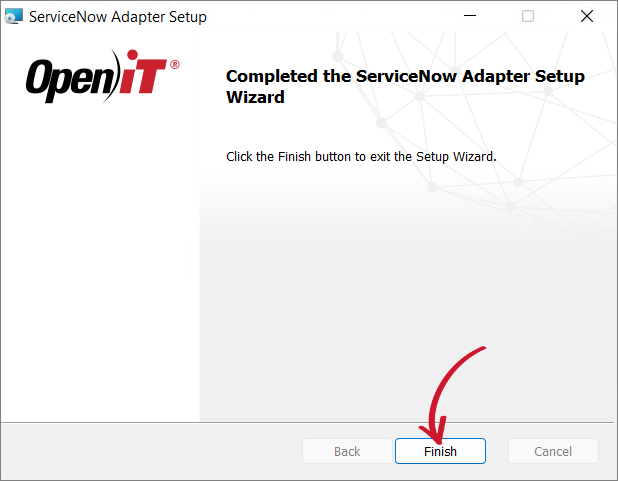 Installation Complete
noteInstallation logs are located in
%LOCALAPPDATA%\Temp\\. The log files are named asMSI<random_characters>.log.
Upgrading through the Command Line
-
Open a command prompt with Administrator level privilege.
-
Execute the following command:
Command Syntaxmsiexec /i <msi_file> /l*v <log_file> <options> ADAPTERLICENSEFILE=<license_file> INSTANCEURI=<uri> APPLICATIONSCOPE=<app> AUTHTYPE=<authtype> INSTANCEUSERNAME=<username> INSTANCEPASSWORD=<password> INSTANCEBEARER=<token> CLIENTID=<clientid> CLIENTSECRET=<clientsecret>Required Parameters
Parameter Description /i <msi_file>Use this parameter to specify the path to the Windows installer file. l*v <log_file>Use this parameter to specify the path to the installation log file that will be created during installation. Required Parameters
Optional Parameters
Parameter Description /quietUse this parameter to run the command in silent mode. /passiveUse this parameter to run the command in unattended mode — progress bar only. Optional Parameters
Required Properties
Properties Description ADAPTERLICENSEFILE=<license_file>Use this property to specify the path to the Open iT license file with SERVICENOWlicense key.INSTANCEURI=<uri>Use this property to specify a valid ServiceNow instance URI. APPLICATIONSCOPE=<app>Use this property of specify an Open iT application from the ServiceNow instance. It accepts la or licenseanalyzer for OpeniT LicenseAnalyzer or lm or licensemonitor for OpeniT LicenseMonitor. AUTHYPE=<authtype>Use this property to specify the authentication type that the installer will use to communicate with the specified ServiceNow instance. It accepts basic, bearer, or oauth2. This is case-sensitive. INSTANCEUSERNAME=<username>
INSTANCEPASSWORD=<password>Use these properties to specify valid credentials that will be used to authenticate on the specified ServiceNow instance. This is required with AUTHTYPE=basic or AUTHTYPE=oauth2. INSTANCEBEARER=<token>Use this property to specify a valid token that will be used to authenticate on the specified ServiceNow instance. This is required with AUTHTYPE=bearer. CLIENTID=<clientid>
CLIETSECRET=<clientsecret>Use these properties to specify valid identification keys of the ServiceNow instance that will be used for authentication. This is required with AUTHTYPE=oauth2. Required Properties
Optional Property
Property Description GRPC_PORT=<port_number>Use this to specify the gRPC port that will be used by the ServiceNow Adapter. The default value is 4267. Optional Property
Example (OpeniT LicenseAnalyzer with Basic Authentication)msiexec /i "openit_servicenow_adapter_10.3.100_x64.msi" /l*vx install.log ADAPTERLICENSEFILE="C:\Path\to\your\license" INSTANCEURI=https://test-instance.service-now.com/ APPLICATIONSCOPE=la AUTHTYPE=basic INSTANCEUSERNAME=username INSTANCEPASSWORD=passwordExample (OpeniT LicenseAnalyzer with Bearer Token Authentication)msiexec /i "openit_servicenow_adapter_10.3.100_x64.msi" /l*vx install.log ADAPTERLICENSEFILE="C:\Path\to\your\license" INSTANCEURI=https://test-instance.service-now.com/ APPLICATIONSCOPE=licenseanalyzer AUTHTYPE=bearer INSTANCEBEARER=tokennoteRefer to the How to Get the Access Token Credential from ServiceNow guide for the Bearer Token setup.
warningWhen using bearer token authentication, whether during the initial installation or when configuring the adapter post-installation, be aware that bearer tokens have a limited lifespan. Once the token expires, any process that depends on it will fail.
To avoid service interruptions, make sure to:
- Monitor the token’s expiration timeline.
- Renew or replace the bearer token before it expires.
- Update the adapter configuration with the new token as needed.
Example (OpeniT LicenseMonitor with OAuth 2.0)msiexec /i "openit_servicenow_adapter_10.3.100_x64.msi" /l*vx install.log ADAPTERLICENSEFILE="C:\Path\to\your\license" INSTANCEURI=https://test-instance.service-now.com/ APPLICATIONSCOPE=lm AUTHTYPE=oauth2 INSTANCEUSERNAME=username INSTANCEPASSWORD=password CLIENTID=clientid CLIENTSECRET=clientsecretnoteTo obtain the Client ID and Client Secret, follow the steps in Configuring Application Registry in the ServiceNow Instance if you'll use only one Open iT store application.
If you plan to use both Open iT store applications, follow the steps in Configuring Application Registries with the Same Credentials instead.
When using the passive mode, wait until the process bar dialog disappears. When using the quiet mode, verify if the installation is complete by opening the Task Manager and checking in the Details tab if the msiexec process is still running.
Next Steps
Review the post-installation guidelines.
Perform data regeneration in the Open iT Core Server after an upgrade to ensure that previously collected data are aligned with the current Open iT SSAD structure.