References
The following reference guides apply to the OpeniT LicenseAnalyzer store application only.
Accessing the Engineering Application License Table
You can access the Engineering Application License table in your ServiceNow instance to directly review the license data and confirm that any relevant bug fixes are reflected accurately.
An administrator account is required to access System Definition > Tables.
With the minimum role, sam_user, you can access SAM tables by going to All and opening the table using .list (e.g., samp_eng_app_license.list).
-
Log in to the ServiceNow instance.
-
In the upper-left corner of the page, click All.
-
In the filter option, type
System Definitionto filter the displayed items. -
Go to System Definition > Tables to open the list of all system-defined tables.
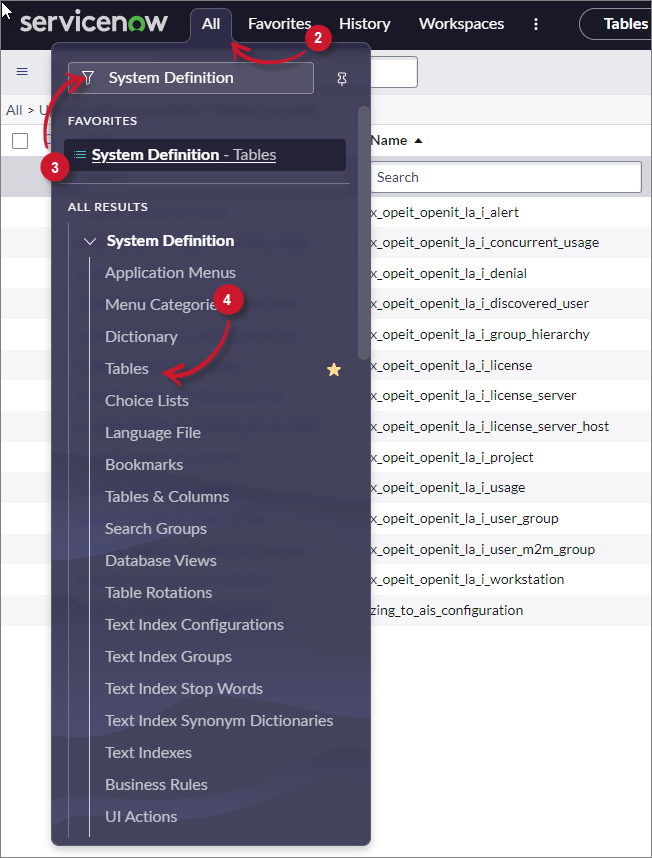 Navigate to System-defined Tables
-
Filter the Label column for
Engineering Application License. -
Click Engineering Application License to open its definition and configuration.
-
Scroll down to Related Links and click Show List to open the table's data view.
Refreshing Data after Normalizing Engineering Licenses and Uploading Entitlements
Once engineering licenses are normalized and entitlements are uploaded, the updated information will appear on the LicenseAnalyzer dashboard the next day, after the ServiceNow Adapter runs and triggers the OpeniT – Transform engineering application data process.
If you want to update the data immediately, you can manually run the sync job by going to All > System Definition > Scheduled Jobs > OIT – SyncImportData, and clicking Execute Now.
Manually Updating the Spend, Savings, and License Utilization Calculations
Calculations such as Total Spend, Potential Savings, and License Utilization are normally processed on a monthly schedule, so updates typically appear once per month.
To update the data immediately:
-
Run reconciliation by navigating to All > Software Asset Workspace > Run Reconciliation. This ensures that license and usage data are up-to-date.
-
(Optional) Adjust the calculation period. By default, the Monthly License Analytics calculation uses a 30-day period. If needed, you can temporarily change the calculation window to 90 days by updating the system property,
x_opeit_openit_la.offset_calculation_date.noteFor this optional step, follow the Setting the System Property - Peak Usage Period guide, but look for
x_opeit_openit_la.offset_calculation_dateinstead of com.snc.samp.eng_app.peak_usage_period.warningMake sure to revert the value back to 30 after manual execution to avoid data mismatches when the scheduled job runs automatically.
-
Run the analytics job by going to All > System Definition > Scheduled Jobs > OIT – Monthly License Analytics, then click Execute Now.