Post-Installation Configuration
Importing Software Entitlements
Follow the official ServiceNow documentation on how to create entitlements in workspace to upload software entitlements and ensure complete and accurate dashboard reports.
Setting the System Property - Peak Usage Period
By default, the ServiceNow dashboard displays only 30 days of data. Since the ServiceNow Adapter (Analysis Server plug-in) transmits 90 days of data, set the Peak Usage Period to 90 days to ensure all transmitted data is included in the reports.
-
Log in to the ServiceNow instance with an Administrator account.
-
In the upper-left corner of the page, click All.
-
In the filter option, type
System Definitionto filter the displayed items. -
Go to System Definition > Tables to open the list of all system-defined tables.
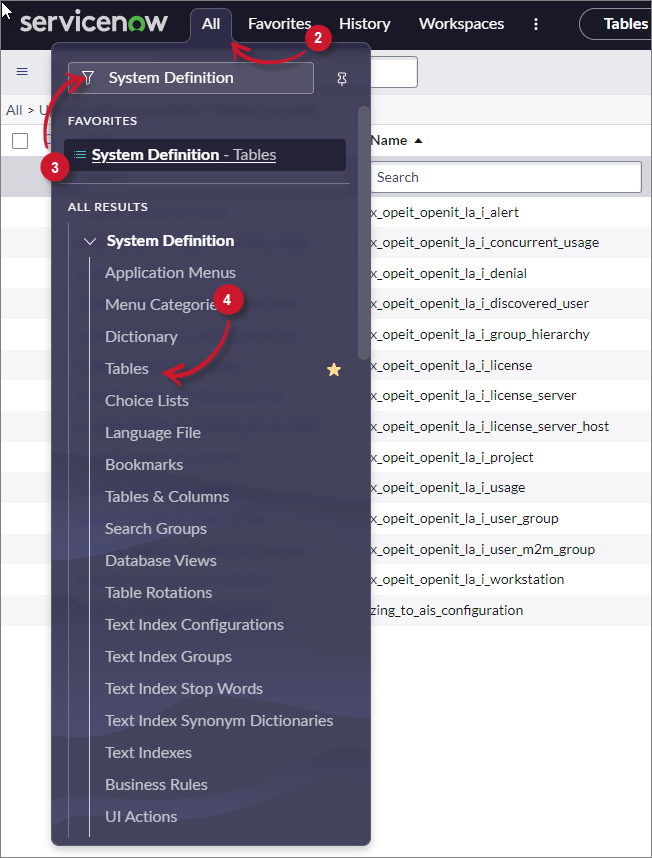 Navigate to System-defined Tables
-
Filter the Label column for
System Property. -
Click System Property to open its definition and configuration.
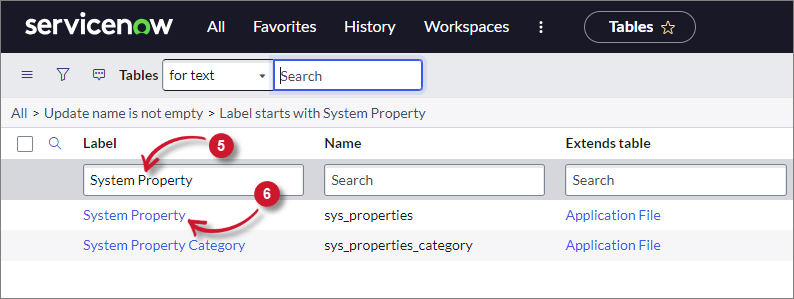 System Property
-
Scroll down to Related Links and click Show List to open the table's data view.
-
Filter the Name column for
com.snc.samp.eng_app.peak_usage_period. -
Click the item to open the information page of the selected property.
Notice that all fields are disabled and there is a message displayed.
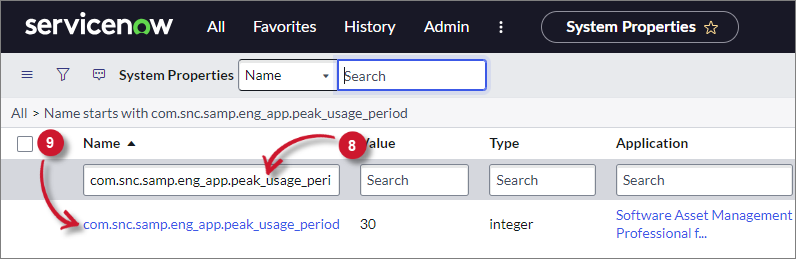 System Property Filter
-
Click the link to edit the record.
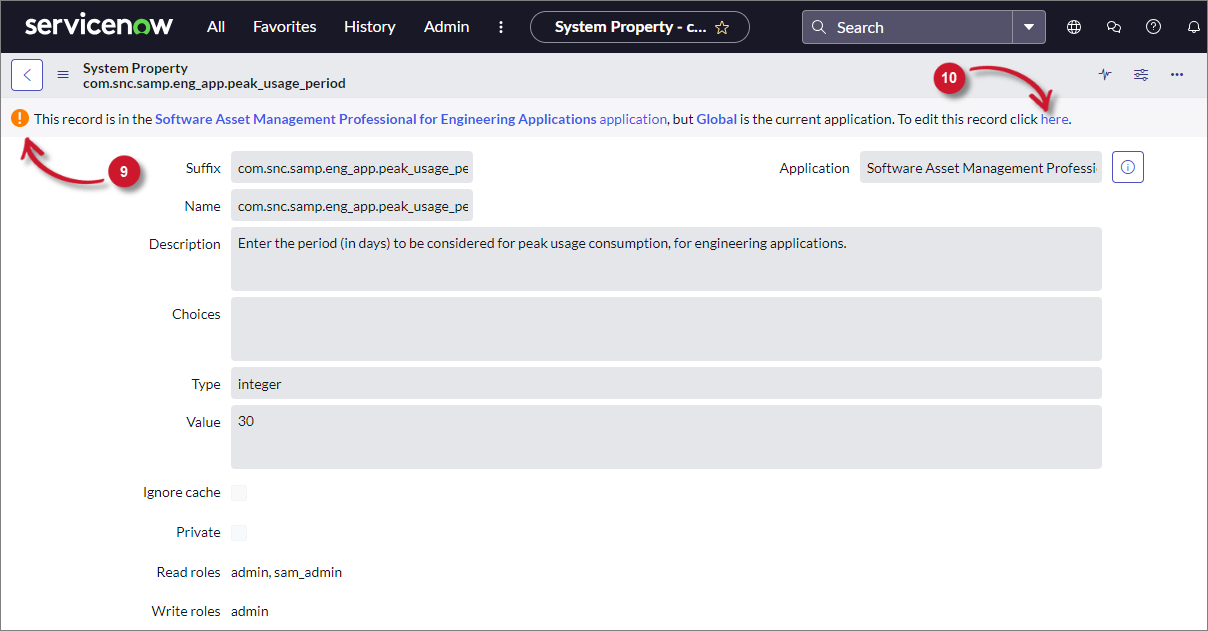 System Property Link
-
Change the Value field to
90. -
Click Update. This will redirect you to the System Properties data view.
Notice that the Value column is updated.
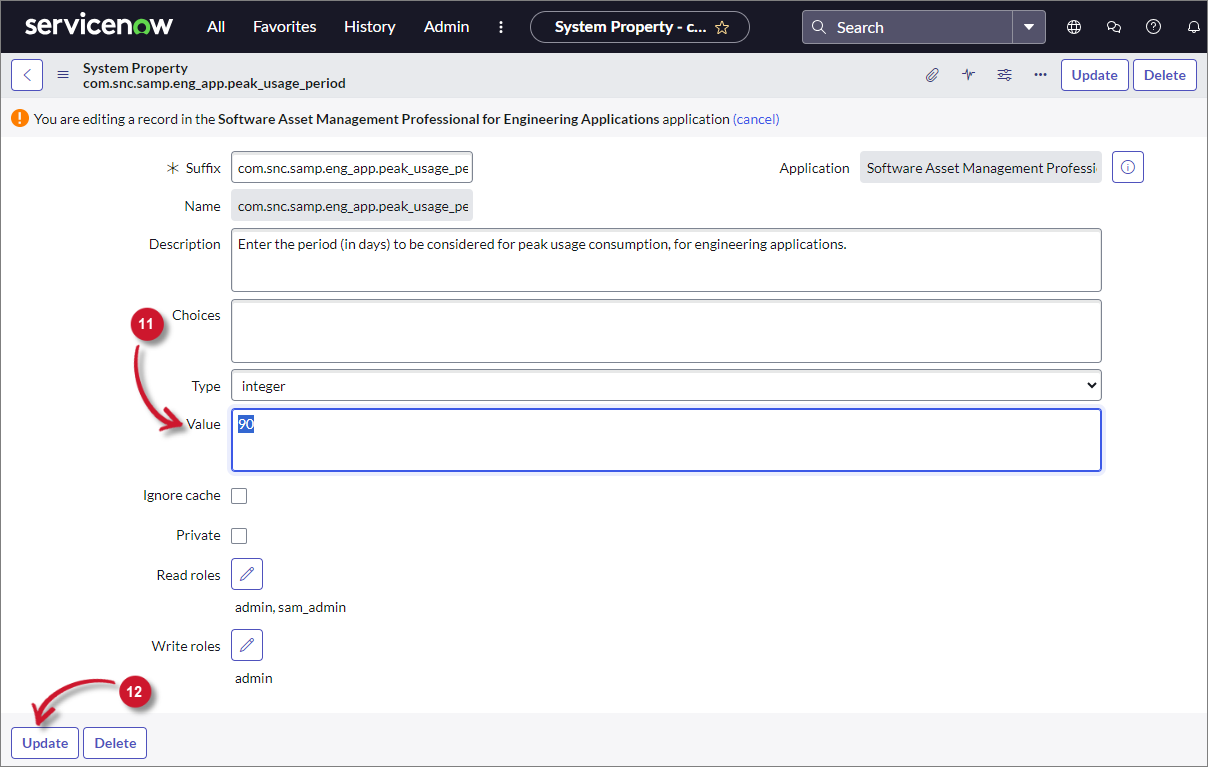 System Property Period
Next Steps
If you only require the OpeniT LicenseAnalyzer, proceed directly to installing the ServiceNow Adapter in your Open iT setup.
If you also plan to use the OpeniT LicenseMonitor, continue with the LicenseMonitor installation before moving on to the ServiceNow Adapter.