Installation Verification
Verifying Import Set Tables
Once the OpeniT LicenseAnalyzer is installed in the ServiceNow instance, check if all the necessary import set tables are created.
-
Log in to the ServiceNow instance with an Administrator account.
-
In the upper-left corner of the page, click All.
-
In the filter option, type
System Definitionto filter the displayed items. -
Go to System Definition > Tables to open the list of all system-defined tables.
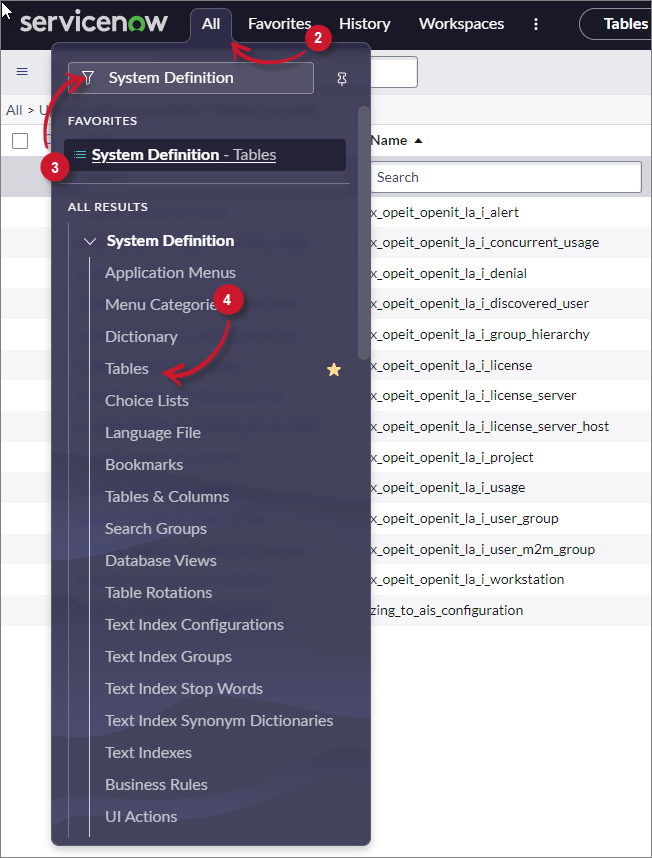 Navigate to System-defined Tables
-
In the search bar, set the criteria to Name, type
x_opeit, and press Enter.Make sure the following tables are available:
- x_opeit_openit_la_i_alert
- x_opeit_openit_la_i_concurrent_usage
- x_opeit_openit_la_i_denial
- x_opeit_openit_la_i_discovered_user
- x_opeit_openit_la_i_feature_denials
- x_opeit_openit_la_i_feature_license
- x_opeit_openit_la_i_feature_utilization
- x_opeit_openit_la_i_group_hierarchy
- x_opeit_openit_la_i_license
- x_opeit_openit_la_i_license_server
- x_opeit_openit_la_i_license_server_host
- x_opeit_openit_la_i_product_cost
- x_opeit_openit_la_i_product_usage
- x_opeit_openit_la_i_project
- x_opeit_openit_la_i_usage
- x_opeit_openit_la_i_user_feature_utilization
- x_opeit_openit_la_i_user_group
- x_opeit_openit_la_i_user_m2m_group
- x_opeit_openit_la_i_vendor
- x_opeit_openit_la_i_workstation
In addition to the standard import set tables above, installations configured for cloud data support must also include the following import set tables used to receive Autodesk and Bentley Cloud data:
- x_opeit_openit_la_i_cloud_conc_usage
- x_opeit_openit_la_i_cloud_conc_usage_breakdown
- x_opeit_openit_la_i_cloud_denial
- x_opeit_openit_la_i_cloud_usage
- x_opeit_openit_la_i_last_activity
- x_opeit_openit_la_i_named_user
- x_opeit_openit_la_i_product_process