OpeniT LicenseMonitor
The OpeniT LicenseMonitor provides insights into vendor license status, license expirations, and upcoming feature expirations. It contains the following pages: Vendor License Status, License Expiration Status, and Feature Expiration Calendar.
To access the dashboard, go to Workspaces > OpeniT LicenseMonitor.
Vendor License Status
The Vendor License Status shows the status of all vendor licenses, along with feature details.
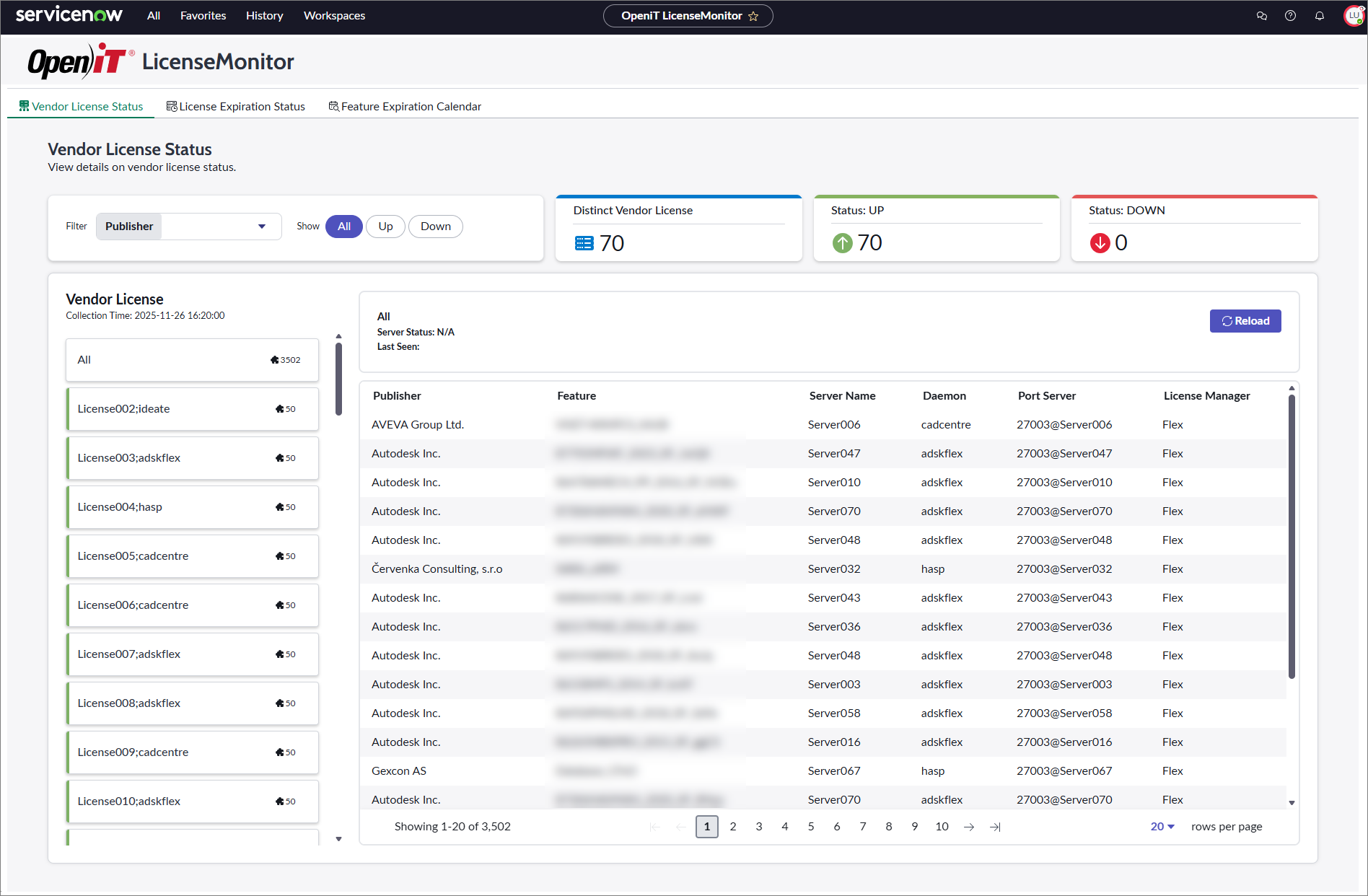
It includes:
- Filter Options – allows filtering by Publisher and license status (All, Up, Down)
- Summary Cards – display the total number of distinct vendor licenses and their status breakdown
- Vendor License List – shows all available vendor licenses, with icons indicating the number of features
- Vendor License Information Pane – shows details of the selected vendor license
- Feature Table – provides information on features associated with the selected vendor license
The Vendor License Information Pane and Feature Table update dynamically when a vendor license is selected from the Vendor License List.
Server status is color-coded as green (up), red (down), or gray (unknown).
Filtering Options
You can filter the data shown by publisher or by the license status, which can be set to show all, only those that are up, or those that are down.
When the Down option is selected, vendor licenses with both Down and Empty statuses are included.
License Expiration Status
The License Expiration Status tracks feature license expirations, highlighting expired, soon-to-expire, and valid licenses based on a configurable warning threshold.
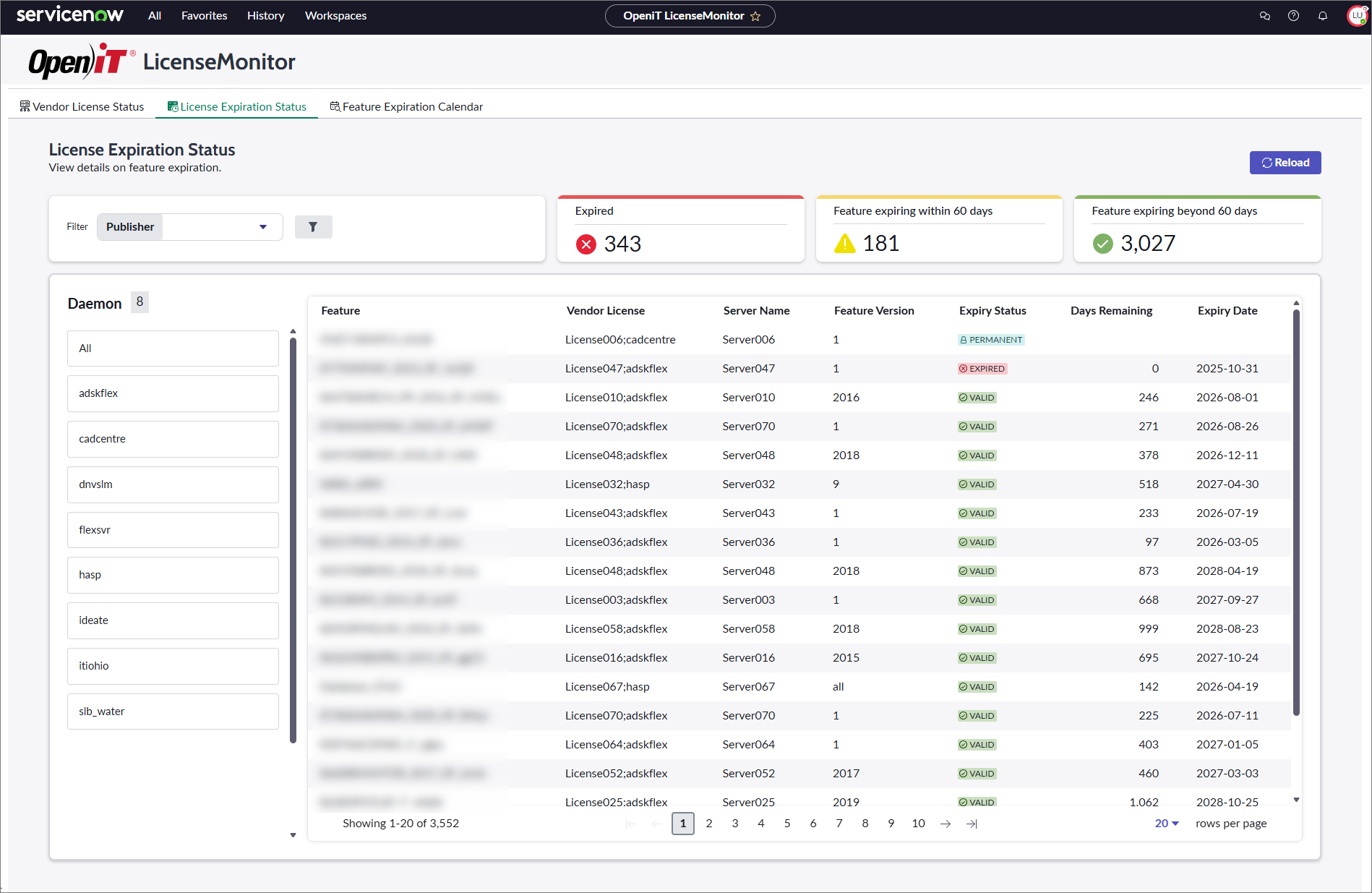
It includes:
- Filter Options – allows filtering by Publisher and License Expiration Status (All, Valid, Warning, Expired)
- Summary Cards – display counts for expired features, those expiring within the warning threshold, and those valid beyond it
- Daemon List – shows all available daemons
- Feature Table – provides information on features associated with the selected daemon
The Feature Table updates dynamically when a daemon is selected from the Daemon List.
Expiry statuses are color-coded as red (expired), yellow (warning), and green (valid).
Filtering Options
You can filter the data by publisher or by the license expiration state, with the option to select all, valid, warning, or expired.
The warning threshold can also be customized by choosing predefined values or entering a different one, and any changes apply to both the summary cards and the Feature table.
Feature Expiration Calendar
The Feature Expiration Calendar displays expiring features by month and year in a table, with quick access to earliest-expiring features and detailed records.
It acts as a detailed view of the License Expiration Status page.
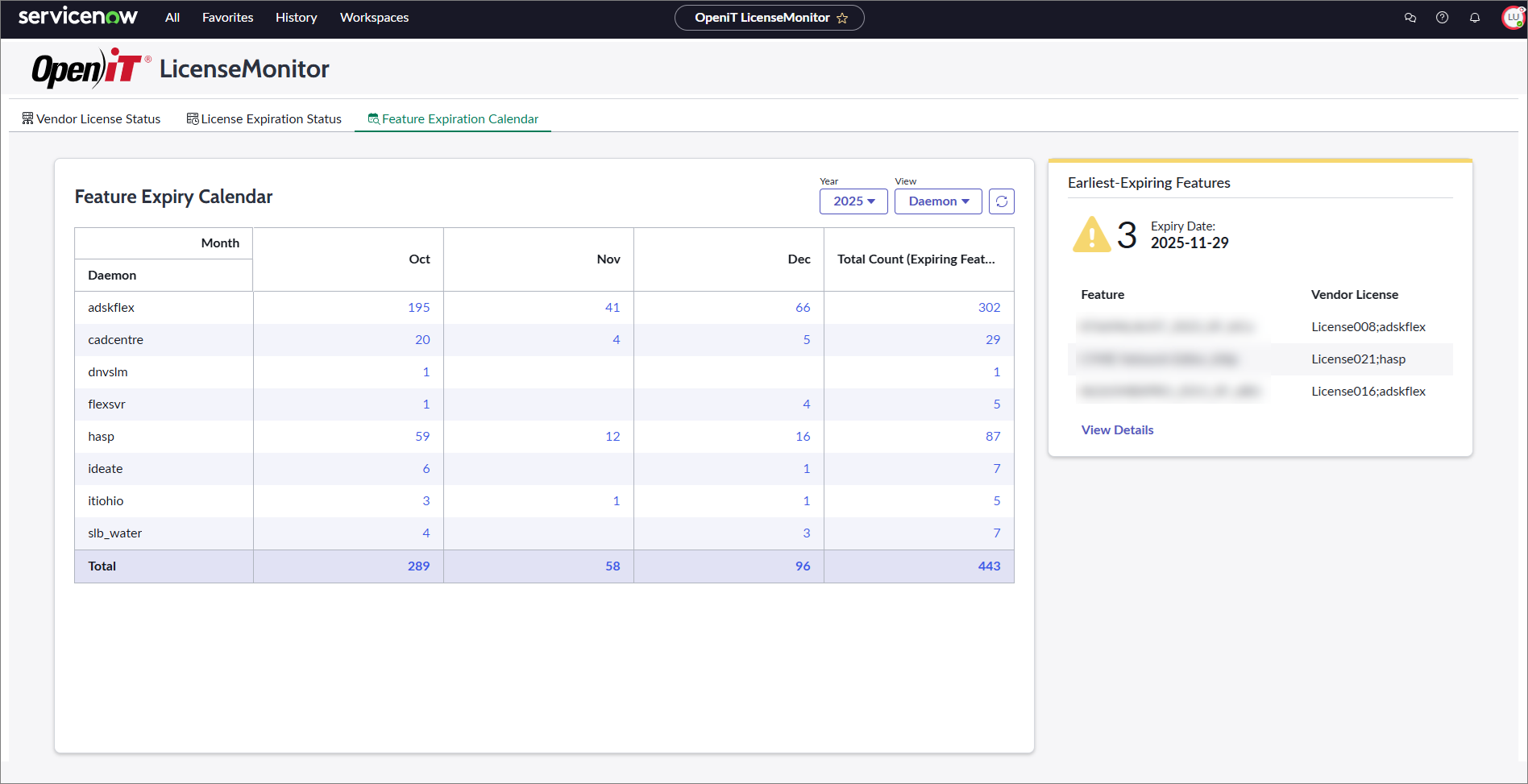
It includes:
- Feature Expiry Calendar Table – monthly and yearly counts of expiring features
- Earliest-Expiring Features Pane – quick summary of the nearest license expirations
Filtering Options
You can filter the data by selecting a year, which limits the records displayed in the table, or by choosing a specific daemon or vendor license.
The view filter determines whether the table organizes data by daemon or by vendor license.
Clicking a number in the table opens a detailed feature list with complete records.