Installation through the ServiceNow Instance
ServiceNow offers an easy way to install applications from the ServiceNow Store via the ServiceNow instance.
-
Log in to the ServiceNow instance with an Administrator account.
-
In the upper-left corner of the page, click All.
-
In the filter option, type
System Applicationsto filter the displayed items. -
Go to System Applications > All Available Applications > All to open the Application Manager.
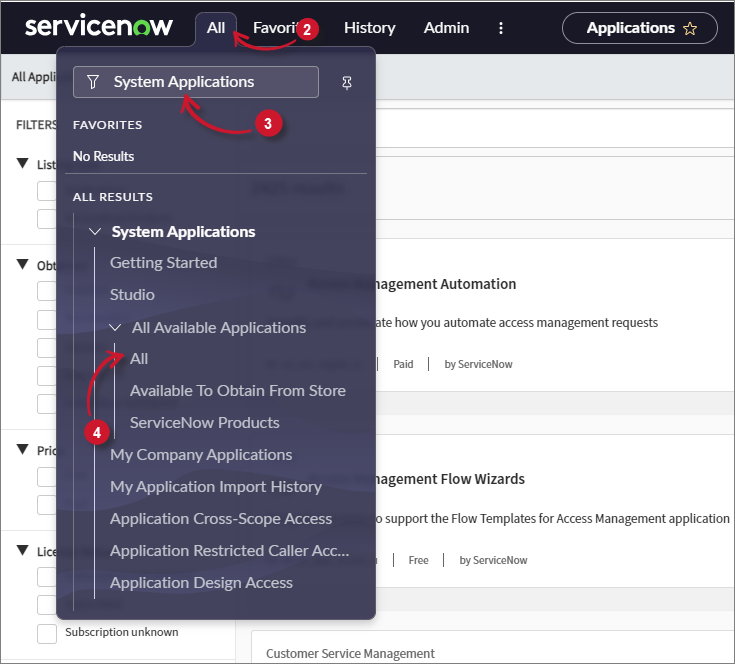 Navigate to Application Manager
-
In the top-right tab, click on the Open Store button.
Alternatively, if you are using the Classic Application Manager, click on the Find in Store button.
-
Once in the ServiceNow Store, search for
LicenseMonitor. -
Select OpeniT LicenseMonitor.
-
Click Get.
For regulated instances, selecting Get in the ServiceNow Store does not immediately install the application. The request must first go through an approval process. After approval, the application may take up to 24 hours before it becomes available in your instance.
Refer to the official ServiceNow documentation on how to get a free application to learn more.