Checking Lineage Status
The Lineage provides a visual representation of asset relationships and processing flow within the Open iT data processing environment. This guides you in monitoring asset execution status and reviewing processing dependencies.
To check the status of lineage:
-
Access the Core Server web interface.
-
Once the web interface is loaded, click the menu icon located at the top part of the page. Click Data Processing GUI from the dropdown menu.
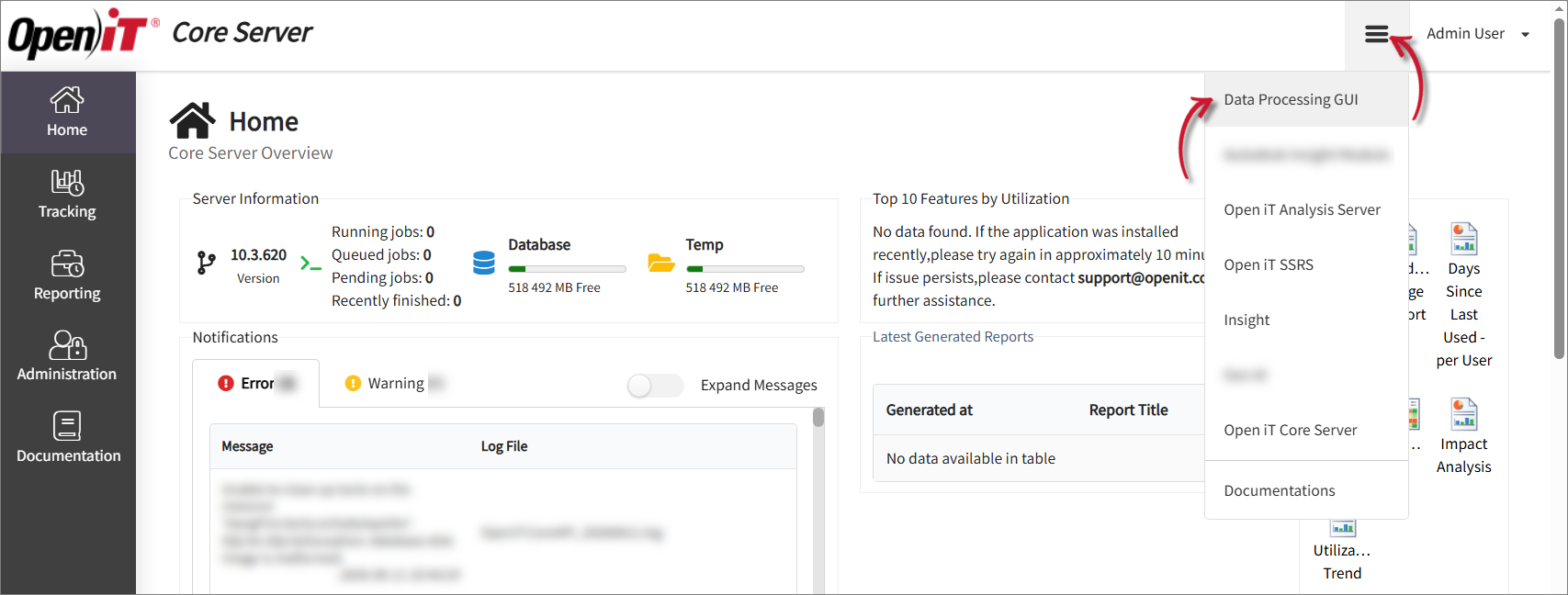 Click Data Processing GUI
 -
In the left navigation pane, select Lineage.
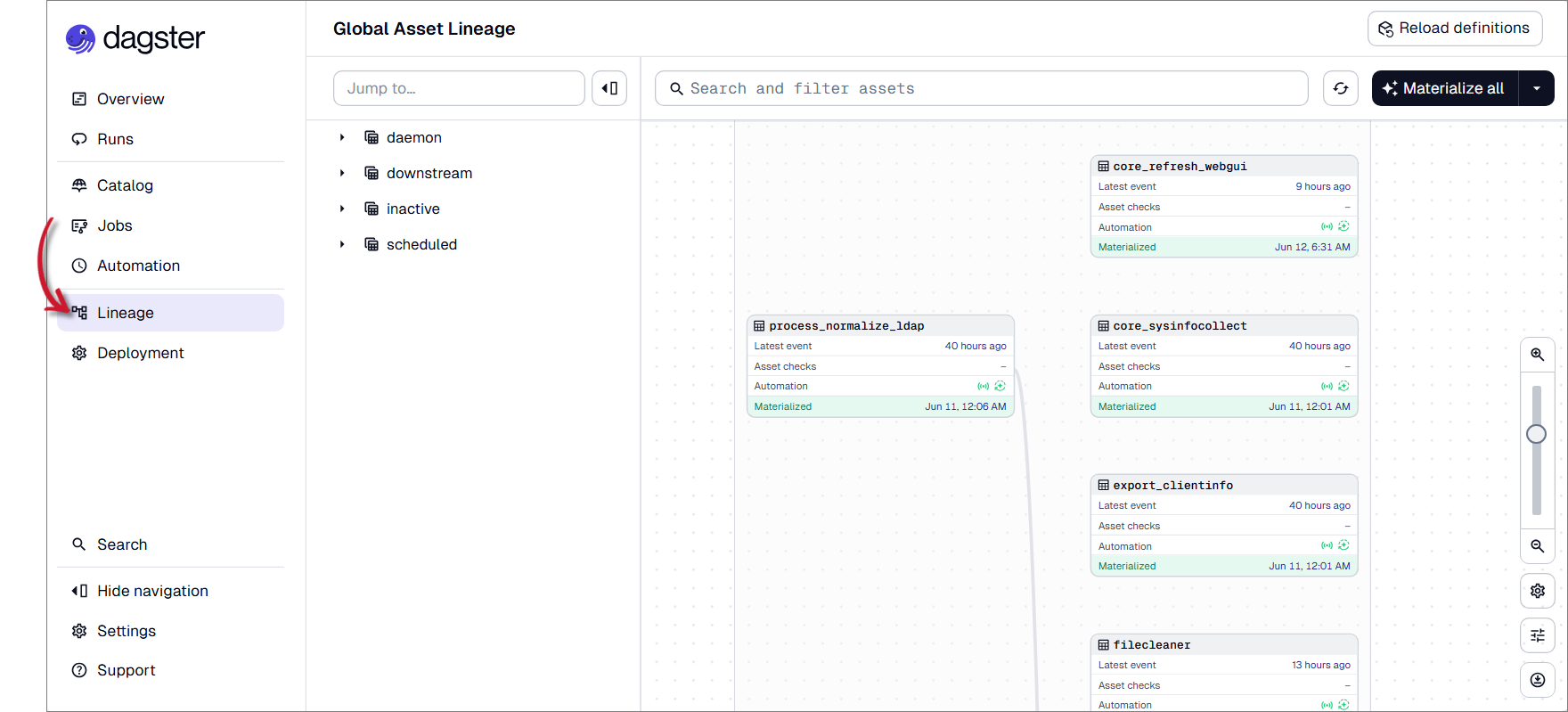 Select Lineage
 -
Review the lineage relationships between assets associated with Open iT components. The Lineage page displays how assets depend on one another through the following:
- a. Upstream assets are assets that provide data or inputs required by the selected asset.
- b. Downstream assets are assets that consume the output of the selected asset.
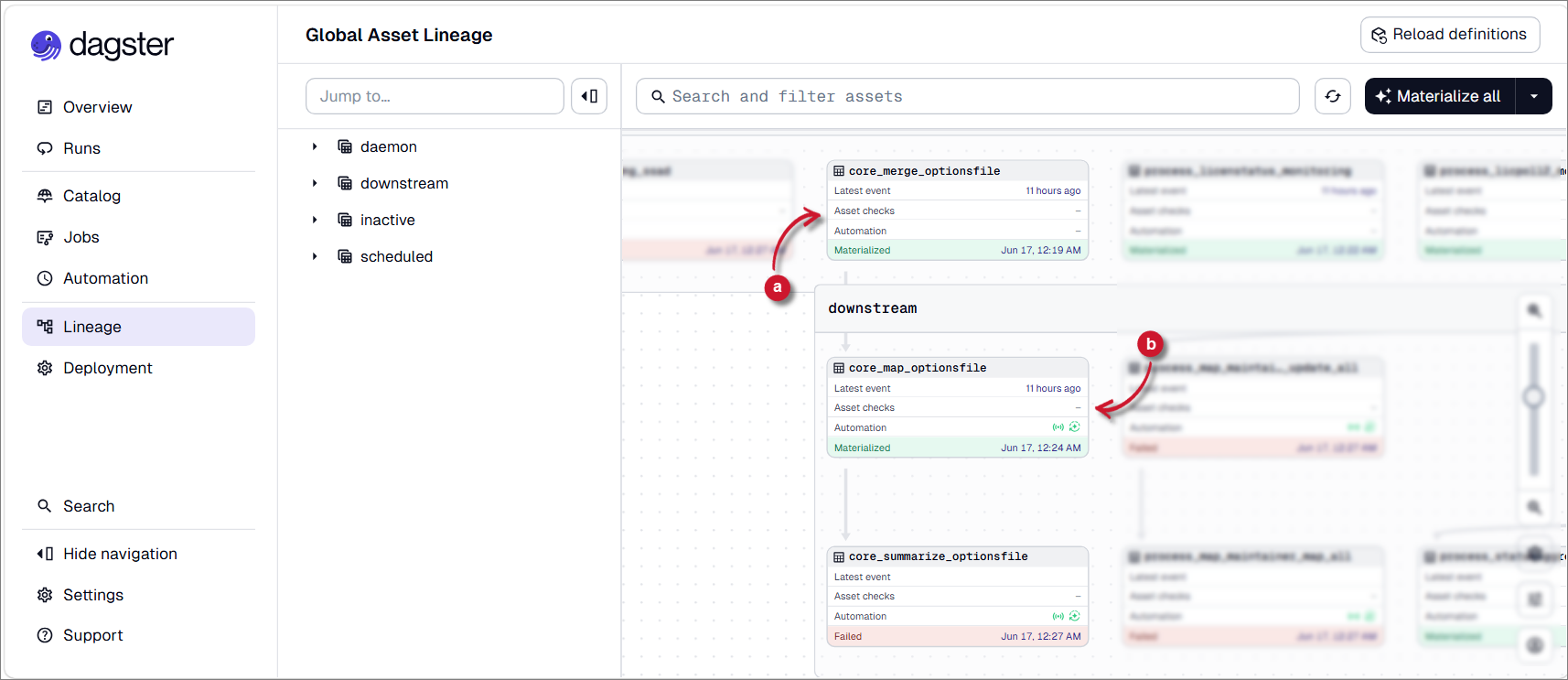 Upstream and Downstream Assets
In this example,
core_merge_optionsfileis the selected Upstream Asset which provides input data required by the Downstream Assetcore_map_optionsfile. Ifcore_map_optionsfilefails, first verify whether its upstream asset (core_merge_optionsfile) completed successfully.tipWhen tracing the root cause of an issue, begin with the earliest failed asset in the dependency chain and work downstream. Resolving an upstream failure often resolves failures in dependent downstream assets.
-
To check the status of asset, review the following operational details:
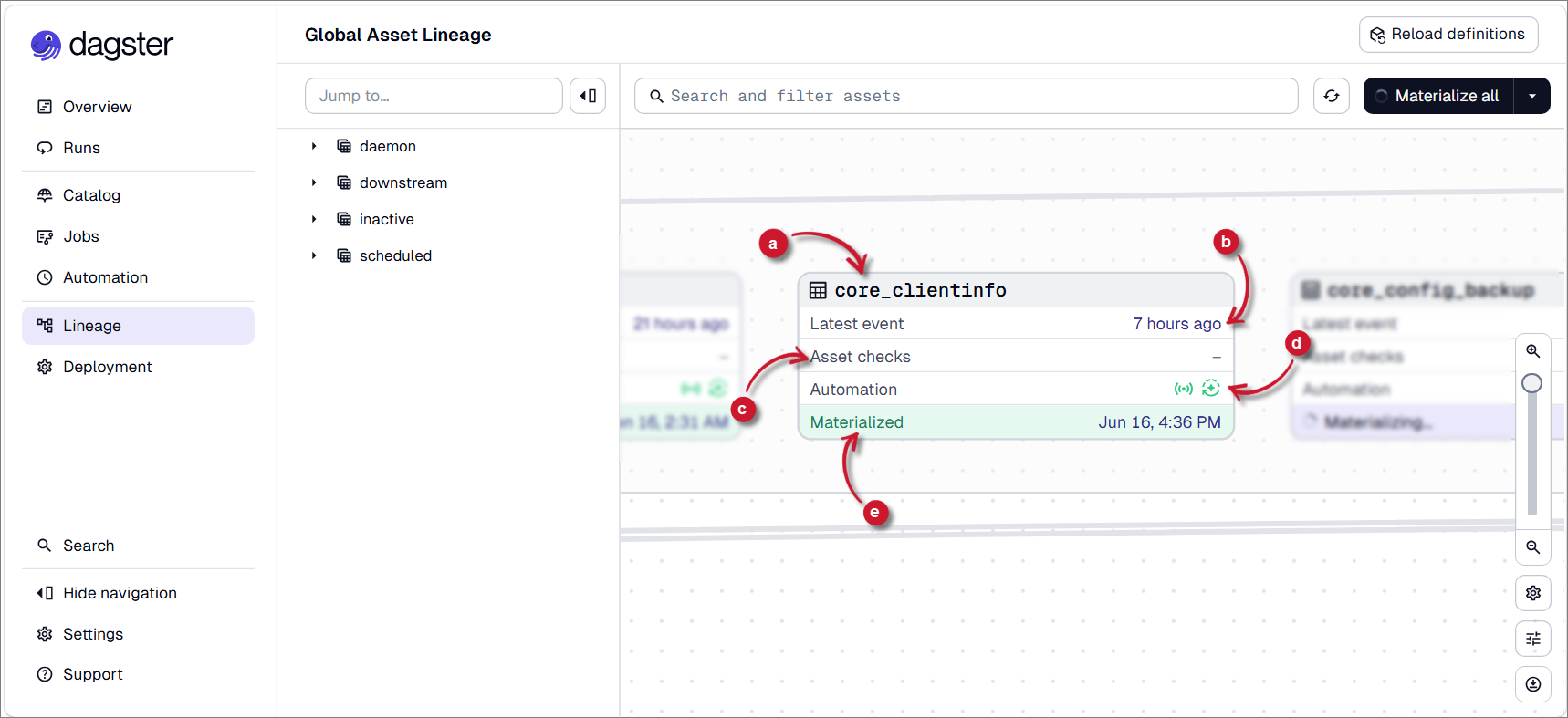 Asset Operational Details
Field Description a. Asset Name The name of the processing asset. b. Latest Event Displays the most recent execution activity for the asset. Verify that the timestamp is recent and reflects the latest expected operation. c. Asset Checks Displays the results of health, validation, or quality checks configured for the asset. This field may be blank if: - no asset checks have been defined
- checks have not yet been executed
- if the asset does not require validation checks
d. Automation Displays the status of automations associated with the asset. Automations are rules or schedules that automatically trigger asset processing, materializations, or other workflows when specific conditions are met. Review this field to confirm that configured automations are active and operating as expected. e. Materialization Status Indicates the latest processing result of the asset. A successful status confirms that the asset was materialized and its data was generated or updated successfully. Asset Operational Details
If an asset displays a Failed status, click the asset card to review its details. Before troubleshooting the asset itself, review its upstream and downstream dependencies to determine whether the failure originated from a dependent asset or has affected other assets in the lineage graph.
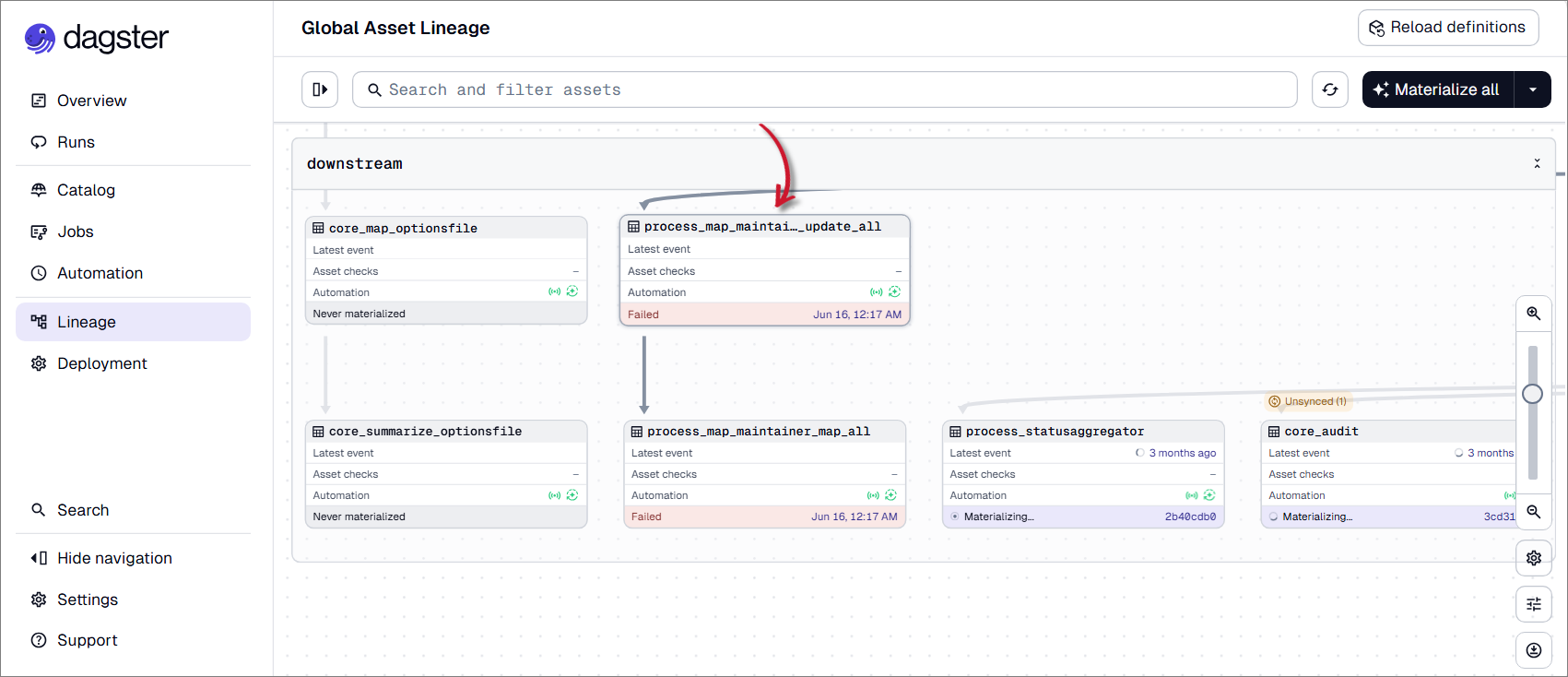 Failed Asset
To review error-related logs, scroll to the logs section and click the View logs button.
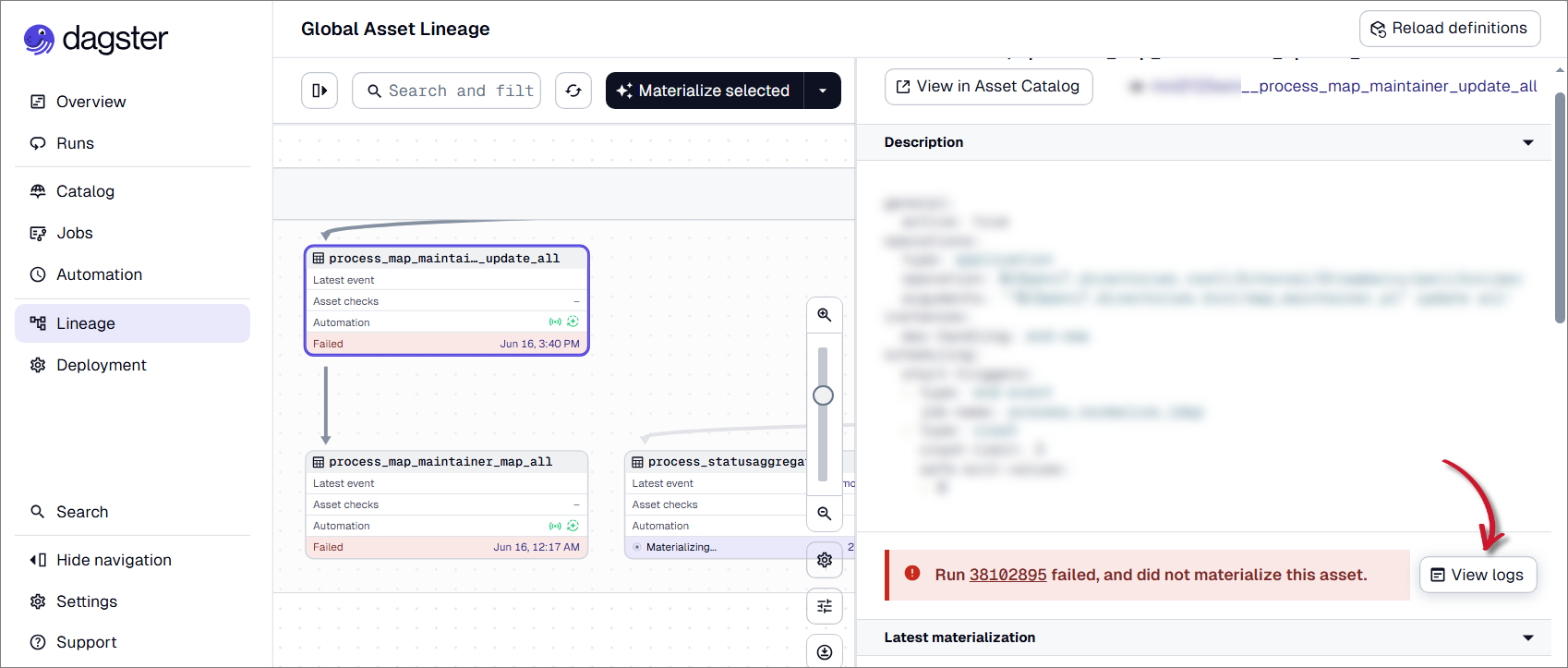 View Logs
If additional details are required, click View full message to display the complete error message and stack trace.
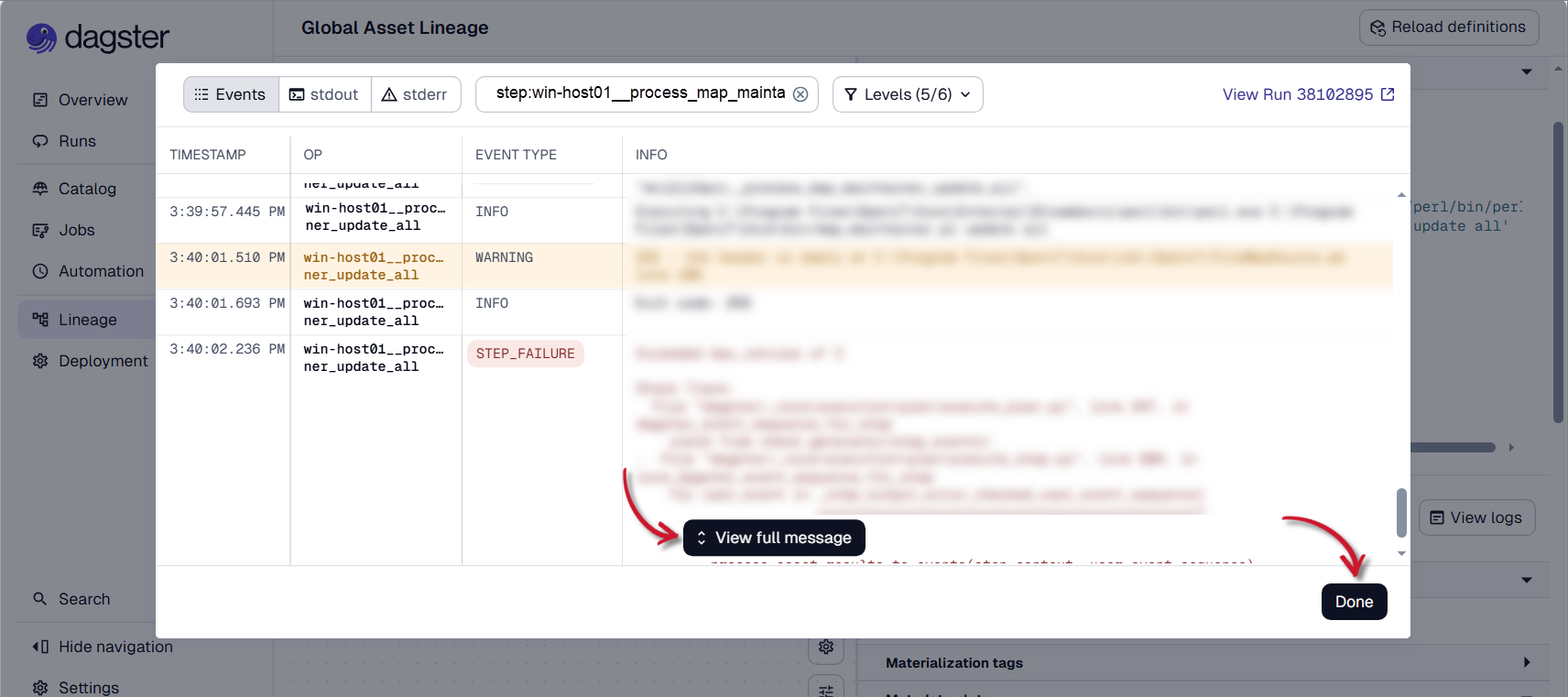 View full messageNote
If the error cannot be resolved using the available logs or troubleshooting steps, kindly reach out to the Support Team for further assistance.
After resolving the identified issue, click Materialize Selected to re-execute the asset and verify that it completes successfully.
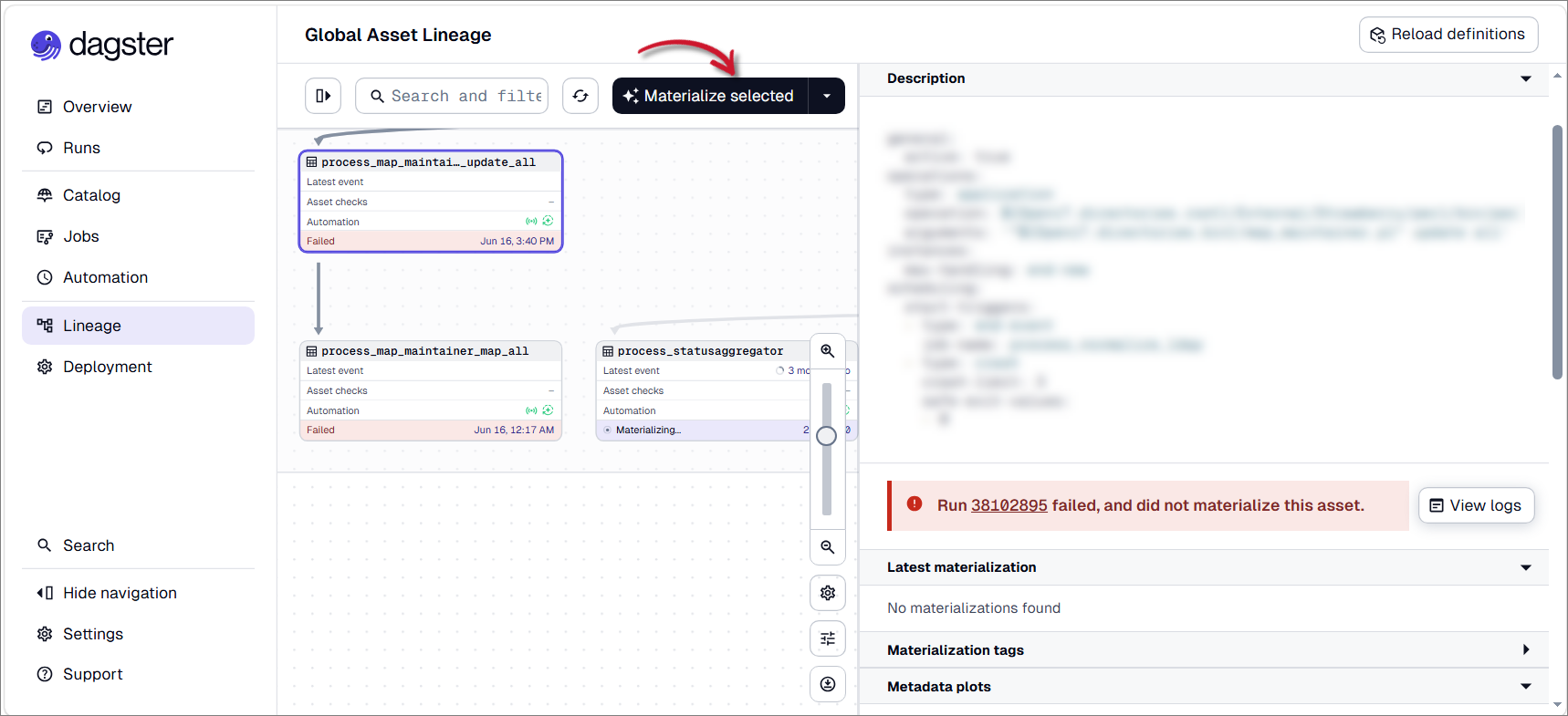 Materialize Selected Asset
 -
Monitor the materialization process and confirm that the asset completes without errors.
Reloading Definitions
The Lineage page provides Reload definitions option that refreshes the displayed asset definitions and processing metadata. This is useful when assets are not displayed correctly, when recent configuration changes are not reflected, or when the displayed asset metadata needs to be refreshed.
It is recommended to use this option after:
- configuration changes
- component updates
- asset modifications
To reload asset definitions:
-
In the Lineage page, review the displayed assets and confirm whether the expected assets are visible.
-
In the upper-right corner of the page, click Reload definitions.
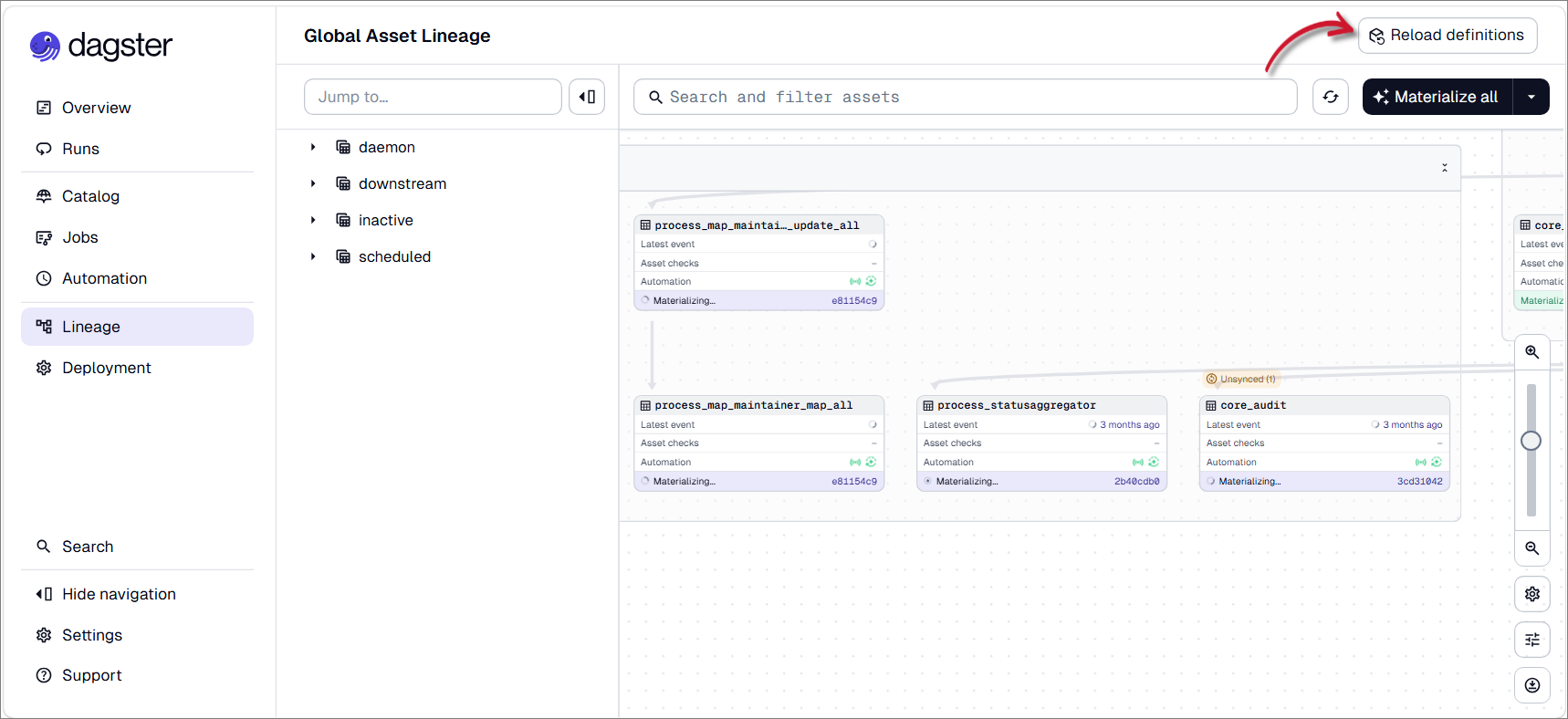 Click Reload Definitions
Wait for Dagster to reload the asset definitions.
-
After the reload is complete, verify that the asset list and asset details are updated.
If the expected assets are still missing or the displayed information remains outdated after reloading definitions, refresh the browser and revisit the Lineage page. If the issue persists or any errors are encountered, contact the Support Team for further assistance.