Installation Requirements
Version Compatibility
Core Server version 10.2 requires the following versions of Ingress:
- 1.0.22 and later
Core Server version 10.2 is tested and verified to be compatible with the following versions of the Core Client:
- 9.17.650 and later
- 9.19.550 and later
- 10.1.140 and later
If you are managing clients using versions 9.19 and 10, please note that a new CPU calculation feature is enabled by default in version 10. This feature was also introduced in version 9.19.480, but is disabled by default in that version.
To ensure consistent CPU utilization values, please refer to the Configuring CPU Calculation section.
Operating System
- Windows
- Unix
| Operating System | Version |
|---|---|
| Windows | 10 (1607 and 1809) and later |
| Windows Server | 2016 (1607) and later |
Microsoft Visual C++ Redistributable
Open iT requires Microsoft Visual C++ Redistributable for Visual Studio 2015 on Windows systems.
If a compatible version is not yet installed, download and install Visual C++ Redistributable for Visual Studio 2015 before proceeding with the Open iT installation.
.NET Framework
Open iT requires .NET Framework 4.8 or later on Windows systems.
If a compatible version is not yet installed, download and install .NET Framework 4.8 Runtime before proceeding with the Open iT installation.
| Operating System | Version |
|---|---|
| Red Hat Enterprise Linux (RHEL) | 8 and later |
| CentOS | Stream 9 and later |
Libraries
- system library libnsl.so.1 and libcrypt.so.1
- libgomp
- chkconfig (for RHEL 9.x)
- libjpeg62 or libjpeg-turbo
- libX11 and libX11-devel
- libSM
- libXext
Dedicated User and Group
- Root-level access
- Dedicated User: openit-user
- Dedicated Group: openit-group
Synchronized System Clocks
Verifying the time synchronization of the Open iT Core Server and Client is essential to avoid data polling with bad timestamps, which can cause data integrity loss. It is also critical for multiple clients or triad situations, especially over more than one location. NTP (Network Time Protocol) utilities, such as xntpd, are essential for achieving synchronized system clocks.
Make sure that the host is reachable by other machines over the network.
Open iT supports Red Hat OpenShift Virtualization (KubeVirt).
This enables customers to deploy and manage Windows Server and RHEL-based Open iT components on OpenShift-managed virtual machines, alongside containerized workloads, using OpenShift’s standard provisioning and management tool.
This support has been tested and verified with Open iT version 9.19.450 and 10.2.x.
Administrative Rights
The Open iT Core Server and Client installation requires Administrative Access Rights to the host machine for successful directory and file creation.
Enabling 8.3 Name Creation
8.3 name creation is a feature that automatically generates short (DOS-style) file and folder names to ensure compatibility with applications that cannot process long paths.
If you are installing the Open iT Core Server on a drive where 8.3 name creation is disabled, or in a directory whose path contains spaces in the folder name (e.g., D:\Program Files\OpeniT), you must enable 8.3 name creation before proceeding with the installation.
If you are installing on a drive where 8.3 name creation is already enabled (e.g., Drive C:), or in a directory without spaces in the folder name (e.g., D:\OpeniT), you may skip this step and proceed with the installation.
Some drives, such as Drive D:, typically have 8.3 name creation disabled by default. This can cause Open iT components to fail when accessing paths that contain spaces. Follow this guide to check and enable 8.3 name creation to ensure the proper installation and operation of the Open iT Core Server.
-
Open a command prompt with Administrator privileges.
-
Check the 8.3 name creation setting for your installation drive. In this scenario,
Drive D:will be the installation drive. Run the command:Command Syntaxfsutil 8dot3name query D:Example output when 8.3 name creation is disabledThe volume state is: 1 (8dot3 name creation is DISABLED)
The registry state is: 2 (Per volume setting - the default) -
Enable the 8.3 name creation for
Drive D:, run the command:Command Syntaxfsutil 8dot3name set D: 0noteThis change is not retroactive. Only newly created folders or files on
Drive D:will be affected. Existing items will not automatically receive short names. -
Verify that 8.3 name creation has been enabled on your installation directory, run the command:
Command Syntaxfor %A in ("<install_dir>") do @echo %~sAwhere
<install_dir>is the path of the installation directory.Examplefor %A in ("D:\Program Files\OpeniT") do @echo %~sAExample result when 8.3 name creation is enabledD:\PROGRA~1\OpeniTAfter completing all the requirements, you may proceed with the Core Server installation.
Open iT Software
-
Go to the Open iT Customer Portal.
-
When prompted, provide a valid email address. Click NEXT.
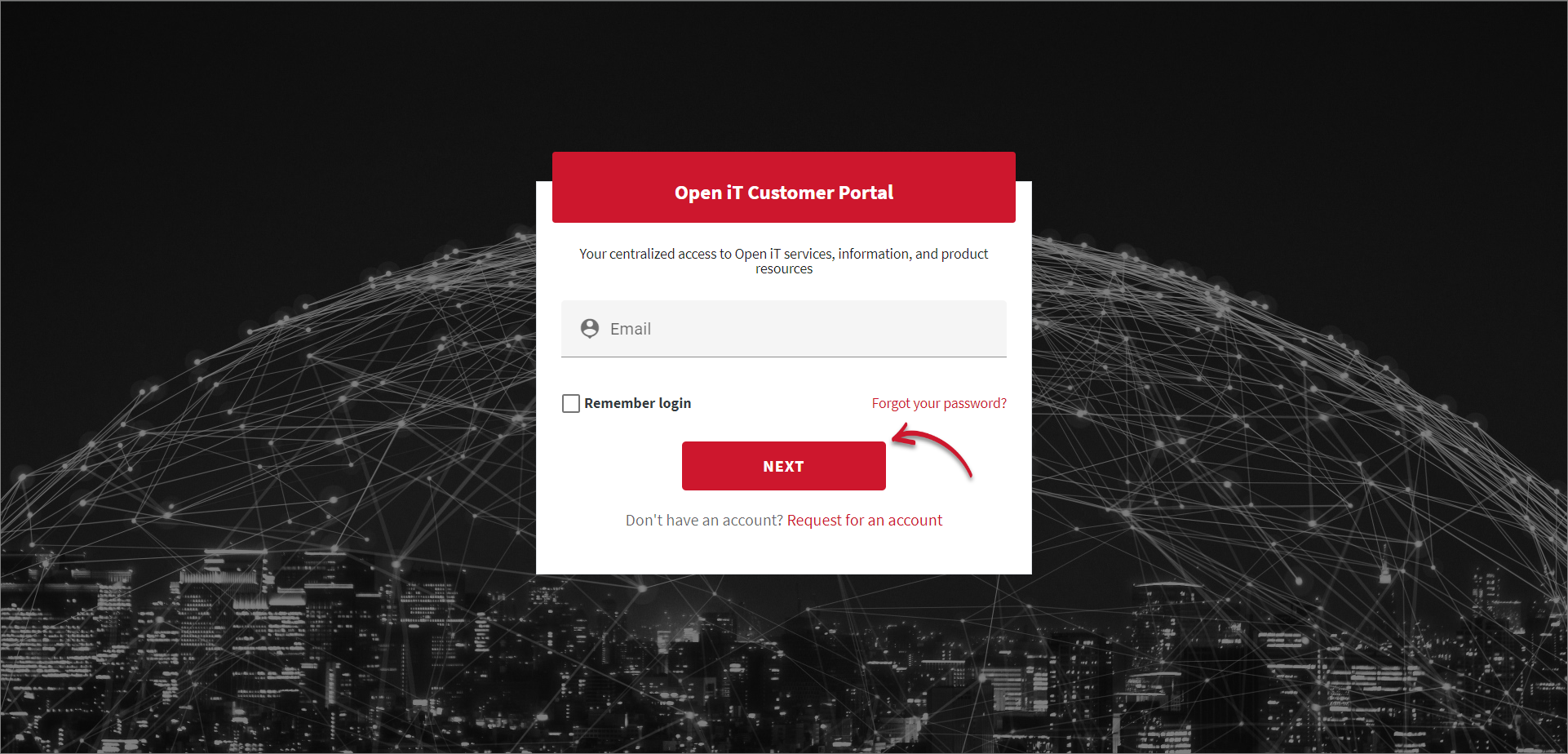 Customer Portal Login
If you do not have an account, click the Request for an account link at the bottom of the dialog.
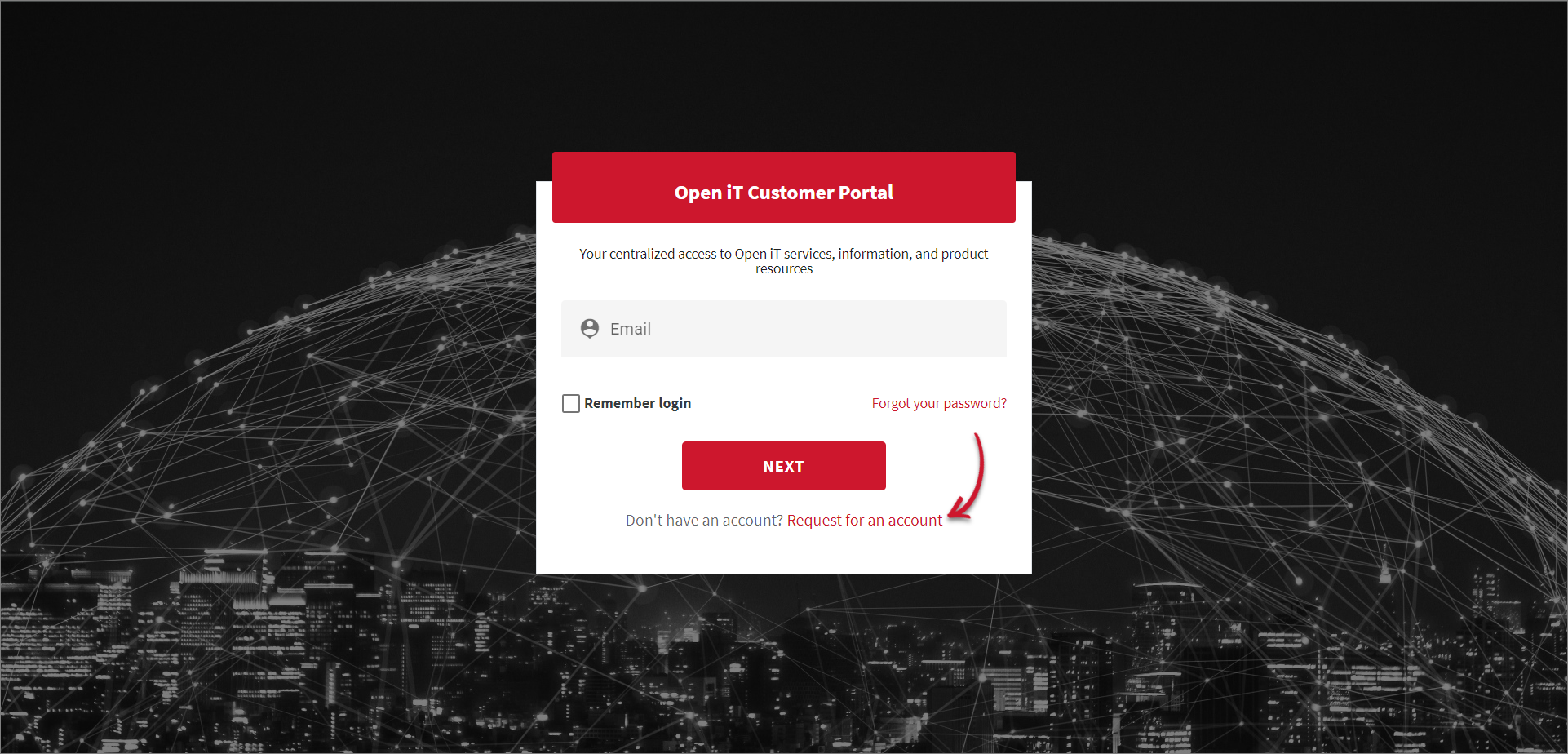 Customer Portal Account Request
The link redirects to the Request Account dialog. Provide the required details, then click REQUEST. Please wait for our Sales Representatives to validate the request. Once validated, an email will be sent to the provided email address.
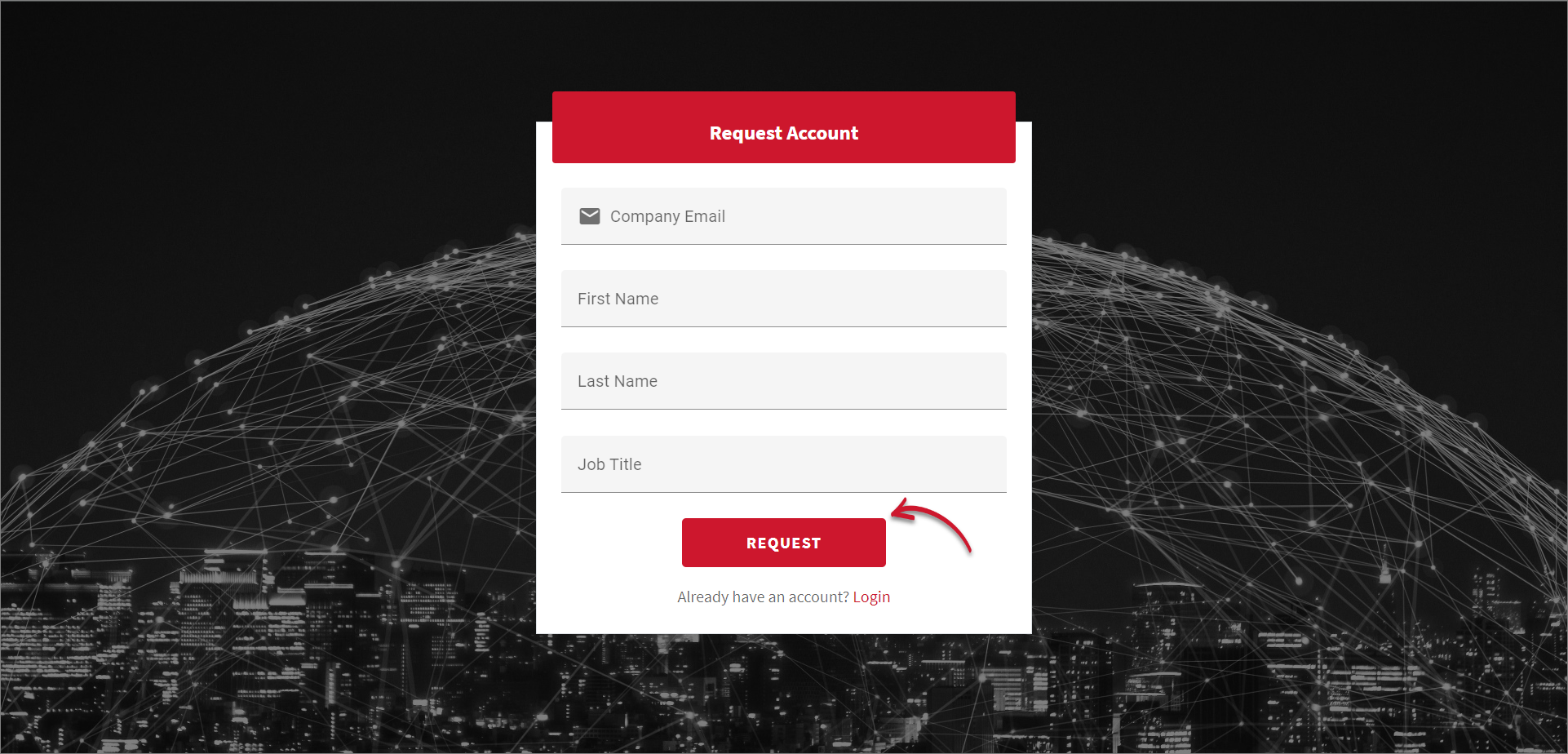 Request Account
 -
Once logged in, click Releases. This page shows the latest versions of the Open iT products.
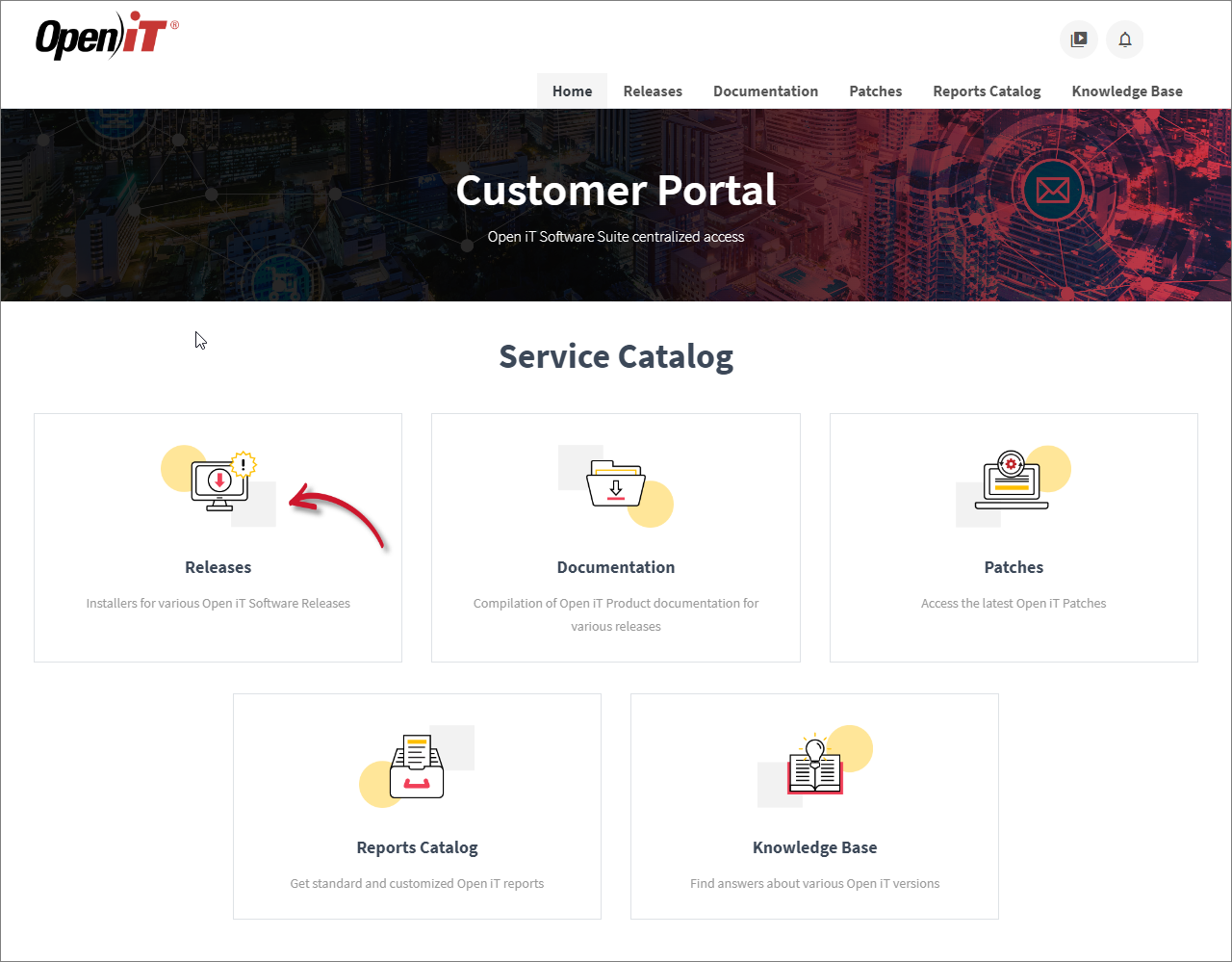 Releases
 -
Click the Download button of the specific product, then select the appropriate installer file to download.
warningIt is recommended to install the current stable version for production purposes.
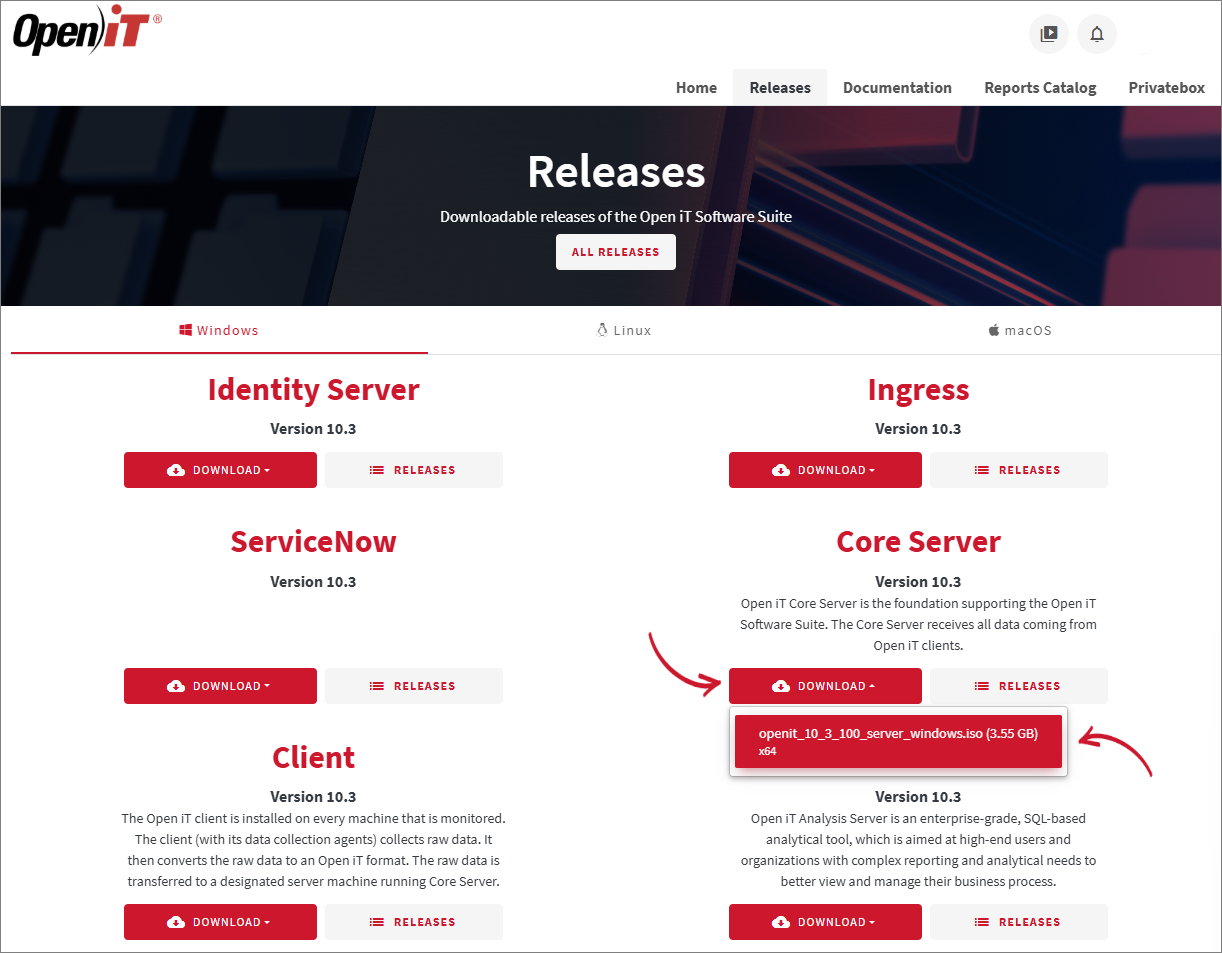 Download Installer
If you need a previous or specific version, click the Releases button of the desired product to see all the supported versions. Click the version number to be redirected to where you can download the installer.
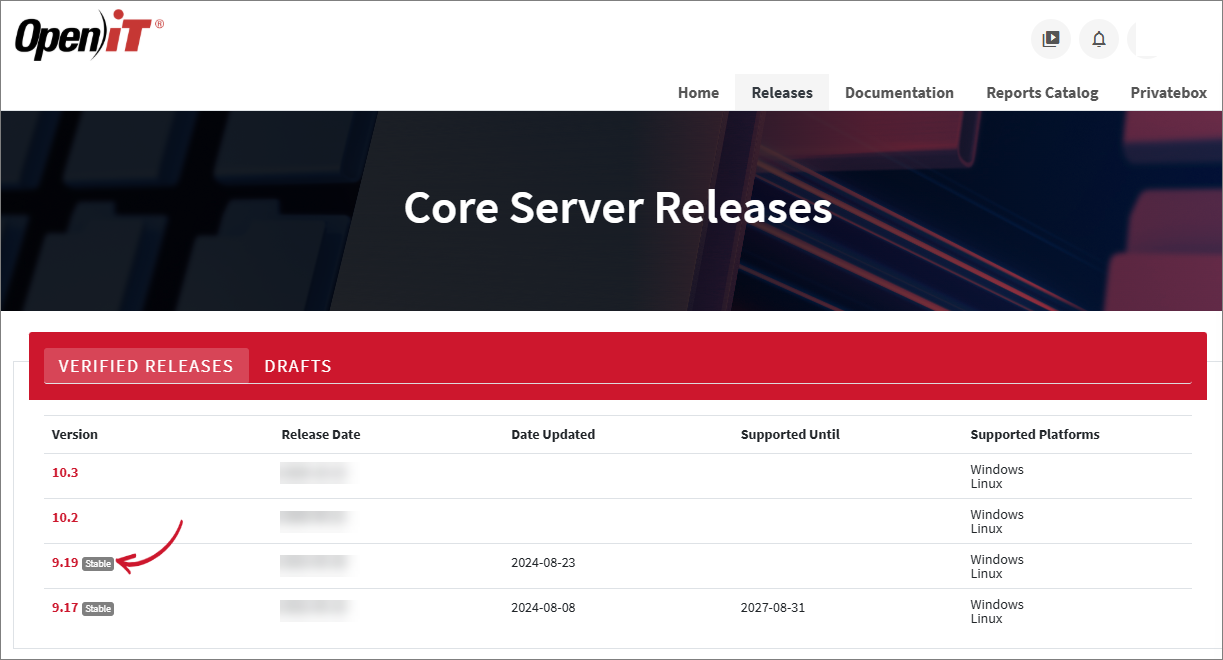 Previous Version
Open iT Software License
The setup program installs the Open iT software with a temporary license to run it immediately. Install a proper license key as soon as possible.
Send an email request to license@openit.com to obtain a proper license key.
Port Numbers Used by Open iT
The unified navigation for Open iT web interface uses port 443 for HTTPS and port 8080 for HTTP as the primary entry points.
Standard Open iT Server and Client Communication
Open iT Clients initiate outbound connections to the Open iT Server or Ingress using the configured server URI and port. The Open iT Server must allow inbound connections from clients on the configured HTTP/HTTPS port.
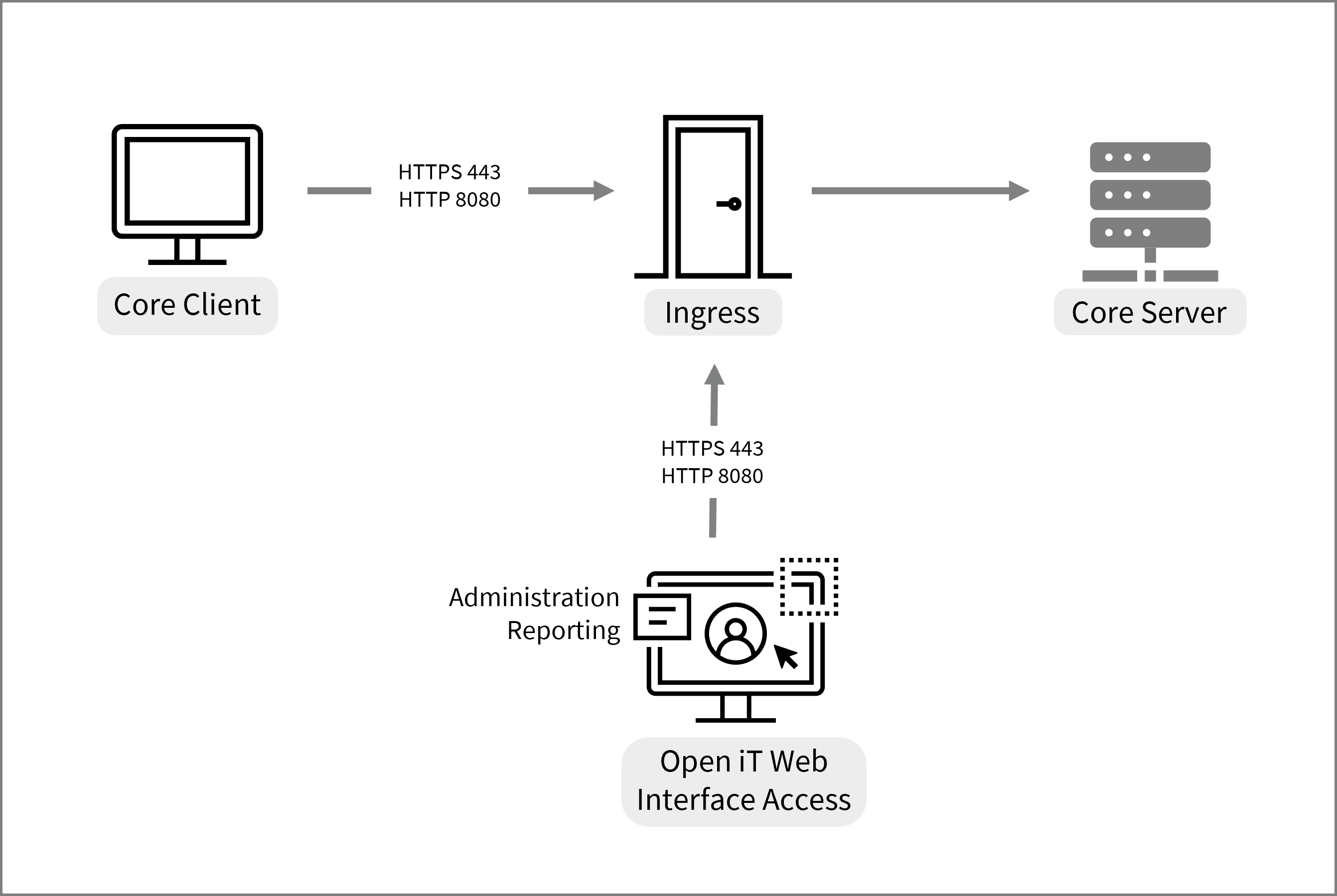
Optional Forward Proxy Setup
If a Forward Proxy is used, clients connect to the Forward Proxy instead of directly connecting to the central Open iT Server. The Forward Proxy must allow inbound connections from clients and outbound connections to the configured destination server URL.
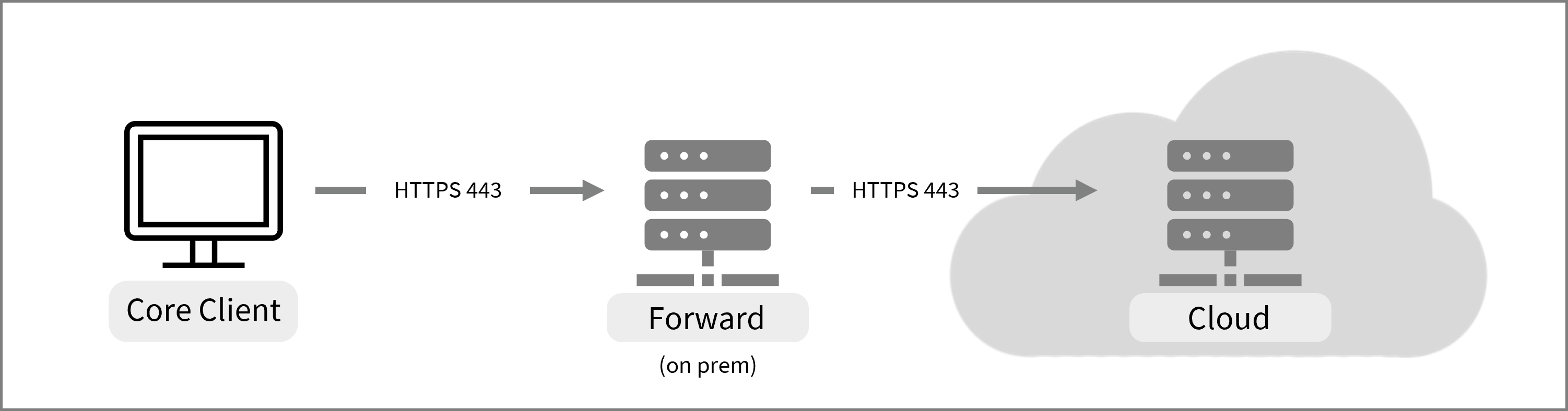
| Component | Inbound Firewall Rule | Outbound Firewall Rule |
|---|---|---|
| Open iT Client | Not required for this connection | To Forward |
| Forward Proxy | From Open iT Clients | To Cloud |
| Cloud | From Forward Proxy | Optional |
For full configuration details, see the Forward Proxy documentation.