Checking Job Status
The Jobs view provides a timeline of job executions across all configured code locations that are associated with Open iT components. This view guides you to verify that scheduled and manually triggered jobs are executing successfully and identify any failed executions that may affect data collection, processing, or reporting.
To check the status of jobs:
-
Access the Core Server web interface.
-
Once the web interface is loaded, click the menu icon located at the top part of the page. Click Data Processing GUI from the dropdown menu.
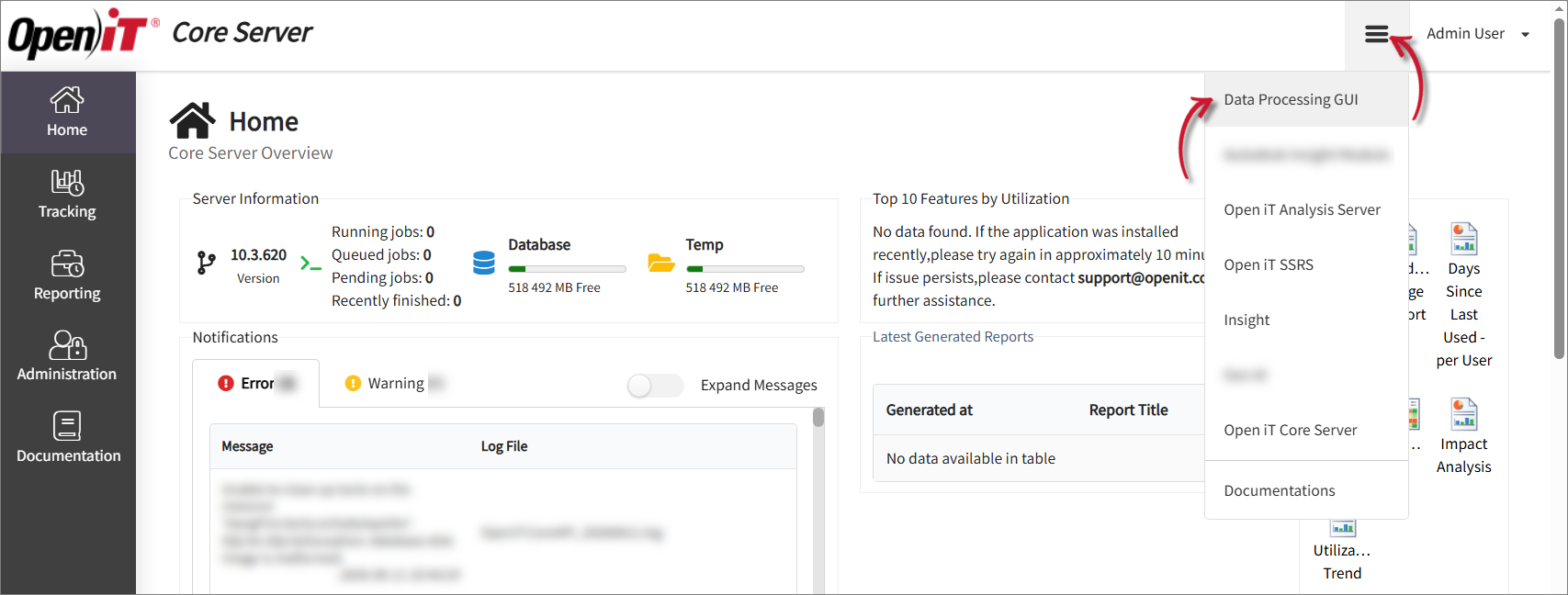 Click Data Processing GUI
 -
In the left navigation pane, select Overview.
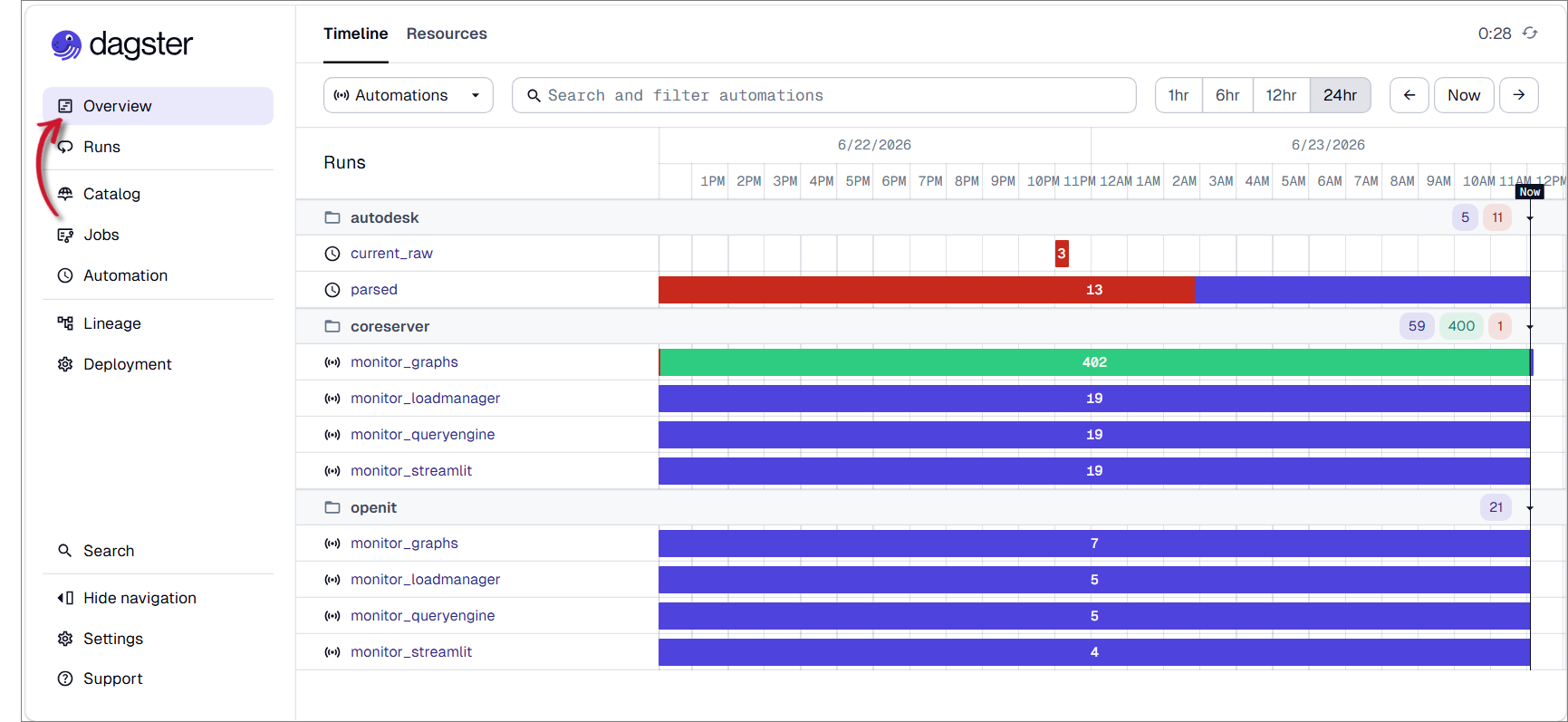 Select Overview
 -
Go to the Timeline tab, then select Jobs from the dropdown menu located at the upper-left part of the page.
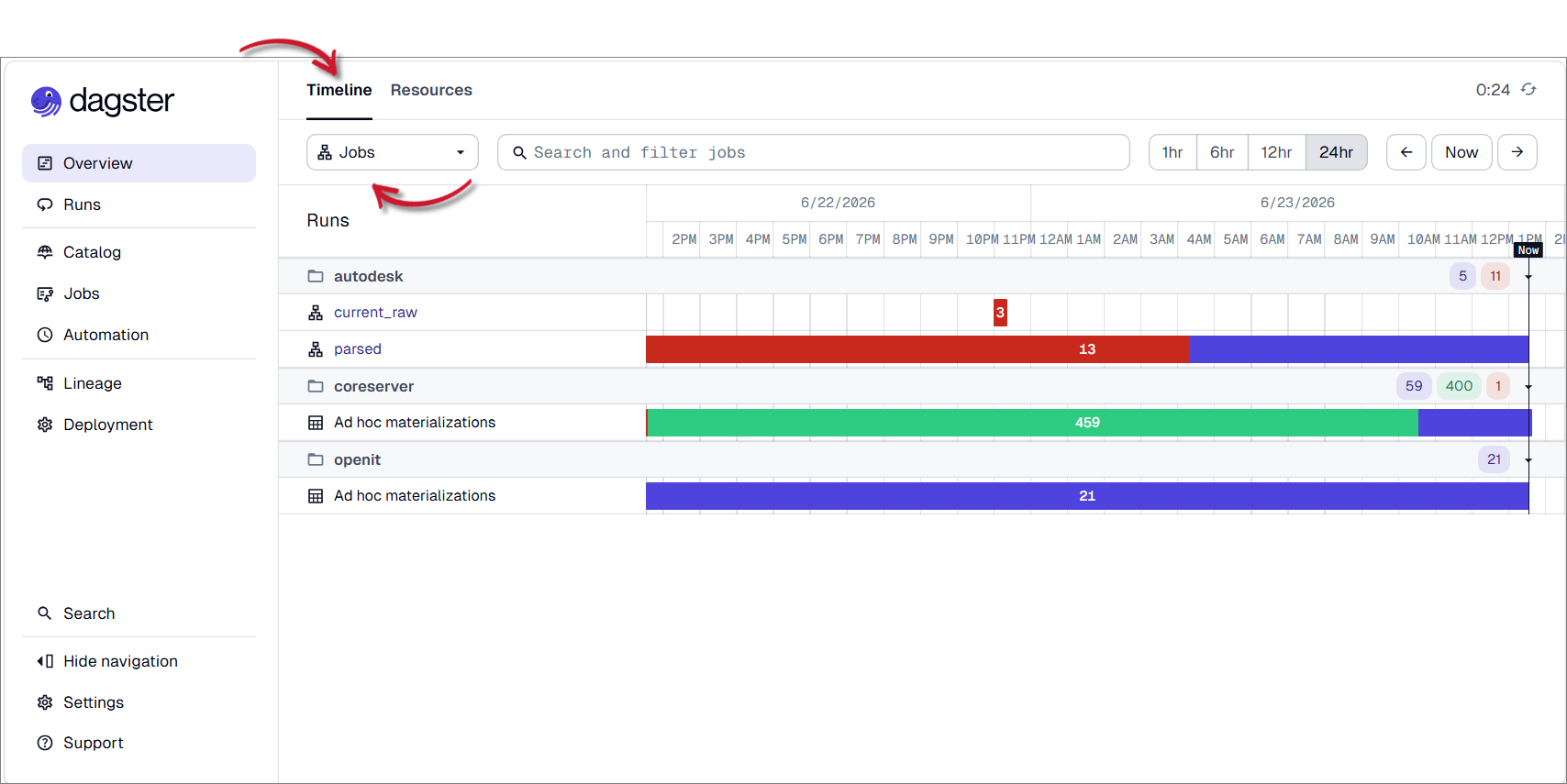 Navigate to Jobs
 -
Check the jobs listed under the Runs section. You may use the available time filters (e.g.
1hr,6hr,12hr, and24 hr) to adjust the displayed period.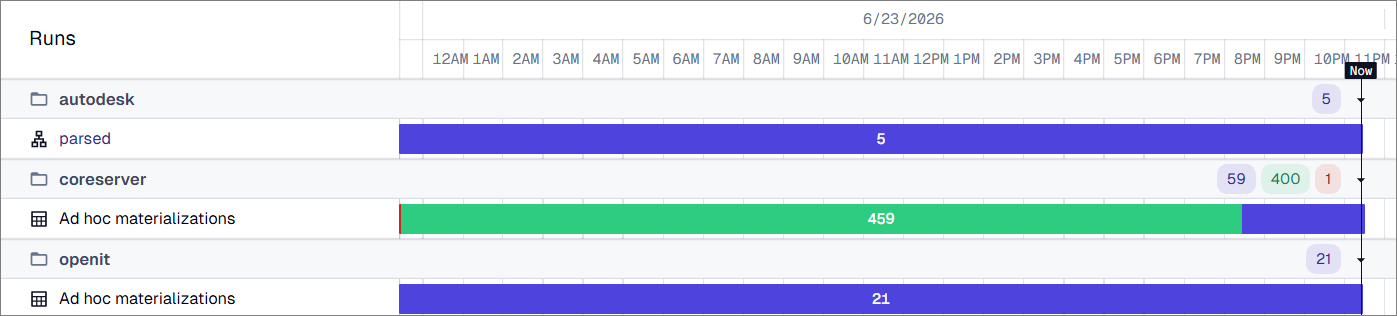 Check Jobs Table
Each row represents a job that may contain the following:
Indicator Description This indicates successful executions. This indicates in-progress executions. This indicates failed executions. Job Status Indicators
In the example:
- the parsed job under
autodeskcode location contains multiple failed executions - the Ad hoc materializations job under
coreservercode location have failed and successful executions - the Ad hoc materialization job under
openitcode location have in-progress job executions
If a particular job failed, click the job to review additional details. This will redirect you to Jobs page.
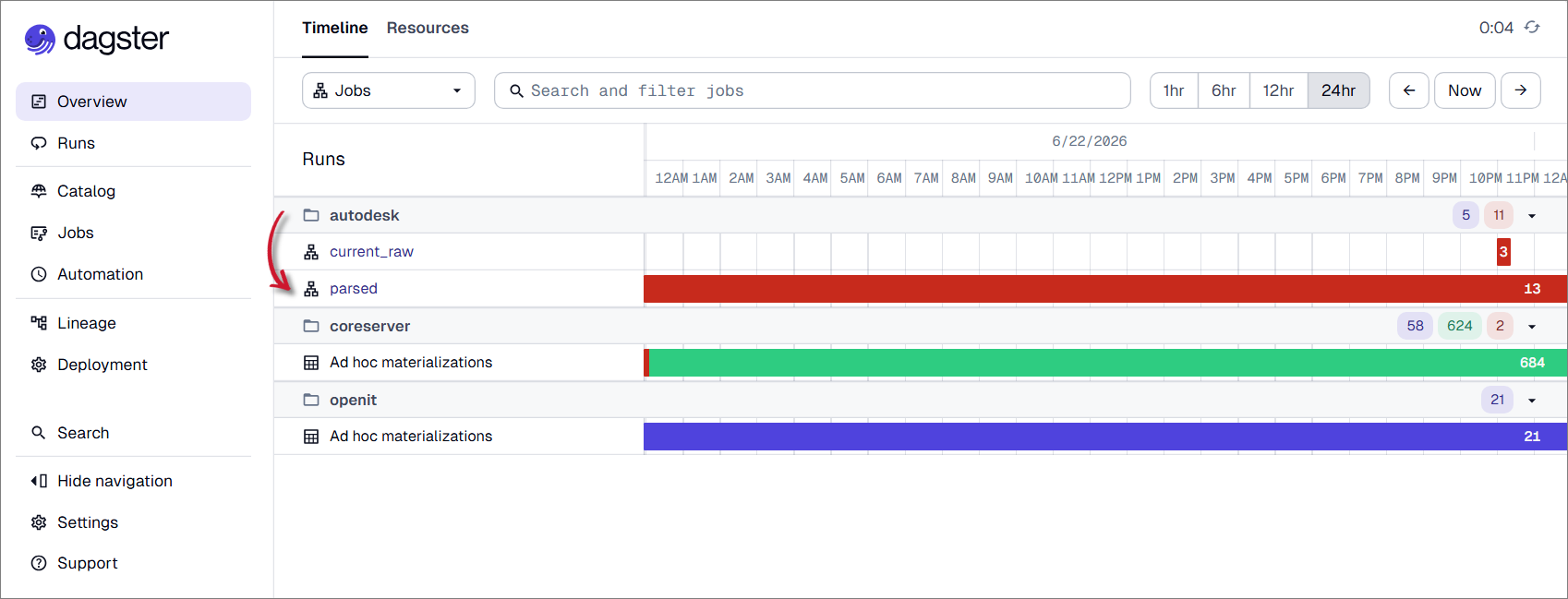 Click the Failed Job
Go to the Runs tab.
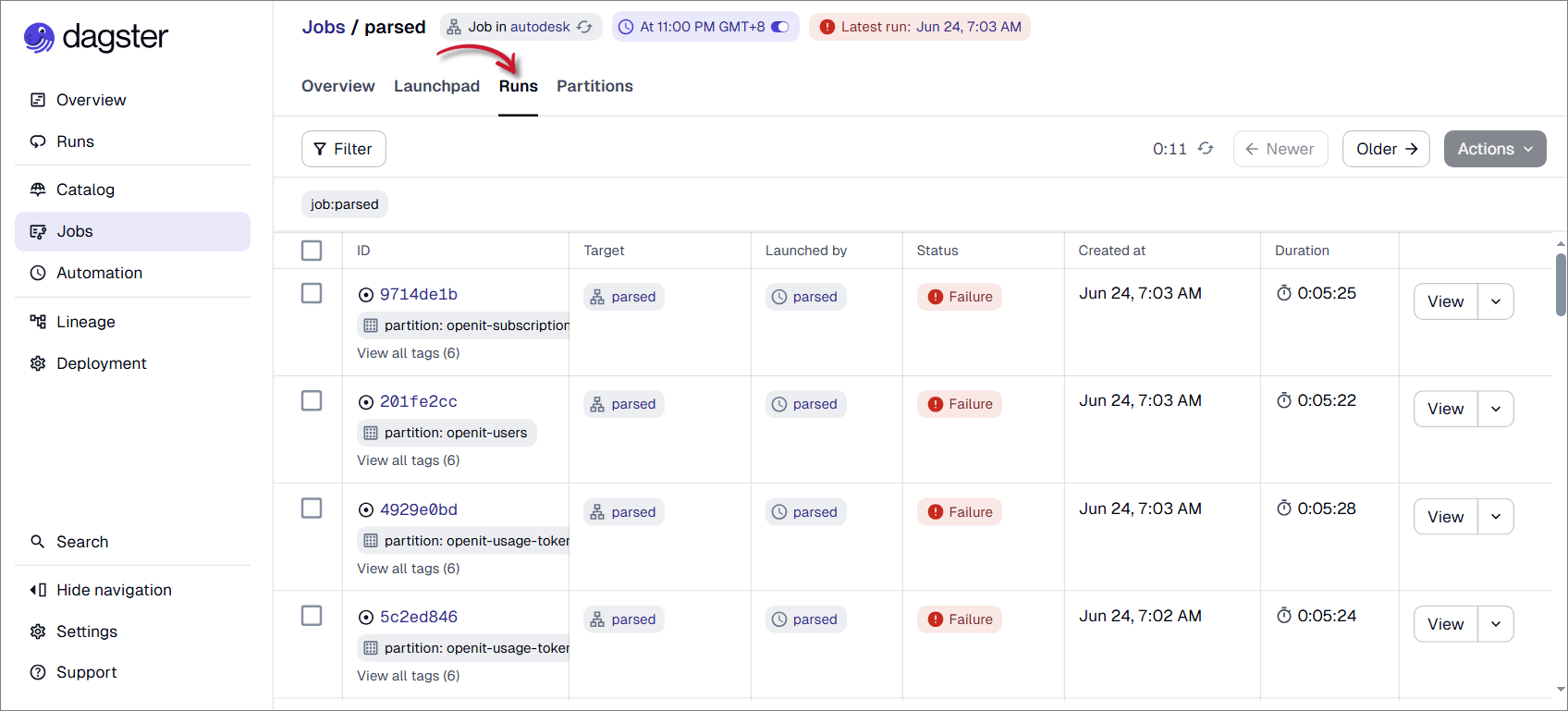 Go to Runs
You may investigate the failed executions. For additional details, you may click View at the end of the corresponding row. This opens the Runs page, where you can review execution logs, error messages, and other diagnostic information that may help identify the root cause of the failure.
- the parsed job under
If the error cannot be resolved using the available logs or troubleshooting steps, kindly reach out to the Support Team for further assistance.