Checking Daemon Status
Dagster daemons are background services that continuously perform automated orchestration tasks within the Dagster environment. These services evaluate schedules and sensors, coordinate run execution, manage asset materializations, and support other automation-related activities associated with Open iT components and plugins.
To check the status of daemons:
-
Access the Core Server web interface.
-
Once the web interface is loaded, click the menu icon located at the top part of the page. Click Data Processing GUI from the dropdown menu.
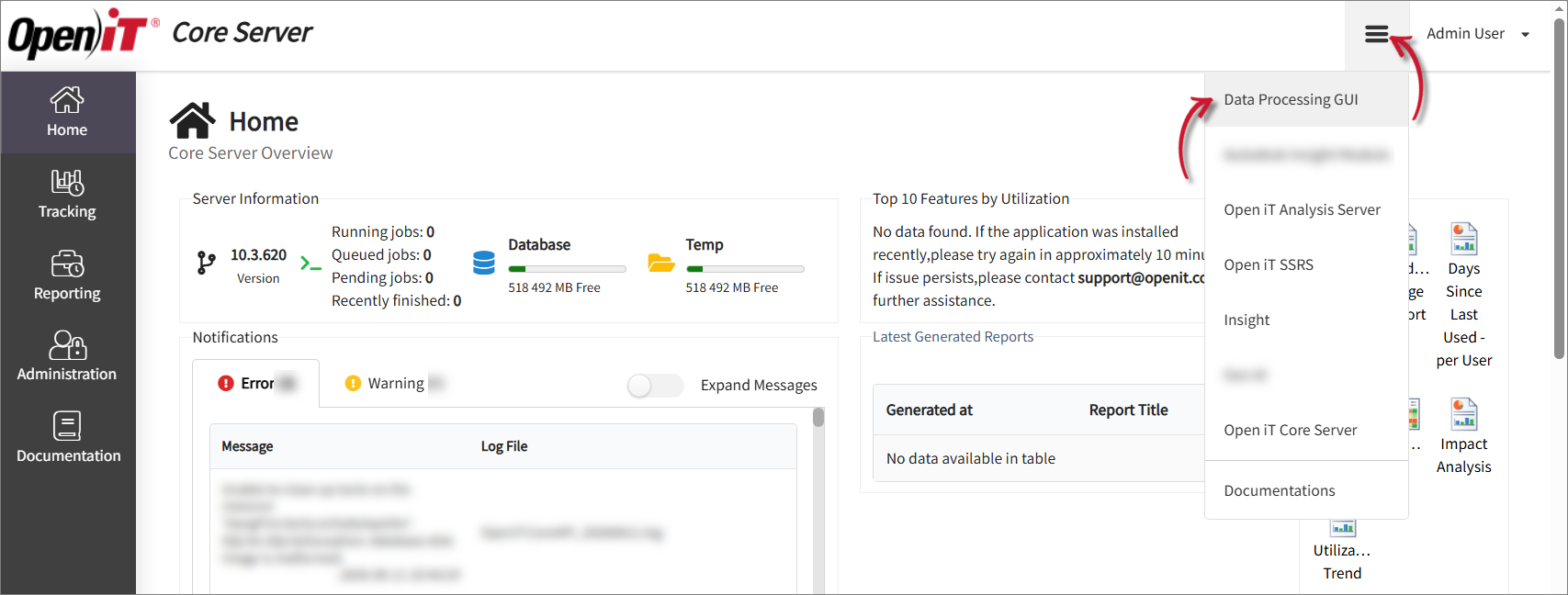 Click Data Processing GUI
 -
In the left navigation pane, select Deployment.
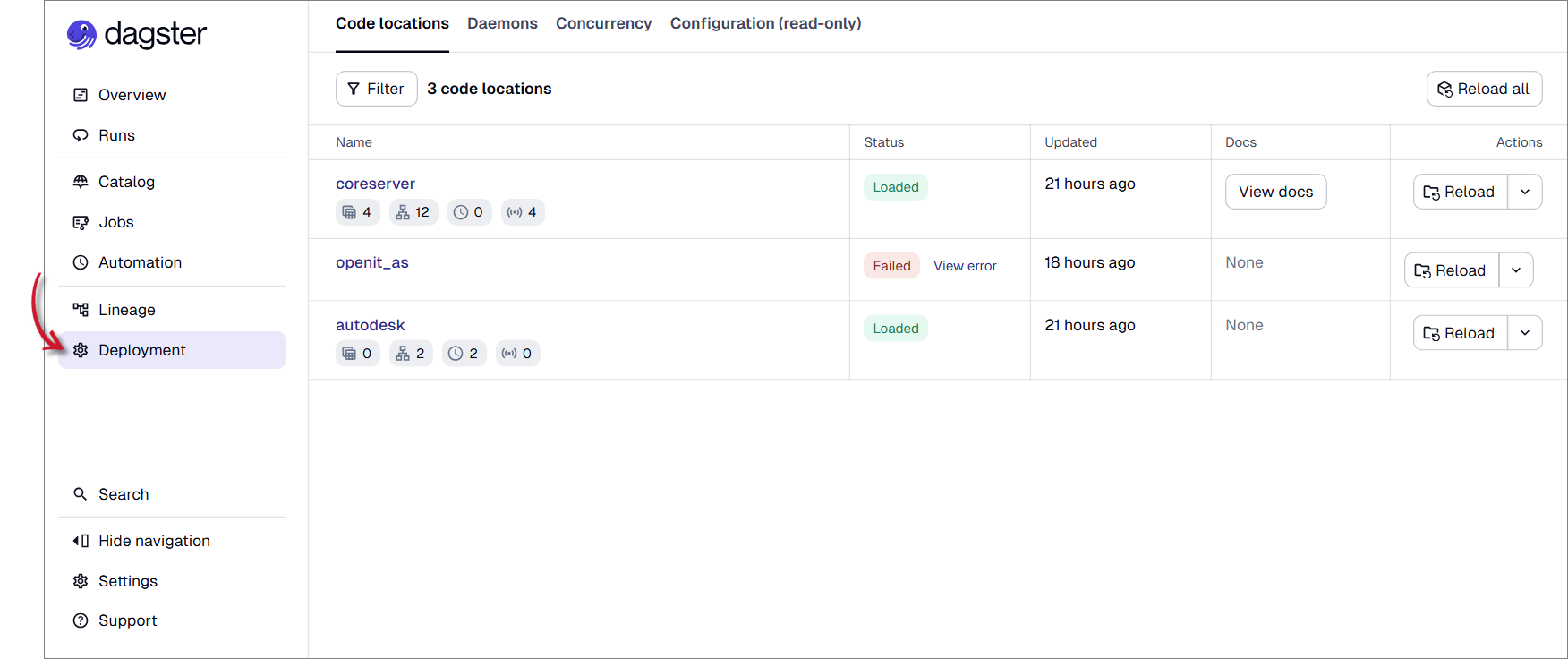 Select Deployment
 -
Go to the Daemons tab located at the upper-part of the page.
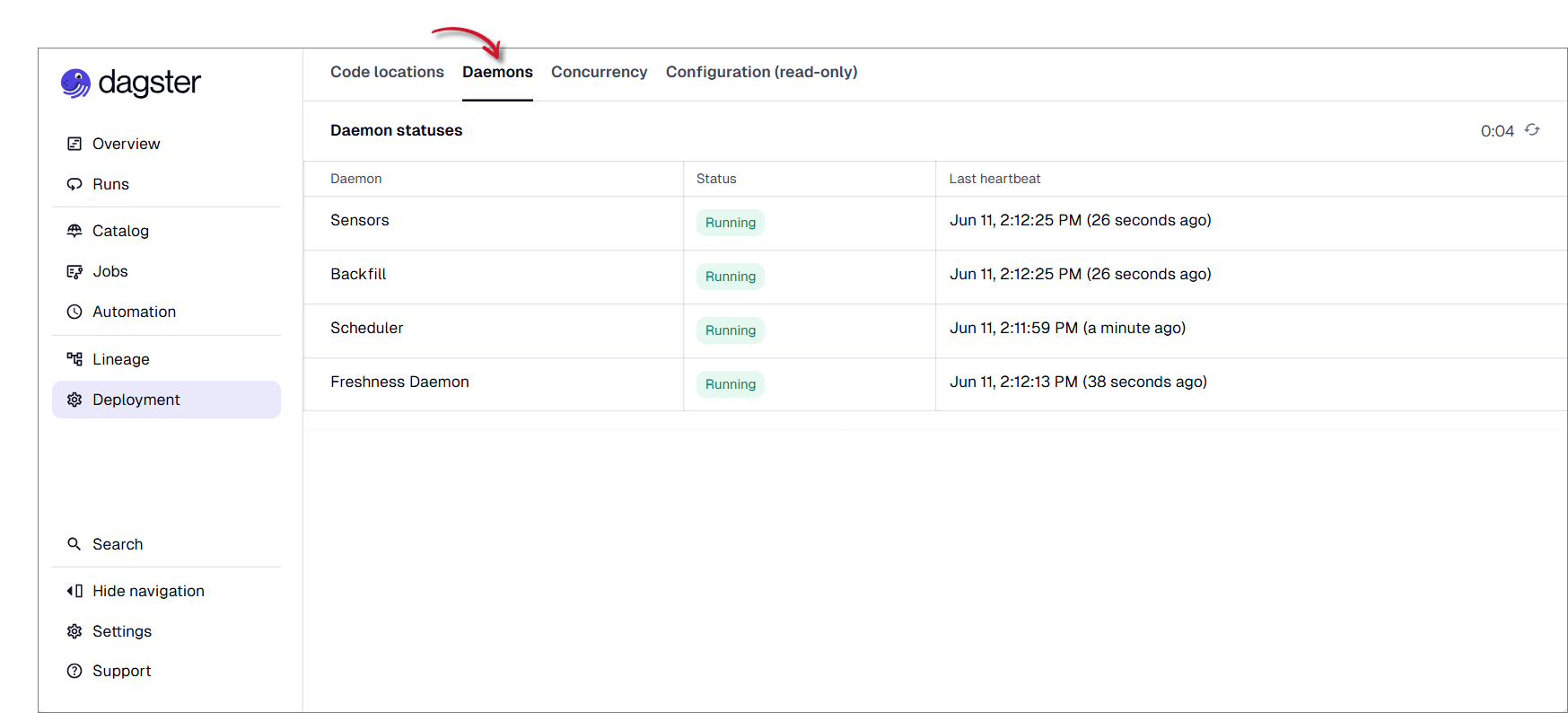 Go to Daemons
 -
Review the operational details of each daemons. Verify that all required daemons are in the Running state. The following daemons should be present:
Daemon Description Sensor Monitors events and automatically starts workflows when predefined conditions are met. Backfill Reprocesses historical data when missing data needs to be recovered or regenerated. Scheduler Runs scheduled workflows, such as data collection and data processing. Freshness Daemon Ensures that collected and processed data remains up-to-date for reporting and analysis. Dagster Daemons
warningIf one or more daemons are not running, the following issues may occur:
- Scheduled jobs may not execute.
- Sensors may stop detecting events.
- Asset materializations may not be triggered.
- Automated workflows may become delayed or fail.
- Data processing pipelines may not run as expected.
If a daemon is not running, open Task Manager and navigate to the Services tab. Verify that the OpeniTOrchestratorDaemon service is running. If the service is stopped, right-click OpeniTOrchestratorDaemon and select Start.
After starting the service, wait a few moments for the daemon to initialize. Then, return to the Data Processing GUI and verify that the affected daemon is running and that its Heartbeat timestamp is updating.
NoteIf the daemon remains unavailable after starting the OpeniTOrchestratorDaemon service, contact the Support Team for further assistance.