Checking Code Location Status
The Code locations contain the definitions of Dagster assets, jobs, schedules, sensors, and other components used by the Open iT data processing workflows.
To check the status of code locations:
-
Access the Core Server web interface.
-
Once the web interface is loaded, click the menu icon located at the top part of the page. Click Data Processing GUI from the dropdown menu.
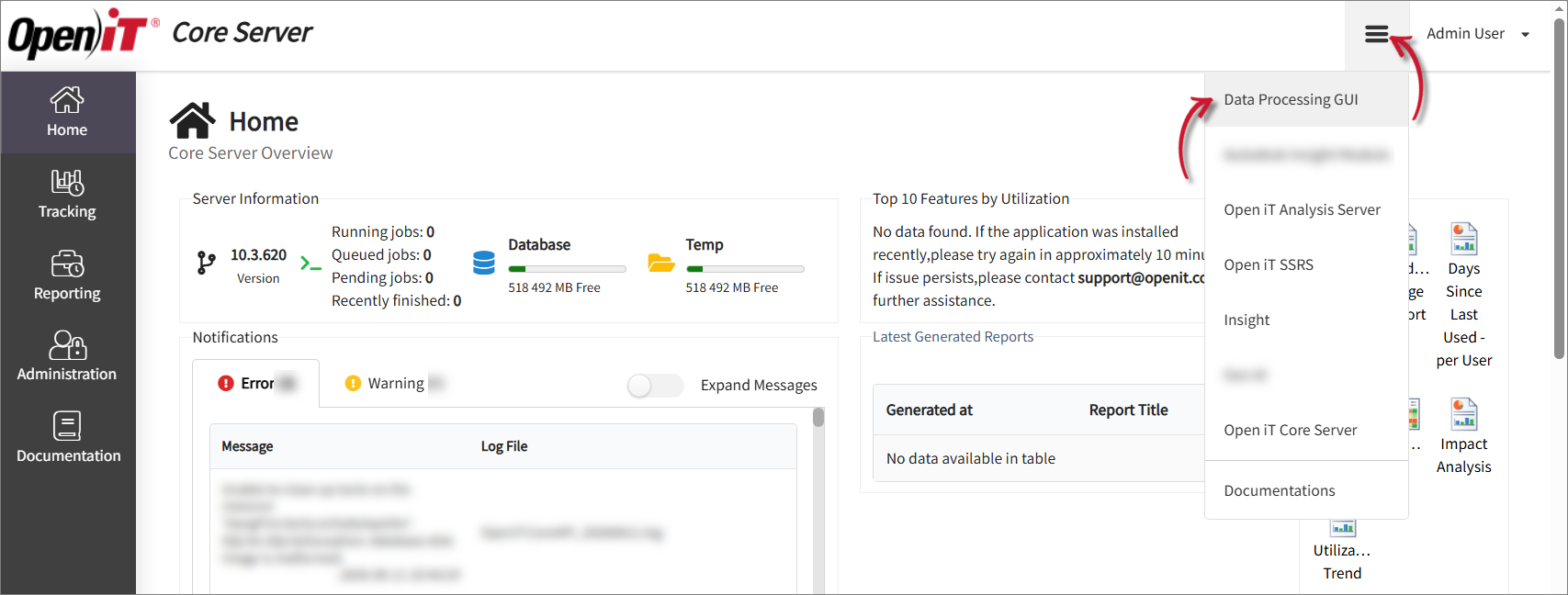 Click Data Processing GUI
 -
In the left navigation pane, select Deployment.
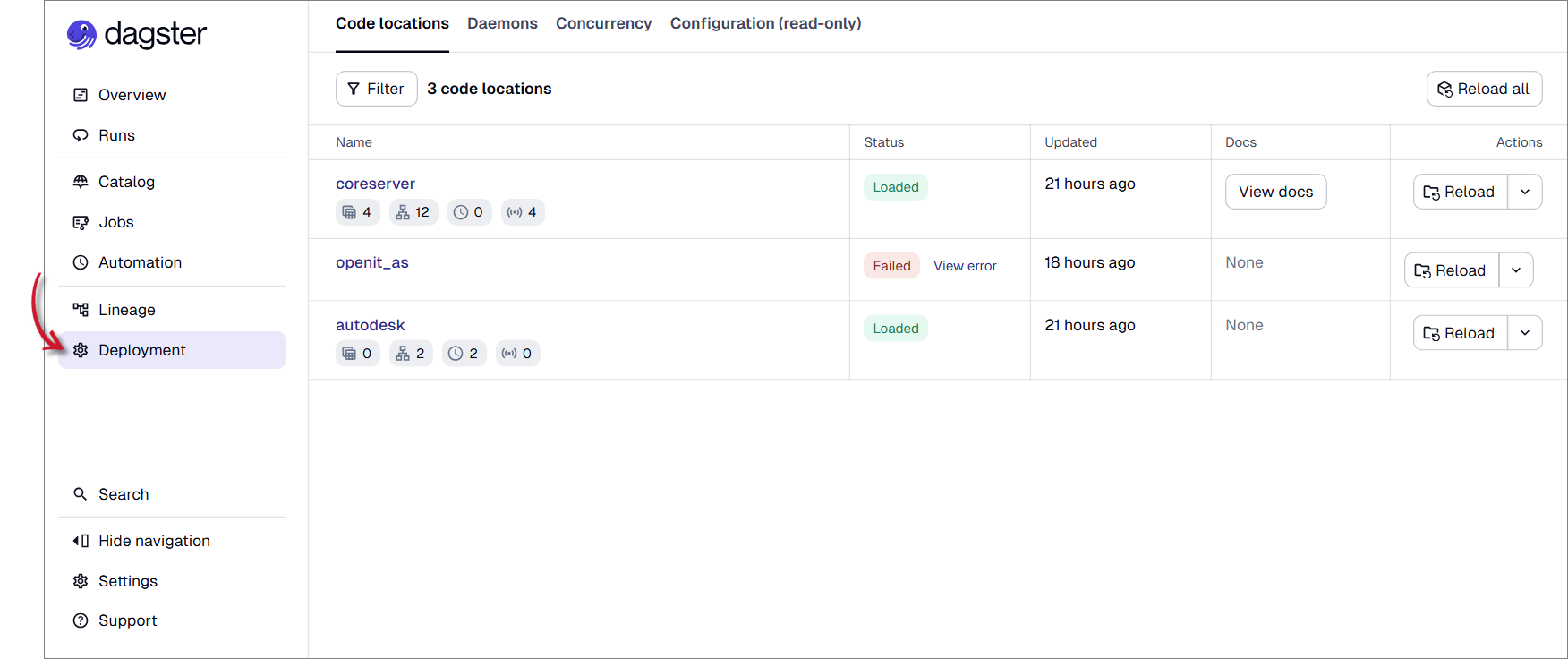 Select Deployment
The Deployment page opens and displays the configured code locations.
-
Go to the Code Locations tab located at the upper-part of the page.
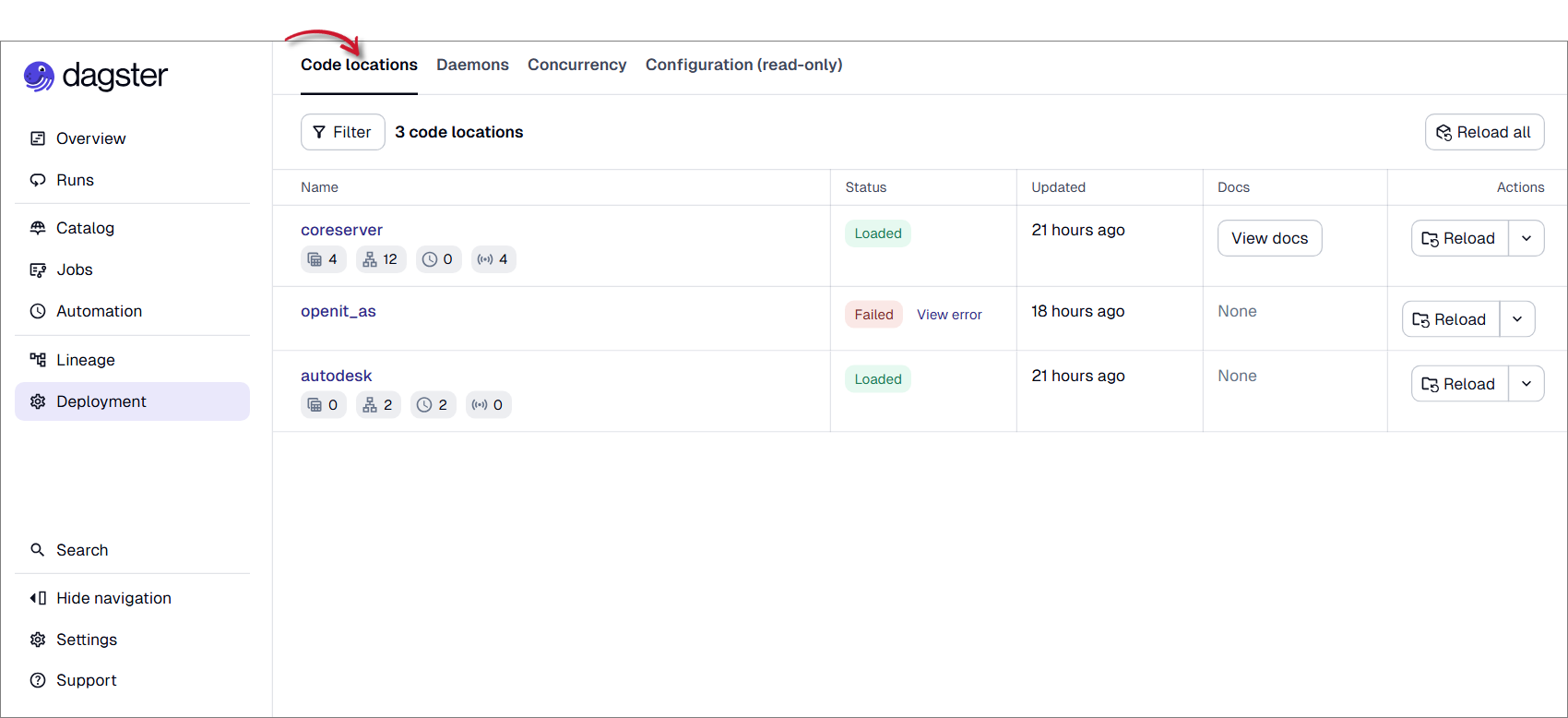 Click Code Locations
 -
Review the operational details of each code location. Each code location entry displays the following:
Column Description Name The configured code location name. Status Indicates whether the code location was successfully loaded. Updated Displays the last time the code location was updated or refreshed. Docs Provides access to available documentation for the code location. Actions Allows administrators to reload the code location. Operational Details of Code Locations
Verify that all code locations have a healthy status and are loaded successfully.
The table below describes the possible status values for a code location and their implications on Open iT component/plugin operations:
Status Description Loaded This operational state indicates that: - the code location is reachable
- Dagster successfully loaded the component
- associated assets, jobs, schedules, and sensors are available
- data processing can execute normally for the component
Failed This operational state indicates: - invalid configuration
- missing dependencies
- service communications issues
- component initialization failure
Code Locations Status
If a particular code location displays a Failed status, you can manually reload a code location.
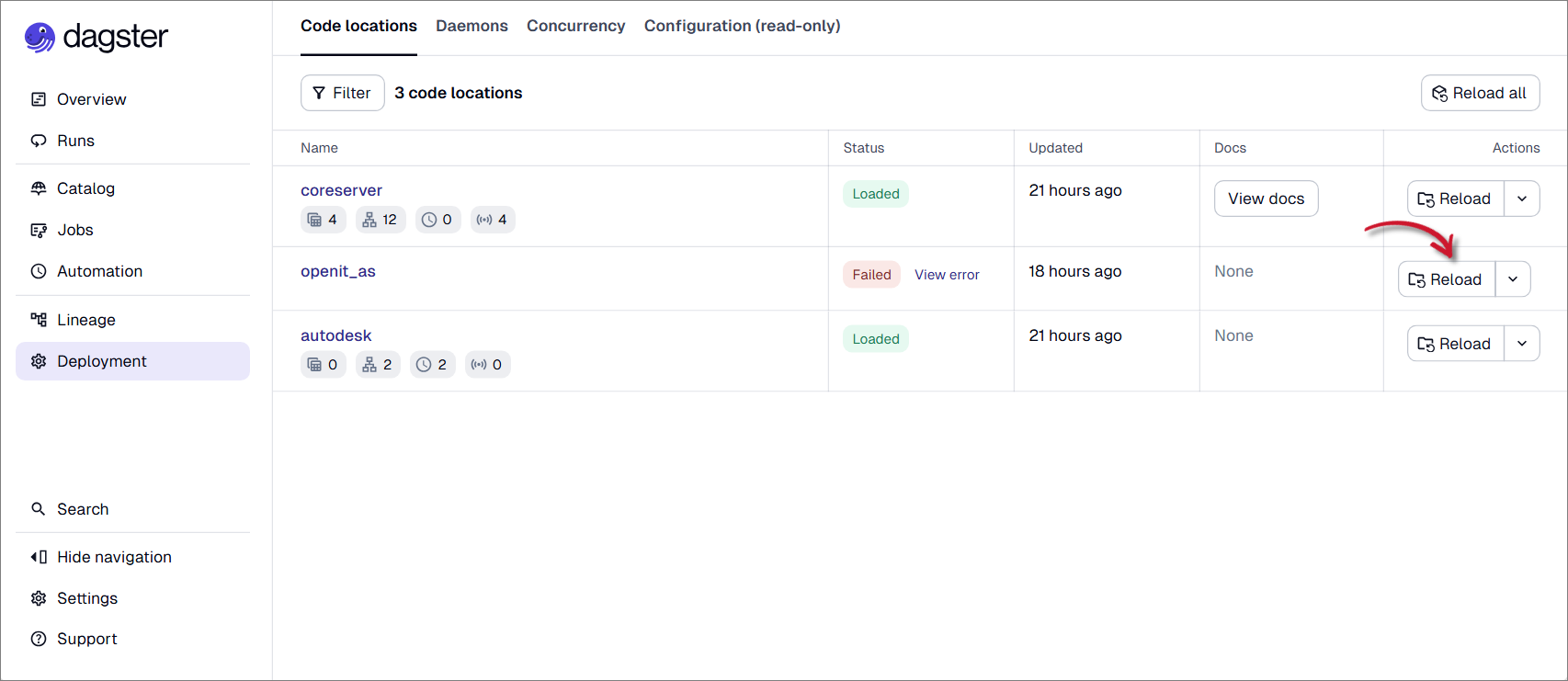 Reloading Code LocationNote
When there are configuration changes in a particular Open iT component, you can also manually reload a code location.
Wait for the reload operation to complete. Verify that the Status changes to
Loaded.NoteReloading a code location does not automatically rerun failed jobs or schedules.
If the code location still displays a Failed status, click View Error to review and resolve the displayed error details.
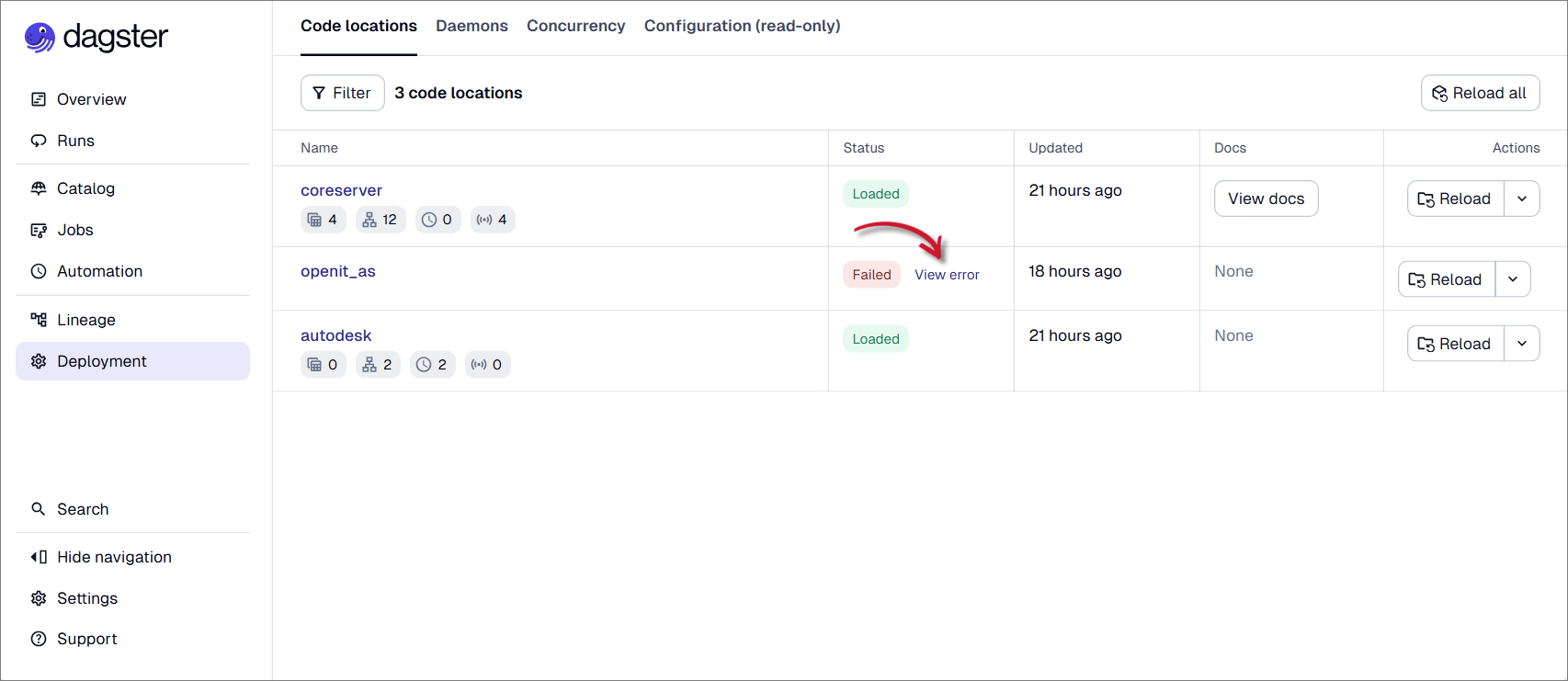 View Error
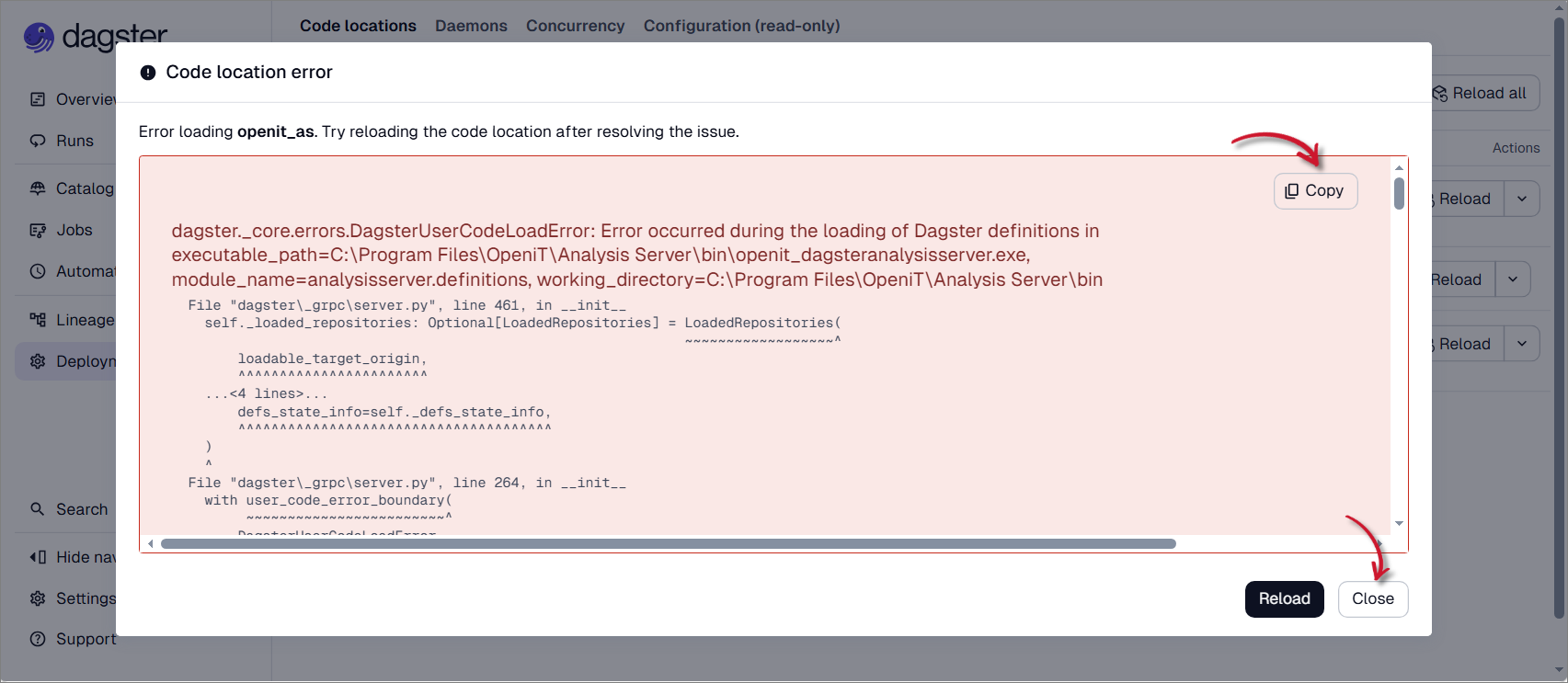 Review Code Location ErrorNote
If the code location error persists after troubleshooting, contact the Support Team for further assistance.