Core Server Database Path
The Core Server Database Path specifies the directory where the Core Server stores its file-based database, which the Analysis Server reads for data processing and reporting. By default, this location is, C:\ProgramData\OpeniT\Data\database.
Setting the Core Server Database Path
Changing this setting on the Analysis Server allows it to access a different Core Server database source. For example, when the database is in another drive or server for storage, performance, or organizational requirements.
The following instructions describe how to configure the Analysis Server to use a non-default Core Server database source.
-
Go to the Configuration page of Analysis Server web interface.
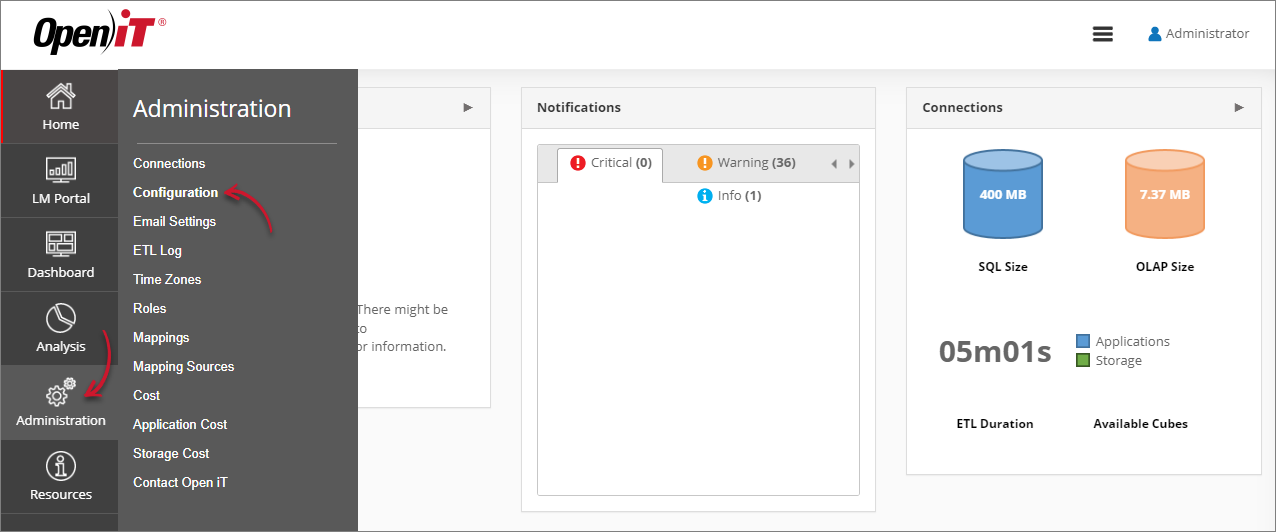 Navigating to the Configuration Page
 -
Locate the Root.Etl.CoreDatabasePath key, click it, then set its value to the path to the Core Server file database.
-
Click Save.
 Setting Root.Etl.CoreDatabasePath
 -
Click the Reset Session button at the bottom of the configuration table.
Adding Additional Core Server Database Path
In addition to the default source, you can configure the Analysis Server to read specific data types from other Core Server database locations. This is done by defining additional source paths and assigning the data types that should use each one.
-
Go to the Configuration page of Analysis Server web interface.
Navigating to the Configuration Page -
Locate the Root.Etl.CoreDatabasePath.1 key, click it, then set its value to the location of the Core Server file database.
-
Click Save.
 Setting Root.Etl.CoreDatabasePath
 -
Locate the Root.Etl.CoreDatabasePath.1.Datatypes key, click it, then set its value to the specific number identifying the Open iT data type you want to collect from your specified database location.
noteYou can add multiple data types by separating them with commas.
-
Click Save.
 Setting Root.Etl.CoreDatabasePath
 -
Click the Reset Session button at the bottom of the configuration table.
Example Configuration
The following example shows how multiple Core Server database sources can be configured and how the Analysis Server determines which database source is used for each datatype.
OpeniT.Server.Etl.Console.exe UpdateConfig Root.Etl.CoreDatabasePath \\server\database
OpeniT.Server.Etl.Console.exe UpdateConfig Root.Etl.CoreDatabasePath.1 \\server1\database
OpeniT.Server.Etl.Console.exe UpdateConfig Root.Etl.CoreDatabasePath.1.Datatypes 70,99,98
OpeniT.Server.Etl.Console.exe UpdateConfig Root.Etl.CoreDatabasePath.2 \\server2\database
OpeniT.Server.Etl.Console.exe UpdateConfig Root.Etl.CoreDatabasePath.2.Datatypes 70,97,91
In this configuration, \\server\database is used as the default Core Server database source. Datatypes 99 and 98 are read from \\server1\database, while datatypes 97 and 91 are read from \\server2\database. Datatype 70 is configured in both additional sources; when this occurs, the Analysis Server uses the latest configured database source, which is \\server2\database. All other datatypes continue to use the default source.
Avoid assigning the same datatype to multiple Core Server database sources. While the Analysis Server resolves overlaps by using the last configured source, overlapping configurations can lead to confusion and make database management and troubleshooting more difficult. To ensure predictable behavior and easier maintenance, assign each datatype to only one Core Server database source.
For scenarios that require more than one additional Core Server database source, see Adding More Core Server Database Path for instructions on creating and configuring additional fields using the command-line tool.
Adding More Core Server Database Path
If additional Core Server database sources are required, you may add more Core Server database path.
-
Open a command prompt with Administrator level privileges.
-
Go to the installation directory of Analysis Server, which is by default in
C:\Program Files\OpeniT\Analysis Server\.Command Syntaxcd "C:\Program Files\OpeniT\Analysis Server\" -
Add new configuration keys using the following naming patterns:
Key Pattern Key Example Key Value Example Root.Etl.CoreDatabasePath.<label>Root.Etl.CoreDatabasePath.2\\server2\databaseRoot.Etl.CoreDatabasePath.<label>.DatatypesRoot.Etl.CoreDatabasePath.2.Datatypes70,99,98,97,92Configuration Key Pattern
Run the command:
Command SyntaxOpeniT.Server.Etl.Console.exe UpdateConfig <key> <value>where:
Parameter Description keyUse this to specify the unique key of the configuration entry to update. valueUse this to specify the value to assign to the specified key. Parameters for Adding Configuration Keys
ExampleOpeniT.Server.Etl.Console.exe UpdateConfig Root.Etl.CoreDatabasePath.2 \\server2\database
OpeniT.Server.Etl.Console.exe UpdateConfig Root.Etl.CoreDatabasePath.2.Datatypes 70,99,98,97,92noteThe default Core Server Database Source (
Root.Etl.CoreDatabasePath) is used as the basis when retrieving configuration from the Core Server. If a single datatype is accidentally assigned to more than one Core Server database source, the latest configured database source will be used. -
The Console Application will display information messages in the command prompt. Allow the process to finish.