Web Interface Access
Accessing the Web Interface without Ingress
Follow these instructions to access the web interface:
-
On a browser, go to
http(s)://<AS_hostname>:<port_number>.Use
http(s)://localhost:<port_number>when accessing in the host machine.Where:
Variable Description <AS_hostname>The name of the machine where Open iT Analysis Server is hosted. <port_number>The port number provided during the installation and will be used in the web service. The default value is 80. Accessing Web Interface - VariableExample:
If installed using the default port, 80.
http://instance1:80/Or using HTTPS with the default port, 443.
https://instance1:443/If installed to other port (e.g., 8088).
http://instance1:8088/Or using HTTPS with the port, 8443.
https://instance1:8443/ -
When accessing for the first time or incognito, a prompt for credentials will appear.
-
Provide the Active Directory or local user credentials, then click Sign in.
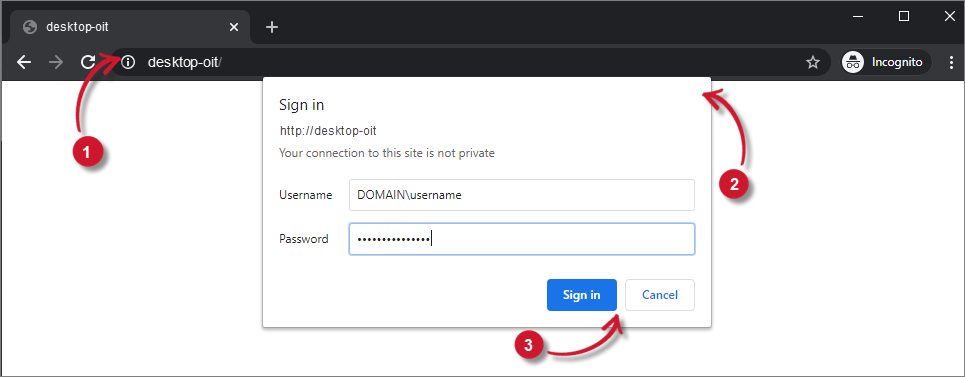 Analysis Server Web Access
The Home page should be displayed.
Accessing the Web Interface through Ingress
Follow these instructions to access the web interface:
You may experience a delay when trying to access the web interface for the first time due to the registration process of the Analysis Server with Ingress.
-
On a browser, go to
http(s)://<AS_hostname>:<port_number>/analyzer.Use
http(s)://localhost:<port_number>/analyzerwhen accessing in the host machine.Where:
Variable Description <AS_hostname>The name of the machine where Open iT Analysis Server is hosted. <port_number>The port number provided during the installation and will be used in the web service. The default value is 80. Accessing Web Interface - VariableExample:
Using the default port, 8080:
http://instance1:8080/analyzerOr using HTTPS.
https://instance1:443/analyzerIf installed to other port (e.g., 8088).
http://instance1:8088/analyzerOr using HTTPS with the port, 8443.
https://instance1:8443/ -
When accessing for the first time or incognito, a prompt for credentials will appear.
-
Provide the Active Directory or local user credentials, then click Sign in.
Analysis Server Web AccessThe Home page should be displayed.
Accessing the Web Interface with Single Sign-On
Single Sign-On uses the Login Page of the utilized OIDC (OpenID Connect) provider to evaluate the access privileges of the current user.
The login page is not displayed when the account is logged in to other applications. It will be redirected to the Open iT Analysis Server Home page.
Follow these instructions to access the web interface:
-
On a browser, go to
https://<AS_hostname>:<port_number>/analyzer.Where:
Variable Description <AS_hostname>The name of the machine where Open iT Analysis Server is hosted. <port_number>The port number provided during the installation and will be used in the web service. The default value is 80. Accessing Web Interface - VariableExample:
Using the default port, 443:
https://instance1/or using other port (e.g., 8443):
https://instance1:8443/ -
Provide a valid email address or user account on the login page. Click Next/Continue.
-
Microsoft Entra ID (Azure):
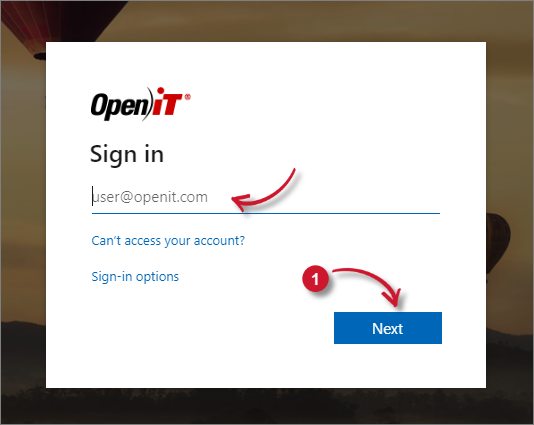 Microsoft Login Page
-
Zitadel:
 Zitadel Login Page
-
Okta:
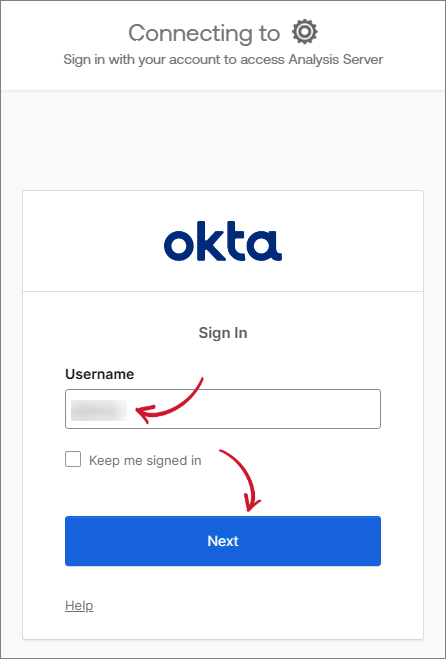 Okta Login Page
-
Keycloak:
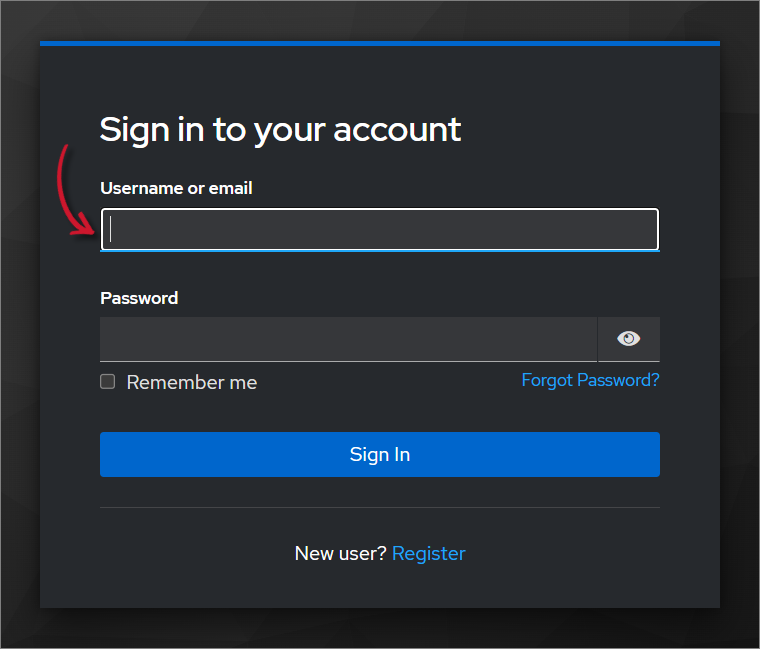 Keycloak Login Page
-
-
Provide the Password.
-
Microsoft Entra ID (Azure):
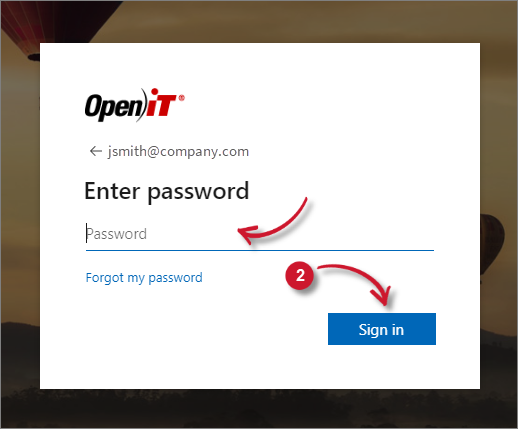 Microsoft Login Password
Click Sign in.
-
Zitadel:
 Zitadel Login Password
Click Continue.
-
Okta - select the security method applicable to your organization (e.g., Password).
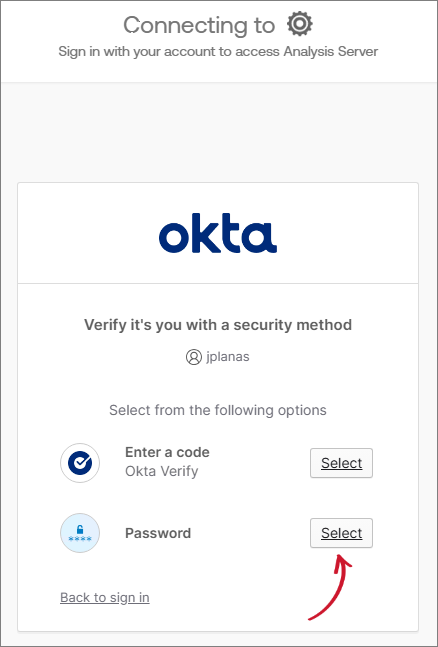 Okta Login Security Method
Provide the Password. Click Verify.
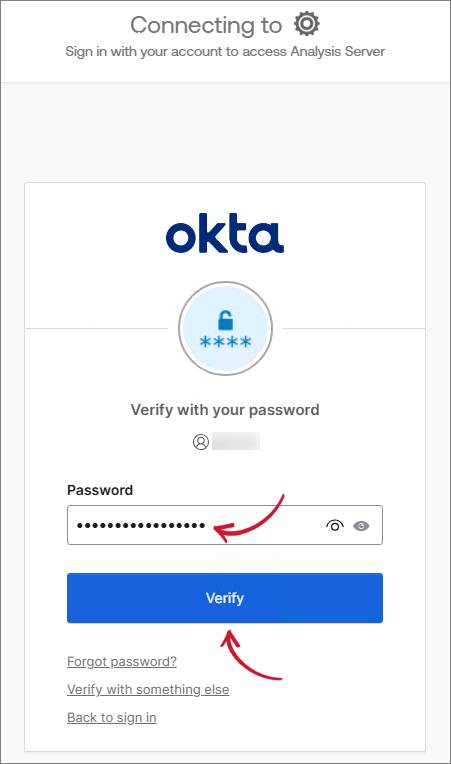 Okta Login Password
-
Keycloak - Provide the Password, then click Sign In.
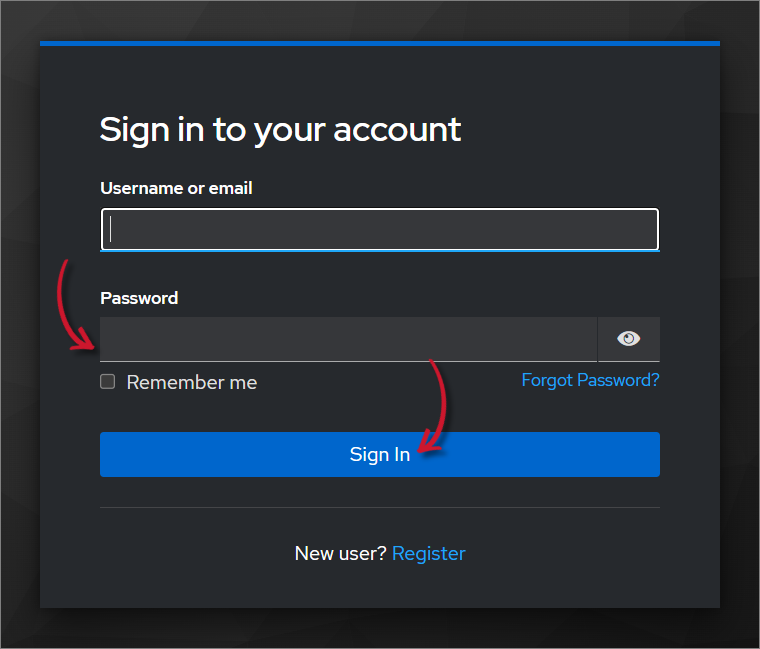 Keycloak Login Password
NOTEYou may also be prompted to complete two-factor authentication (2FA), if it is configured for your account. Complete the verification to proceed.
-
-
For Microsoft Entra ID (Azure), choose the appropriate answer if asked to stay signed in.
NOTEWhen a Permission Request dialog prompts, read the terms and conditions carefully, then click Accept.
-
The page will be redirected to the Open iT Analysis Server Home page. Notice that the user account displayed in the upper-right corner of the page is from the OIDC provider user account.
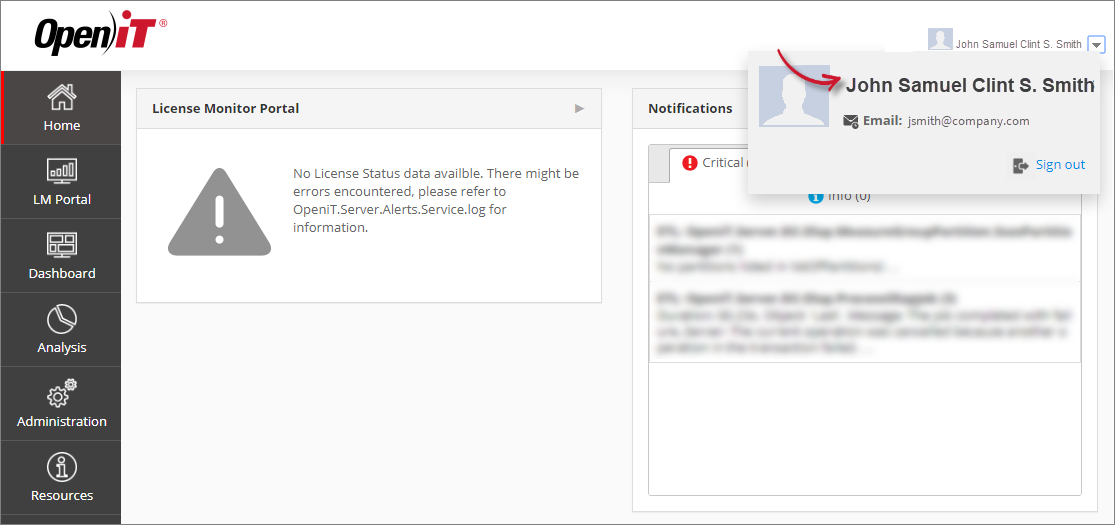
Home Page with SSO
Recommended Reading
The following configuration helps to maintain restrictions and permissions to specific pages, review and determine if necessary.