Autodesk Days since Last Active
This report displays application license activity by Application Name, Serial Number, Host, and License Type. It also shows the number of Days Since Last Active and the corresponding Last Active Date for each license installation.
Use this report to identify licenses that have not been used recently, review license assignments across hosts, distinguish between network, stand-alone, and trial licenses, and determine potential candidates for license reassignment or removal.
Make sure that Open iT Datatype - (118) Product Inventory is present in the Core Server database and successfully loaded in Analysis Server SQL database.
Follow these instructions to generate a report:
-
On the Open iT Reporting Services web portal Home page, click on the LicenseAnalyzer Level 1 folder.
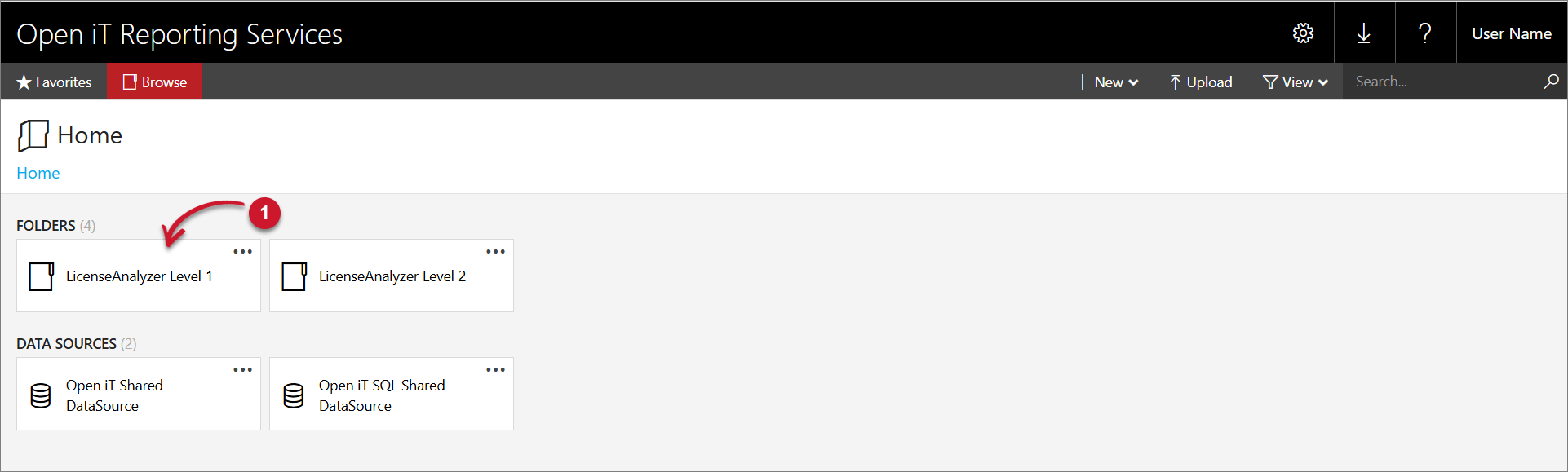 LicenseAnalyzer Level 1 Folder
 -
Click the Autodesk folder, then select Autodesk Days since Last Active report template.
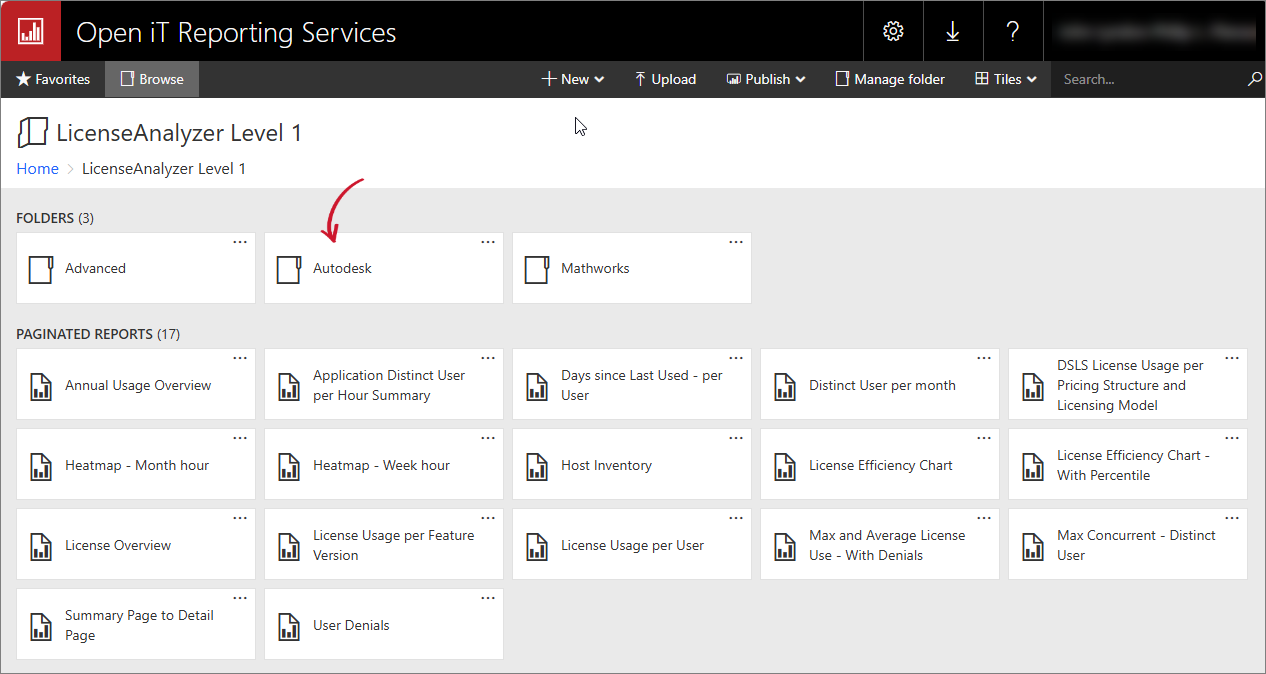 Autodesk Folder
-
Select the Vendor License, Application Name, Year, Month, Day, and Days Prior you want to include in the report.
Parameter Description Vendor License Use this to specify the name of the vendor license that hosts the Autodesk application. Application Name Use this to specify the name of the application or program associated with the vendor license and executable file. Year Use this to specify the time-range for the report yearly such as 2020, 2021, 2022, etc. Month Use this to specify the month of the report you want to view. Day Use this to specify the day of the report you want to view. Days Prior Use this to specify the number of days before the selected report date to search for license activity. The report uses this period to identify the most recent activity or checkout date for each license. Parameters and Descriptions
tipFor example, when the report date is April 1, 2016, and Days Prior is set to 100, the report searches for license activity within the previous 100 days. The Days Since Last Active value is calculated based on the selected report date and the recorded Last Active Date.
-
Click the View Report button in the top-right corner of the report viewer. Wait for the report to generate. This may take a few minutes, depending on the size of the data.
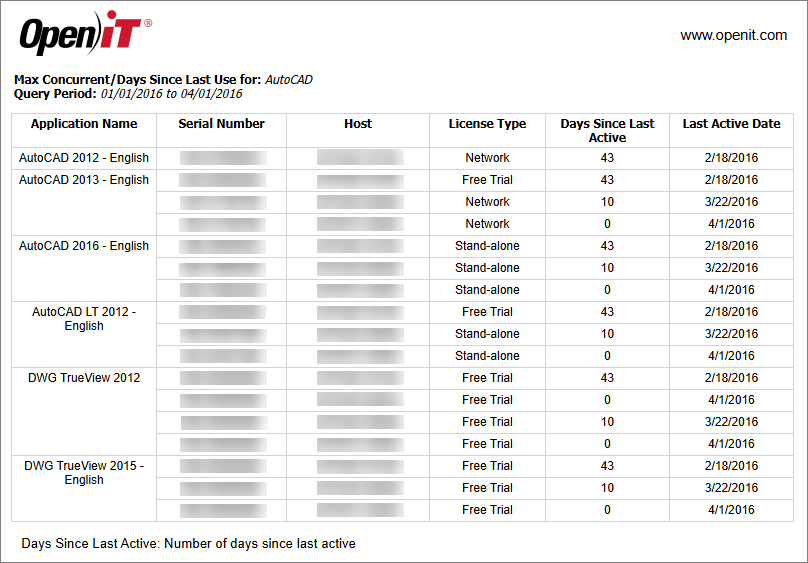 Autodesk Days Since Last Active
See the Report Viewer Control Toolbar section for more details about its functionalities.