Post-Installation Configuration
Most configurations are automatically set during installation. However, additional post-installation configuration may be required if certain settings were skipped during installation or need to be modified afterward.
The following sections describe the recommended post-installation procedures for configuring or updating these settings.
Accessing Insight Settings
-
Access the Core Server Web Interface.
-
Click the Navigation Bar on the upper right side of the page, then select Insight.
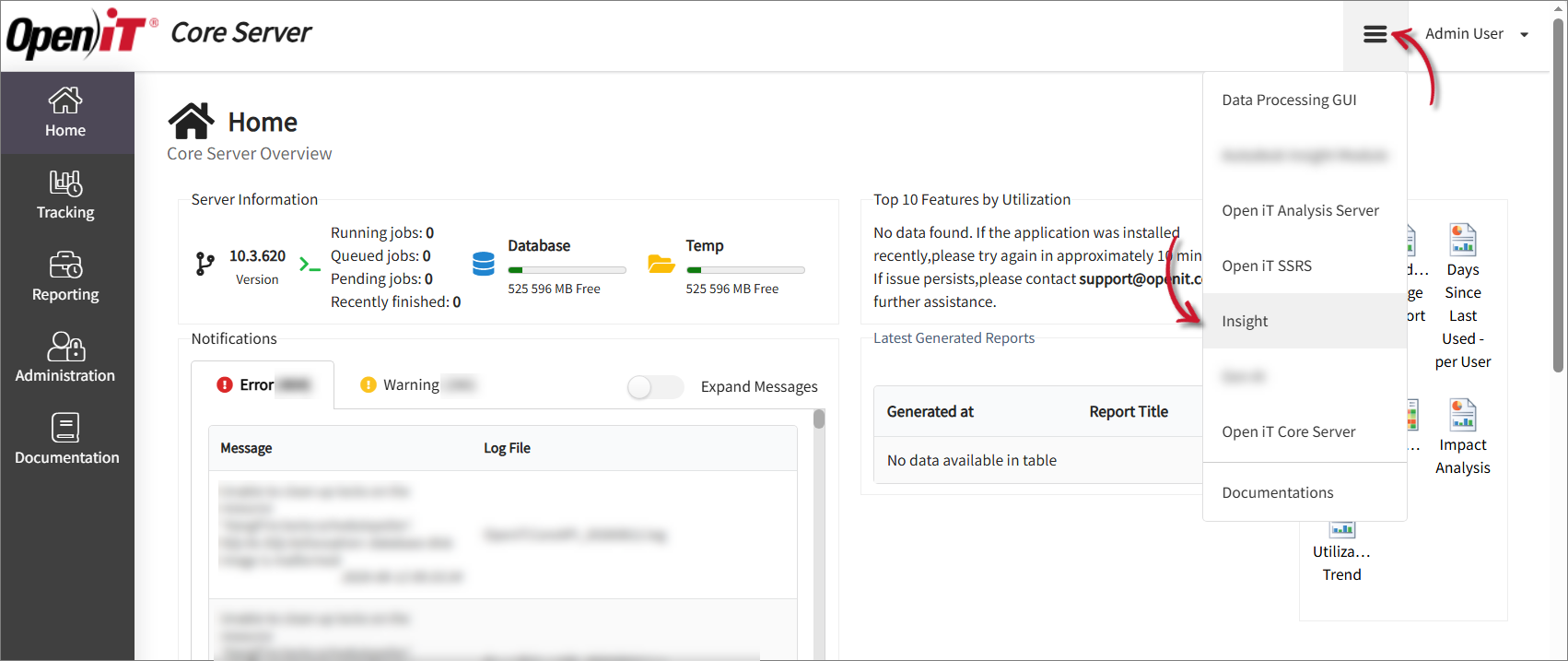 Select Insight
-
For first-time access, the interface prompts you to complete the initial configuration. Follow the on-screen instructions to proceed.
For subsequent access, click Settings at the bottom of the interface sidebar to access the configuration options.
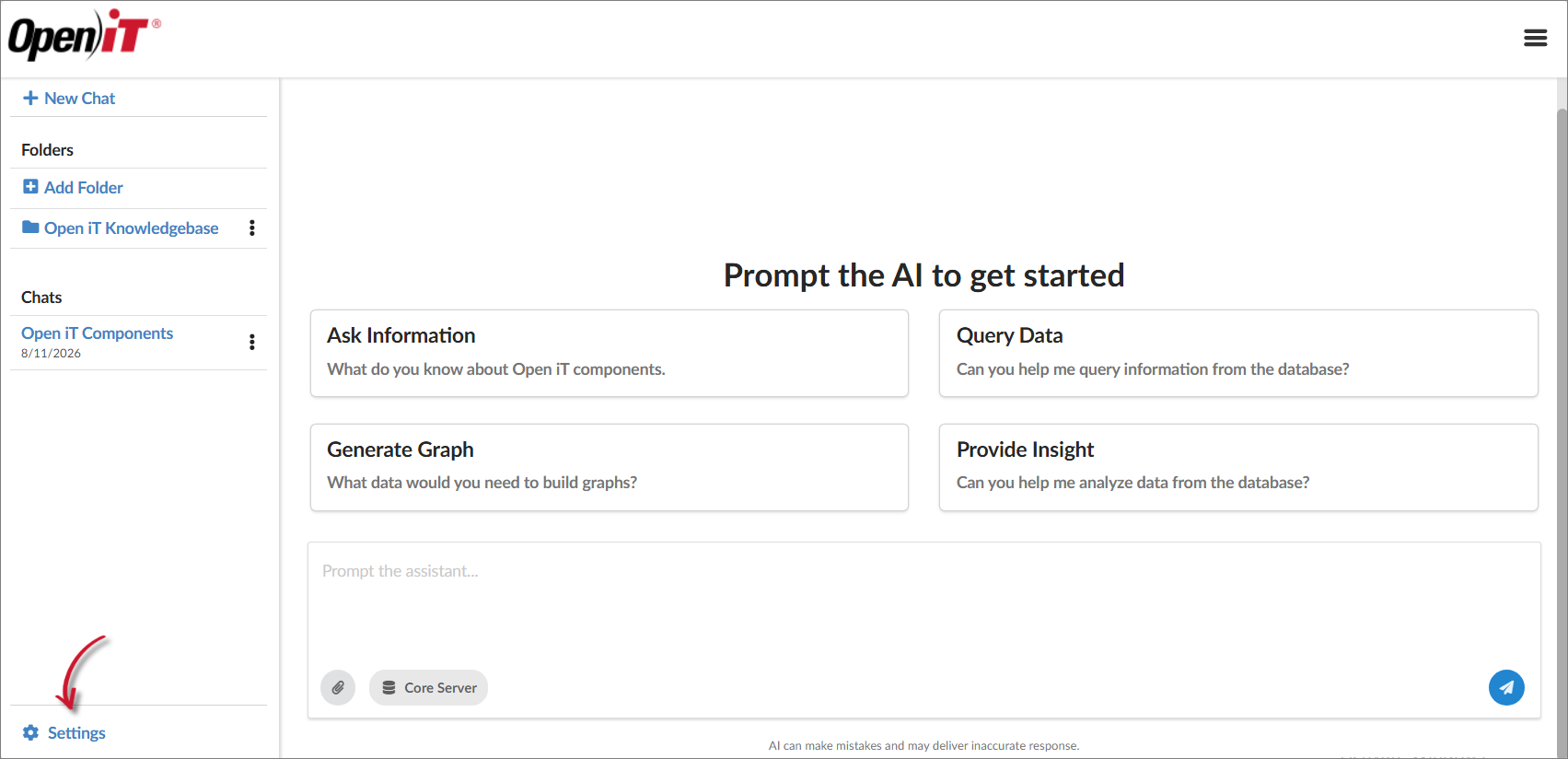 Go to Settings
Configuring Insight Database
In Insight Database, you can configure or update the database connection using either a connection string or individual database connection settings.
Using a Connection String
The Use Connection String option is enabled by default. Enter the database connection string in the provided field, then click the connection button to apply or verify the configuration.
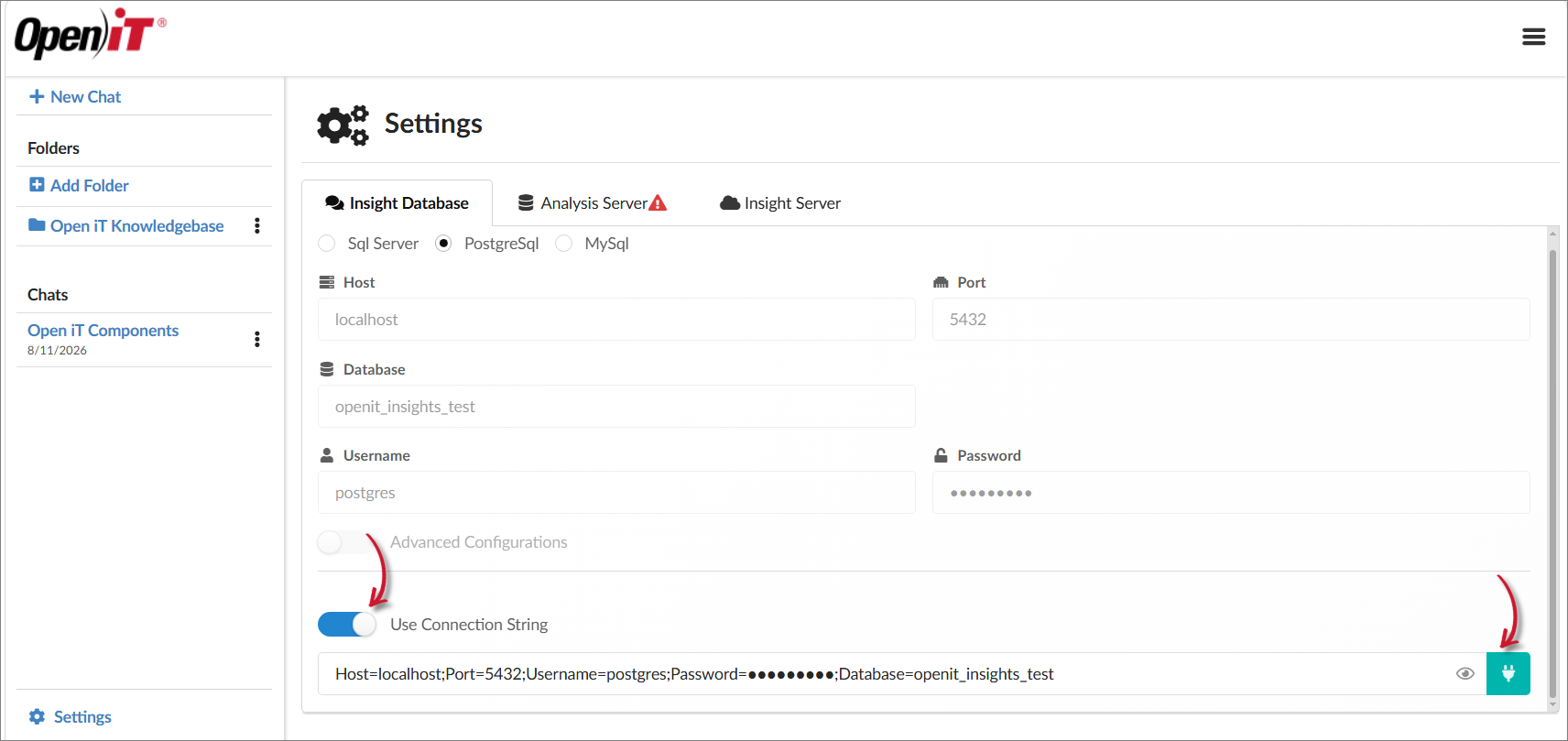
Where:
| Field | Description |
|---|---|
HOST | Specify the hostname or IP address of the database server. |
Port | Specify the port used by the database server. |
Username | Specify the database username. |
Password | Specify the password associated with the database account. |
Database | Specify the database name. |
Using Individual Database Settings
To configure the database connection manually, disable Use Connection String, then provide the required connection details in the corresponding fields:
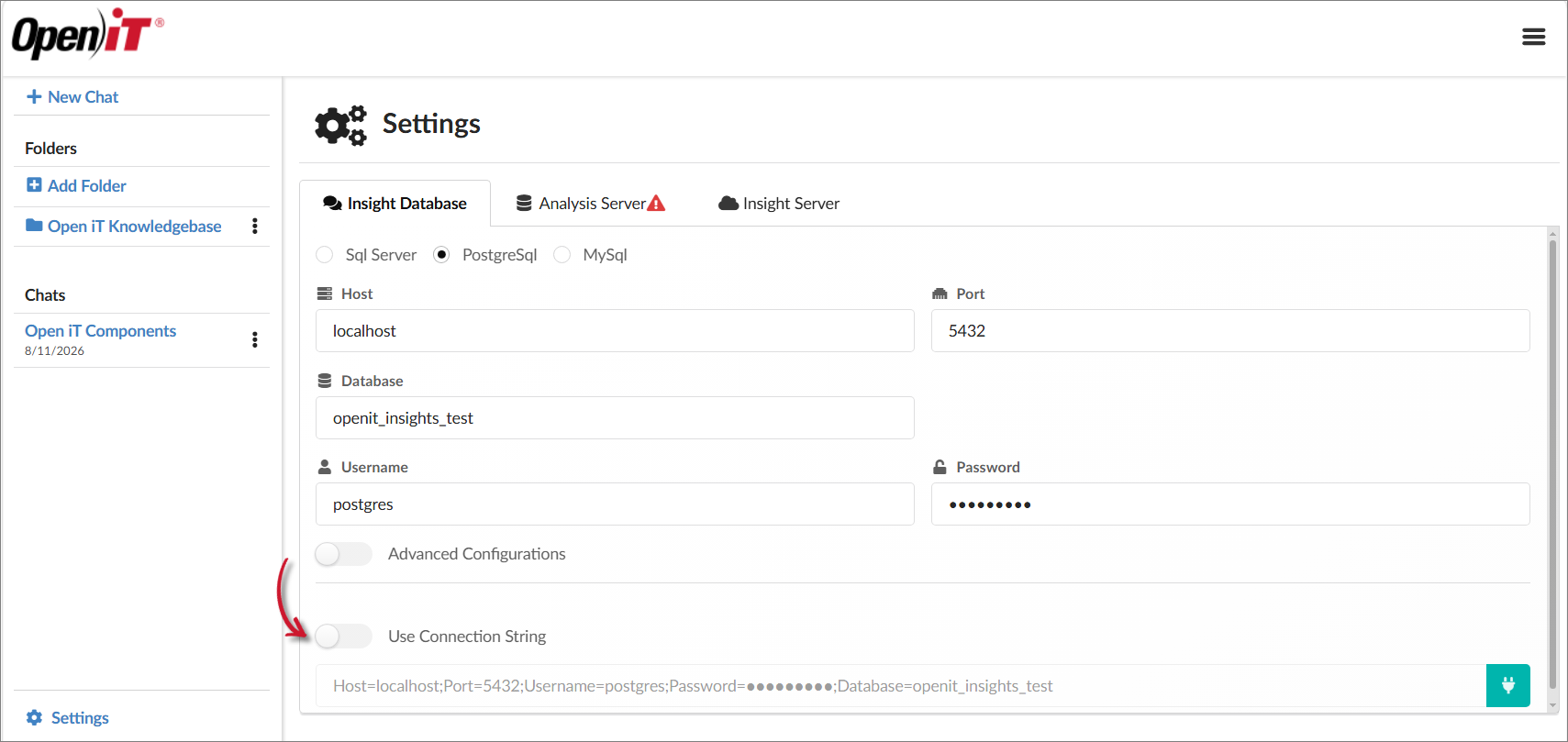
Where:
| Field | Description |
|---|---|
| Database type | Select the type to be used by Open iT Insight (SQL Server, PostgreSQL, or MySQL). |
| Host | Specify the hostname or IP address of the database server. |
| Port | Specify the port used by the database server. |
| Database | Specify the database name. |
| Username | Specify the database username. |
| Password | Specify the password associated with the database account. |
If you want to configure the advanced database settings, enable Advanced Configurations to access additional database connection settings. Configure the following options as needed:
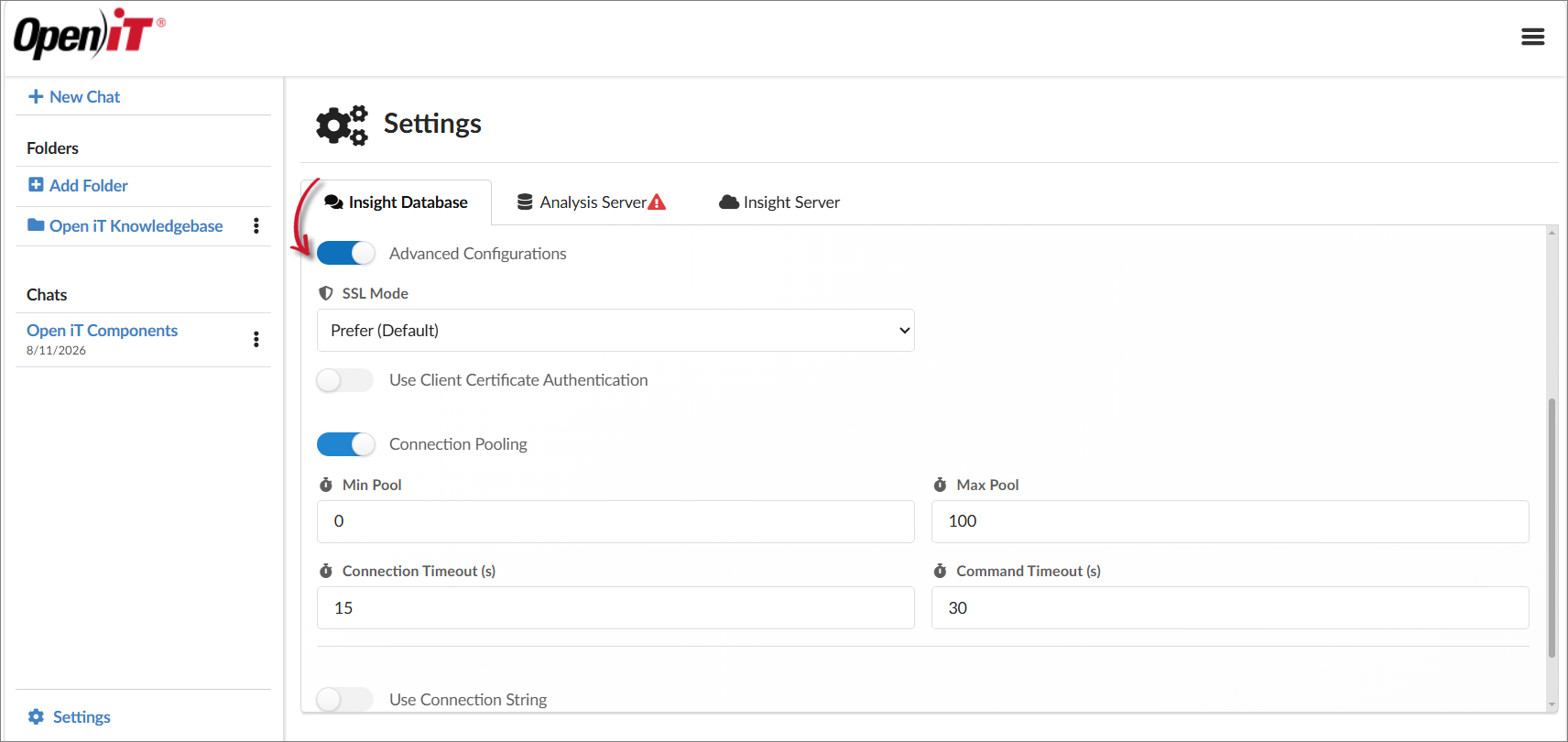
Where:
| Field | Description |
|---|---|
| SSL Mode | Select the SSL mode to use for the database connection. |
| Use Client Certificate Authentication | Enable this option to use a client certificate for authentication, if required. |
| Connection Pooling | Enable or disable connection pooling. When enabled, specify the Min Pool and Max Pool values. |
| Connection Timeout (s) | Specify how long, in seconds, to wait when establishing a database connection before the attempt times out. |
| Command Timeout (s) | Specify how long, in seconds, a database command can run before it times out. |
Configuring Analysis Server
In Analysis Server, you can configure or update the connection to the Analysis Server using either a connection string or individual server connection settings.
Using a Connection String
The Use Connection String option is enabled by default. Enter the Analysis Server connection string in the provided field, then click the connection button to apply or verify the configuration.
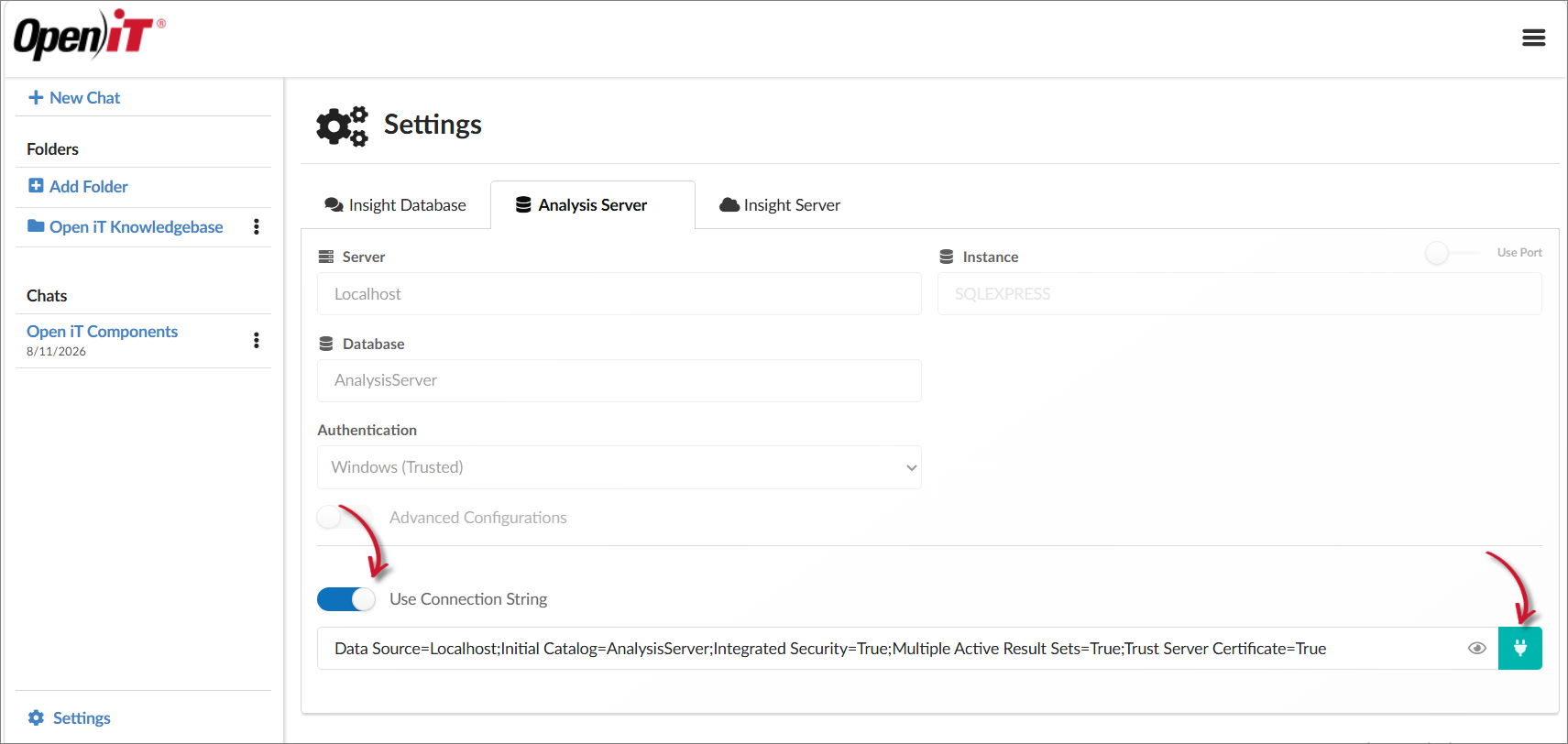
Where:
| Field | Description |
|---|---|
Data Source | Specify the hostname of the Analysis Server. |
Initial Catalog | Specify the name of the Analysis Server database to connect to. |
Integrated Security | Specify whether to use Windows authentication for the connection. |
Multiple Active Result Sets | Specify whether multiple active result sets are allowed for the connection. |
Trust Server Certificate | Specify whether to trust the server certificate. |
Using Individual Server Settings
To configure the Analysis Server connection using individual settings, disable Use Connection String, then provide the required connection details in the corresponding fields.
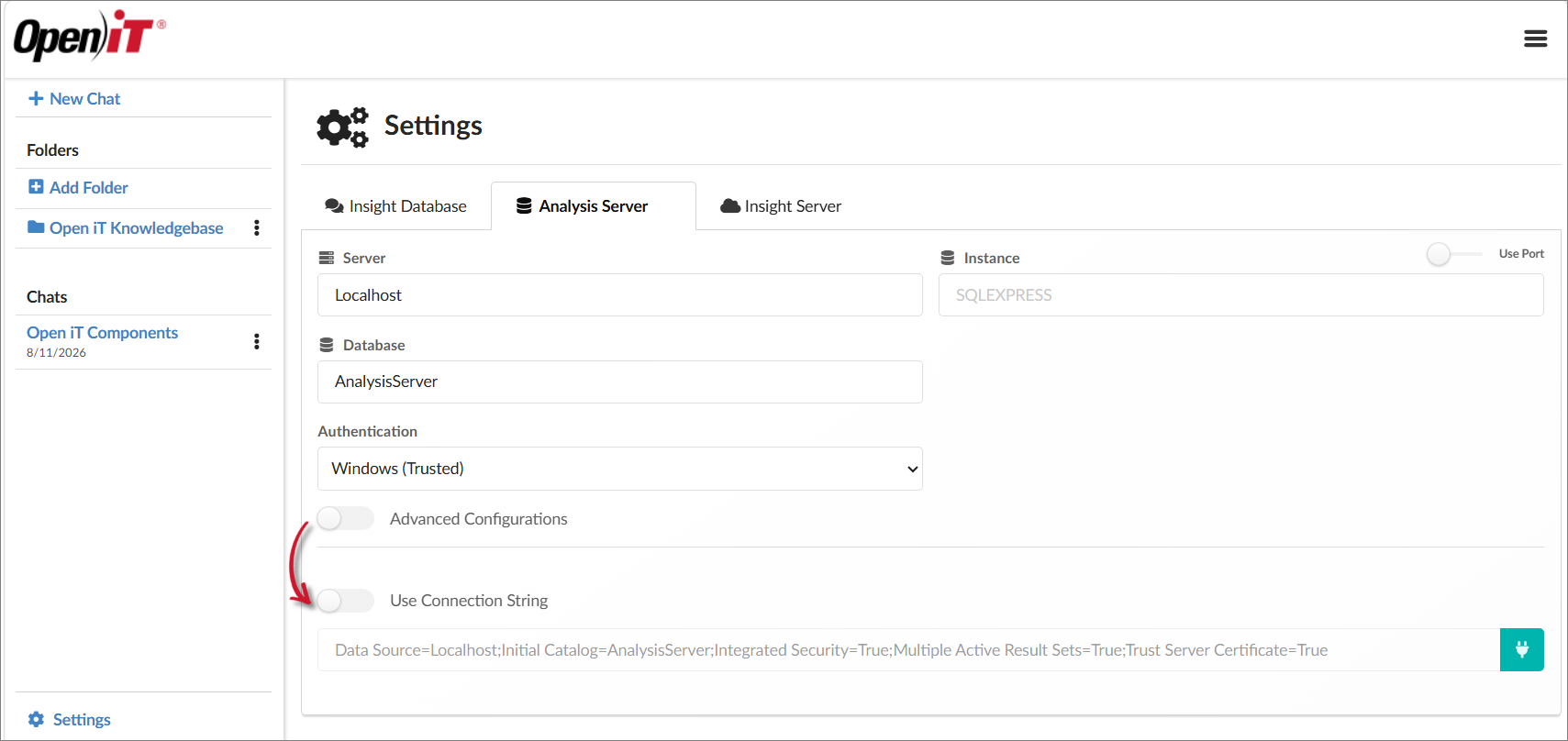
Where:
| Field | Description |
|---|---|
| Server | Specify the hostname of the Analysis Server. |
| Instance | Specify the Analysis Server instance name. |
| Port | Enable this option to connect to the Analysis Server using a specific port instead of an instance name. |
| Database | Specify the name of the Analysis Server database. |
| Authentication | Select the authentication method to use when connecting to the Analysis Server. |
When Use Port is enabled, specify the port number to use for the Analysis Server connection instead of the instance name.
If you want to configure the advanced Analysis Server settings, enable Advanced Configurations to access additional connection settings. Configure the following options as needed:
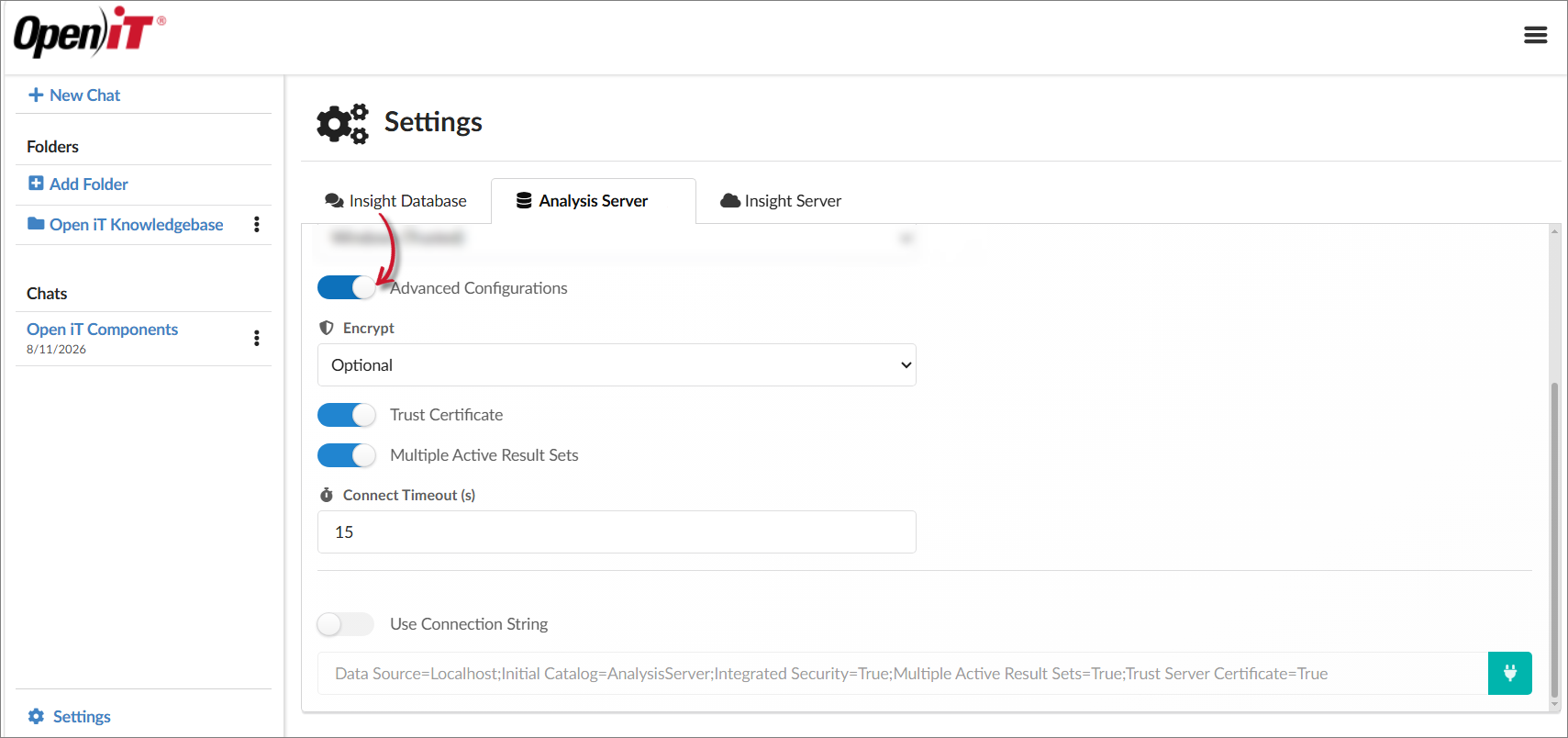
Where:
| Field | Description |
|---|---|
| Encrypt | Select the encryption option to use for the connection to the Analysis Server. |
| Trust Certificate | Enable this option to trust the server certificate. |
| Multiple Active Result Sets | Enable this option to allow multiple active result sets on a single connection. |
| Connect Timeout (s) | Specify how long, in seconds, to wait when establishing a connection to the Analysis Server before the attempt times out. |
Configuring Open iT Insight Client Credentials
The client credentials are typically configured during the initial setup. Perform this configuration only if the client credentials have not yet been configured, or if the existing credentials need to be reconfigured.
In the Insight Server, provide the client credentials that Open iT Insight uses to authenticate with the server. Click Test Connection to verify the credentials and connection to the Insight Server.
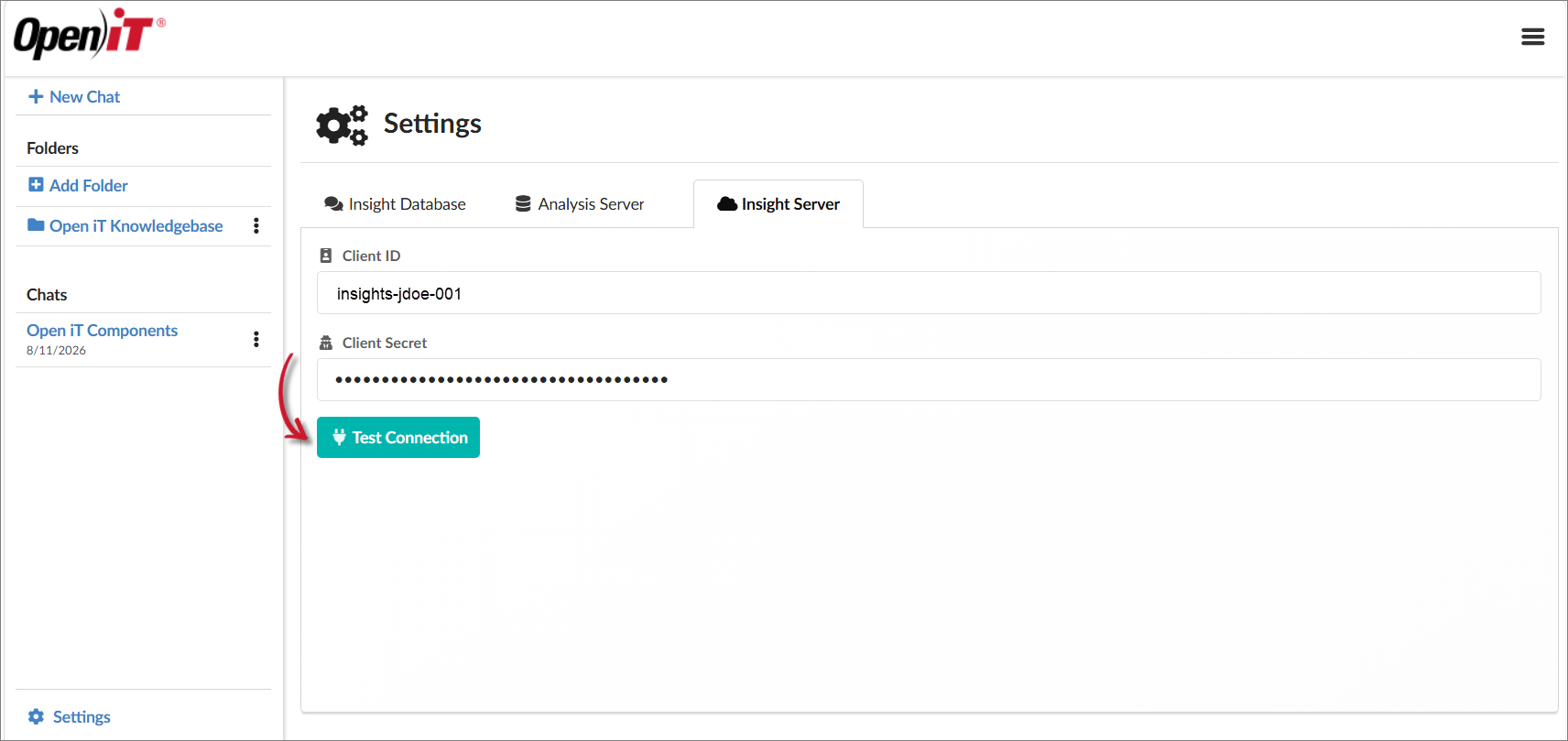
Where:
| Field | Description |
|---|---|
| Client ID | Specify the Client ID used by Open iT Insight to identify itself when authenticating with the Insight Server. |
| Client Secret | Specify the Client Secret associated with the Client ID. The value is masked in the interface for security. |
A successful connection confirms that the provided credentials are valid and that Open iT Insight can connect to the Insight Server.