Analysis Server Installation
This guide provides instructions for installing the Open iT Analysis Server. Choose one of the available installation methods below:
Installing through the Windows Installer Interface
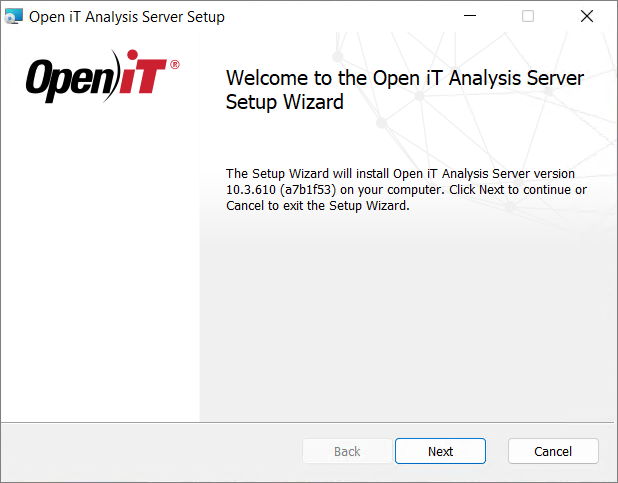
Step 1: Launch the Installer
- Right-click the
openit_<version>_asee_windows_x64.msiinstaller file. - Click Run as Administrator.
- Click Yes when prompted.
- Click Next to continue.
Step 2: Review the License Agreement
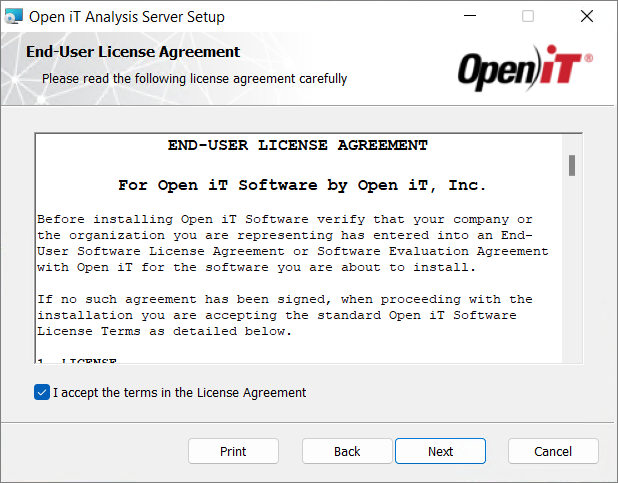
- Read the End-User License Agreement carefully.
- Accept the license terms.
- Click Next to continue.
Step 3: Select the Installation Directory
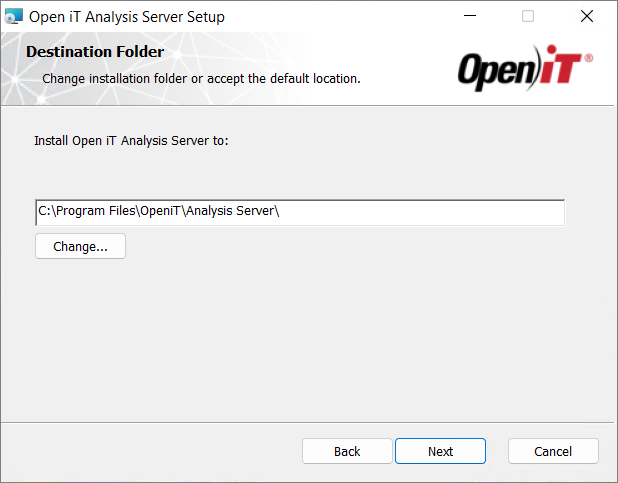
- Choose where the Analysis Server will be installed.
- Click Change to select a different location.
- Click Next to continue.
Step 4: Configure Web Server Port and License
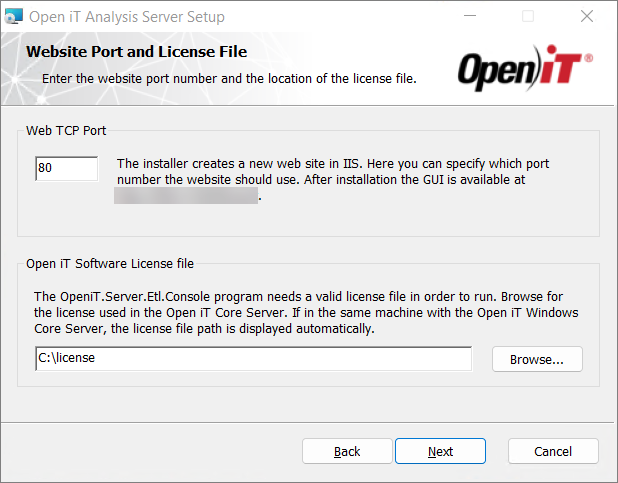
- Specify the TCP/IP port number (default: 80).
- Provide the path to a valid Open iT Analysis Server license file.
- Click Next to continue.
Step 5: Configure the Open iT Ingress URI
Specify the Open iT Ingress URI that the Open iT Analysis Server will use to connect to the Open iT web application using the following format: http(s)://<ingress_hostname>:<port_number>.
You will only see this dialog box if Ingress is not installed on the machine where you are installing the Open iT Analysis Server. If it is already installed, this step is skipped, and the existing Ingress details are used.
Choose one of the following:
-
Provide a URI (recommended if Ingress is already available). The installer will use the URI you entered and continue the installation.
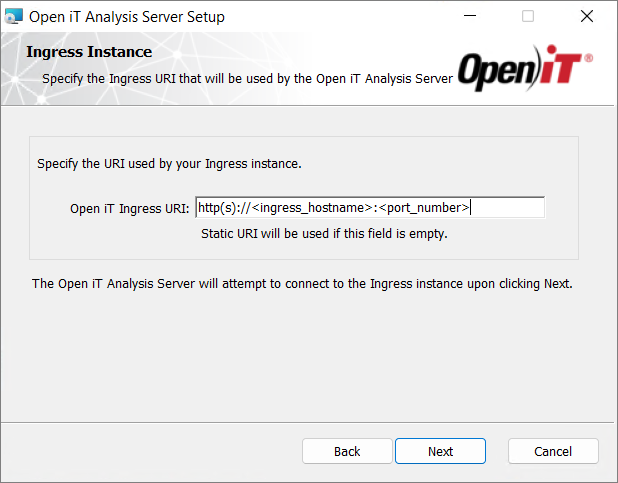 Ingress Instance Configuration
 -
Accept the default value (
http://localhost:27893). Use this if Ingress is not yet installed on the machine.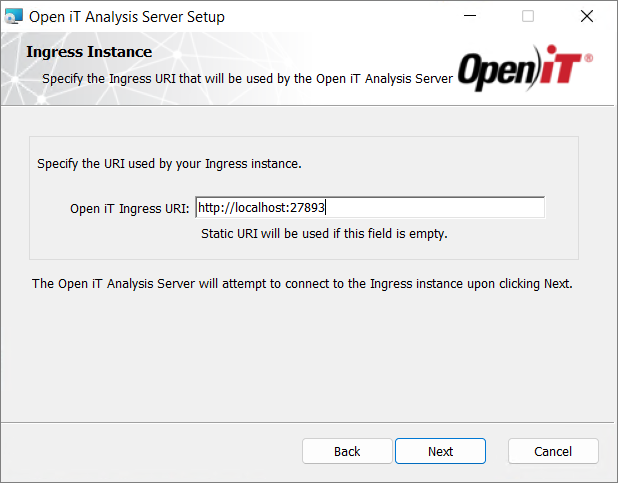 Default Ingress Instance
If Ingress is not installed and you proceed with the default value, a warning dialog will appear saying the Ingress URI is inaccessible.
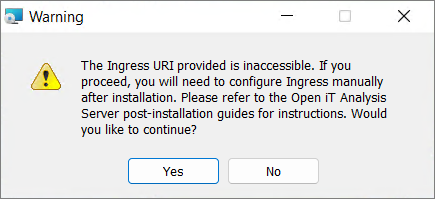
Decide whether to proceed:
-
Click Yes to continue. The installer assumes you will install Ingress on the same machine later, and it will use
http://localhost:27893.noteYou may proceed with the installation and configure it later. See Installing Open iT Ingress for setup instructions.
-
Click No to go back and enter a reachable Ingress URI.
Step 6: Configure Active Directory Service Account
Specify the account that will run the Open iT Analysis Server services.
- Enter the User Name in the
<DOMAIN\username>format. - Enter the corresponding Password.
- (Optional) Enable Single Sign-On (SSO) to allow users to access the Open iT Analysis Server without entering credentials separately.
- Click Next to continue.
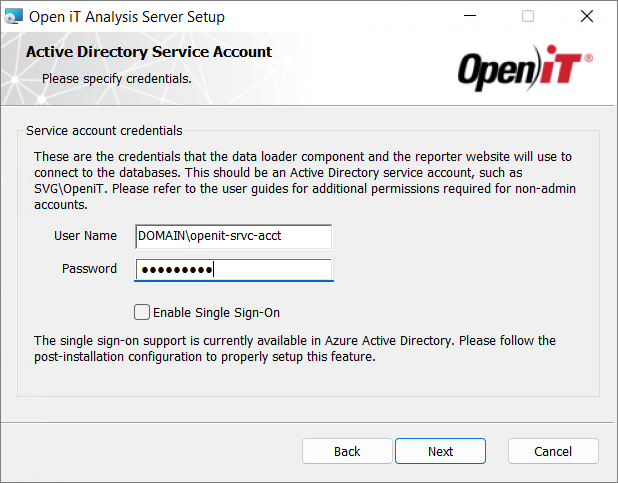
Single Sign-On (SSO) is only supported when using Azure Active Directory (Azure AD) and requires additional configuration after installation.
SSO cannot be used when Open iT Ingress is configured. If Ingress is enabled, leave this option unchecked.
When Single Sign-On (SSO) is enabled, the following limitations apply:
- The Roles page is hidden. All users have access to loaded and processed data.
- The Mapping Sources page works only on the local machine. For cloud deployments, sources must reside on the same machine.
- Access to Reporting Services (SSRS) requires Service Account credentials.
Step 7: Configure User Groups
- Specify the User Group.
- Specify the Administrator Group.
- Click Next to continue.
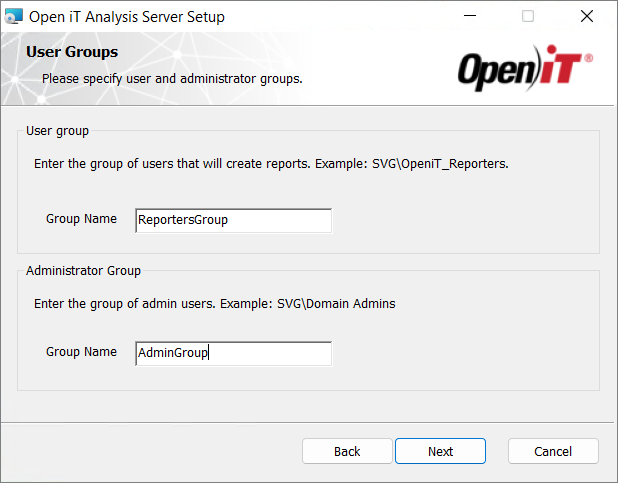
When Single Sign-On (SSO) is enabled:
- The Reporters Group cannot be edited.
- The Admin Group requires valid email address or username registered in the Identity Provider.
Step 8: Configure Database Servers
- Specify the SQL Server database and instance name where the SQL data warehouse will be created and deployed. Click Browse to look for available SQL Servers on the network.
- Specify the SQL Server Analysis Services database and instance name that will hold the reporting cube.
- Click Next to continue.
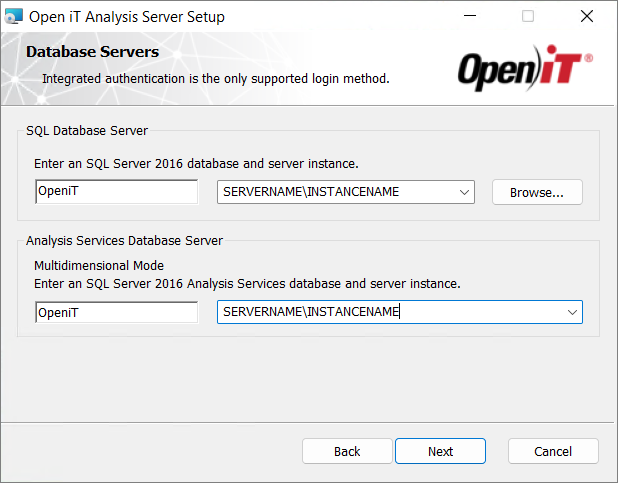
Step 9: (Optional) Configure Azure User Credentials
If using Azure SQL Server, you must configure the Azure SQL database connection before starting the installation.
Ensure that:
- The Azure SQL database is already created
- The server is accessible from the installation machine
- You have a valid username and password with sufficient permissions
For more details, see Azure SQL Database Connection Configuration.
-
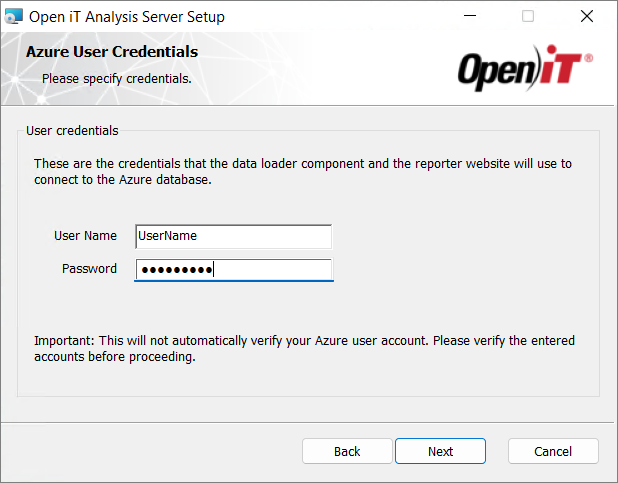
In the Azure User Credentials dialog, enter the required account details:
- User Name – Enter the Azure account username used to access the Azure SQL database.
- Password – Enter the corresponding password.
-
Review the entered credentials carefully.
warningThe installer does not automatically validate the Azure user account.
-
Click Next to continue.
Step 10: Configure the Orchestrator and PostgreSQL Instance
You will only see this dialog box if the Open iT Core Server is not installed on the machine where you are installing the Open iT Analysis Server. If it is already installed, this step is skipped, and the existing details are used.
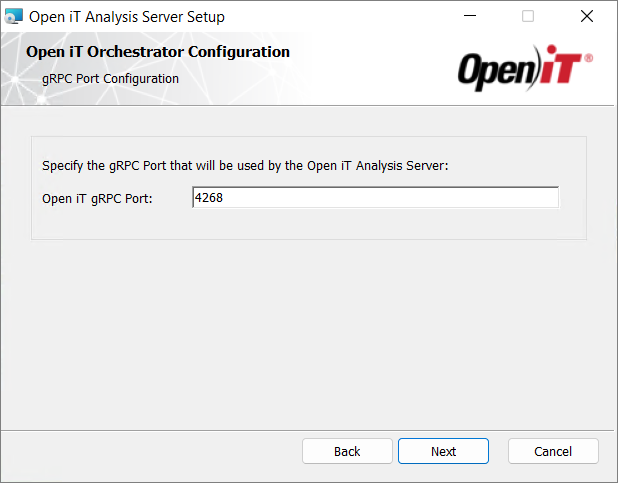
Configure the gRPC port for the Open iT Orchestrator service and provide the PostgreSQL database connection details of your Open iT Core Server that will be used by the Open iT Analysis Server.
-
Enter the gRPC Port that will be used by the Open iT Orchestrator service. The default value is 4268.
-
Click Next to continue.
-
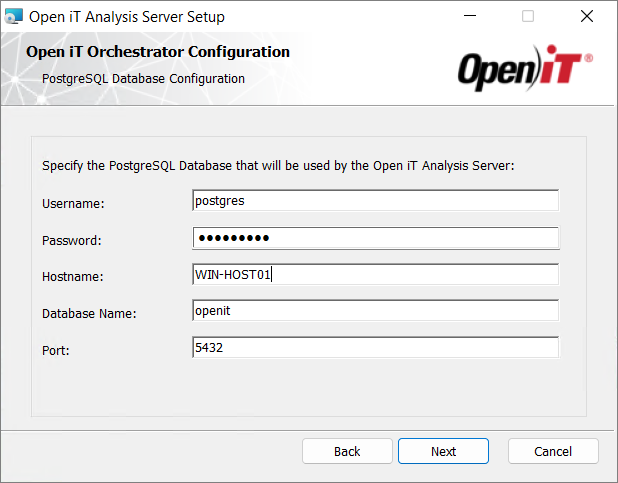
In the PostgreSQL Configuration window, enter the required connection details of your Open iT Core Server PostgreSQL instance:
importantMake sure that you have accomplished the Component Requirement - PostgreSQL Database section.
- Hostname – Enter the hostname or IP address of the PostgreSQL server
- Port – Enter the PostgreSQL port (default:
5432) - Username – Enter the PostgreSQL user account
- Password – Enter the password
- Database Name – Enter the existing database name
Ensure that the PostgreSQL server is installed, running, and accessible from the machine where the Analysis Server is being installed.
-
Click Next to continue.
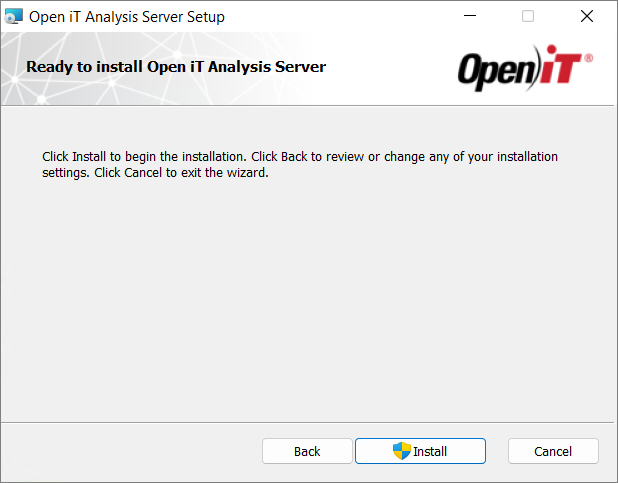
Step 11: Start the Installation
- Click Install to begin the installation.
- If prompted by Windows User Account Control (UAC), click Yes to allow the installer to proceed.
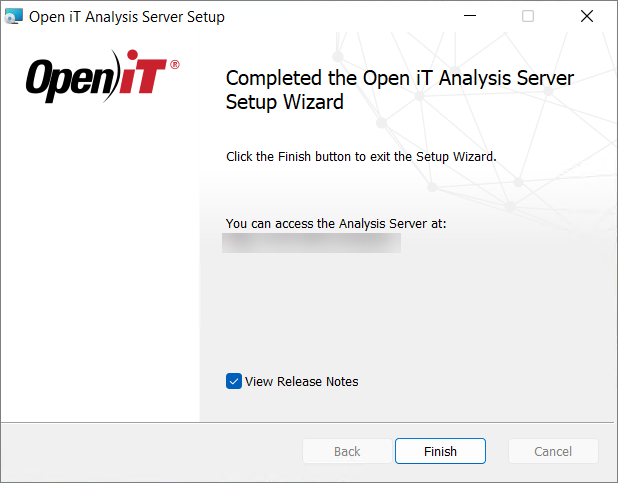
Step 12: Complete the Installation
When the installation finishes:
- (Optional) View release notes.
- Click Finish to exit the installer.
Installing through the Command Line
Step 1: Open Command Prompt
- Open a command prompt with Administrator level privilege.
Step 2: Execute the Installation Command
-
Execute the following command:
Command Syntaxmsiexec <Installer Switches> <MSI Properties>The installation command contains two types of parameters:
- Installer Switches - control how the installer runs
- MSI Properties - configure the Open iT application during installation
Installer Switches (MSIEXEC Options)
Controls installer behavior.
Required Switches:
Switch Description /i <msi_file>Use this to specify the path to the Windows installer file, openit_<version>_asee_windows_x64.msi.l*v <log_file>Use this to specify the path of the installation log file that will be created during installation. Required Switches for Analysis Server InstallationOptional Switches:
Switch Description /quietUse this to run the command in silent mode. /passiveUse this to run the command in unattended mode - progress bar only. Optional Switches for Analysis Server Installation
noteIf no installation mode is specified, the installer will use the Windows Installer interface.
MSI Properties (Application Configuration)
MSI properties configure the Open iT application during installation. Properties are passed in this format:
Command SyntaxPROPERTY=VALUERequired MSI Properties:
Properties Description RUNASUSERUse this to specify the username, in the <DOMAIN\username>format, used as the service account.RUNASPASSWORDUse this to specify the password of the service account. SQLDATABASEUse this to specify the SQL Server database that will be used or created by the Analysis Server. SQLSERVERUse this to specify the SQL Server instance where the specified SQL Server database will be hosted. OLAPDATABASEUse this to specify the SQL Server cube database that will be used or created by the Analysis Server. OLAPSERVERUse this to specify the SQL Server instance where the specified SQL Server cube database will be hosted. REPORTERSGROUPUse this to specify the predefined user group with reporting access. ADMINGROUPUse this to specify the predefined user group with administrative rights. Required Analysis Server Installation Properties
Optional MSI Properties:
The following optional MSI properties are defined with default values. If you want to use a different value during installation, specify the corresponding property.
Property Default Value Description LICENSEFILEnone Use this to specify the path to the Open iT license file.
If the Analysis Server is installed on the same machine as the Core Server, the license file used by the Core Server will be applied automatically. If no Core Server is present, you must specify a valid license file.INSTALLDIRC:\Program Files\OpeniT\Analysis ServerUse this to specify the path where the Analysis Server files will be installed. IISPORTNUMBER80Use this to specify the TCP/IP port number that the report website will use. INGRESSURIhttp://localhost:27893Use this to specify the Ingress URL where the Analysis Server will register.
Provide this if Ingress is installed on a different machine. Otherwise, the installer assumes that Ingress will be installed on the same machine later.ENABLESSOnone Specify a value using this property to enable single sign-on.
Single Sign-On (SSO) is supported only with Azure Active Directory (Azure AD) and requires additional configuration after installation. SSO is not supported when Open iT Ingress is enabled.OPENIT_GRPC_AS_PORT4266Use this to specify the gRPC port that will be used by the Analysis Server. POSTGRESUSERNAMEnone Use this to specify the super admin username used in your PostgreSQL setup. POSTGRESPASSWORDnone Use this to specify the password of the super admin used in your PostgreSQL setup. POSTGRESHOSTNAMElocalhostUse this to specify the hostname of the PostgreSQL server. POSTGRESDBNAMEopenitUse this to specify the PostgreSQL database name. POSTGRESPORT5432Use this to specify the port used to connect to PostgreSQL. AZUREADMINUSERnone Use this to specify the username that the data loader component and the reporter website will use to connect to the Azure database. AZUREADMINPASSnone Use this to specify the password that the data loader component and the reporter website will use to connect to the Azure database. USEPREVSITE1Used on upgrades only. Specify a value using this property to use the IIS settings from the previously installed version. Optional Analysis Server Installation Properties
Examplemsiexec /i C:\AS_installer\openit_10_3_500_asee_windows_x64.msi /l*v C:\AS_install_logs\AS_logs.txt /quiet RUNASUSER=SVG\admin RUNASPASSWORD=password SQLDATABASE=OpeniT2026 SQLSERVER=WIN-HOST02\SQL2019 OLAPDATABASE=OpeniT2026 OLAPSERVER=WIN-HOST02\SQL2019 REPORTERSGROUP=AS_Reporters ADMINGROUP=AS_Admins -
When using the passive mode, wait until the process bar dialog disappears. When using the quiet mode, verify if the installation is complete by opening the Task Manager and checking in the Details tab if the msiexec process is still running.
Next Steps?
After installing the Open iT Analysis Server, you may need to configure additional components:
For accessing the Open iT web interface
For configuring Single Sign-On
Required only if SSO was enabled during installation
Microsoft Entra ID (Azure)
Zitadel
Okta
Keycloak