Application Settings Configuration for Okta - SSO
The Okta Web Application values must be configured in the Analysis Server appsettings.config file to enable communication between the Azure registered application and the Open iT Analysis Server.
Follow these steps to configure the Analysis Server application settings:
-
Go to the installation directory, which is located by default at
C:\Program Files\OpeniT\Analysis Server. -
Open the configuration file
appsettings.configusing any text editor. -
Provide the values of the following keys:
appsettings.config<add key="ida:ClientId" value=""/>
<add key="ida:Tenant" value=""/>
<add key="ida:AADInstance" value=""/>
<add key="ida:PostLogoutRedirectUri" value=""/>
<add key="ida:RedirectUri" value=""/>
<add key="ida:Domain" value=""/>
<add key="ida:TenantId" value=""/>
<add key="ida:ClientSecret" value=""/>
<add key="ida:UseIdTokenHintForLogout" value="" />Refer to the following table for the value required for each parameter:
Parameter Description ClientIdSpecify the client ID of the registered application. This value is available in Step 10 of the Okta Admin Console - Application Registration section. AADInstanceSpecify the base URL of your Okta cloud instance. For example: https://integrator-*******-admin.okta.com/.PostLogoutRedirectUriSpecify the post-logout redirect URI of the registered application. This value should match the URL configured in Step 7 of the Okta Admin Console - Application Registration section. RedirectUriSpecify the redirect URI of the registered application. This value should match the URL configured in Step 6 of the Okta Admin Console - Application Registration section. ClientSecretSpecify the client secret of the registered application. This value is available in Step 10 of the Okta Admin Console - Application Registration section. UseIdTokenHintForLogoutSpecify true. Okta requires the ID token to be included in the logout request to enable proper single logout behavior.Parameters forappsettings.config
Example appsettings.config Configuration<add key="ida:ClientId" value="123456789abc" />
<add key="ida:Tenant" value="" />
<add key="ida:AADInstance" value="https://integrator-123456789abc-admin.okta.com" />
<add key="ida:PostLogoutRedirectUri" value="https://as.openit.com:8443/" />
<add key="ida:RedirectUri" value="https://as.openit.com:8443/signin-oidc" />
<add key="ida:Domain" value="" />
<add key="ida:TenantId" value="" />
<add key="ida:ClientSecret" value="abcd1234-ef56-gh78-zxyz-123456789abc" />
<add key="ida:UseIdTokenHintForLogout" value="true" /> -
Open IIS (Internet Information Services) Manager.
-
In the Connections pane, click Application Pools.
-
In the list of Application Pools, select Open iT Analysis Server Application Pool.
-
In the Actions pane, click Stop.
-
Wait for 10 seconds and click Start.
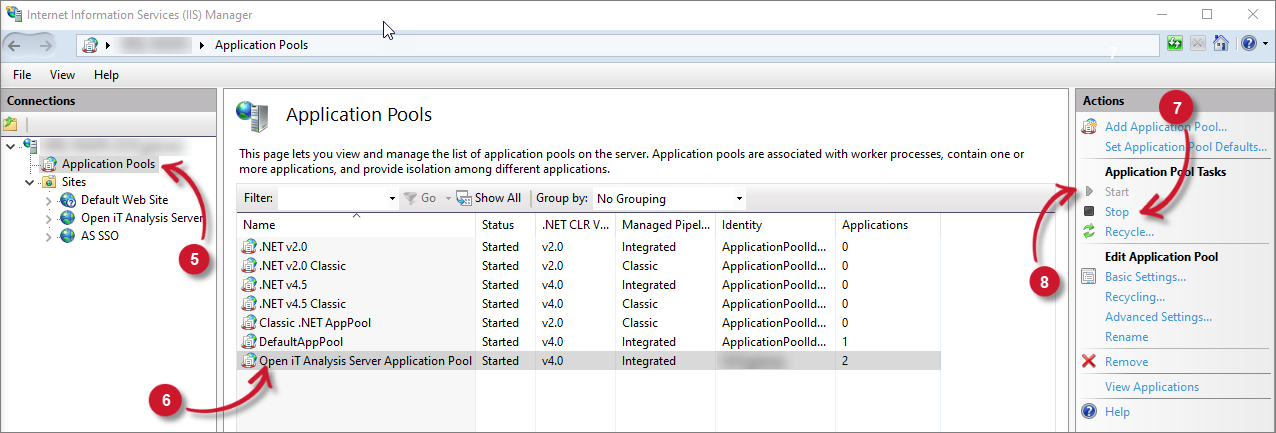 Restart Application Pool