Utilization Trend
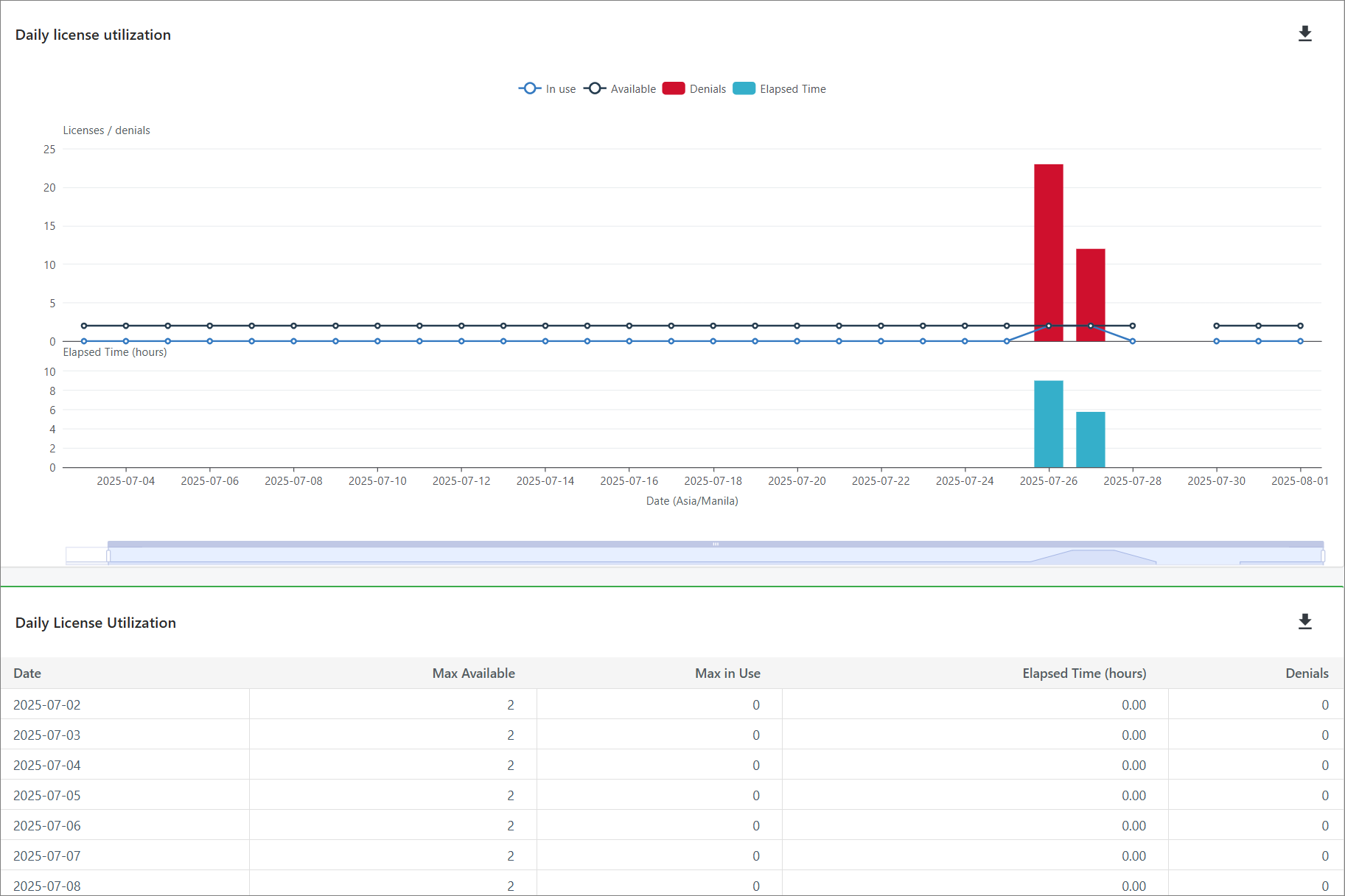
The Utilization Trend report provides an overview of license utilization over a selected period. It presents license usage, availability, denials, and elapsed usage time in both graphical and tabular formats, allowing users to monitor changes in license demand and identify periods of peak utilization.
This report helps evaluate license usage trends and supports decisions related to license allocation and capacity planning.
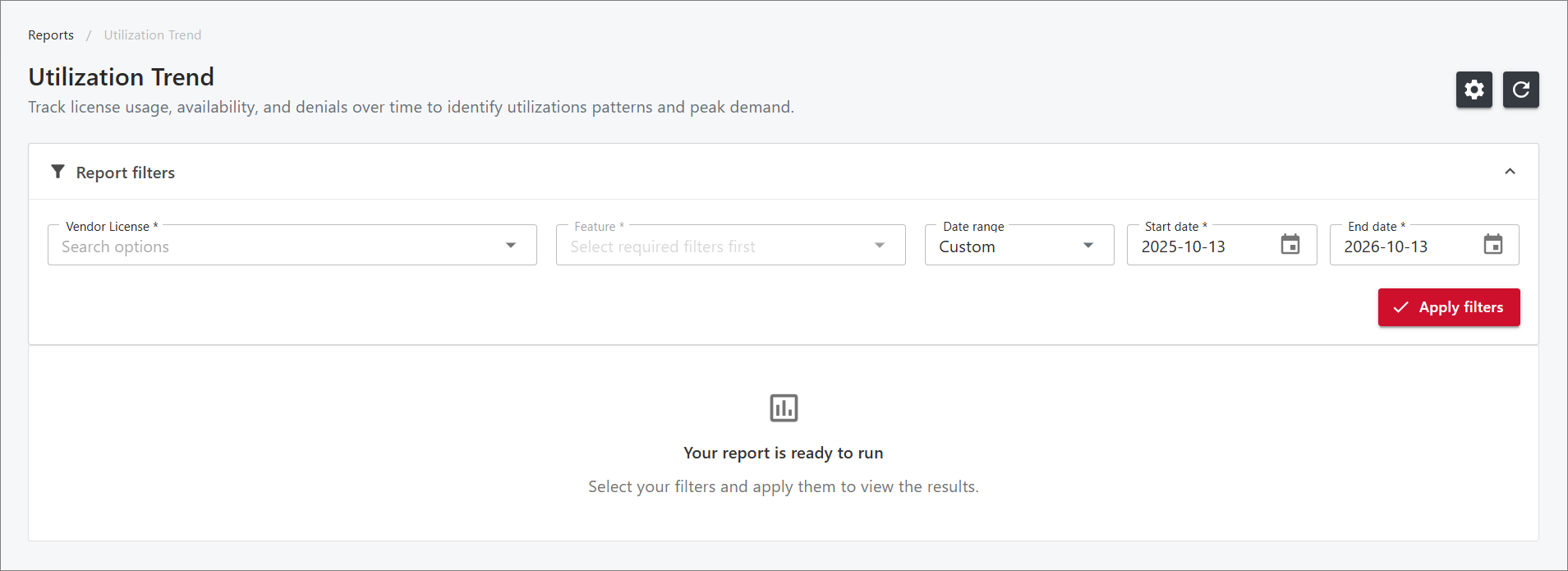
Report Filters
| Filter | Description |
|---|---|
| Vendor License | Use this to specify the license file and vendor daemon to include in the report. |
| Feature | Use this to specify the feature to include in the report based on the selected vendor license. |
| Date Range | Use this to specify the period covered by the report. Select from the following predefined date ranges.
|
Generating the Report
To generate the Utilization Trend report, follow these steps:
-
On the Reports page, locate Utilization Trend, then click Open Report in Grid View or Open in List View.
-
(Optional) To adjust the report's time zone, click the gear icon in the upper-right corner of the page, above the Report Filters panel, and select the desired time zone. By default, the report uses the local machine's time zone.
-
Specify the desired values for the report filters.
-
Click Apply Filters.
The report is generated based on the selected filters.
You can click the Report Filters header to collapse the filter section for a better view of the generated report.
You can also click the refresh icon next to the gear icon to update the report with the latest available data while retaining the selected filters.
-
(Optional) To download the generated report, click the download icon in the upper-right corner of the report panel.
-
(Optional) To export the complete report, click the Export to Excel button in the upper-right corner of the generated report. All available report components, including summary cards (if applicable), selected filters, and report definitions, are exported into a single Excel file.
noteIf no report is generated, see Troubleshooting for instructions on resolving the issue.
Sample Report