PSIM License Manager
Introduction
Open iT supports PSIM usage reporting starting Open iT version 10.3.
Tested and verified with PSIM version 21.1.
Open iT supports PSIM usage reporting by collecting log files and converting them to Open iT format.
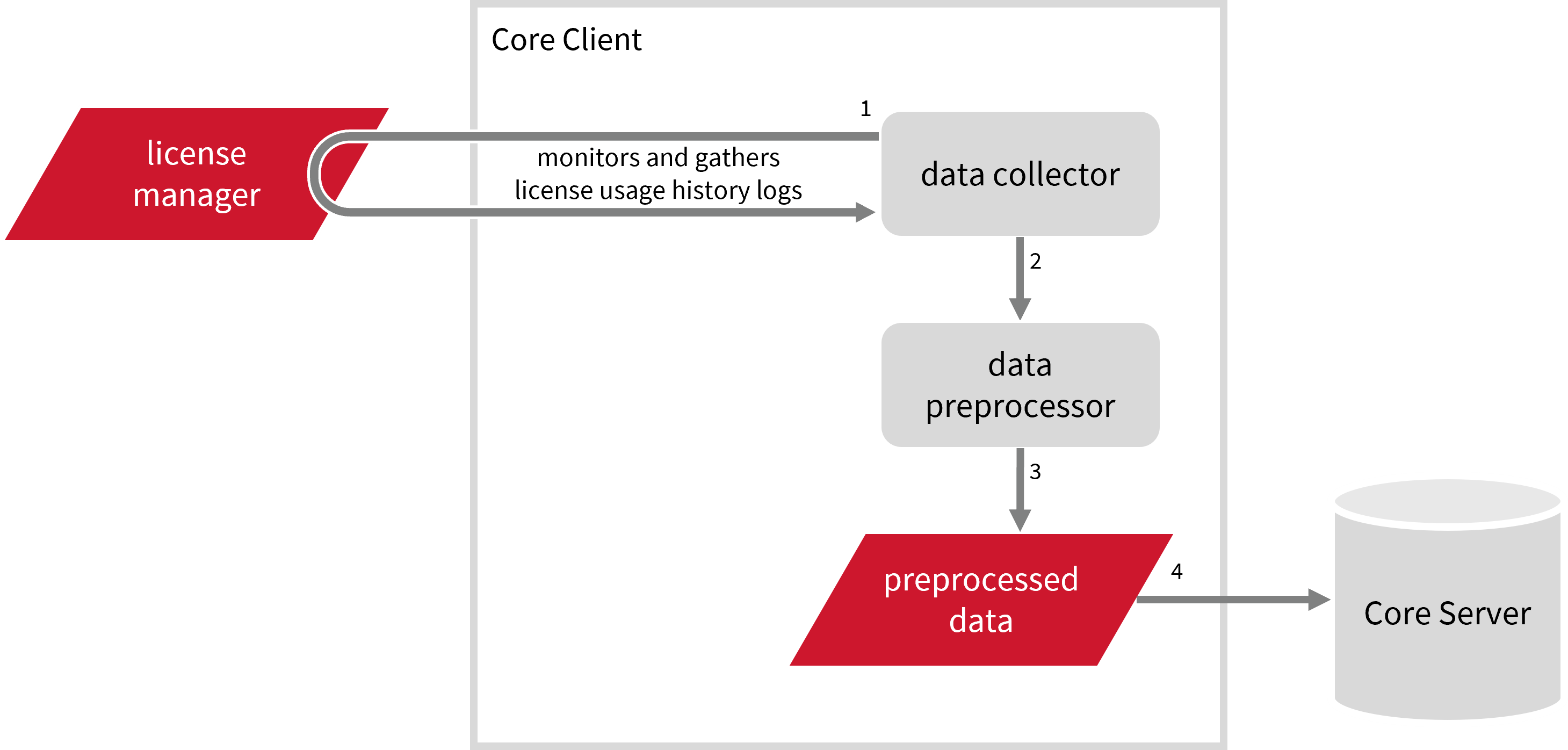
An Open iT Core Client is installed on your license server for this collection. The data collector monitors and gathers the license usage history logs from the license manager every 5 minutes. Once the logs are collected, the data collection process triggers and the logs are passed to the data preprocessor. After the data is preprocessed, it is transferred to the Core Server for further storage, completing the history logs collection and processing.
Requirements
- An Open iT Core Client connected to an Open iT Core Server or a coexistent Open iT Core setup
- License server administrative rights
- Full path to the PSIM log files
Specifying PSIM Log File Path
These are the required steps to specify the path to the PSIM log files.
Log file collection supports log files in the psimserverYYYY.log.ua format.
- Windows
- Unix
-
Go to the Components directory, which is by default in
C:\Program Files\OpeniT\Core\Configuration\Components, and back up thelogfilecollector-psim.xmlfile. -
Open a command prompt with Administrator privileges.
-
Go to the bin directory, which is by default in
C:\Program Files\OpeniT\Core\bin, run the command:Command Syntaxcd <bin_dir>Examplecd C:\Program Files\OpeniT\Core\bin -
Once in the directory, set the location of the PSIM log files, run the command:
Command Syntaxopenit_confinit -c "logfilecollector-psim.logfilecollector.source.dir=<psim_log_dir>"where
<psim_log_dir>is the location of the PSIM log files.noteThe PSIM application typically stores its log files in
C:\PSIMLicenseManagerX64\License1orC:\PSIMLicenseManagerX32\License1.Exampleopenit_confinit -c "logfilecollector-psim.logfilecollector.source.dir=C:\PSIMLicenseManagerX64\License1" -
Update the configuration file, run the command:
Command Syntaxopenit_confbuilder --clientMake sure no errors are encountered.
Advanced Configuration
Refer to the PSIM Log File Collection Configuration table to learn more about PSIM configuration in logfilecollector-psim.xml.
| Object Name | Accepted Value | Description |
|---|---|---|
| source.dir | DirName (e.g., C:\PSIMLicenseManagerX64\License1) | Location of the PSIM log files. |
| source.pattern | String (i.e., *.log) | The glob pattern identifying source files in the source directory. |
| source.seen | String (collect, ignore, or tail) | Seen files are the previously collected source files.
|
| source.cmplines | Integer (e.g., 6, 10, 20) | This is required if the value of source.seen is tail. This is the number of lines compared to source files collected before to determine where to start the collection.Note: If this number is too low, you can end up with an incorrect position, and duplicate data may be in the log files. Usually, it is better to have a few lines more than strictly necessary than even a single line too little. |
| target.dir | DirName (i.e., ${OpeniT.directories.bin}/LogFileCollector) | This is the location of the directory containing the collected log data. |
| target.module | String (i.e., license) | The target type of module (in general). |
| target.datatype | String (i.e., psim) | The specific type of target data. |
| target.interval | Timespan (e.g., P30S, P5M, P1D) | The span of time between collector runs. |
| target.rotation-size | Integer (e.g., 6, 10, 20) | The log file rotates if it goes beyond the number (in mb) defined. |
| target.rotation-glob | String (e.g., *) | The glob pattern to match before the log file rotates. |
-
Go to the Components directory, which is by default in
/var/opt/openit/etc/Components, and back up thelogfilecollector-psim.xmlfile. -
Go to the bin directory, which is by default in
/opt/openit/bin, run the command:Command Syntaxcd <bin_dir>Examplecd /opt/openit/bin -
Once in the directory, set the location of the PSIM log files, run the command:
Command Syntax./openit_confinit -r /var/opt/openit/ -d /var/opt/openit/etc/ -c "logfilecollector-psim.logfilecollector.source.dir=<psim_log_dir>"where
<psim_log_dir>is the location of the PSIM log files.Example./openit_confinit -r /var/opt/openit/ -d /var/opt/openit/etc/ -c "logfilecollector-psim.logfilecollector.source.dir=/root/psim/logs" -
Update the configuration file, run the command:
Command Syntax./openit_confbuilder --clientMake sure no errors are encountered.
Advanced Configuration
Refer to the PSIM Log File Collection Configuration table to learn more about PSIM configuration in logfilecollector-psim.xml.
| Object Name | Accepted Value | Description |
|---|---|---|
| source.dir | DirName (e.g., /root/psim/logs) | Location of the PSIM log files. |
| source.pattern | String (i.e., *.log.ua) | The glob pattern identifying source files in the source directory. |
| source.seen | String (collect, ignore, or tail) | Seen files are the previously collected source files.
|
| source.cmplines | Integer (e.g., 6, 10, 20) | This is required if the value of source.seen is tail. This is the number of lines compared to source files collected before to determine where to start the collection.Note: If this number is too low, you can end up with an incorrect position, and duplicate data may be in the log files. Usually, it is better to have a few lines more than strictly necessary than even a single line too little. |
| target.dir | DirName (i.e., ${OpeniT.directories.temp}/LogFileCollector) | This is the directory location containing the collected log data. |
| target.module | String (i.e., license) | The target type of module (in general). |
| target.datatype | String (i.e., psim) | The specific type of target data. |
| target.interval | Timespan (e.g., P30S, P5M, P1D) | The span of time between collector runs. |
| target.rotation-size | Integer (e.g., 6, 10, 20) | The log file rotates if it goes beyond the number (in mb) defined. |
| target.rotation-glob | String (e.g., *) | The glob pattern to match before the log file rotates. |
PSIM Events Log File Collection Configuration
Activating this produces the following aggregated data types used for historical reporting:
Activating Event Log Data Collection
These are the required steps to activate collection of the PSIM log file for events.
- Windows
- Unix
-
Open a command prompt with Administrator level privileges.
-
Go to the bin directory, which is by default in
C:\Program Files\OpeniT\Core\bin, run the command:Command Syntaxcd <bin_dir>Examplecd C:\Program Files\OpeniT\Core\bin -
Once in the directory, activate the collection of PSIM event log data, run the command:
Command Syntaxopenit_oconfinit -u "collect_license_psim_event-logs.root.scheduler.jobs.collect_psim_licenselogs-events.general.active=true"
Advanced Configuration
The collection runs daily by default. To configure the intervals, update the collect_license_psim_event-logs.oconf file in the scheduler directory, which is by default in C:\Program Files\OpeniT\Core\Configuration\scheduler. Locate the instances attribute under collect_psim_licenselogs-events, preprocess_psim_licenselogs-events, or transfer_psim_licenselogs-events in the same file and configure the attributes.
Refer to the PSIM Log Job Scheduler Instances Configuration table to learn the attributes used to configure PSIM data collection and transfer.
| Attribute Name | Accepted Value | Description |
|---|---|---|
| max-instances | Uint (e.g., 5, 8, 9) | The number of instances allowed to run at the same time. |
| max-handling | String (end-oldest, end-all-old, or end-new) | The action done upon reaching the maximum number of instances:
|
| end-timeout | Timespan (e.g., P30S, P5M, P1H) | The maximum waiting time before terminating a running instance. |
| quarantine | Timespan (e.g., P30S, P5M, P1H) | The waiting time before starting a new instance after a previous one. |
-
Go to the bin directory, which is by default in
/opt/openit/bin, run the command:Command Syntaxcd <bin_dir>Examplecd /opt/openit/bin -
Once in the directory, activate the collection of PSIM event log data, run the command:
Command Syntax./openit_oconfinit -u "collect_license_psim_event-logs.root.scheduler.jobs.collect_psim_licenselogs-events.general.active=true"
Advanced Configuration
The collection runs daily by default. To configure the intervals, update the collect_license_psim_event-logs.oconf file in the scheduler directory, which is by default in /var/opt/openit/etc/scheduler. Locate the instances attribute under collect_psim_licenselogs-events, preprocess_psim_licenselogs-events, or transfer_psim_licenselogs-events in the same file and configure the attributes.
Refer to the PSIM Log Job Scheduler Instances Configuration table to learn the attributes used to configure PSIM data collection and transfer.
| Attribute Name | Accepted Value | Description |
|---|---|---|
| max-instances | Uint (e.g., 5, 8, 9) | The number of instances allowed to run at the same time. |
| max-handling | String (end-oldest, end-all-old, or end-new) | The action done upon reaching the maximum number of instances:
|
| end-timeout | Timespan (e.g., P30S, P5M, P1H) | The maximum waiting time before terminating a running instance. |
| quarantine | Timespan (e.g., P30S, P5M, P1H) | The waiting time before starting a new instance after a previous one. |
Verifying Event Log Data Collection
After configuration, you can verify that the data can be collected and parsed into the Open iT format successfully:
- Windows
- Unix
-
Open a command prompt with Administrator level privileges.
-
Go to the bin directory, which is by default in
C:\Program Files\OpeniT\Core\bin, run the command:Command Syntaxcd <bin_dir>Examplecd C:\Program Files\OpeniT\Core\bin -
Verify that Open iT can collect raw data, run the command:
Command Syntaxopenit_logfilecollector -c "<config_dir>\logfilecollector-psim.conf"where
<config_dir>is the absolute path to the Configuration directory, which is by default inC:\Program Files\OpeniT\Core\Configuration.Exampleopenit_logfilecollector -c "C:\Program Files\OpeniT\Core\Configuration\logfilecollector-psim.conf" -
Once done, verify that there are
*-openit_logfilecollector.statusandraw-psim-license-LogFileCollector-*.datafiles created in the LogFileCollector directory, which is by default inC:\ProgramData\OpeniT\Data\temp\LogFileCollector. -
Verify that Open iT can parse the collected raw data into the Open iT format, run the command:
Command Syntaxopenit_logparserpsim --srcdir "C:\ProgramData\OpeniT\Data\temp\LogFileCollector" --srcpattern raw-psim-license-LogFileCollector-*.data --srcfilehandling rename --trgdir "C:\ProgramData\OpeniT\Data\temp\LogParserPsim" --module license --datatype event --resolution PT1H --matchobjects "C:\Program Files\OpeniT\Core\Configuration\matchobjects-event-psim.oconf" --debug warning -
Once done, verify that there are
event-license-LogParserPsim-*.datafiles created in the LogParserPsim directory, which is by default inC:\ProgramData\OpeniT\Data\temp\LogParserPsim.
-
Go to the bin directory, which is by default in
/opt/openit/bin, run the command:Command Syntaxcd <bin_dir>Examplecd /opt/openit/bin -
Verify that Open iT can collect raw data, run the command:
Command Syntax./openit_logfilecollector -c "<config_dir>/logfilecollector-psim.conf"where
<config_dir>is the absolute path to the etc directory, which is by default in/var/opt/openit/etc.Example./openit_logfilecollector -c "/var/opt/openit/etc/logfilecollector-psim.conf" -
Once done, verify that there are
*-openit_logfilecollector.statusandraw-psim-license-LogFileCollector-*.datafiles created in the LogFileCollector directory, which is by default in/var/opt/openit/temp/LogFileCollector. -
Verify that Open iT can parse the collected raw data into the Open iT format, run the command:
Command Syntax./openit_logparserpsim --srcdir "/var/opt/openit/temp/LogFileCollector" --srcpattern raw-psim-license-LogFileCollector-*.data --srcfilehandling rename --trgdir "/var/opt/openit/temp/LogParserPsim" --module license --datatype event --resolution PT1H --matchobjects "/var/opt/openit/etc/matchobjects-event-psim.oconf" --debug warning -
Once done, verify that there are
event-license-LogParserPsim-*.datafiles created in the LogParserPsim directory, which is by default in/var/opt/openit/temp/LogParserPsim.
PSIM Records Log File Collection Configuration
Activating this produces the following aggregated data types used for historical reporting:
- (89) Total License Use Licenseevents
- (90) Individual License Use Licenseevents
- (91) Usergroup License Use Licenseevents
- (108) Host License Use Licenseevents
- (109) Hostgroup License Use Licenseevents
Activating Record Log Data Collection
These are the required steps to activate the collection of the PSIM log file for records.
- Windows
- Unix
-
Open a command prompt with Administrator level privileges.
-
Go to the bin directory, which is by default in
C:\Program Files\OpeniT\Core\bin, run the command:Command Syntaxcd <bin_dir>Examplecd C:\Program Files\OpeniT\Core\bin -
Once in the directory, activate the collection of PSIM record log data, run the command:
Command Syntaxopenit_oconfinit -u "collect_license_psim_record-logs.root.scheduler.jobs.collect_psim_licenselogs-records.general.active=true"
Advanced Configuration
The collection runs daily by default. To configure the intervals, update the collect_license_psim_record-logs.oconf file in the scheduler directory, which is by default in C:\Program Files\OpeniT\Core\Configuration\scheduler. Locate the instances attribute under collect_psim_licenselogs-records, preprocess_psim_licenselogs-records, or transfer_psim_licenselogs-records in the same file and configure the attributes.
Refer to the PSIM Log Job Scheduler Instances Configuration table to learn the attributes used to configure PSIM data collection and transfer.
| Attribute Name | Accepted Value | Description |
|---|---|---|
| max-instances | Uint (e.g., 5, 8, 9) | The number of instances allowed to run at the same time. |
| max-handling | String (end-oldest, end-all-old, or end-new) | The action done upon reaching the maximum number of instances:
|
| end-timeout | Timespan (e.g., P30S, P5M, P1H) | The maximum waiting time before terminating a running instance. |
| quarantine | Timespan (e.g., P30S, P5M, P1H) | The waiting time before starting a new instance after a previous one. |
-
Go to the bin directory, which is by default in
/opt/openit/bin, run the command:Command Syntaxcd <bin_dir>Examplecd /opt/openit/bin -
Once in the directory, activate the collection of PSIM record log data, run the command:
Command Syntax./openit_oconfinit -u "collect_license_psim_record-logs.root.scheduler.jobs.collect_psim_licenselogs-records.general.active=true"
Advanced Configuration
The collection runs daily by default. To configure the intervals, update the collect_license_psim_record-logs.oconf file in the scheduler directory, which is by default in /var/opt/openit/etc/scheduler. Locate the instances attribute under collect_psim_licenselogs-records, preprocess_psim_licenselogs-records, or transfer_psim_licenselogs-records in the same file and configure the attributes.
Refer to the PSIM Log Job Scheduler Instances Configuration table to learn the attributes used to configure PSIM data collection and transfer.
| Attribute Name | Accepted Value | Description |
|---|---|---|
| max-instances | Uint (e.g., 5, 8, 9) | The number of instances allowed to run at the same time. |
| max-handling | String (end-oldest, end-all-old, or end-new) | The action done upon reaching the maximum number of instances:
|
| end-timeout | Timespan (e.g., P30S, P5M, P1H) | The maximum waiting time before terminating a running instance. |
| quarantine | Timespan (e.g., P30S, P5M, P1H) | The waiting time before starting a new instance after a previous one. |
The collected data does not include the number of available licenses. To configure the available licenses for PSIM features, refer to the instructions in the Configuring available-licenses.map section.
Verifying Record Log Data Collection
After configuration, you can verify that the data is collected and sent to the Core Server by following these steps:
- Windows
- Unix
-
Open a command prompt with Administrator level privileges.
-
Go to the bin directory, which is by default in
C:\Program Files\OpeniT\Core\bin, run the command:Command Syntaxcd <bin_dir>Examplecd C:\Program Files\OpeniT\Core\bin -
Verify that Open iT can collect raw data, run the command:
Command Syntaxopenit_logfilecollector -c "<config_dir>\logfilecollector-psim.conf" --target "<temp_dir>\Raw.Psim.Record"where:
<config_dir>is the absolute path to the Configuration directory, which is by default inC:\Program Files\OpeniT\Core\Configuration<temp_dir>is the absolute path to the temp directory, which is by defaultC:\ProgramData\OpeniT\Data\temp
Exampleopenit_logfilecollector -c "C:\Program Files\OpeniT\Core\Configuration\logfilecollector-psim.conf" --target "C:\ProgramData\OpeniT\Data\temp\Raw.Psim.Record" -
Once done, verify that there are
*-openit_logfilecollector.statusandraw-psim-license-LogFileCollector-*.datafiles created in the Raw.Psim.Record directory, which is by default inC:\ProgramData\OpeniT\Data\temp\Raw.Psim.Record. -
Verify that Open iT can parse the collected raw data into the Open iT format, run the command:
Command Syntaxopenit_logparserpsim --srcdir "C:\ProgramData\OpeniT\Data\temp\Raw.Psim.Record" --srcpattern raw-psim-license-LogFileCollector-*.data --srcfilehandling delete --trgdir "C:\ProgramData\OpeniT\Data\temp\LogParserPsim" --module license --datatype record --resolution PT1H --matchobjects "C:\Program Files\OpeniT\Core\Configuration\matchobjects-record-psim.oconf" --type record --debug warning -
Once done, verify that there are
record-license-LogParserPsim-*.datafiles created in the LogParserPsim directory, which is by default inC:\ProgramData\OpeniT\Data\temp\LogParserPsim.
-
Go to the bin directory, which is by default in
/opt/openit/bin, run the command:Command Syntaxcd <bin_dir>Examplecd /opt/openit/bin -
Verify that Open iT can collect raw data, run the command:
Command Syntax./openit_logfilecollector -c "<config_dir>\logfilecollector-psim.conf" --target "<temp_dir>\Raw.Psim.Record"where:
<config_dir>is the absolute path to the Configuration directory, which is by default in/var/opt/openit/etc<temp_dir>is the absolute path to the temp directory, which is by default/var/opt/openit/temp
Example./openit_logfilecollector -c "/var/opt/openit/etc/logfilecollector-psim.conf" --target "/var/opt/openit/temp/Raw.Psim.Record" -
Once done, verify that there are
*-openit_logilecollector.statusandraw-psim-license-LogFileCollector-*.datafiles created in the Raw.Psim.Record directory, which is by default in/var/opt/openit/temp/Raw.Psim.Record. -
Verify that Open iT can parse the collected raw data into the Open iT format, run the command:
Command Syntax./openit_logparserpsim --srcdir "/var/opt/openit/temp/Raw.Psim.Record" --srcpattern raw-psim-license-LogFileCollector-*.data --srcfilehandling delete --trgdir "/var/opt/openit/temp/LogParserPsim" --module license --datatype record --resolution PT1H --matchobjects "/var/opt/openit/etc/matchobjects-record-psim.oconf" --type record --debug warning -
Once done, verify that there are
record-license-LogParserPsim-*.datafiles created in the LogParserPsim directory, which is by default in/var/opt/openit/temp/LogParserPsim.