Parasoft License Server
Introduction
Open iT supports Parasoft usage reporting. The following sections will guide you on the required configuration for license manager utility polling and log file parsing.
Apply the configurations shown in the Open iT Core Client.
Configuring License Manager Utility Polling
Open iT supports Parasoft usage by polling the license servers at regular intervals to get the current status of its license use and availability.
For this collection, the data source is through an API. The data collector/preprocessor initiates the license status utility every hour using a 5-minute sample interval, triggering the data collection process. The license status utility requests the current license usage data from the license server. After the license server provides the requested data, the license status utility passes this information to the data collector/preprocessor. The data collector/preprocessor processes the data, preparing it for transmission. Finally, the preprocessed data is sent to the Core Server every night, according to the client's timezone, for further storage, completing the license usage data collection and processing.
This will produce the following aggregated data types used for historical and real-time reporting:
- (49) Host User License Use
- (93) OLAP Raw Hourly
- (94) OLAP User Concurrency
- (95) Usergroup License Use v3.0
- (102) OLAP Total Use
The following sections will guide you in setting up the necessary configuration to collect and send the required data to the server.
Requirements
- An Open iT Core Client connected to an Open iT Core Server or a coexistent Open iT Core setup
- Activated LicenseAnalyzer collection and license poller
- Non-SSO Parasoft account with administrator access to the Parasoft license server
Setting up Parasoft Data Collection
These are the required steps to set up data collection from the Parasoft license server.
- Windows
- Unix
-
Open a command prompt with Administrator level privileges.
-
Go to the bin directory, which is by default in
C:\Program Files\OpeniT\Core\bin, run the command:Command Syntaxcd <bin_dir>Examplecd C:\Program Files\OpeniT\Core\bin -
Set the username and password of the account to use for data collection, run the command:
Command Syntaxgenlicutil2 Parasoft --url <server_hostname> --configwhere
<server_hostname>is the Parasoft license server hostname.Examplegenlicutil2 Parasoft --url https://localhost:8443/licenseserver --confignoteIf you need to collect data from more than one Parasoft account, use the
--accountparameter when running this command. This allows you to create separate credentials for each account.Command Syntaxgenlicutil2 Parasoft --url <server_hostname> --config --account <account_name>where
<server_hostname>is the Parasoft license server hostname and<account_name>is the name of the account you want to use for data collection.Examplegenlicutil2 Parasoft --url https://localhost:8443/licenseserver --config --account acct1 -
Type in the username when prompted.
Example: Entering UsernameEnter username to use: john_doe@example.comthen press Enter.
-
Type in the password when prompted.
Enter password: **********then press Enter.
Open iT saves the hashed Parasoft credential file, Parasoft, in the OpeniT directory, which is by default in C:\ProgramData\OpeniT. When you use the --account parameter, Open iT appends the account name to the credential file (for example, Parasoft_acct1). This allows each Parasoft account to maintain its own credentials within the same directory.
-
Go to the bin directory, which is by default in
/opt/openit/bin, run the command:Command Syntaxcd <bin_dir>Examplecd /opt/openit/bin -
Set the username and password of the account to use for data collection, run the command:
Command Syntax./genlicutil2 Parasoft --url <server_hostname> --configwhere
<server_hostname>is the Parasoft license server hostname.Example./genlicutil2 Parasoft --url https://localhost:8443/licenseserver --confignoteIf you need to collect data from more than one Parasoft account, use the
--accountparameter when running this command. This allows you to create separate credentials for each account.Command Syntax./genlicutil2 Parasoft --url <server_hostname> --config --account <account_name>where
<server_hostname>is the Parasoft license server hostname and<account_name>is the name of the account you want to use for data collection.Example./genlicutil2 Parasoft --url https://localhost:8443/licenseserver --config --account acct1 -
Type in the username when prompted.
Example: Entering UsernameEnter username to use: john_doe@example.comthen press Enter.
-
Type in the password when prompted.
Enter password: **********then press Enter.
Open iT saves the hashed Parasoft credential file, Parasoft, in the OpeniT directory, which is by default in /var/tmp/OpeniT. When you use the --account parameter, Open iT appends the account name to the credential file (for example, Parasoft_acct1). This allows each Parasoft account to maintain its own credentials within the same directory.
Optional Parameters
| Parameter | Description |
|---|---|
--user <user_name> | Use this to specify the username of the account you want to use for data collection. |
--pwd <password> | Use this to specify the password of the account you want to use for data collection. |
--account <account_name> | Use this to specify the account you want to use for data collection. |
--debug | Use this to turn on debug logging. |
-h, --help | Use this to display the help text. |
Configuring Data Collection
These are the required steps to activate collection of usage data.
- Windows
- Unix
-
Go to the Components directory, which is by default in
C:\Program Files\OpeniT\Core\Configuration\Components, and back up thelicpoll.xmlconfiguration file. -
Open a command prompt with Administrator level privileges.
-
Go to the bin directory, which is by default in
C:\Program Files\OpeniT\Core\bin, run the command:Command Syntaxcd <bin_dir>Examplecd C:\Program Files\OpeniT\Core\bin -
Once in the directory, copy the object node
genericlicense-sampleand rename it to your desired name. In this example, we will usegenericlicense-parasoft. Run the command:Command Syntaxopenit_confinit -c "licpoll.license-types.genericlicense-sample=>licpoll.license-types.genericlicense-parasoft"warningElement names cannot contain parentheses
(or)because they are not valid for XML element names. -
Activate the collection of Parasoft data, run the command:
Command Syntaxopenit_confinit -c "licpoll.license-types.genericlicense-parasoft.active=true" -
Set the status command, run the command:
Command Syntaxopenit_confinit -c "licpoll.license-types.genericlicense-parasoft.status-command=${OpeniT.directories.bin}/genlicutil2.exe" -
Set the arguments to the status command, run the command:
Command Syntaxopenit_confinit -c "licpoll.license-types.genericlicense-parasoft.status-command.arguments=Parasoft --url <server_hostname>"where
<server_hostname>is the Parasoft license server hostname.Exampleopenit_confinit -c "licpoll.license-types.genericlicense-parasoft.status-command.arguments=Parasoft --url https://localhost:8443/licenseserver"
If you have multiple Parasoft accounts, repeat the configuration steps to create additional object nodes for each account. Use a unique name for every node (for example, genericlicense-parasoft_1, genericlicense-parasoft_2, and so on) and specify the corresponding account in the status-command arguments.
openit_confinit -c "licpoll.license-types.genericlicense-parasoft_1.status-command.arguments=Parasoft --url https://localhost:8443/licenseserver" --account acct1"
This ensures that Open iT collects data separately for each configured Parasoft account.
-
Run the following command to update the configuration files:
Exampleopenit_confbuilder --clientMake sure no errors are encountered.
Advanced Configuration
Refer to the Parasoft Data Collection Configuration table to learn more about Parasoft configuration in licpoll.xml.
| Object Name | Accepted Value | Description |
|---|---|---|
| active | Boolean (true or false) | Setting this to true activates Parasoft usage data collection. |
| type | String (i.e., GenericLicense) | The license manager type. |
| interval | Timespan (e.g., P30S, P5M, P1H) | The span of time between each polling round (it is recommended to set a value no less than P1M). |
| offset | Timespan (e.g., P30S, P5M, P1H) | The span of time the aligned poll time decided by interval is shifted. |
| product-name | String (e.g., %host%;parasoft) | This object is defined if a vendor license name other than the default %host%;parasoft will be used. |
| license-server | String (e.g., WIN-HOST01) | The license server name. |
| status-command | FileName (i.e., ${OpeniT.directories.bin}/genlicutil2.exe) | The binary used to obtain status from the license manager. |
| status-command.arguments | String (e.g., Parasoft --url https://localhost:8443/licenseserver) | The arguments used for the status command. |
-
Go to the Components directory, which is by default in
/var/opt/openit/etc/Components, and back up thelicpoll.xmlconfiguration file. -
Go to the bin directory, which is by default in
/opt/openit/bin, run the command:Command Syntaxcd <bin_dir>Examplecd /opt/openit/bin -
Once in the directory, copy the object node
genericlicense-sampleand rename it to your desired name. In this example, we will usegenericlicense-parasoft. Run the command:Command Syntax./openit_confinit -r /var/opt/openit/ -d /var/opt/openit/etc/ -c "licpoll.license-types.genericlicense-sample=>licpoll.license-types.genericlicense-parasoft"warningElement names cannot contain parentheses
(or)because they are not valid for XML element names. -
Activate the collection of Parasoft data, run the command:
Command Syntax./openit_confinit -r /var/opt/openit/ -d /var/opt/openit/etc/ -c "licpoll.license-types.genericlicense-parasoft.active=true" -
Set the status command, run the command:
Command Syntax./openit_confinit -r /var/opt/openit/ -d /var/opt/openit/etc/ -c "licpoll.license-types.genericlicense-parasoft.status-command=${OpeniT.directories.bin}/genlicutil2.exe" -
Set the arguments to the status command, run the command:
Command Syntax./openit_confinit -c "licpoll.license-types.genericlicense-parasoft.status-command.arguments=Parasoft --url <server_hostname>"where
<server_hostname>is the Parasoft license server hostname.Example./openit_confinit -c "licpoll.license-types.genericlicense-parasoft.status-command.arguments=Parasoft --url https://localhost:8443/licenseserver"
If you have multiple Parasoft accounts, repeat the configuration steps to create additional object nodes for each account. Use a unique name for every node (for example, genericlicense-parasoft_1, genericlicense-parasoft_2, and so on) and specify the corresponding account in the status-command arguments.
./openit_confinit -c "licpoll.license-types.genericlicense-parasoft_1.status-command.arguments=Parasoft --url https://localhost:8443/licenseserver" --account acct1"
This ensures that Open iT collects data separately for each configured Parasoft account.
-
Run the following command to update the configuration files:
Example./openit_confbuilder --clientMake sure no errors are encountered.
Advanced Configuration
Refer to the Parasoft Data Collection Configuration table to learn more about Parasoft configuration in licpoll.xml.
| Object Name | Accepted Value | Description |
|---|---|---|
| active | Boolean (true or false) | Setting this to true activates Parasoft usage data collection. |
| type | String (i.e., GenericLicense) | The license manager type. |
| interval | Timespan (e.g., P30S, P5M, P1H) | The span of time between each polling round (it is recommended to set a value no less than P1M). |
| offset | Timespan (e.g., P30S, P5M, P1H) | The span of time the aligned poll time decided by interval is shifted. |
| product-name | String (e.g., %host%;parasoft) | This object is defined if a vendor license name other than the default %host%;parasoft will be used. |
| license-server | String (e.g., host01) | The license server name. |
| status-command | FileName (i.e., ${OpeniT.directories.bin}/genlicutil2) | The binary used to obtain status from the license manager. |
| status-command.arguments | String (e.g., Parasoft --url https://localhost:8443/licenseserver) | The arguments used for the status command. |
Verifying Data Collection
After configuration, you can verify that the data is collected by following these steps:
- Windows
- Unix
-
Open a command prompt with Administrator level privileges.
-
Go to the bin directory, which is by default in
C:\Program Files\OpeniT\Core\bin, run the command:Command Syntaxcd <bin_dir>Examplecd C:\Program Files\OpeniT\Core\bin -
Run the command:
Command Syntaxopenit_licpoll -# 1 -
Verify that the temp directory, which is by default in
C:\ProgramData\OpeniT\Data\temp, contains a LicPoll directory containing.dataandstatus-*.logfiles.
-
Go to the bin directory, which is by default in
/opt/openit/bin, run the command:Command Syntaxcd <bin_dir>Examplecd /opt/openit/bin -
Run the command:
Command Syntax./openit_licpoll -# 1 -
Verify that the temp directory, which is by default in
/var/opt/openit/temp/, contains a LicPoll directory containing.dataandstatus-*.logfiles.
Configuring Log File Parsing
Open iT supports Parasoft usage reporting by collecting log files and converting them to Open iT format.
An Open iT Core Client is installed on your license server for this collection. The data collector monitors and gathers the license usage history logs from the license manager every 5 minutes. Once the logs are collected, the data collection process triggers and the logs are passed to the data preprocessor. After the data is preprocessed, it is transferred to the Core Server for further storage, completing the history logs collection and processing.
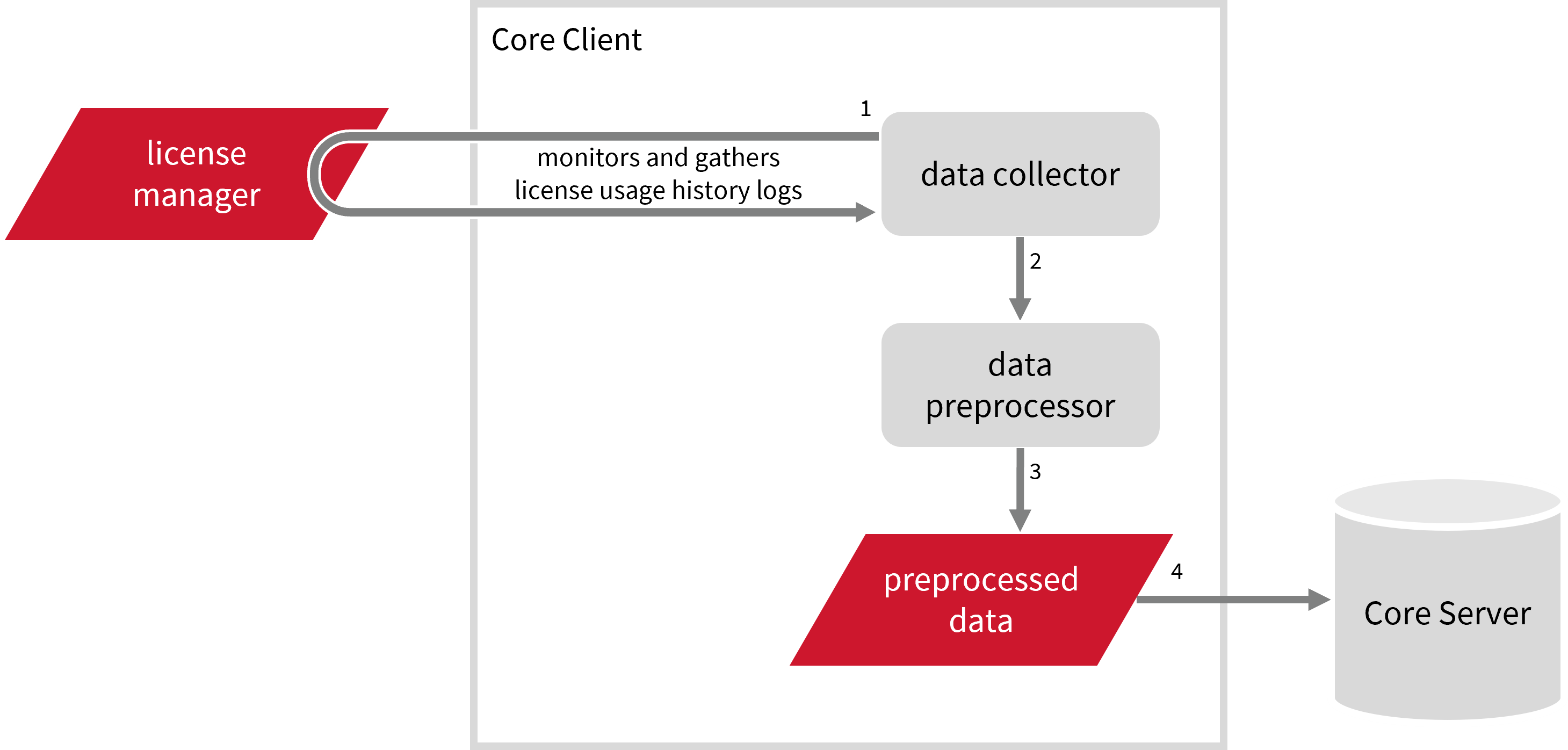
This will produce the following aggregated data types used for historical and real-time reporting:
- (89) Total License Use Licenseevents
- (90) Individual License Use Licenseevents
- (91) Usergroup License Use Licenseevents
- (108) Host License Use Licenseevents
- (109) Hostgroup License Use Licenseevents
The following sections will guide you in setting up the necessary configuration to collect and send the required data to the server.
Requirements
- An Open iT Core Client connected to an Open iT Core Server or a coexistent Open iT Core setup
- License server administrative rights
- Full path to the debug log file
Configuring Log File Collection
These are the required steps to configure collection of Parasoft log files.
- Windows
- Unix
-
Go to the Components directory, which is by default in
C:\Program Files\OpeniT\Core\Configuration\Components, and back up thelogfilecollector-parasoft.xmlfile. -
Open a command prompt with Administrator level privileges.
-
Go to the bin directory, which is by default in
C:\Program Files\OpeniT\Core\bin, run the command:Command Syntaxcd <bin_dir>Examplecd C:\Program Files\OpeniT\Core\bin -
Once in the directory, set the location of the Parasoft log files, run the command:
Command Syntaxopenit_confinit -c "logfilecollector-parasoft.logfilecollector.source.dir=<parasoft_log_dir>"where
<parasoft_log_dir>is the location of the Parasoft log files.Exampleopenit_confinit -c "logfilecollector-parasoft.logfilecollector.source.dir=C:\ProgramData\Parasoft"
-
Update the configuration file, run the command:
Command Syntaxopenit_confbuilder --clientMake sure no errors are encountered.
Advanced Configuration
Refer to the Parasoft Log File Collection Configuration table to learn more about Parasoft configuration in logfilecollector-parasoft.xml.
| Object Name | Accepted Value | Description |
|---|---|---|
| source.dir | DirName (e.g., C:\ProgramData\Parasoft) | Location of the Parasoft log files. |
| source.pattern | String (i.e., ls_access.log*) | The glob pattern identifying source files in the source directory. |
| source.seen | String (collect, ignore, or tail) | Seen files are the previously collected source files.
|
| source.cmplines | Integer (e.g., 6, 10, 20) | This is required if the value of source.seen is tail. This is the number of lines compared to source files collected before to determine where to start the collection. Note: If this number is too low, you can end up with an incorrect position, and duplicate data may be in the log files. Usually, it is better to have a few lines more than strictly necessary than even a single line too little. |
| target.dir | DirName (i.e., ${OpeniT.directories.temp}/LogFileCollector) | This is the location of the directory containing the collected log data. |
| target.module | String (i.e., license) | The target type of module (in general). |
| target.datatype | String (i.e., parasoftevents) | The specific type of target data. |
| target.interval | Timespan (e.g., P30S, P5M, P1D) | The span of time between collector runs |
| target.rotation-size | Integer (e.g., 6, 10, 20) | The log file rotates if it goes beyond the number (in mb) defined. |
| target.rotation-glob | String (e.g., *) | The glob pattern to match before the log file rotates. |
-
Go to the Components directory, which is by default in
/var/opt/openit/etc/Components, and back up thelogfilecollector-parasoft.xmlfile. -
Go to the bin directory, which is by default in
/opt/openit/bin, run the command:Command Syntaxcd <bin_dir>Examplecd /opt/openit/bin -
Once in the directory, set the location of the Parasoft log files, run the command:
Command Syntax./openit_confinit -r /var/opt/openit/ -d /var/opt/openit/etc/ -c "logfilecollector-parasoft.logfilecollector.source.dir=<parasoft_log_dir>"where
<parasoft_log_dir>is the location of the Parasoft log files.Example./openit_confinit -r /var/opt/openit/ -d /var/opt/openit/etc/ -c "logfilecollector-parasoft.logfilecollector.source.dir=/root/parasoft/logs"
-
Update the configuration file, run the command:
Command Syntax./openit_confbuilder --clientMake sure no errors are encountered.
Advanced Configuration
Refer to the Parasoft Log File Collection Configuration table to learn more about Parasoft configuration in logfilecollector-parasoft.xml.
| Object Name | Accepted Value | Description |
|---|---|---|
| source.dir | DirName (e.g., /root/parasoft/logs) | Location of the Parasoft log files. |
| source.pattern | String (i.e., ls_access.log*) | The glob pattern identifying source files in the source directory. |
| source.seen | String (collect, ignore, or tail) | Seen files are the previously collected source files.
|
| source.cmplines | Integer (e.g., 6, 10, 20) | This is required if the value of source.seen is tail. This is the number of lines compared to source files collected before to determine where to start the collection. Note: If this number is too low, you can end up with an incorrect position, and duplicate data may be in the log files. Usually, it is better to have a few lines more than strictly necessary than even a single line too little. |
| target.dir | DirName (i.e., ${OpeniT.directories.temp}/LogFileCollector) | This is the location of the directory containing the collected log data. |
| target.module | String (i.e., license) | The target type of module (in general). |
| target.datatype | String (i.e., parasoft) | The specific type of target data. |
| target.interval | Timespan (e.g., P30S, P5M, P1D) | The span of time between collector runs |
| target.rotation-size | Integer (e.g., 6, 10, 20) | The log file rotates if it goes beyond the number (in mb) defined. |
| target.rotation-glob | String (e.g., *) | The glob pattern to match before the log file rotates. |
Activating Log Data Collection
These are the required steps to activate collection of Parasoft log data.
- Windows
- Unix
-
Open a command prompt with Administrator level privileges.
-
Go to the bin directory, which is by default in
C:\Program Files\OpeniT\Core\bin, run the command:Command Syntaxcd <bin_dir>Examplecd C:\Program Files\OpeniT\Core\bin -
Once in the directory, activate the collection of Parasoft log data, run the command:
Command Syntaxopenit_oconfinit -u "collect_license_parasoft-logs.root.scheduler.jobs.collect_parasoft_licenselogs.general.active=true"
-
Go to the bin directory, which is by default in
/opt/openit/bin, run the command:Command Syntaxcd <bin_dir>Examplecd /opt/openit/bin -
Once in the directory, activate the collection of Parasoft log data, run the command:
Command Syntax./openit_oconfinit -u "collect_license_parasoft-logs.root.scheduler.jobs.collect_parasoft_licenselogs.general.active=true"
Advanced Configuration
The collection runs every 5 minutes by default. To configure the intervals, locate the instances attribute under collect_parasoft_licenselogs, preprocess_parasoft_licenselogs-records, or transfer_parasoft_licenselogs in the same file and configure the attributes.
Refer to the Parasoft Log Job Scheduler Instances Configuration table to learn the attributes used to configure Parasoft data collection and transfer.
| Attribute Name | Accepted Value | Description |
|---|---|---|
| max-instances | Uint (e.g., 5, 8, 9) | The number of instances allowed to run the at the same time. |
| max-handling | String (end-oldest, end-all-old, or end-new) | The action done upon reaching the maximum number of instances:
|
| end-timeout | Timespan (e.g., P30S, P5M, P1H) | The maximum waiting time before terminating a running instance. |
| quarantine | Timespan (e.g., P30S, P5M, P1H) | The waiting time before starting a new instance after a previous one. |
Verifying Log Data Collection
After configuration, you can verify that the data is collected by following these steps:
- Windows
- Unix
-
Open a command prompt with Administrator level privileges.
-
Go to the bin directory, which is by default in
C:\Program Files\OpeniT\Core\bin, run the command:Command Syntaxcd <bin_dir>Examplecd C:\Program Files\OpeniT\Core\bin -
Run the command:
Command Syntaxopenit_logfilecollector -c "C:\Program Files\OpeniT\Core\Configuration\logfilecollector-parasoft.conf" -
Verify that there are
*.datafiles created in the LogFileCollector directory, which is by default inC:\Program Files\OpeniT\Core\Log\temp\LogFileCollector.
-
Go to the bin directory, which is by default in
/opt/openit/bin, run the command:Command Syntaxcd <bin_dir>Examplecd /opt/openit/bin -
Run the command:
Command Syntax./openit_logfilecollector -c "/var/opt/openit/etc/logfilecollector-parasoft.conf" -
Verify that there are
*.datafiles created in the LogFileCollector directory, which is by default inC:\Program Files\OpeniT\Core\Log\temp\LogFileCollector.
Sample Reports
Historical Reports
This sample report provides a visual representation of license activity for the selected application. It helps users and administrators quickly understand how licenses are being used, when peak demand occurs, and whether any access issues (such as denials) are happening.
It offers several key benefits:
- Centralized Visibility – provides a clear view of license usage, availability, and denials in a single interface.
- Optimized License Allocation – helps ensure you are not over-purchasing licenses you don't need or under-provisioning.
- Cost Savings – identifies opportunities to downgrade or redistribute licenses, reducing unnecessary expenses.
- Usage Trends & Capacity Planning – shows peak usage patterns, allowing better forecasting for future needs.
- Avoiding Service Disruptions – helps prevent situations where users cannot access software due to reaching the license limit.
- Compliance & Audit Readiness – provides a usage record to ensure compliance with vendor agreements and avoid penalties.
- Performance & Productivity Insights – helps assess whether certain teams or departments are under-utilizing or over-utilizing software.
- Historical and Real-Time Analysis – combines near real-time monitoring with historical trend analysis, enabling both immediate decision-making and long-term planning.
License Efficiency
This sample report gives you helpful insights on how much time a software license has been used. It shows whether licenses are being actively used or left idle, giving you a quick way to understand how efficiently your licenses are being managed.
It offers several key benefits:
- License Utilization Tracking – monitors how long licenses are in use during a given period and sees if any licenses are not being used so they can be reassigned.
- Optimized License Allocation – helps ensure you are not over-purchasing licenses you don't need or under-provisioning.
- Cost Savings – identifies opportunities to downgrade or redistribute licenses, reducing unnecessary expenses.
- Compliance & Audit Readiness – provides a usage record to ensure compliance with vendor agreements and avoid penalties.
Heatmap
This sample report provides a visual representation of license usage by day of the week and hour of the day for the selected application.
It offers several key benefits:
- Peak Usage Identification – highlights the specific days and hours with the highest demand for licenses.
- Workload Distribution – helps balance activity by identifying underutilized periods where tasks can be scheduled.
- Resource Planning – supports better allocation of licenses by anticipating peak and off-peak usage times.
- User Behavior Insights – reveals patterns in how and when users access software, such as evening or weekday activity.
- Avoiding Bottlenecks – reduces delays by planning critical tasks during low-usage hours.
- Historical & Predictive Trends – combines weekly usage patterns with historical insights to inform long-term planning and decision-making.
Real-time Report
This sample report shows a drilled-down feature view of the token licenses in use and the licenses available.
