Adobe Creative Cloud
Introduction
Open iT supports Adobe Creative Cloud usage reporting by collecting cloud data from the Adobe Admin Console and usage data and logs from Adobe applications.
The cloud collection gathers user and product assignment information from Adobe, while the workstation collection gathers application usage, inventory, and process accounting data from monitored workstations. Together, these data sources provide a complete view of Adobe application usage, license utilization, product inventory, and user assignments across the organization.
The following sections will guide you on the required configuration for cloud data collection and workstation data collection.
Requirements
- An Open iT Core Client connected to an Open iT Core Server or a coexistent Open iT Core setup
- Activated LicenseAnalyzer collection
- Adobe Enterprise Plan
- Administrator privileges to the Adobe Developer Console
Configuring Adobe Cloud Data Collection
Open iT collects cloud data from the Adobe Admin Console through the User Management API (UM API).
The openit_adobecloudcollector runs once daily on the Core Server and retrieves user, group, license, and product assignment information from Adobe using the configured API credentials. The collected information is converted into the Open iT format and processed on the Core Server for aggregation and historical reporting.
The cloud data complements the Adobe workstation data by providing user assignment, entitlement, and product inventory information required for Adobe usage reporting.
This collection will produce the following aggregated data types used for historical reporting:
Obtaining Adobe API Access Credentials
To generate the required API access credentials, create a project in the Adobe Developer Console that integrates with the UM API.
-
Log in to the Adobe Developer Console using an account with administrative rights.
-
Add and configure an API to your project. Select User Management API from the list of Adobe services.
-
After configuring UM API to your project, go to the Project overview page to view the API credential details.
-
Record the following credentials as they will be required to set up the cloud data collection:
- Client ID
- Client Secret
- Scope
- Organization ID
Adobe has transitioned from Service Account (JWT) credentials to OAuth Server-to-Server credentials. Open iT version 10.2 and later support OAuth Server-to-Server authentication for Adobe UM API integration.
Configuring Adobe API Access
These are the required steps to configure Adobe API access for openit_adobecloudcollector using the credentials obtained from the Adobe Developer Console.
Apply the configurations shown in the Open iT Core Server.
-
Go to the Components directory, which is by default in
C:\Program Files\OpeniT\Core\Configuration\Components. -
Open
adobecloudcollector.xml. -
Input the API access credentials in their respective value attribute.
adobecloudcollector.xml<Object>
<Name>scope</Name>
<Description>This is required for OAuth Server-to-Server Credentials</Description>
<Value type="String">Insert string of scopes here (Comma-separated)</Value>
</Object>
<Object>
<Name>org_id</Name>
<Description>This is required for OAuth Server-to-Server and JWT Credentials</Description>
<Value type="String">Insert the organization ID (IMS_ORG_ID or ORG_ID) here</Value>
</Object>
<Object>
<Name>client_id</Name>
<Description>This is required for OAuth Server-to-Server and JWT Credentials</Description>
<Value type="String">Insert the client ID (CLIENT_ID) here</Value>
</Object>
<Object>
<Name>client_secret</Name>
<Description>This is required for OAuth Server-to-Server and JWT Credentials</Description>
<Value type="String">Insert the client secret (CLIENT_SECRET) here</Value>
</Object> -
Save the changes.
Activating Cloud Data Collection
These are the required steps to activate collection of Adobe cloud data.
Apply the configurations shown in the Open iT Core Server.
-
Go to the scheduler directory, which is by default in
C:\Program Files\OpeniT\Core\Configuration\scheduler, and opencollect_license_adobe-cloud.oconf. -
Locate and set
root.scheduler.jobs.collect_adobe_cloud.general.activeto true to activate the collection of Adobe Cloud data.collect_license_adobe-cloud.oconf}
general
{
active
{
type=bool
value=true -
Save the changes.
Advanced Configuration
Refer to the Adobe Cloud Data Job Scheduler Instances Configuration table to learn the attributes used to configure Adobe Cloud data collection.
| Attribute Name | Accepted Value | Description |
|---|---|---|
| max-instances | Uint (e.g., 5, 8, 9) | The number of instances allowed to run at the same time. |
| max-handling | String (end-oldest, end-all-old, or end-new) | The action done upon reaching the maximum number of instances. Specify end-oldest to stop/kill the oldest instance and then start the new, specify end-all-old to stop/kill all running instances and then start the new, or specify end-new to not start the new instance. |
| end-timeout | Timespan (e.g., P30S, P5M, P1H) | The maximum waiting time before terminating a running instance. |
| quarantine | Timespan (e.g., P30S, P5M, P1H) | The waiting time before starting a new instance after a previous one. |
Verifying Cloud Data Collection
After configuration, verify that the cloud collector successfully retrieved data from Adobe and generated the required files.
Apply the verification steps shown in the Open iT Core Server.
-
Go to the Configuration directory, which is by default in
C:\Program Files\OpeniT\Core\Configuration\, and verify if the following files are updated:adobe-product-id-mapping.jsonuser-rename-adobe-compliance.mapuser-to-products-adobe.mapavailable-licenses-adobe.mapuser-to-groups-adobe.map
-
Go to the temp directory, which is by default in
C:ProgramData\OpeniT\Data\temp, and verify if there arecontract-*.jsonandvendor-adobe.jsonfiles generated. -
Go to the archiver directory, which is by default in
C:\ProgramData\OpeniT\Data\incoming\archiver, and verify if there arearchiver-*.infiles created for the adobe.assignment and adobe.inventory archives.
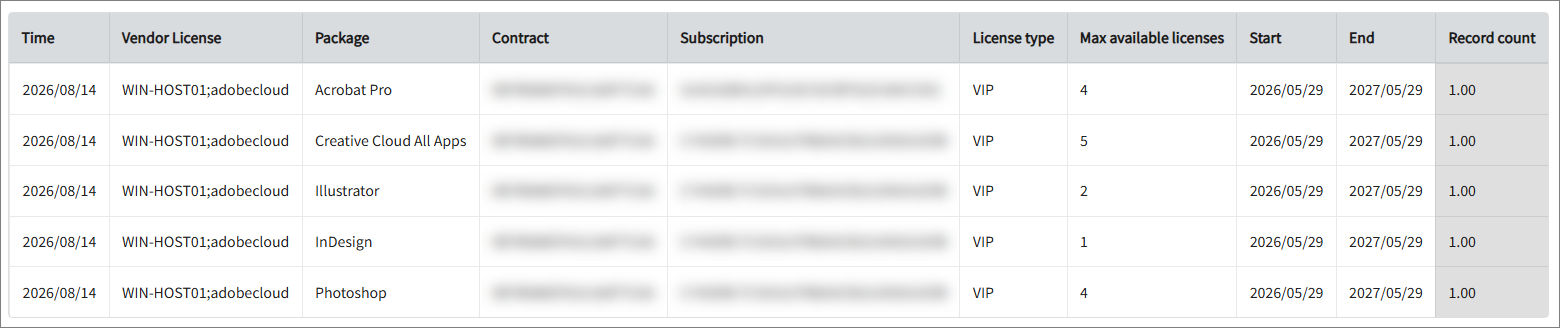
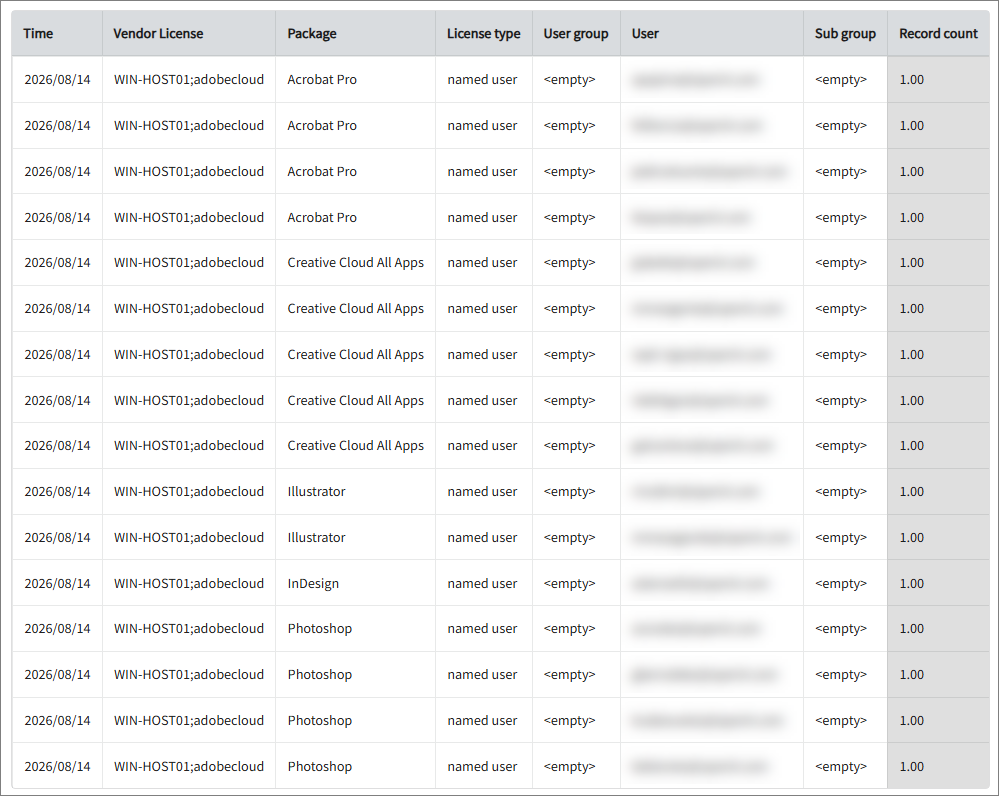
Sample Reports
Configuring Adobe Workstation Data Collection
In addition to the cloud data collected from the Adobe Admin Console, Open iT monitors Adobe applications installed on Core Client machines to collect application usage, inventory, and process accounting information.
Once configured, openit_appusage monitors Adobe application activity on the workstations, while openit_adobeappscollector collects Adobe-specific usage and inventory information. The collected data is converted into the Open iT format and sent to the Core Server for processing, aggregation, and historical reporting.
The workstation data complements the Adobe cloud data by providing application activity and usage information required for Adobe license utilization, product inventory, and user reporting.
This will produce the following aggregated data types for historical reporting:
- (87) Process Accounting
- (89) Total License Use Licenseevents
- (90) Individual License Use Licenseevents
- (91) Usergroup License Use Licenseevents
- (108) Host License Use Licenseevents
- (109) Hostgroup License Use Licenseevents
- (118) Product Inventory
Configuring Adobe Application Monitoring
These are the required steps to configure Open iT to identify and monitor Adobe application processes by adding the Adobe process rules to the master process rules file.
Apply the configurations shown in the Open iT Core Server.
-
Go to the Configuration directory, which is by default in
C:\Program Files\OpeniT\Core\Configuration. -
Open
appusage_process_rules-adobe.conf. -
Copy the entire file content.
-
From the same directory, open
appusage_process_rules_master.conf. -
Paste the copied content.
warningAdd the copied contents as new entries/lines in the file. Make sure that the existing configurations in
appusage_process_rules_master.confare kept as-is. -
Save the changes.
Activating Workstation Data Collection
These are the required steps to activate collection of Adobe workstation data.
Make sure that LicenseAnalyzer is activated.
Apply the configurations shown in the Open iT Core Server.
-
Open a command prompt with Administrator level privileges.
-
Go to the bin directory, which is by default in
C:\Program Files\OpeniT\Core\bin, run the command:Command Syntaxcd <bin_dir>Examplecd C:\Program Files\OpeniT\Core\bin -
Once in the directory, activate the Adobe workstation collectors, run the command:
Command Syntaxopenit_oconfinit -u "C:/Program Files/OpeniT/Core/Configuration/module-activation/license_analyzer.root.licenseanalyzer.adobe_workstation.active=true"
Distributing Files to the Core Clients
The Adobe workstation data collection settings are configured on the Core Server but executed on the Core Clients.
After completing the configuration above, distribute the updated files to ensure that the clients receive and apply the configured settings.
Files from the Core Server automatically reflect on the Core Client(s) every 6 hours, which is the default schedule for file distribution. However, you can manually trigger the file distribution:
Verifying the Workstation Data Collection
After configuration, verify that the workstation collectors successfully retrieved data from Adobe and generated the required files.
Apply the verification steps shown in the Open iT Core Client.
-
Go to the AppUsage directory, which is by default in
C:\Program Files\OpeniT\Core\Log\temp\AppUsage, and verify if it has a data directory containingPerfMonLog-*.datafiles. -
Go to the PollCollector directory, which is by default in
C:\Program Files\OpeniT\Core\Log\temp\PollCollector, and verify if it has an Adobe directory containing*-inventory*.dataand*-usage*.datafiles.