Configuring Windows Application Inventory
Introduction
Open iT supports configuring application inventory reporting. This will produce the following aggregated data type used for historical reporting:
The following sections will guide you on the necessary configurations for the relevant files to enable comprehensive windows application inventory reports.
Follow the verifications shown in the Open iT Core Client.
Requirements
- An Open iT Core Client connected to an Open iT Core Server or a coexistent Open iT Core setup
- Activated SystemAnalyzer collection and Windows Application Inventory
Verifying Application Inventory Configuration
Once all the requirements have been met, no further configurations should be necessary. However, you can also check this specific configuration file to make sure everything is set up correctly. This additional verification offers assurance that your windows application inventory data will be collected and reported.
Step 1: Open the Scheduler Configuration
-
Go to the scheduler directory, which is by default in
C:\Program Files\OpeniT\Core\Configuration\scheduler. -
Open
collect_system_winappinfo.oconf.
Step 2: Verify the Windows Application Inventory Configuration
-
Locate the
root.scheduler.jobs.collect_winappinfo.general.activesetting. -
Verify that its value is set to
true.A value of true indicates that the Windows Application Inventory is activated.
If this is not yet set to true, check the SystemAnalyzer collection and Windows Application Inventory again and make sure they are set to true.
Verifying Windows Application Inventory Data Collection
After enabling the collection, you can verify that the data is collected and sent to the server by following these steps:
Step 1: Open Command Prompt
- Open a command prompt with Administrator level privileges.
Step 2: Navigate to the bin Directory
-
Run the following command to go to the Open iT Core bin directory.
By default, this is located at:
C:\Program Files\OpeniT\Core\binCommand Syntaxcd <bin_dir>Examplecd C:\Program Files\OpeniT\Core\bin
Step 3: Run the Windows Application Inventory Collector
-
Once in the directory, run the command:
Command Syntaxopenit_winappinfo.exe -
Verify that the following output is displayed:
Expected OutputRunning "Windows Application Info" (WinAppInfoCollector)
Step 4: Verify Generated Data Files
- Verify that the temp directory, which is by default in
C:\ProgramData\OpeniT\Data\temp, contains a winappinfo directory with.datafiles containing Windows Application data.
Collecting Windows Application Inventory from Another Drive
By default, the Windows Application Inventory collector scans applications installed on the C: drive. If applications or executables are located on another local drive, you must configure winappinfo.oconf to include that drive in the collection.
Step 1: Configure the Target Drive
-
Open the
winappinfo.oconffile in the Configuration directory.By default, this is located at:
C:\Program Files\OpeniT\Core\Configuration. -
Add or update a file system source for the target drive.
Example 1: Updating the File System Source
To collect applications from another drive, locate the filesystem1.target.path setting and replace its value to the path of your preferred drive. In this example, it is set to
D:\.Example: winappinfo.oconffilesystem1
{
description=Primary file system source.
target
{
description=Specify where to obtain the information from.
source
{
type=string
value=filesystem
}
path
{
description=Path to Windows Registry key possibly having sub-keys with useful values.
type=string
value=D:\
}
pattern
{
description=Check properties for files matching these patterns (space separated). Full path is automatically grabbed as 'exepath'.
type=string
value=*.exe
}
grab_definitions
{
description=Specify which grab definition to use in order to get file system values.
type=string
value=filesystem_main
}
}
}Example 2: Adding the file system source
To collect applications from another drive in addition to the default drive, copy the entire
filesystemnode configuration, paste it as a new node, and rename it (i.e.,filesystem_D). Then, locate the filesystem_D.target.path setting and set its value to the path of your preferred drive. In this example, the value is set toD:\.Example: winappinfo.oconffilesystem_D
{
description=Primary file system source.
target
{
description=Specify where to obtain the information from.
source
{
type=string
value=filesystem
}
path
{
description=Path to Windows Registry key possibly having sub-keys with useful values.
type=string
value=D:\
}
pattern
{
description=Check properties for files matching these patterns (space separated). Full path is automatically grabbed as 'exepath'.
type=string
value=*.exe
}
grab_definitions
{
description=Specify which grab definition to use in order to get file system values.
type=string
value=filesystem_main
}
}
} -
Save the file.
Step 2: Run the Windows Application Inventory Collector
-
Open a command prompt with Administrator level privileges.
-
Go to the Open iT Core bin directory.
By default, this is located at:
C:\Program Files\OpeniT\Core\bin.Command Syntaxcd <bin_dir>Examplecd C:\Program Files\OpeniT\Core\bin -
Run the Windows Application Inventory collector, run the command:
Command Syntaxopenit_winappinfo.exeExpected OutputRunning "Windows Application Info" (WinAppInfoCollector)
Step 3: Verify Generated Data Files
- Verify that the temp directory, which is by default in
C:\ProgramData\OpeniT\Data\temp, contains a winappinfo directory with.datafiles containing Windows Application data from the configured drive.
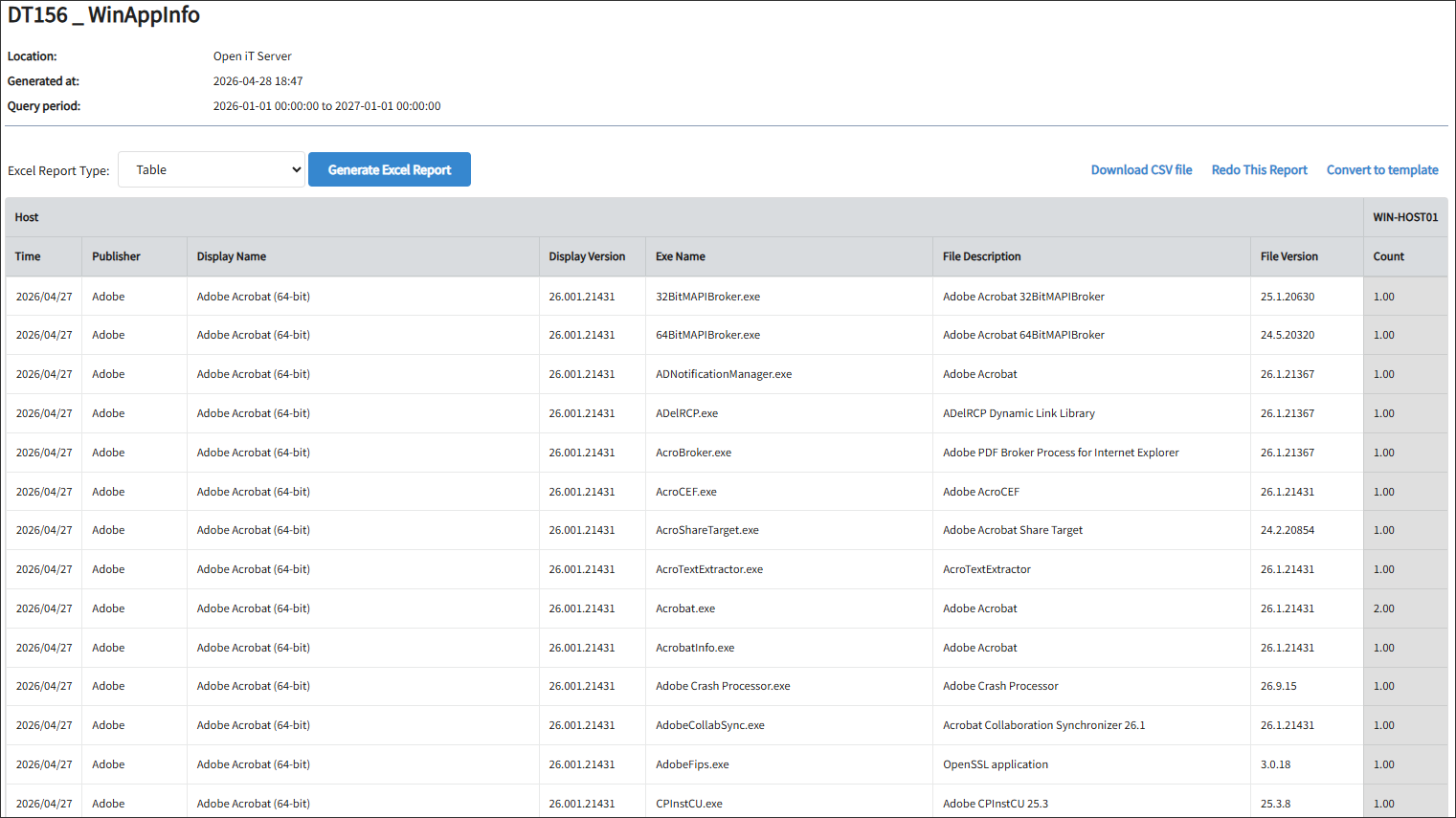
Sample Report
Windows Application Inventory
This report is generated using data type (156) Windows Application Inventory.