Configuring Windows Running Application
Make sure that SystemAnalyzer is activated.
Activating Windows Running Application Data Collection
Windows Running Application data collection is inactive by default; you must activate it to begin collecting the Windows Running Application. Follow these instructions to activate:
Step 1: Open Command Prompt
- Open a command prompt with Administrator level privileges.
Step 2: Navigate to the bin Directory
-
Run the following command to go to the Open iT Core bin directory.
By default, this is in
C:\Program Files\OpeniT\Core\binCommand Syntaxcd <bin_dir>Examplecd C:\Program Files\OpeniT\Core\bin
Step 3: Activate the Windows Running Application Collection
-
Run the following command to activate the Windows Running Application data collection:
Command Syntaxopenit_oconfinit -u "C:/Program Files/OpeniT/Core/Configuration/scheduler/collect_system_appusage-win.root.scheduler.jobs.collect_appusage-win.general.active=true"
By default, Windows Running Application data collection may include all detected applications. To collect data only for specific applications, configure the include and exclude rules in the include-exclude.conf file. For instructions, see Include or Exclude Applications.
Verifying Windows Running Application Data Collection
After enabling the collection, you can verify that the data is collected and sent to the server by following these steps:
Step 1: Open Command Prompt
- Open a command prompt with Administrator level privileges.
Step 2: Navigate to the bin Directory
-
Run the following command to go to the Open iT Core bin directory.
By default, this is in
C:\Program Files\OpeniT\Core\binCommand Syntaxcd <bin_dir>Examplecd C:\Program Files\OpeniT\Core\bin
Step 3: Run the Windows Running Application Collector
-
Once in the directory, run the command:
Command Syntaxopenit_appusage.exe
Step 4: Verify Generated Data Files
- Verify that the temp directory, which is by default in
C:\ProgramData\OpeniT\Data\temp, contains a AppUsage directory with.datafiles containing Windows Running Application data.
Sample Report
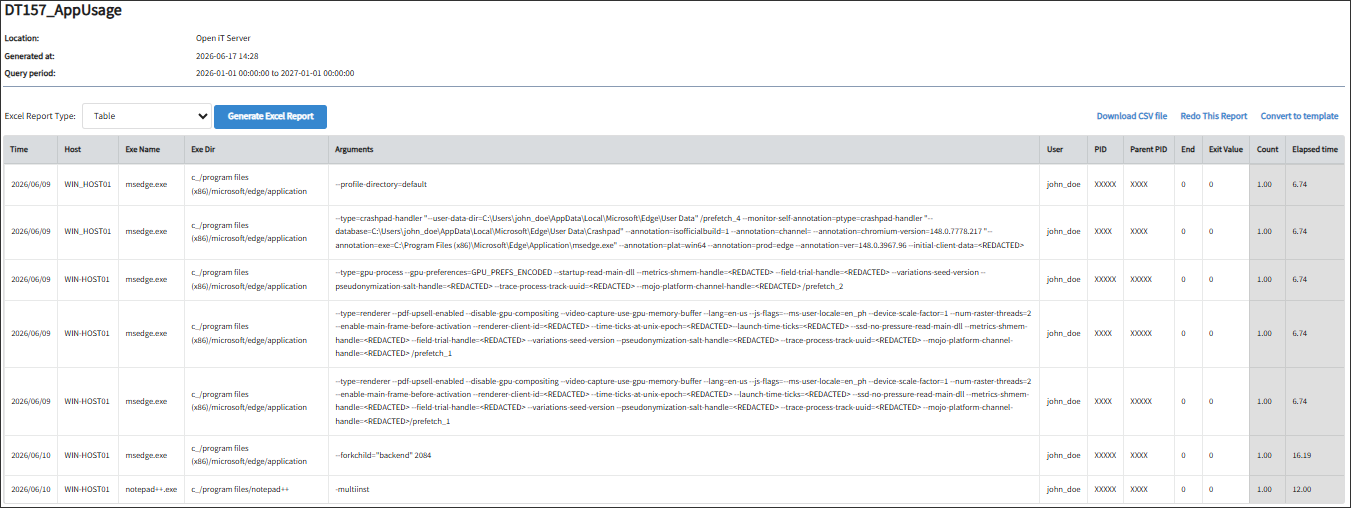
Windows Running Application
This report is generated using data type (157) Windows Running Application.