Upgrade
This page describes how to upgrade the Web App Tracker Plugin. The plugin can be upgraded independently of the Core Client, allowing you to install a newer plugin version without upgrading the Core Client.
Upgrading through the Windows Installer Interface
Step 1. Launch the Installer
-
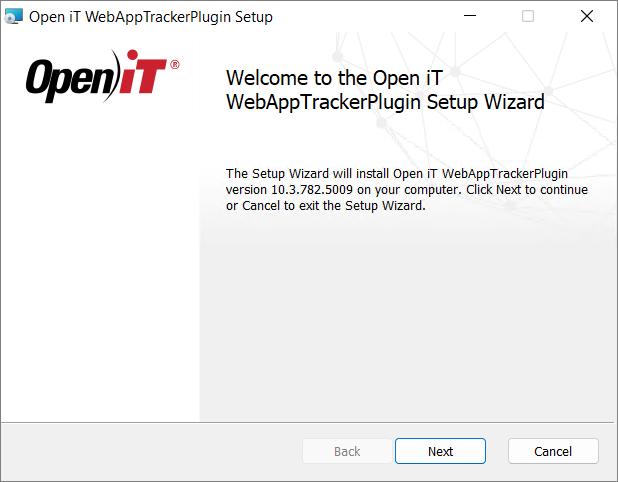
Double-click the
openit_webapptrackerplugin_<version>_<architecture>.msiinstaller file to begin. A setup wizard will be displayed. -
Click Next to continue.
Step 2: Select the Installation Directory
-
Choose where the Web App Tracker Plugin will be installed.
-
Click Change to specify a different directory.
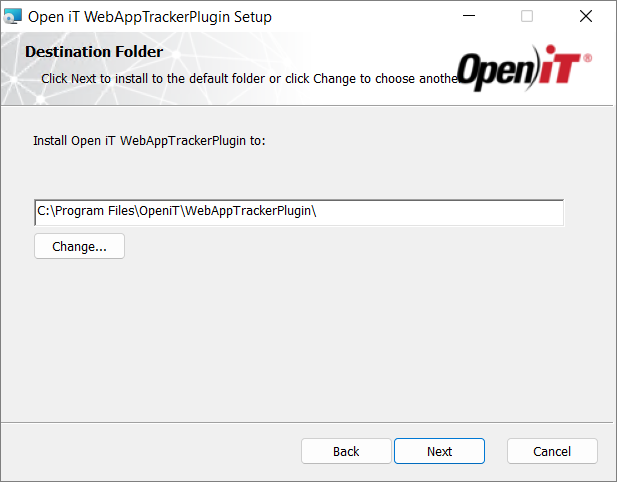 Destination Folder
 -
Click Next to continue.
Step 3: Start the Installation
-
On the Ready to Install screen, you may choose to select the Close and restart supported browsers after installation option. This makes the Web App Tracker Plugin available immediately after installation. If this option is not selected, the extension will become available the next time the supported browsers are restarted.
-
Click Install to begin the installation.
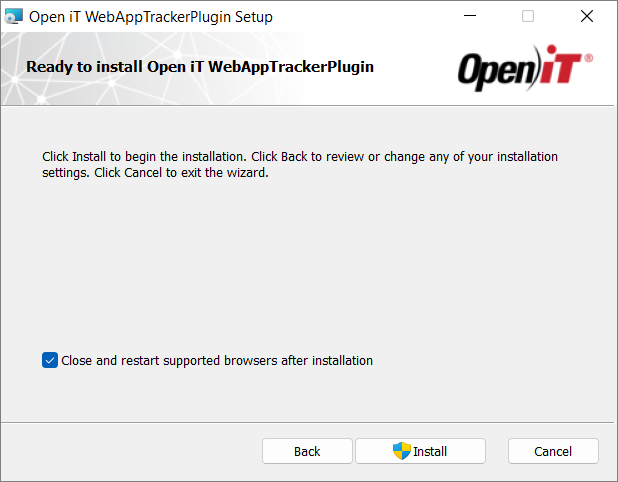 Ready to Install
 -
If prompted by Windows User Account Control (UAC), click Yes to allow the installer to proceed.
The installer will now copy and configure the required files on the system.
Step 4: Complete the Installation
When the installation finishes:
-
Click Finish to complete the installation.
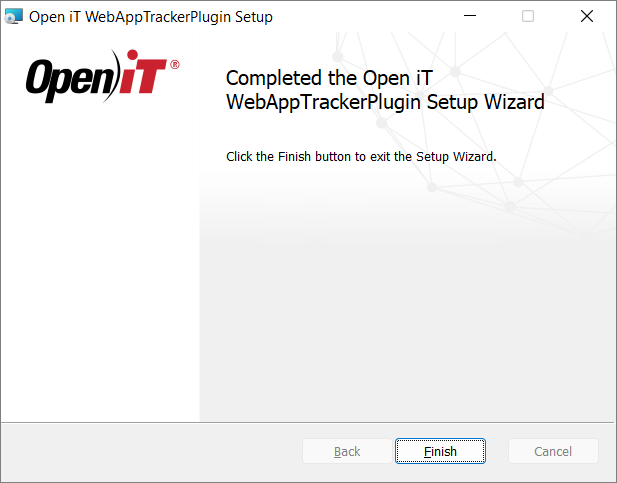 Installation Complete
Upgrading through the Command Line
Step 1: Open Command Prompt
- Open a command prompt with Administrator level privilege.
Step 2: Execute the Installation Command
-
Execute the following command:
Command Syntaxmsiexec /i <msi_file> /l*v <log_file> <options> INSTALLDIR=<root_dir>Required:
Parameter Description /i <msi_file>Use this to specify the path of the Windows installer file, openit_webapptrackerplugin_<version>_<architecture>.msi./l*v <log_file>Use this to specify the path of the installation log file that will be created during installation. Required Key-Value Pairs for Web App Tracker Plugin Installation
Properties:
Parameter Description INSTALLDIR=<root_dir>The path where the Open iT files will be installed. This value is set to C:\Program Files\OpeniT\WebAppTrackerPluginby default.RESTARTBROWSERS=1This makes the Web App Tracker Plugin available immediately after installation. Properties for Web App Tracker Plugin Installation
Options:
Parameter Description /quietRun the command in silent mode. /passiveRun the command in unattended mode — progress bar only. Options for Web App Tracker Plugin Installation
noteThe installer will use the Windows Installer Interface process when the installation option is not specified.
Step 3: Verify Installation Completion
- If using passive mode, wait until the progress bar disappears.
- If using quiet mode, verify installation by:
- Opening Task Manager
- Checking the Details tab
- Ensuring the
msiexecprocess is no longer running