Uninstallation
This guide walks you through the Web App Tracker Plugin removal or uninstallation process based on your setup.
- Removing the Extension from a Browser
- Uninstalling through the Windows Installer Interface
- Uninstalling through the Command Line
- Uninstalling through the Control Panel
Removing the Extension from a Browser
You can remove the Web App Tracker Plugin extension from a supported browser without uninstalling the plugin from the machine. Use the following procedure to remove the extension from Microsoft Edge or Google Chrome.
Step 1: Open the Registry Editor
- Press Win + R, type regedit, then press Enter.
- If prompted by User Account Control (UAC), click Yes.
Step 2: Locate the browser Policy
-
In the Registry Editor, navigate to the registry key for the applicable browser:
For Microsoft Edge:
HKEY_LOCAL_MACHINE\SOFTWARE\Policies\Microsoft\Edge\ExtensionInstallForcelistFor Google Chrome:
Computer\HKEY_LOCAL_MACHINE\SOFTWARE\Policies\Google\Chrome\ExtensionInstallForcelist -
Locate the value associated with the Web App Tracker Plugin extension.
-
Right-click the value, and then select Delete.
Step 3: Restart the Browser
-
Close all browser windows, and then reopen the browser.
-
Open the browser’s extension list and verify that the Web App Tracker Plugin is no longer listed.
Uninstalling through the Windows Installer Interface
-
Run the
openit_webapptrackerplugin_<version>_<architecture>.msiinstaller file. -
A setup wizard will be displayed. Click Next.
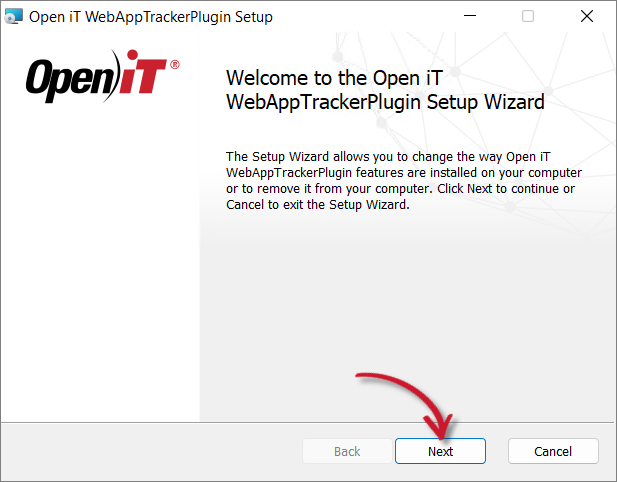
Uninstall Wizard
-
Click Remove, then Next to remove the Open iT Web App Tracker Plugin from the computer.
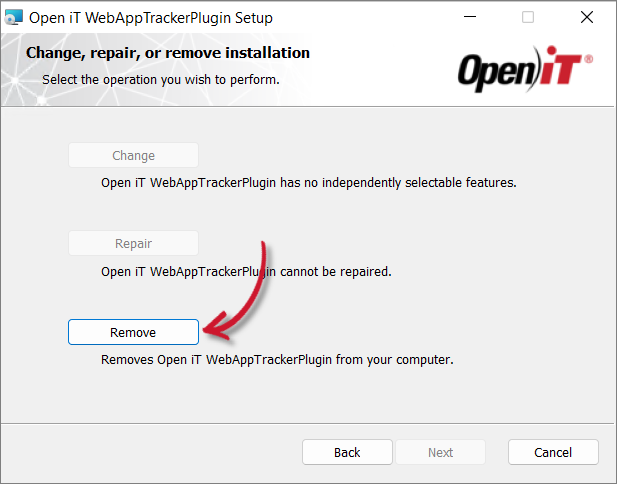
Uninstall Selection
-
Click Remove to uninstall the software.
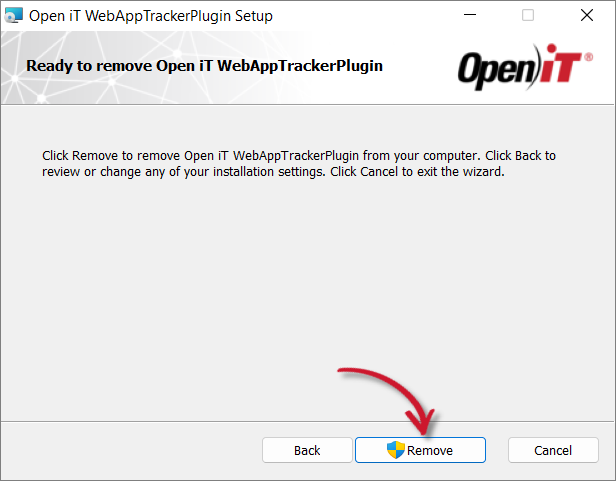
Uninstall Remove
-
Click Finish to complete the uninstallation process.
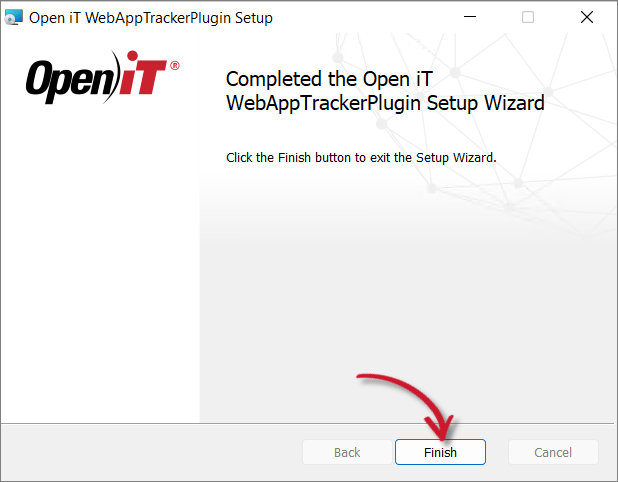
Uninstall Complete
Uninstalling through the Command Line
-
Open a command prompt with Administrator level privileges.
-
Run the following command:
Command Syntaxmsiexec /x <msi_file> /l*v <log_file> </quiet> </passive>Parameter Description /x <msi_file>Use this parameter to specify the path to the Open iT Web App Tracker Plugin installer file /l*v <log_file>Use this parameter to turn on logging of all information, including verbose output /quietUse this optional parameter to run the uninstallation in silent mode, meaning no user interaction required /passiveUse this optional parameter to run the uninstallation in unattended mode, showing only a progress bar Command Parameters
noteThe installer will use the Windows Installer Interface if the process mode (
/quietor/passive) is unspecified.Example
To uninstall
openit_webapptrackerplugin_10.3.700_x64.msi, located atC:\Installers, in unattended mode with all logging information stored in an output log file atC:\uninstall.log:Examplemsiexec /x "C:\Installers\openit_webapptrackerplugin_10.3.700_x64.msi" /l*v "C:\uninstall.log" /passivenoteWhen using the passive mode, wait until the process bar dialog disappears.
When using the quiet mode, verify that the uninstallation is complete by opening the Task Manager and checking in the Details tab if the msiexec process is still running.
Uninstalling through the Control Panel
-
Go to the Control Panel.
-
Under Program, click Uninstall a program.
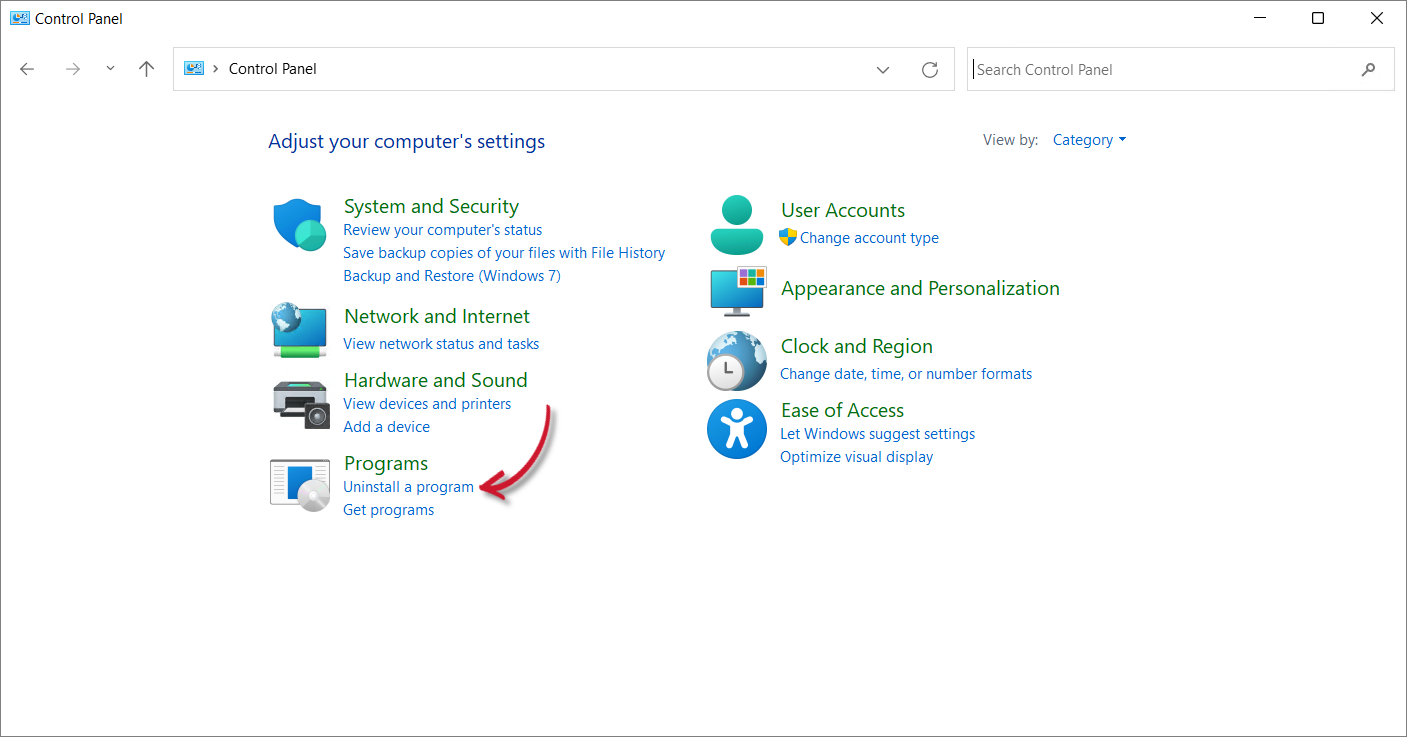
Control Panel
-
In the list of programs, select Open Web App Tracker Plugin, then click Uninstall at the upper-left of the list or right-click the item, then click Uninstall.
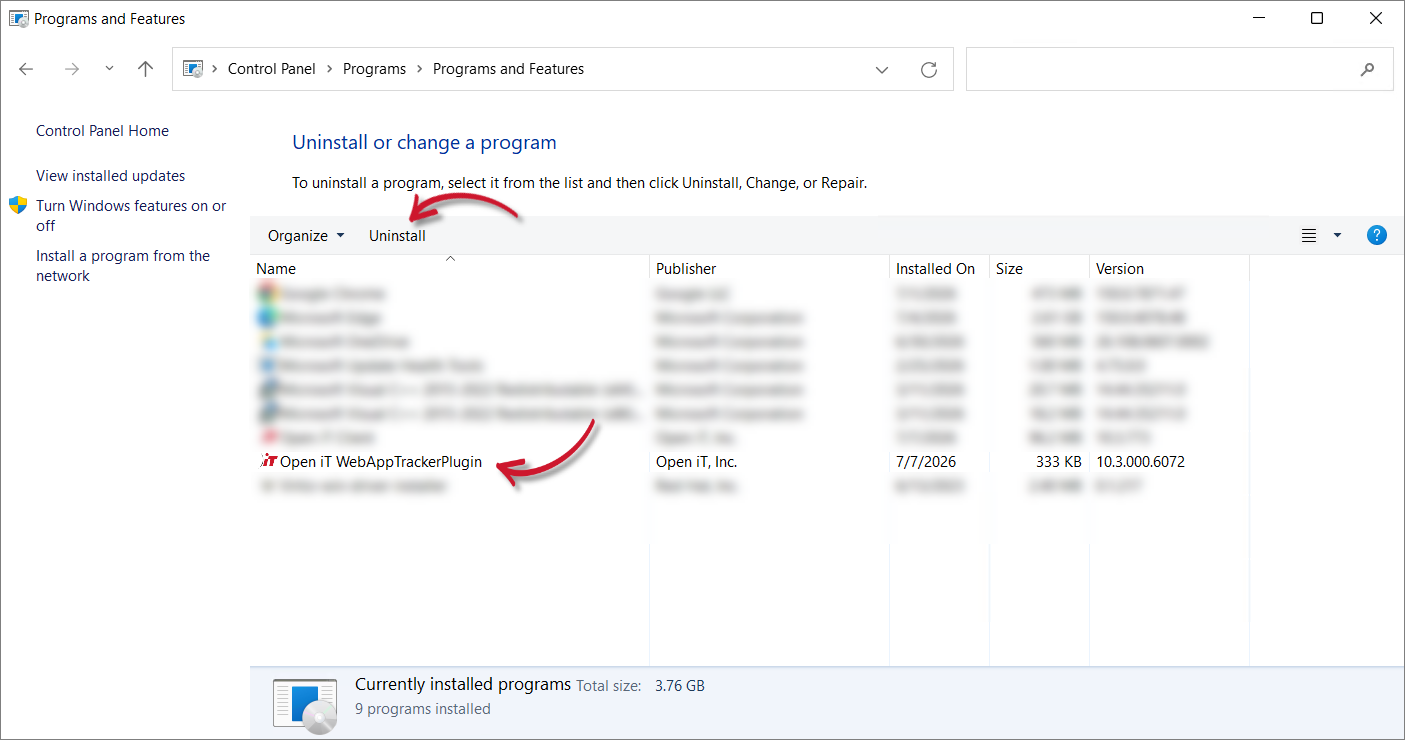
Control Panel Program List
-
If prompted by Programs and Features, click Yes to allow the installer to proceed.
-
If prompted by Windows User Account Control (UAC), click Yes.
Wait for Windows to configure the Web App Tracker Plugin.
-
A confirmation will appear stating that the server was successfully uninstalled. Click Finish to complete the process.
Successful Uninstallation