Interface Overview
The Web App Tracker Plugin interface provides a read-only view of the plugin's tracking information and current configuration. It allows you to verify whether the active website is being tracked, review websites that have been tracked, and view the current plugin settings.
The interface is organized into three tabs: Current, All Sites, and Settings.
Accessing the Web App Tracker Plugin
To open the Web App Tracker Plugin interface:
-
Click the Extensions (puzzle) icon in your browser toolbar.
-
Select Open iT Web App Tracker Plugin from the list of installed extensions.
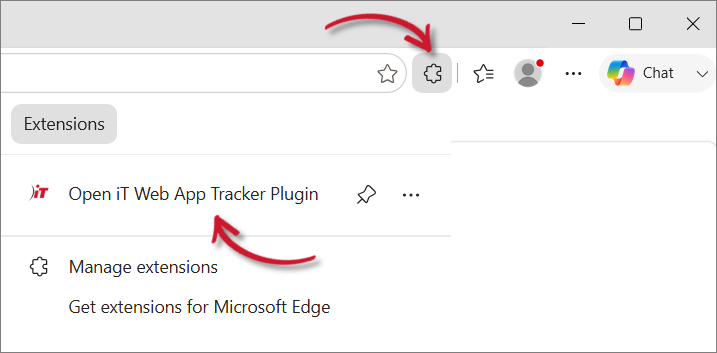
Accessing the Web App Tracker Plugin
The Web App Tracker Plugin interface opens, displaying the Current tab by default.
Current
The Current tab provides detailed information about the website currently open in the active browser tab. Use this tab to verify that the website is being tracked and to monitor the current browsing session.
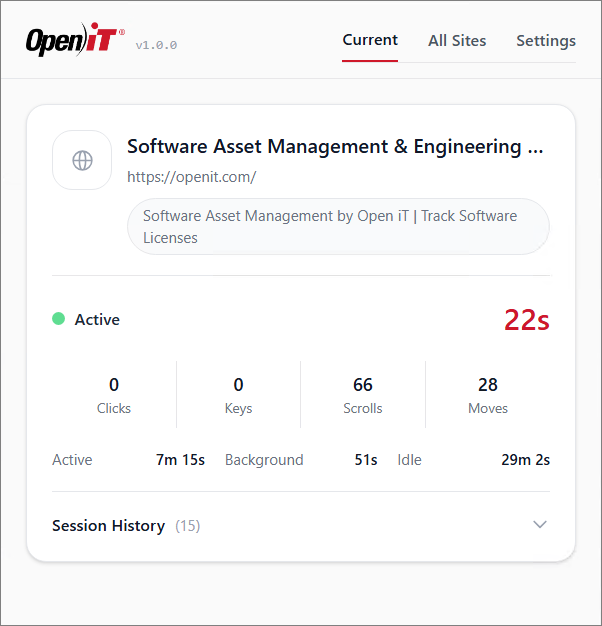
The following information is available:
| Item | Description |
|---|---|
| Website | Displays the name and URL of the active website. |
| Tracking Status | Indicates whether the current browsing session is active or running in the background. |
| Session Duration | Displays the elapsed time for the current session. |
| Activity Counters | Displays the number of mouse clicks, key presses, scrolls, and mouse movements recorded during the current session. |
| Foreground and Background Time | Displays the amount of time the website has remained active in the foreground and in the background. |
| Session History | Displays previous tracking sessions for the current website, including their status, duration, and start time. |
All Sites
The All Sites tab provides a summary of tracked browsing activity, allowing you to filter, search, and review usage information for monitored websites.
The information displayed can be filtered to help you analyze tracked activity more effectively.
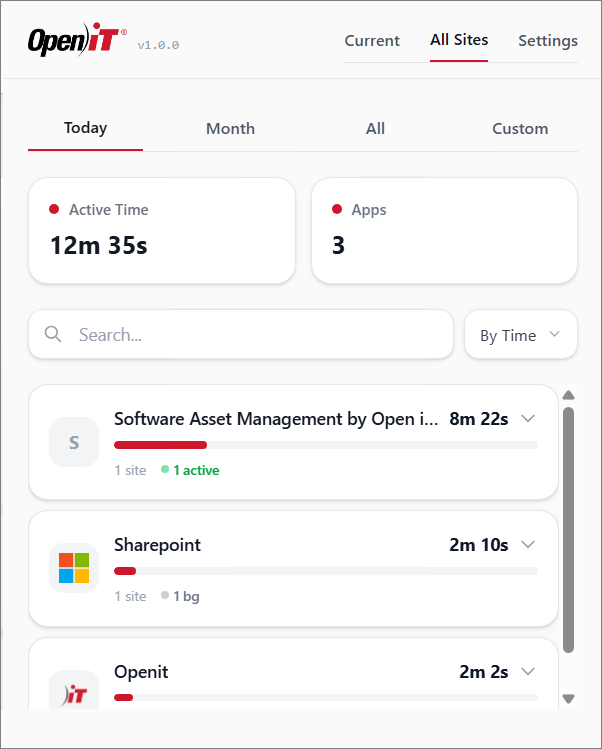
The following information and controls are available:
| Item | Description |
|---|---|
| Time Filter | Filters the displayed activity by Today, Month, All, or a Custom date range. |
| Activity Summary | Displays the total tracked active time and the number of tracked applications within the selected time period. |
| Search | Filters the list by website or application name. |
| Sort | Sorts the displayed results using the selected criterion (for example, by time). |
| Website List | Displays all tracked websites or web applications matching the selected filters. |
| Usage Duration | Displays the accumulated tracked time for each website or web application. |
| Session Summary | Displays the number of tracked sites and session counts (such as active or background sessions) associated with each website or application. |
| Details | Expands an entry to display additional session information. |
| Clear All Data | Removes all locally stored tracking data from the plugin. This action permanently removes the stored browsing history from the plugin and cannot be undone. |
Settings
The Settings tab displays the current plugin configuration and operational status. The information shown reflects the active backend configuration and is intended for verification purposes.
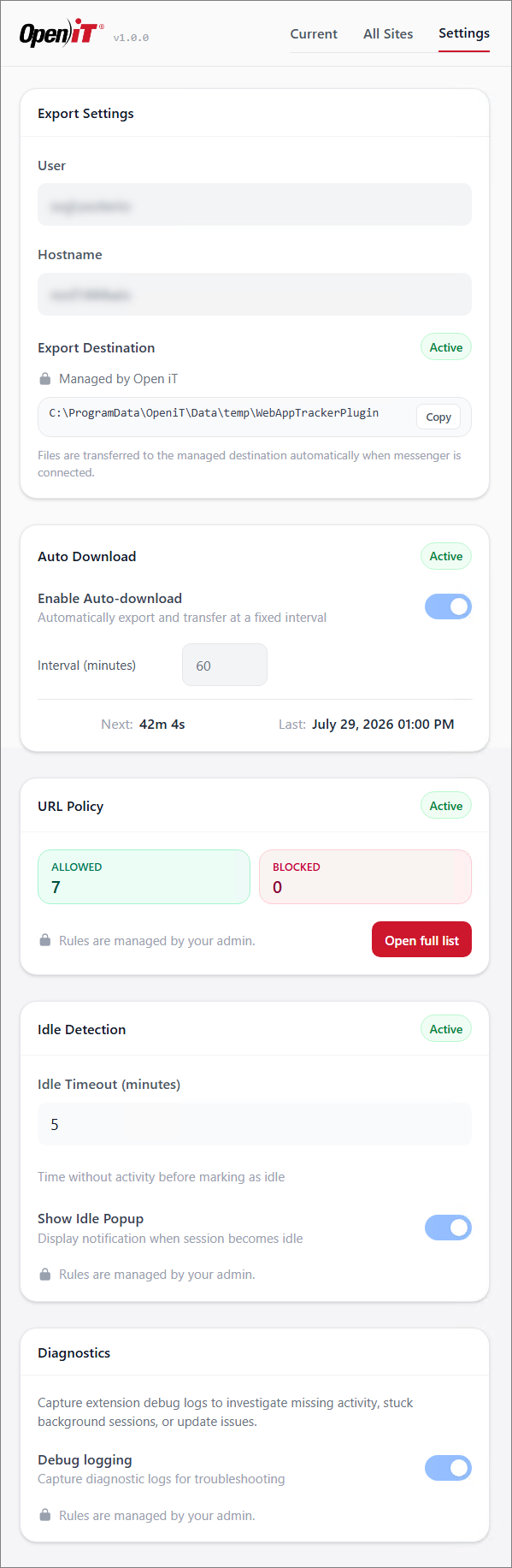
The settings displayed in this tab are read-only. To modify these values, update the backend configuration. See Post-Installation Configuration for instructions.
Export Settings
The Export Settings section displays information about the current user, host machine, and export destination used by the plugin.
| Item | Description |
|---|---|
| User | Displays the account currently using the plugin. |
| Hostname | Displays the name of the machine where the plugin is running. |
| Export Destination | Displays the directory where tracked data is temporarily stored before being transferred. |
| Status | Indicates whether automatic export is active. |
Auto Download
The Auto Download section displays the current automatic download status and schedule.
| Item | Description |
|---|---|
| Status | Indicates whether the feature is active. |
| Enable Auto-download | Indicates whether automatic downloads are enabled. |
| Interval | Displays how often the plugin checks for updated configuration. |
| Next | Displays the remaining time until the next scheduled download. |
| Last | Displays the date and time of the most recent download. |
See also: Configuring Auto Download Interval
URL Policy
The URL Policy section displays the current website tracking policy.
| Item | Description |
|---|---|
| Status | Indicates whether the feature is active. |
| Allowed | Displays the number of websites configured for tracking. |
| Blocked | Displays the number of websites excluded from tracking. |
| Open Full List | Displays the complete list of allowed and blocked websites, organized into the Includes and Excludes tabs. |
URL policies are managed by your administrator and cannot be modified through the plugin interface.
See also: Include or Exclude URLs to Track
Idle Detection
The Idle Detection section displays the current idle detection configuration.
| Item | Description |
|---|---|
| Status | Indicates whether idle detection is active. |
| Idle Threshold | Displays the amount of inactivity time before the browser session is considered idle. |
| Show Idle Popup | Indicates whether a notification is displayed when a browsing session becomes idle. |
Idle detection settings are managed by your administrator and cannot be modified through the plugin interface.
See also: Configuring Idle Detection Threshold
Diagnostics
The Diagnostics section provides options for collecting debug logs that can be used to troubleshoot plugin issues, such as missing activity, background sessions that do not end properly, or update failures.
| Item | Description |
|---|---|
| Debug logging | This option is enabled by default. When enabled, the plugin automatically downloads a diagnostic log file whenever the log reaches 1,000 entries. |
See also: Enabling or Disabling Plugin Debugging