Manage Mapping Sources
The Mapping Sources page contains various functionalities to configure and set up sources of mapping. Some of the examples that are always configured are user-to-groups.map and user-properties.map mapping files, which are manually created using instructions from the Core Server Web Interface > Administration > Mapping and are located by default in C:\Program Files\OpeniT\Core\Configuration.
The user-to-groups.map mapping file usually contains one-to-many usergroup to users mapping, which are also from the Active Directory with the following commonly used group types:
- Cost Center
- Department
- Division
- Location
The user-properties.map mapping file usually contains user details from the Active Directory such as:
- Display Name
- Employee Type
- Manager
- Physical Delivery Office Name
- Title
The page is only visible to users with administrative rights to Analysis Server.
If the Anaysis Server is installed on a cloud instance, mapping sources to be configured must reside locally on the cloud instance machine.
Adding a Mapping Source
Before proceeding, make sure to prepare the required mapping files user-to-groups.map and user-properties.map. For detailed instructions, refer to the Core Server Web Interface > Administration > Mapping section.
-
Create a mapping source for
user-to-groups.map. Click the New Mapping Source button.The edit pane will appear.
-
Configure the details of the mapping source:
Mapping Source Fields
Detail Description Name The descriptive identifier of the mapping source. Name it user-to-groups.map.Enabled The switch to enable or disable the mapping source. Set it to True. Kind The type of the mapping source file. Supports Multimap and CSV, with Multimap being the recommended option. FilePath The mapping file's relative path, which is by default in C:\Program Files\OpeniT\Core\Configuration.Separator The type of separator used in the mapping file. Only applicable for CSV. Identity Field The field that uniquely identifies a record in the mapping file. Only applicable for CSV. Mapping Source Fields -
Click Save to add the mapping source.
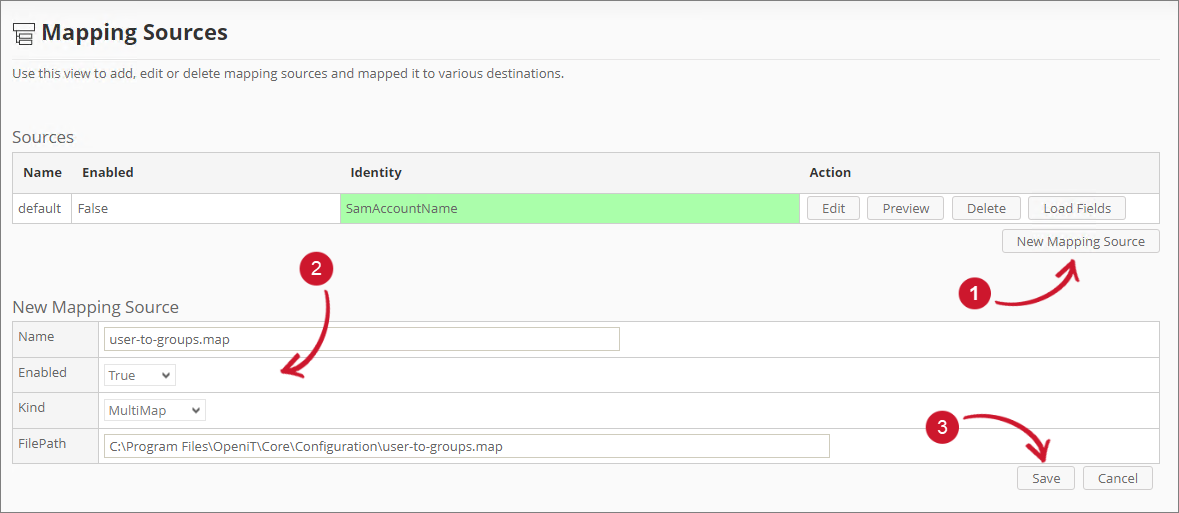 Adding Adding Mapping Sources
A notification message will appear at the top of the page, and the sources list should automatically be updated.
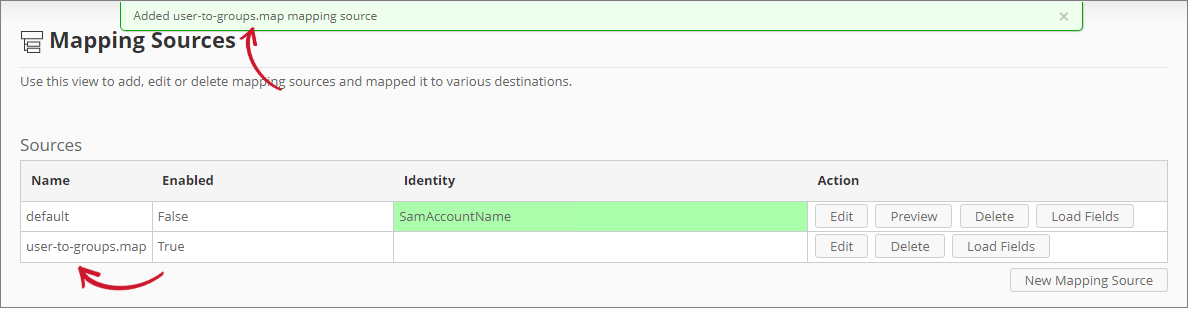 Added Mapping Sources
-
Create another mapping source for
user-properties.map. Click the New Mapping Source button.The edit pane will appear.
-
Configure the details of the mapping source:
Mapping Source Fields
Detail Description Name The descriptive identifier of the mapping source. Name it user-properties.map.Enabled The switch to enable or disable the mapping source. Set it to True. Kind The type of the mapping source file. Supports Multimap and CSV, with Multimap being the recommended option. FilePath The mapping file's relative path, which is by default in C:\Program Files\OpeniT\Core\Configuration.Separator The type of separator used in the mapping file. Only applicable for CSV. Identity Field The field that uniquely identifies a record in the mapping file. Only applicable for CSV. Mapping Source Fields -
Click Save to add the mapping source.
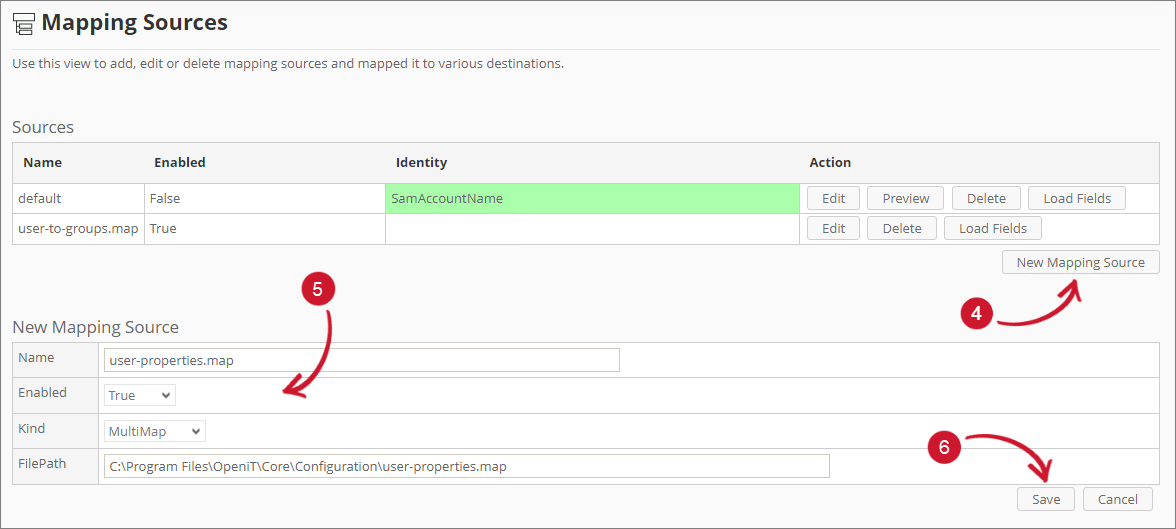 Adding Mapping Sources
A notification message will appear at the top of the page, and the sources list should automatically be updated.
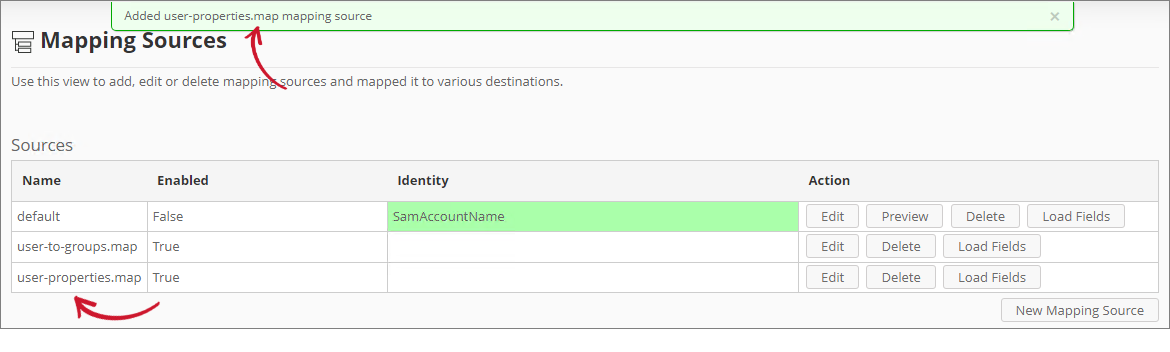 Added Mapping Sources
Editing a Mapping Source
Follow these instructions to edit a mapping source:
-
Look for the mapping source to edit.
The edit pane should appear containing the details of the mapping source.
-
Modify the details as needed.
-
Click Save to apply the changes.
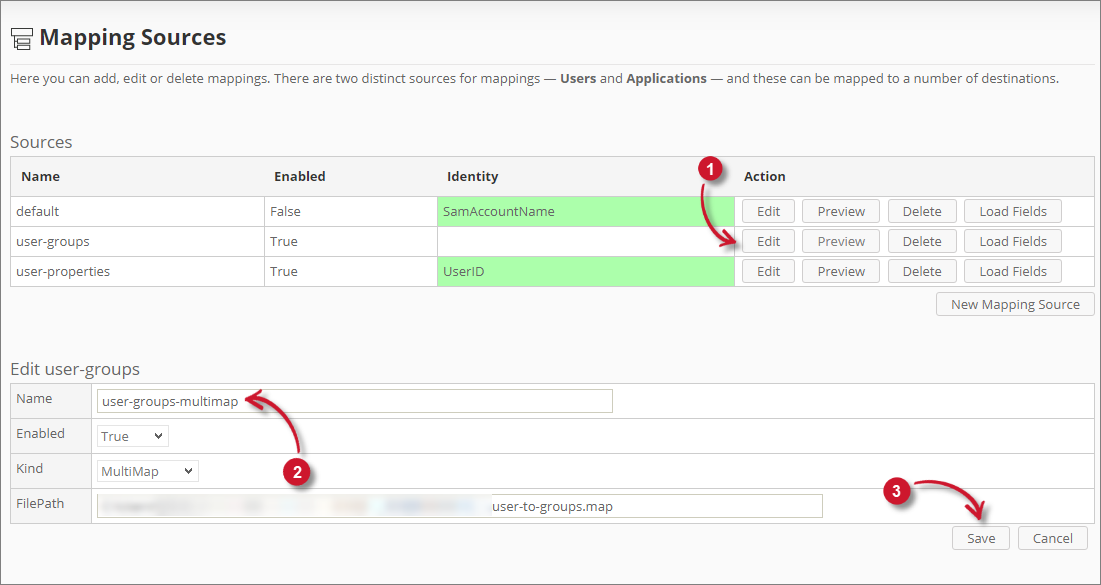 Editing Mapping Sources
A notification message should appear at the top of the page, and the sources list should automatically be updated.
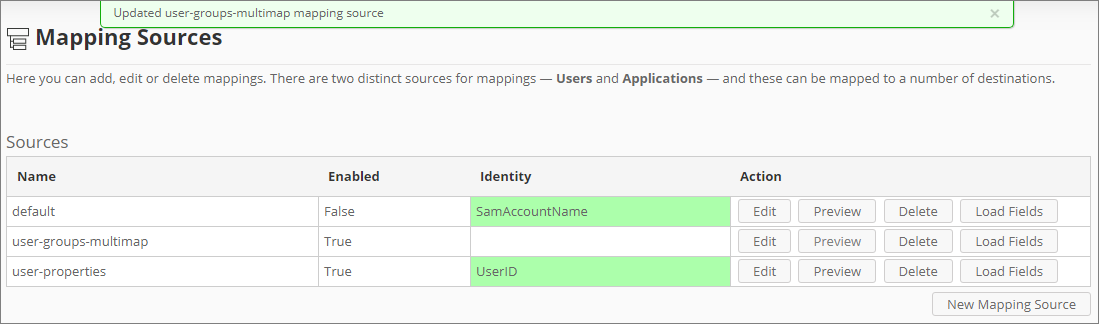 Edited Mapping Sources
Previewing a Mapping Source
The preview functionality is only applicable for CSV type mapping source.
Follow these instructions to preview a CSV mapping source:
-
Look for the CSV mapping source to preview from the list.
-
Click the Preview button.
-
The preview should appear under the sources list.
Populating the Identity Field
This option is only available for CSV mapping sources.
Follow these steps to populate the Identify Field option:
-
After saving the mapping source, notice that the Identity column is red.
-
Click Load Fields of the created mapping source.
-
Click Edit. The Identity Field will be populated with column values.
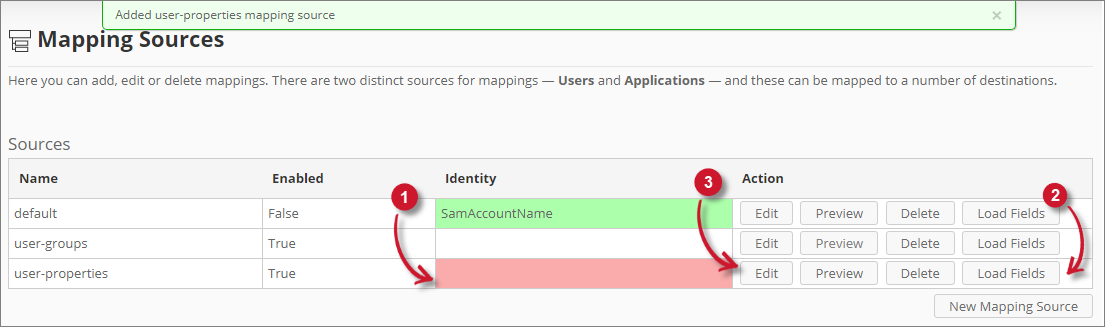
-
Choose among the values.
-
Click Save to apply the changes.
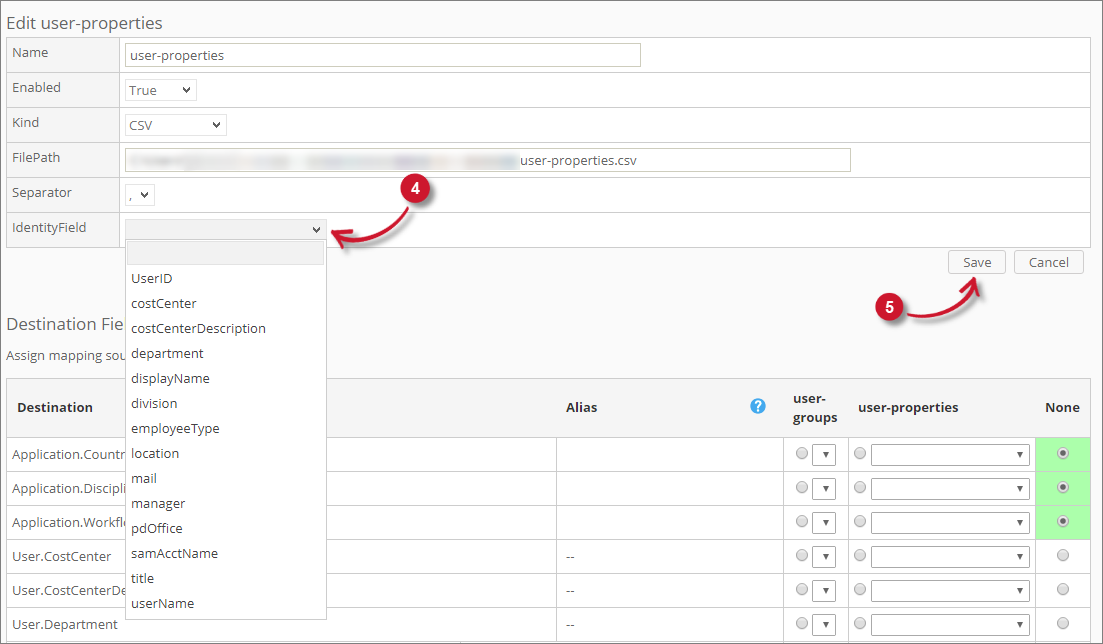 Save Identity Mapping Source - CSV
A notification message will appear at the top of the page and the sources list will be updated with the chosen identity.
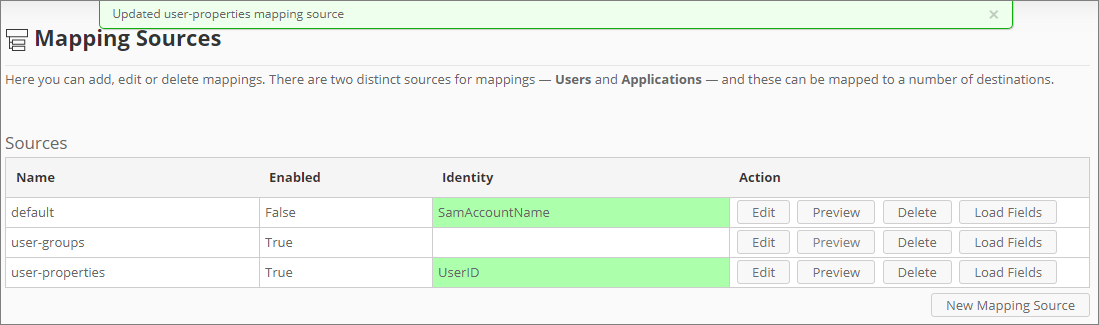 Saved Identity Mapping Source - CSV
Recommended Reading
The following configurations are required for Mapping Sources to function properly.