Running a Batch Evaluation
Use Batch Evaluate to evaluate forecast performance across multiple features in a single run. Evaluation uses part of the available historical data for training and holds out the remaining data for comparison against the generated forecast.
Use this mode when you want to assess forecast accuracy, compare forecasting models, or review potential anomalies when actual data is available for the evaluation period.
Step 1: Open the Batch Evaluation Settings
-
Go to the Batch tab.
-
Select Evaluate.
Step 2: Configure the Evaluation Settings
-
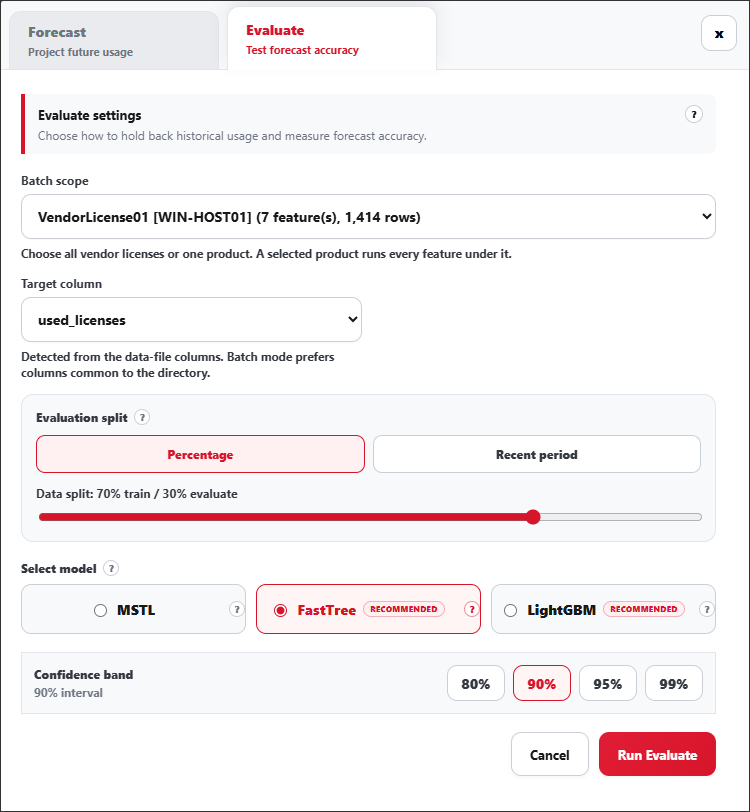
Under Batch scope, select the data to include in the evaluation.
You can select all vendor licenses or a specific product. Selecting a product evaluates every feature associated with said product.
-
Under the Target column, select the column to forecast.
The available target columns are:
used-licenseselapsed-time
max-available is not available as a forecast target. It it used as a capacity reference when forecasting used-licenses.
-
Under Evaluation split, select how LicensePredictor separates the historical data into training and evaluation data:
-
Percentage – Divides the historical data according to a percentage. Use the slider to specify the proportion of data used for training and evaluation.
For example, a 70% train / 30% evaluate split uses 70% of the historical data to train the model and the remaining 30% to evaluate its forecast accuracy.
 Evaluate Split - Percentage
 -
Recent period – Uses a recent portion of the historical data as the evaluation period while the preceding data is used for training.
Configure the following:
- Period – Specify the number of recent periods to use for evaluation.
- Unit – Select the time unit for the evaluation period, such as Months.
The maximum available period depends on the historical data available for the features included in the batch scope.
For example, setting Period to 1 and Unit to Months evaluates the forecast against the most recent month of historical data.
 Evaluate Split - Recent Period
noteWhen running a batch evaluation, the selected evaluation split applies to all features included in the batch scope.
-
-
Under Select model, select the forecasting model:
Models Description MSTL A seasonal decomposition model that provides significantly faster training and inference. Use it when processing speed is more important than forecast accuracy, as its accuracy may be lower than the tree-based models. FastTree A gradient-boosted decision tree model suitable as a general-purpose choice for mixed usage patterns. Its accuracy is usually close to LightGBM, and either model may perform better depending on the dataset. LightGBM A gradient-boosted decision tree model that provides an alternative to FastTree. Its accuracy is usually close to FastTree, with performance depending on the dataset. Models
tipUse FastTree or LightGBM when forecast accuracy is the priority. Use MSTL when faster processing is preferred.
-
Under Confidence band, select the confidence interval to use for the evaluation.
A wider confidence band, such as 95% or 99%, provides a broader range around the forecast and is less sensitive to values falling outside the interval.
A narrower confidence band, such as 80% or 90%, provides a tighter range around the forecast but is more sensitive to values falling outside the interval.
noteThe confidence band represents the uncertainty around the forecast. It does not guarantee that actual license usage will remain within the selected interval.
Step 3: Run the Batch Evaluation
-
Review the configured evaluation settings.
-
Click Run Evaluate.