Installation
Installing through the Windows Interface
-
Double-click the
openit_<version>_workstation_client_windows_<architecture>.msiinstaller file to begin.A setup wizard will be displayed. Click Next.
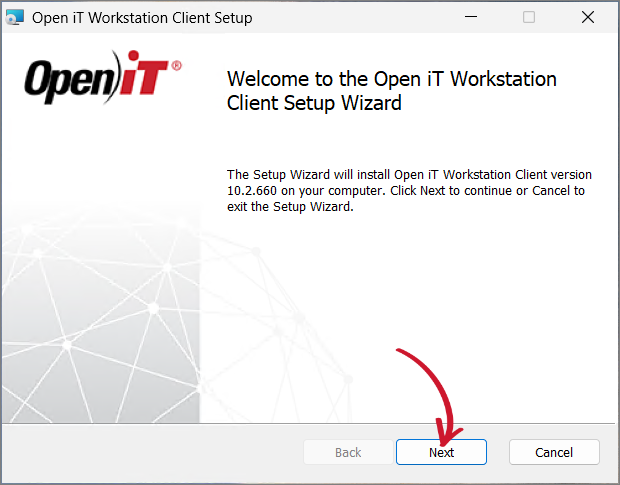 Welcome Screen
-
Specify where the Workstation Client will be installed. Click Change to specify a different directory, then click Next.
Clicking Next without doing any changes will use the default installation path.
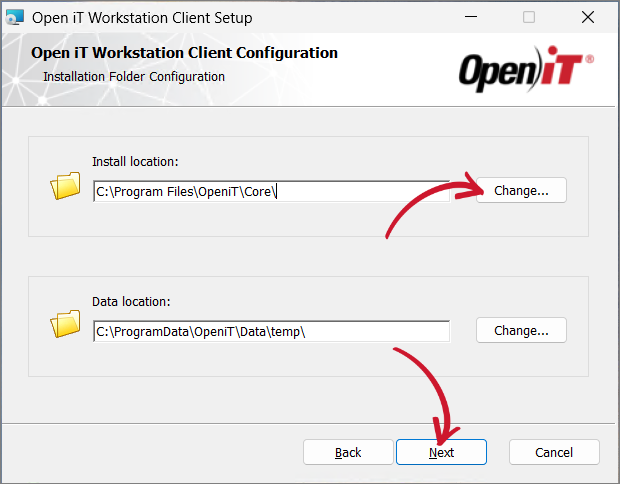 Destination Folder
-
Specify the Uniform Resource Identifier (URI) of the Open iT Core Server. By default, the configured SRV (service) record in the Domain Name System is displayed.
The installer will automatically retrieve the server name and ports from the URI supplied, assuring that all of the clients are in sync with the same server name and ports used.
Click Next.
noteA trusted server certificate is needed to establish a secure connection between the Open iT client and server.
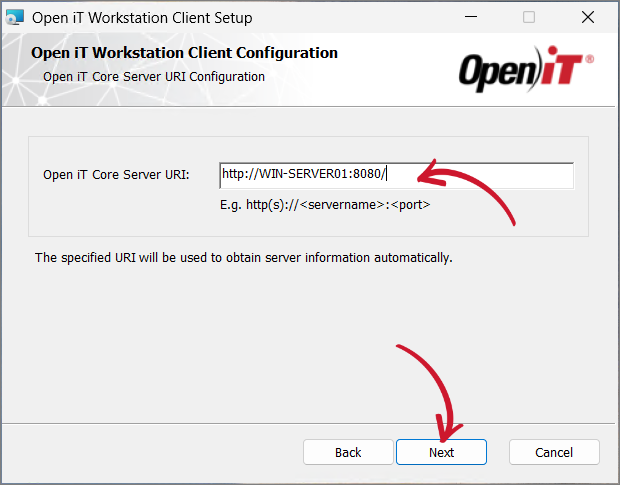 Server URI
If the provided server URI is not available or accessible, a prompt will be displayed. Select Yes to continue or No to return to the server URI dialog.
 Inaccessible Server URI
If there are no servers available, provide a server URI and choose to continue with the installation if prompted — the process will continue even if the server URI alias used is not available.
Leaving the server URI text box blank will result in an error.
 Blank Server URI Warning
-
On the Ready to Install screen, review the available options and select those that apply:
- Create a shortcut to the Open iT Core Reporter on the Desktop (optional) - adds a convenient desktop shortcut to the server web interface
- Start the Open iT Client Service - starts the client service immediately after installation
noteIt is recommended to leave the default options checked for a smoother setup.
If you need to review the entries, click Back.
Click Install to begin the installation.
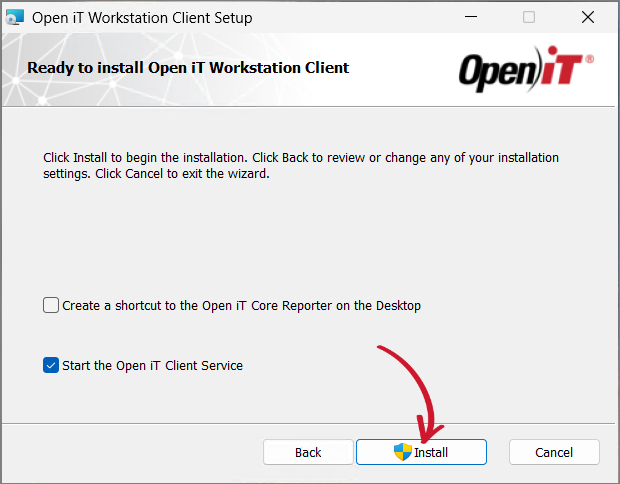 Ready to Install
warningPersonal firewalls (such as ZoneAlarm) may cause problems during startup, and the Open iT service may log additional errors; this may not be critical, but it must be checked to ensure that there are no further errors logged.
-
Click Finish to complete the installation.
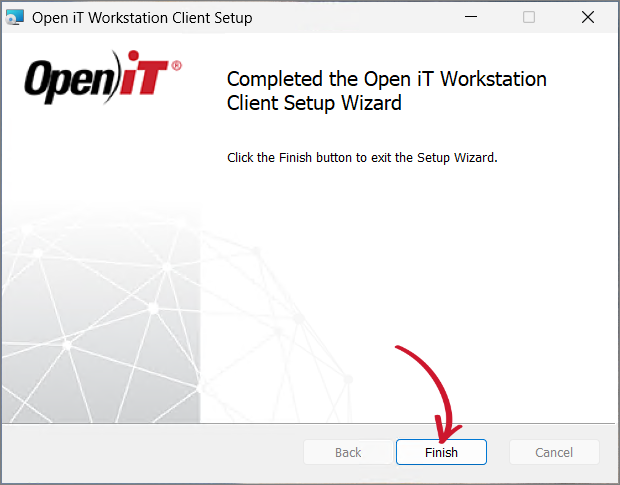 Finish Installation
Installing through the Command Line
-
Open a command prompt with Administrator level privilege.
-
Execute the following command:
Command Syntaxmsiexec /i <msi_file> /l*v <log_file> <options> INSTALLDIR=<root_dir> SERVERURI=http(s)://<ingress_hostname>:<port_number>Required:
Parameter Description /i <msi_file>Use this to specify the path of the Windows installer file, openit_<version>_workstation_client_windows_<architecture>.msi./l*v <log_file>Use this to specify the path of the installation log file that will be created during installation. Required Key-Value Pairs for Workstation Client Installation
Properties:
Parameter Description INSTALLDIR=<root_dir>The path where the Open iT files will be installed. This value is set to C:\Program Files\OpeniT\Coreby default.SERVERURIThe web URI (Uniform Resource Identifier) including the correct port number of the Open iT Ingress. Properties for Workstation Client Installation
Options:
Parameter Description /quietRun the command in silent mode. /passiveRun the command in unattended mode — progress bar only. Options for Workstation Client Installation
noteThe installer will use the Windows Installer Interface process when the installation option is not specified.
Example
Sample Commandmsiexec /i "openit_workstation_client_windows_x64.msi" /l*v "C:\Users\johndoe\Logs\install.log" /passive SERVERURI=http://WIN-SERVER01:8080/ -
When using the passive mode, wait until the process bar dialog disappears. When using the quiet mode, verify if the installation is complete by opening the Task Manager and checking in the Details tab if the msiexec process is still running.