Uninstallation
Uninstalling through the Windows Installer Interface
-
Run the
openit_<version>_client_windows_<architecture>.msiinstaller file. -
A setup wizard will be displayed. Click Next.
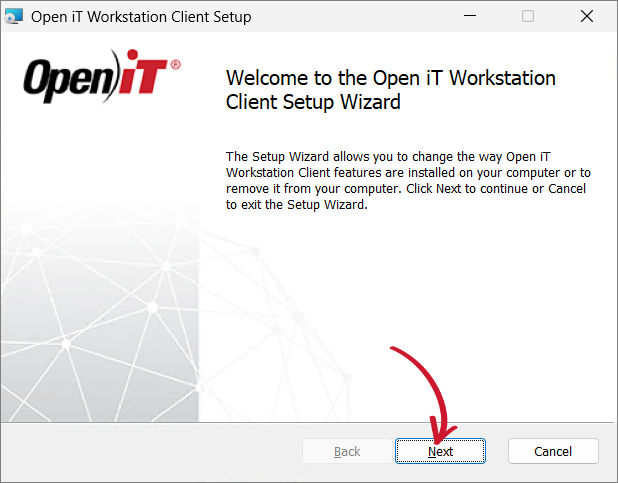 Uninstall Wizard
-
Click Remove.
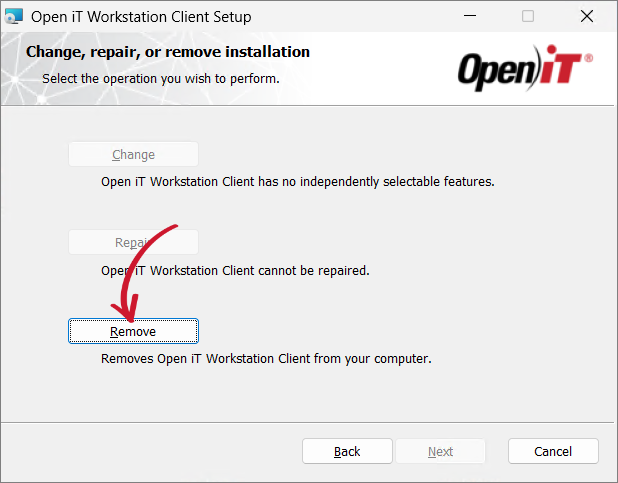 Uninstall Selection
-
Click Remove to uninstall the software.
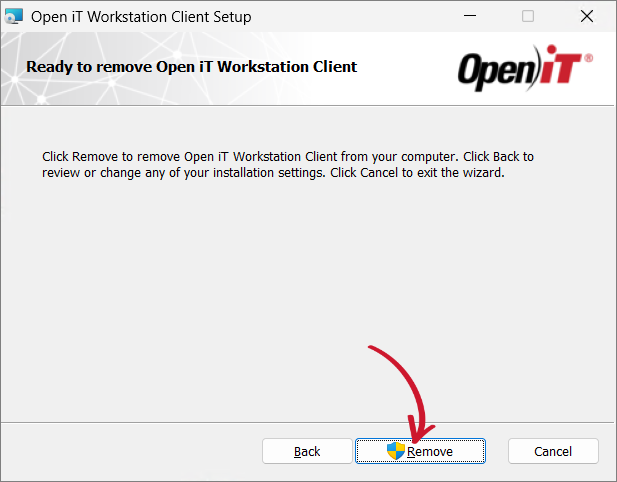 Uninstall Remove
-
Click Finish to complete the uninstallation process.
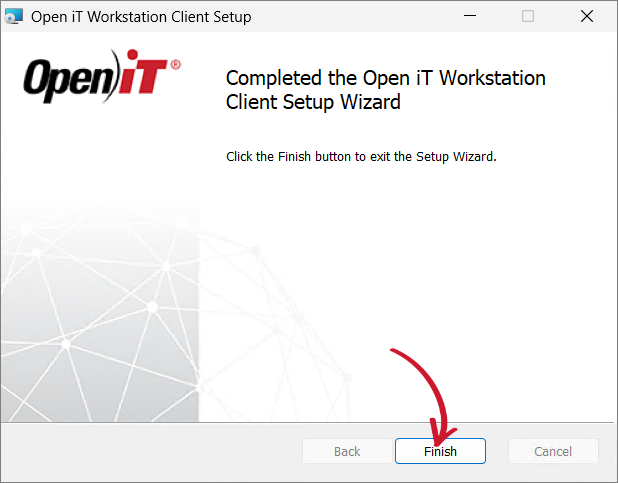 Uninstall Complete
Uninstalling through the Command Line
-
Open a command prompt with Administrator level privileges.
-
Run the following command:
Command Syntaxmsiexec /x <path_to_installer> /l*v <path_to_logfile> [/quiet] [/passive]Parameter Description /xUse this parameter to specify uninstallation <path_to_installer>Use this parameter to specify the path to the installer file /l*vUse this parameter to turn on logging of all information, including verbose output <path_to_logfile>Use this parameter to specify the path to the output log file /quietUse this optional parameter to run the process in silent mode, meaning no user interaction required /passiveUse this optional parameter to run the process in unattended mode, showing only a progress bar Command Parameters
noteThe installer will use the Windows Installer Interface if the process mode (
/quietor/passive) is unspecified.Example
Sample Commandmsiexec /x "C:\Installers\openit_workstation_client_windows_x64.msi" /l*v "C:\uninstall.log" /passivenoteWhen using the passive mode, wait until the process bar dialog disappears.
When using the quiet mode, verify that the uninstallation is complete by opening the Task Manager and checking in the Details tab if the msiexec process is still running.
Uninstalling through the Control Panel
-
Go to the Control Panel.
-
Under Program, click Uninstall a program.
-
In the list of programs, select Open iT Workstation Client, then click Uninstall at the upper-left of the list or right-click the item, then click Uninstall.
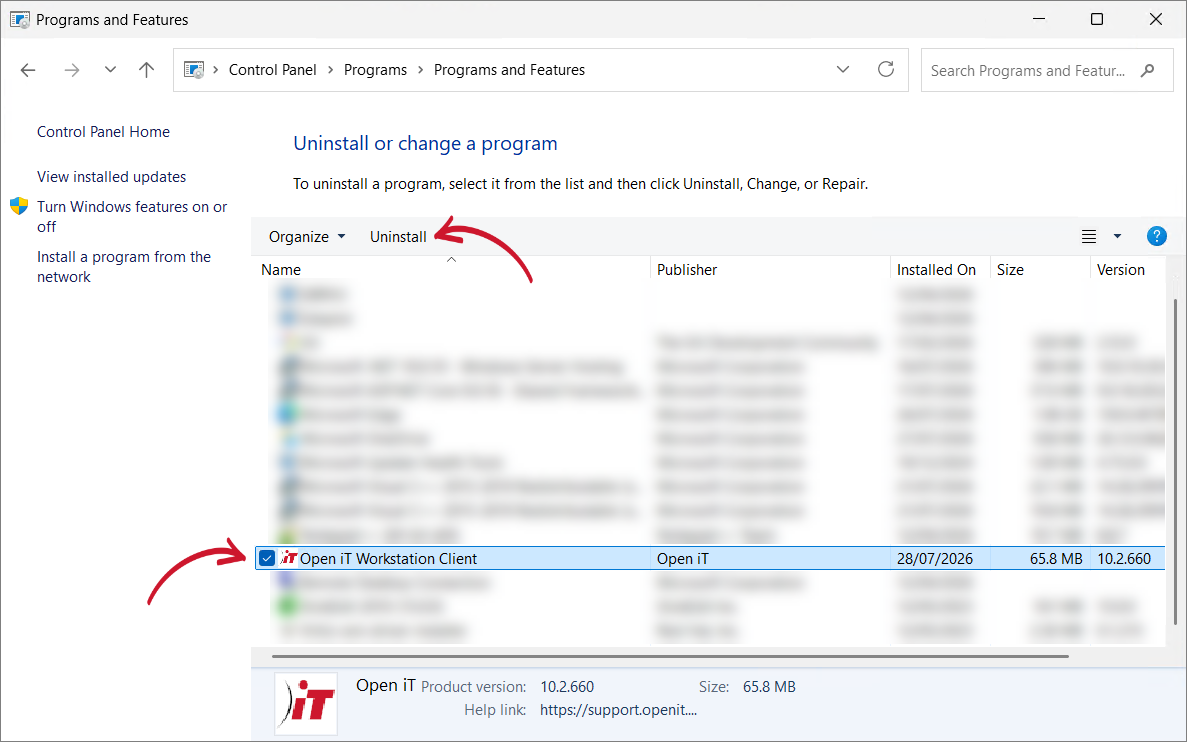 Control Panel Program List
-
Click Yes to proceed.
 Confirm Uninstallation