Claude Connection Configuration
The Open iT MCP Server can be connected to Claude to enable users to access and interact with Open iT data through natural language queries.
This guide provides step-by-step instructions for configuring the connection between the Open iT MCP Server and Claude and uploading Open iT Data Reporting Skills, allowing you to retrieve relevant Open iT information directly through the Claude conversation interface.
The following instructions are based on testing the MCP Server connection using the Claude web application with a personal account (Free plan). The exact menu labels, navigation options, and availability of custom MCP Server connections may vary depending on the Claude plan, account settings, and interface version.
Configuring Connection
Follow these steps to configure the Open iT MCP Server connection in Claude by adding a custom connector.
-
Open Claude in a web browser and sign in to your account.
-
Click your profile icon, then select Settings.
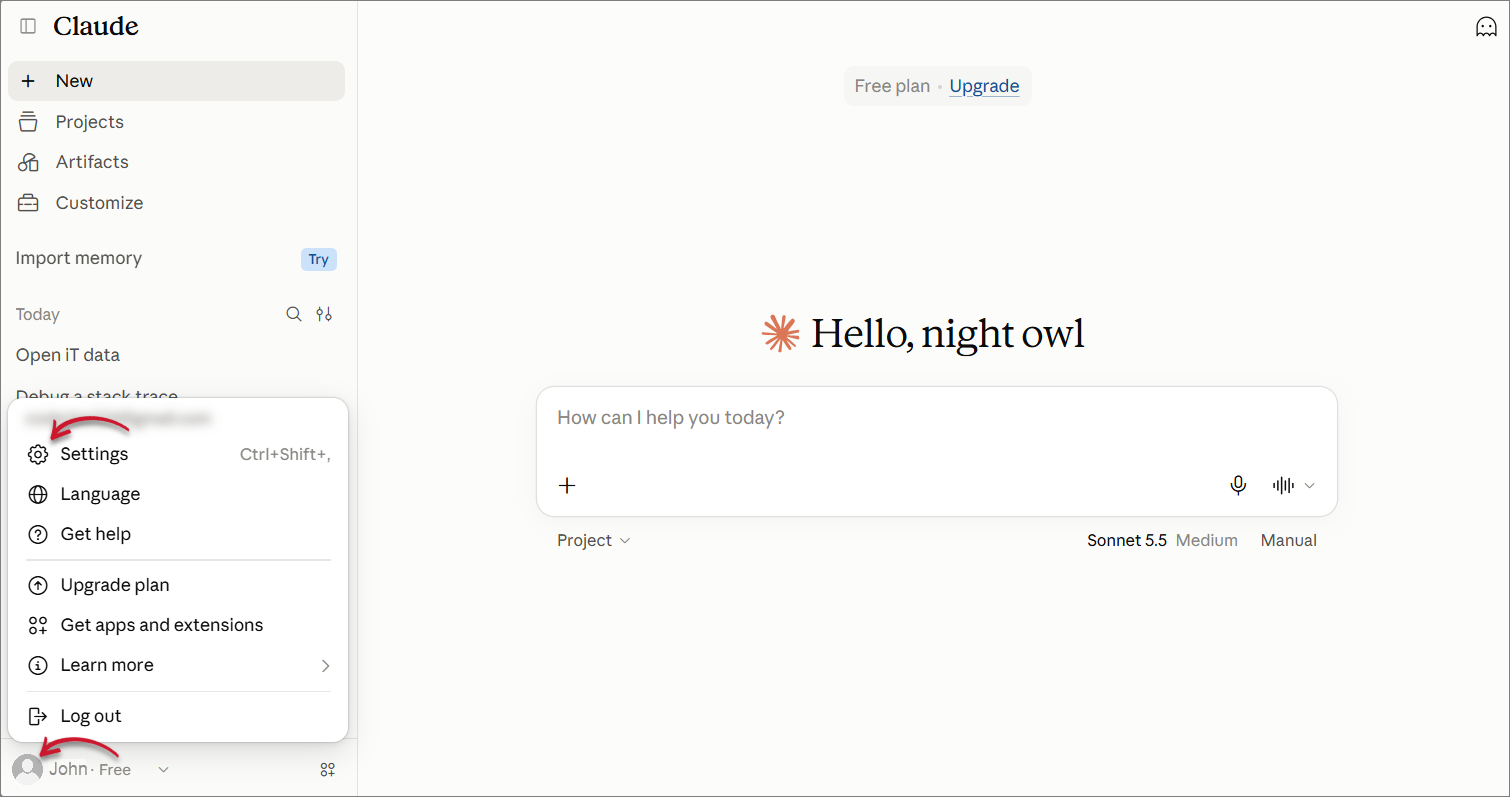 Go to Settings
-
Under Customize, select Connectors.
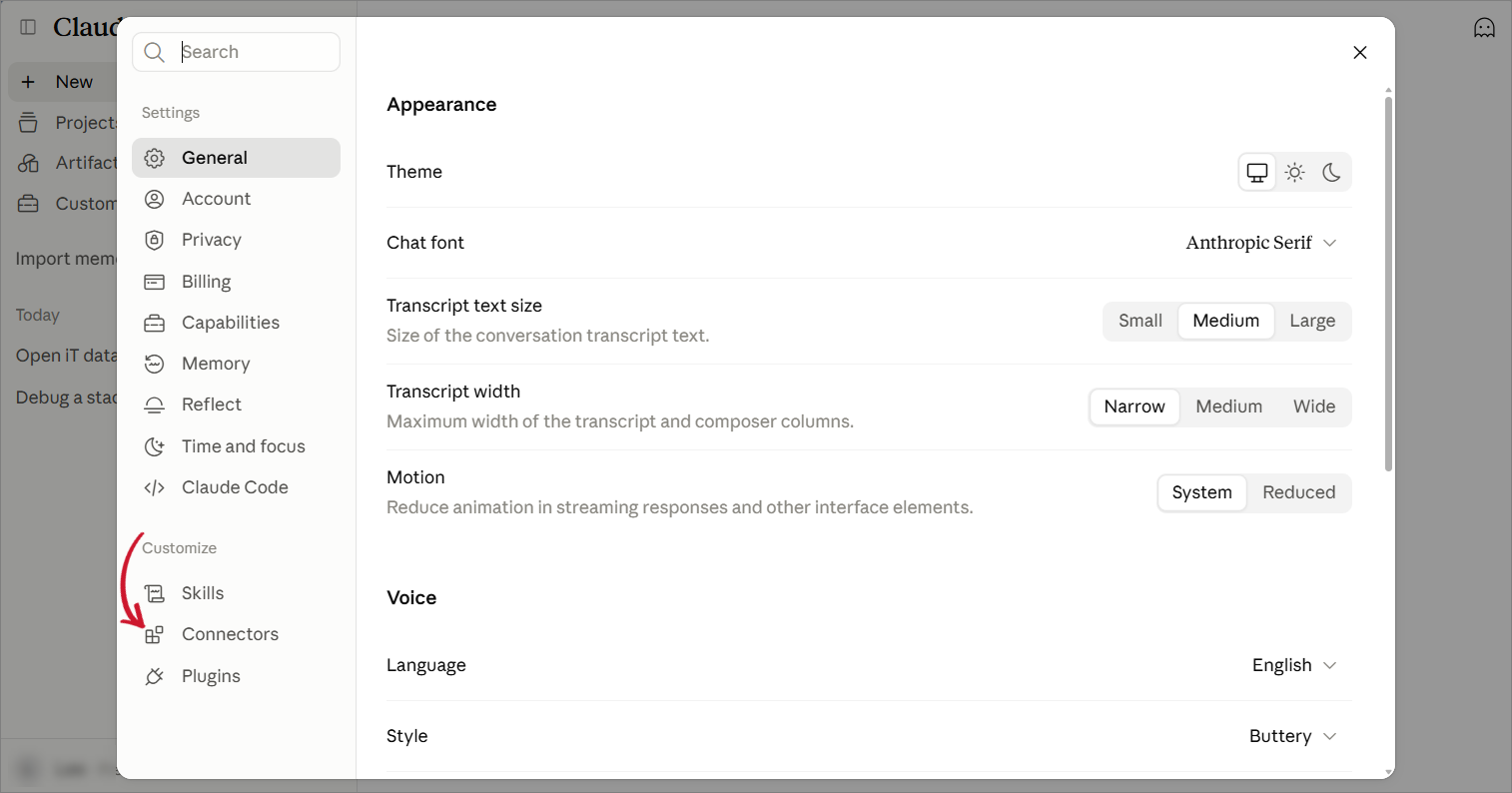 Select Connectors
-
On the Connectors page, click + Add, then select Add custom connector.
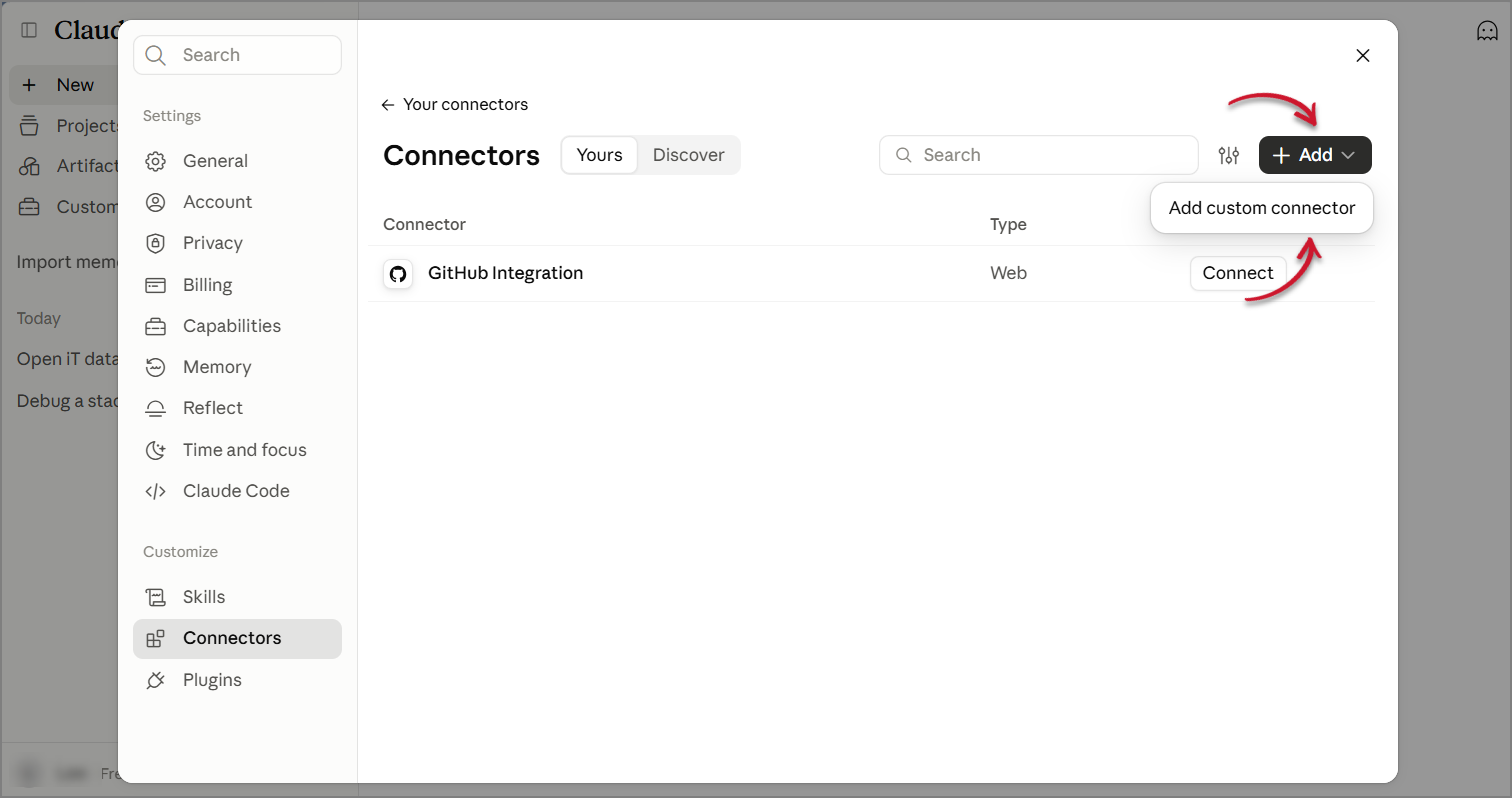 Add Custom Connector
-
Complete the following fields:
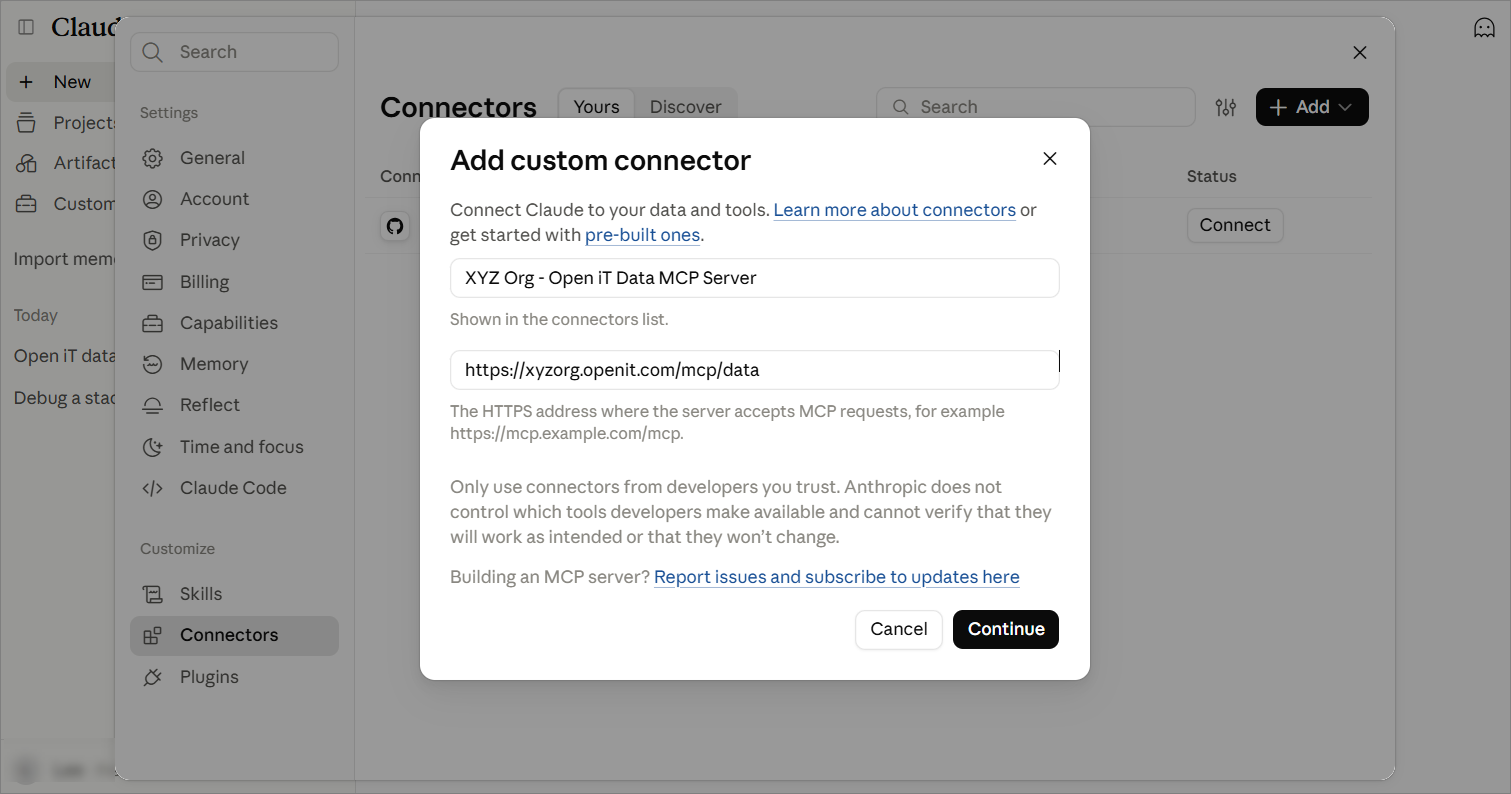 Configure MCP Server Connection
Where:
Field Description Name Specify a descriptive name to identify the MCP Server connection, such as Open iT MCP Server.MCP server URL Specify the server subdomain or endpoint URL of the machine where the Open iT MCP Server is installed. MCP Server Connection Configuration Details
-
Click Continue to proceed with the connection configuration.
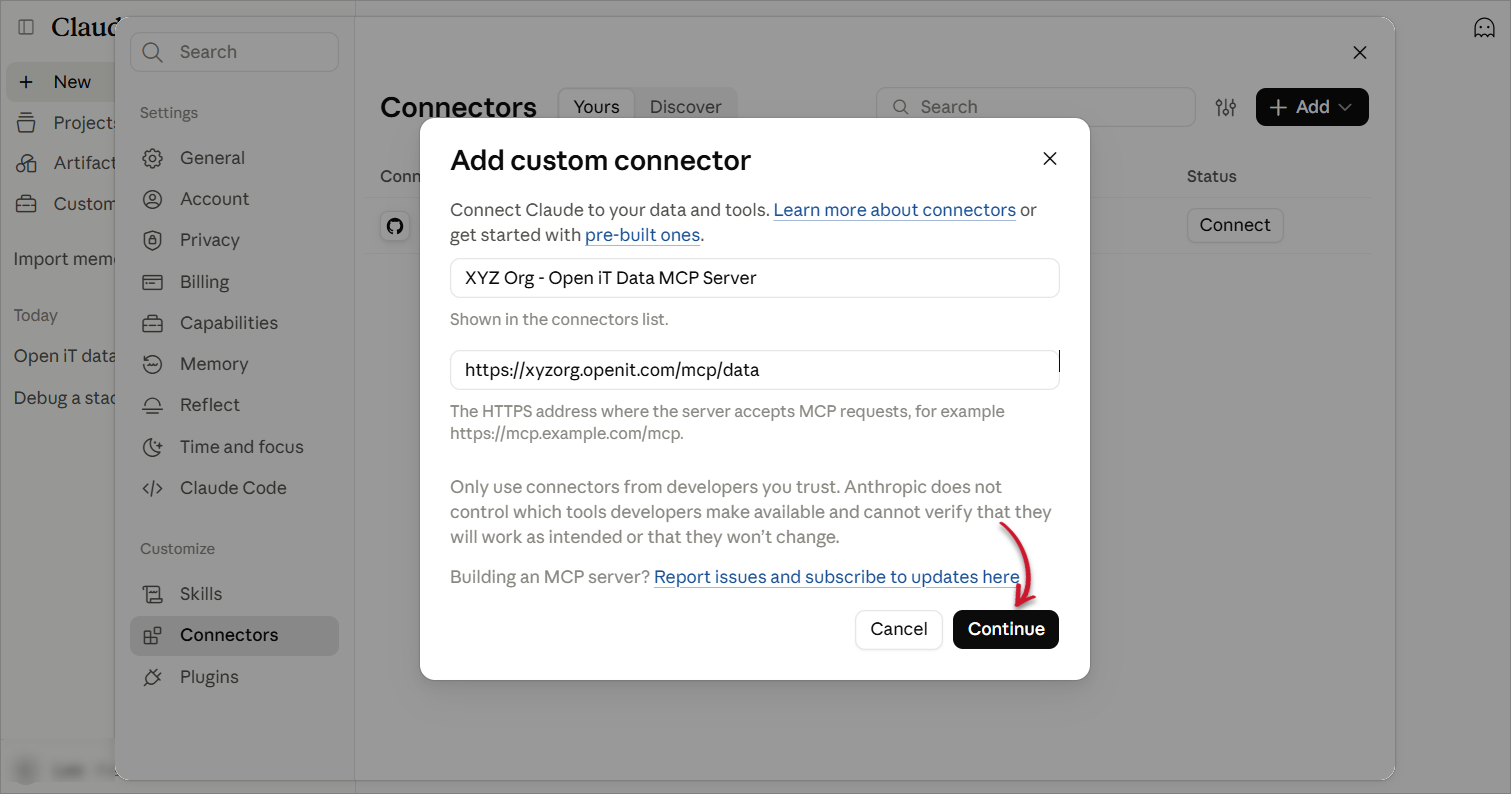 Click Continue
-
Review the authentication settings detected by Claude. Under Authentication, select Sign in now.
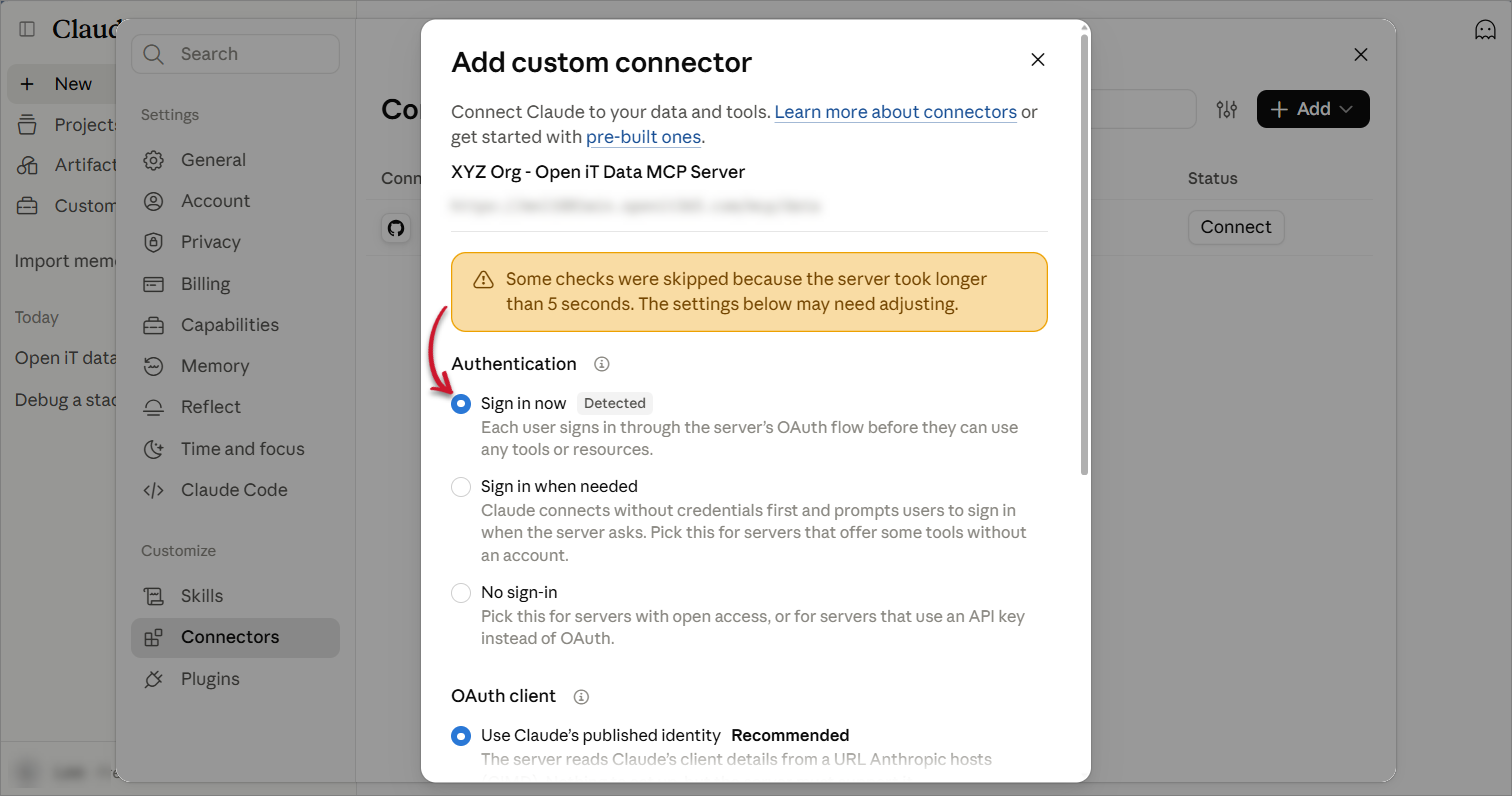 Authentication Configuration
-
Under OAuth Client, select Use Claude's Published Identity, then click Add to complete the connector configuration.
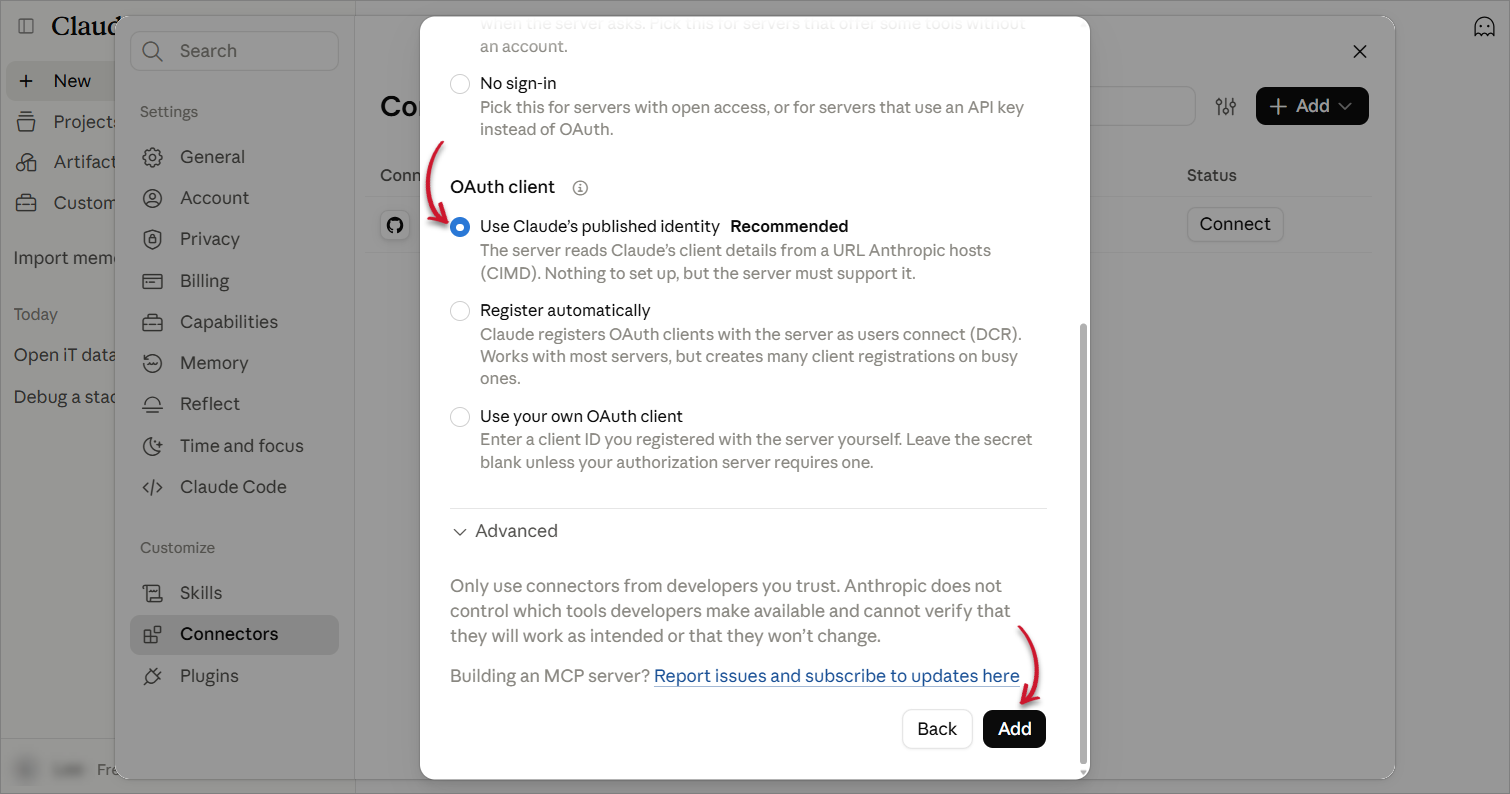 Add Connector
When prompted, provide your Open iT Core Server credentials to authenticate the connection.
-
On the Connectors page, if the newly added MCP Server displays a Not Connected status, click Connect to establish the connection.
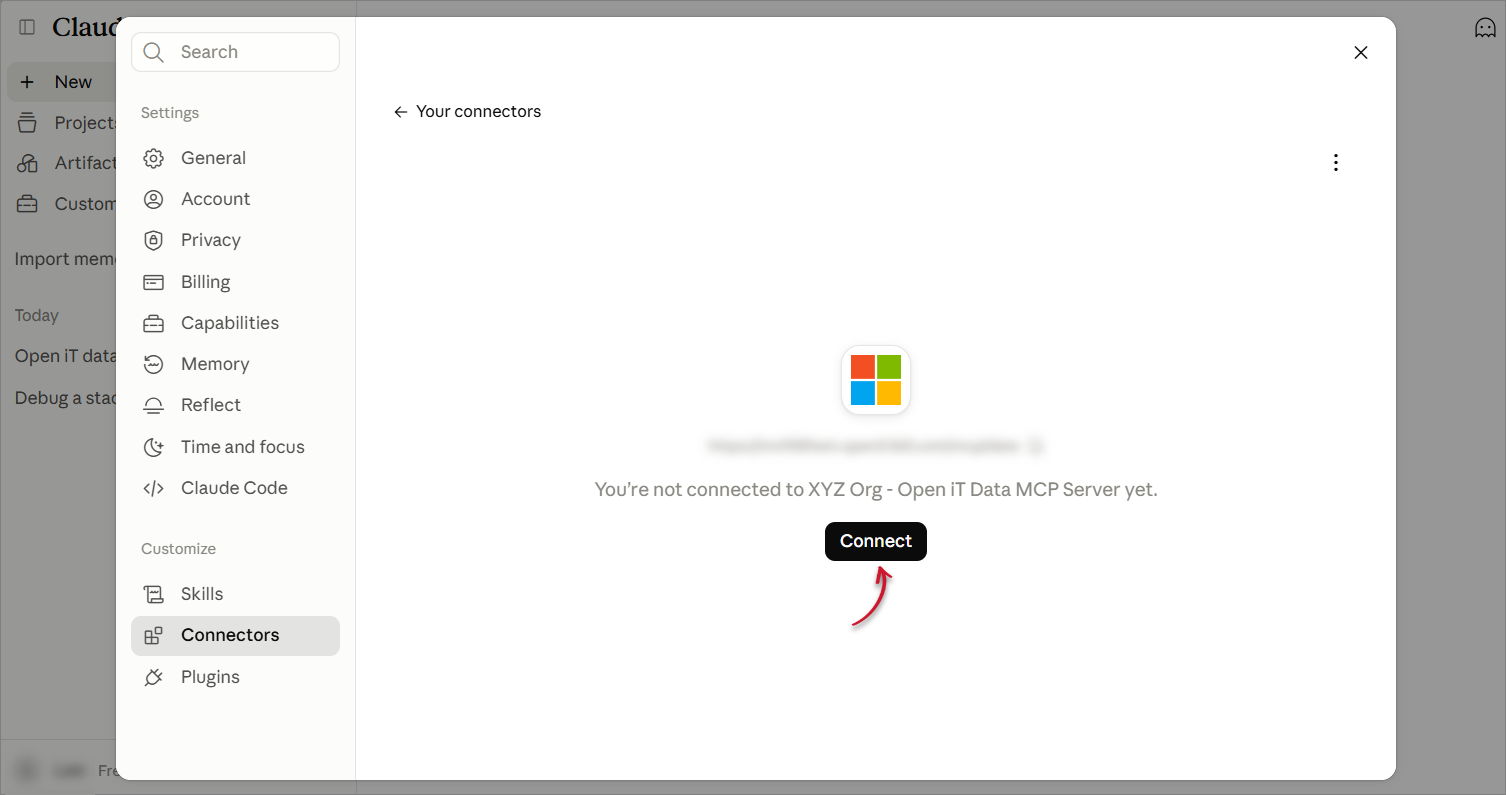 Connect to MCP Server
A notification appears once the Open iT MCP Server is successfully connected to Claude.
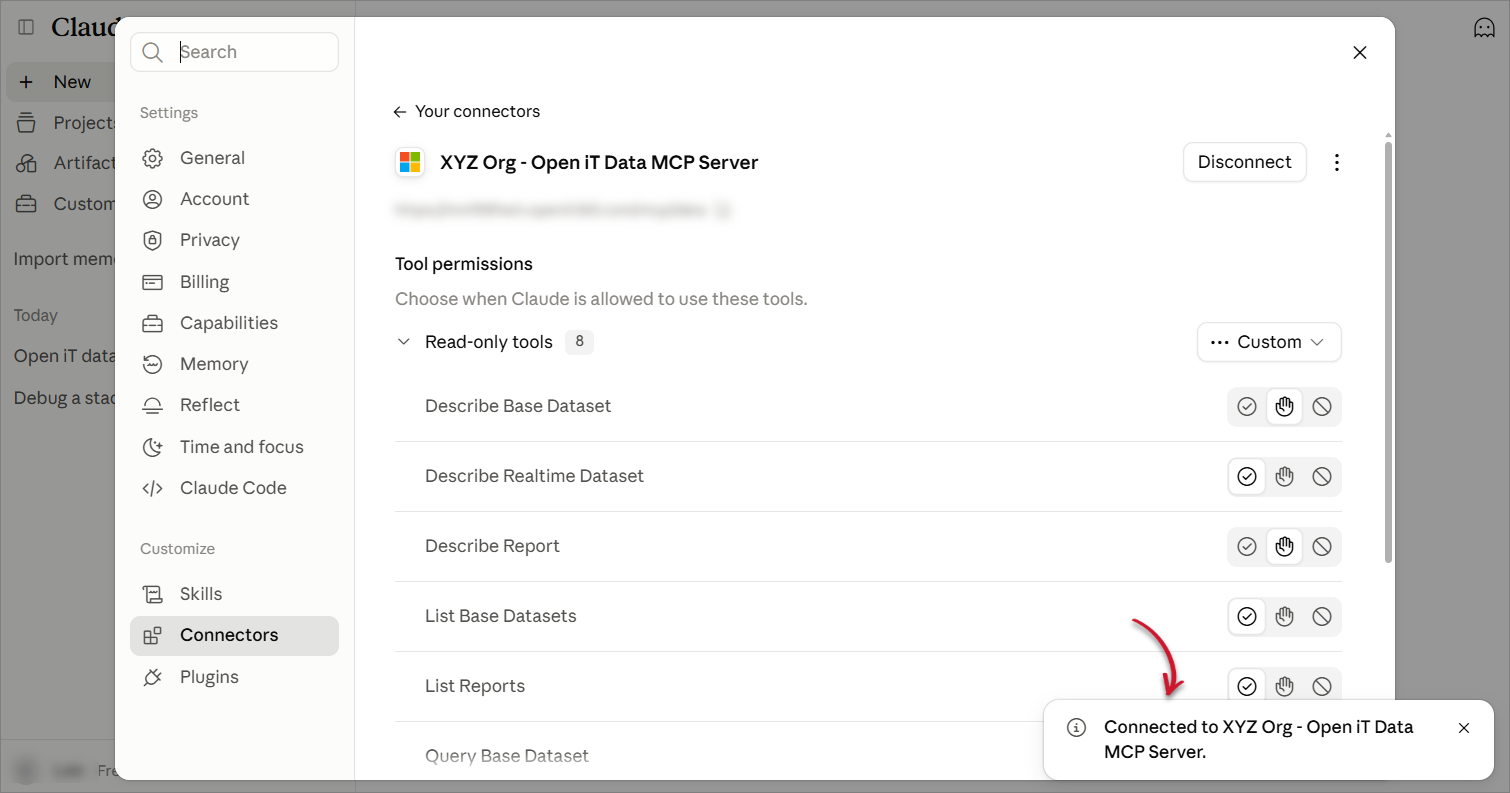 MCP Server Connection Notification
-
Verify that the Open iT MCP Server appears in the list of configured connectors and that its connection is established.
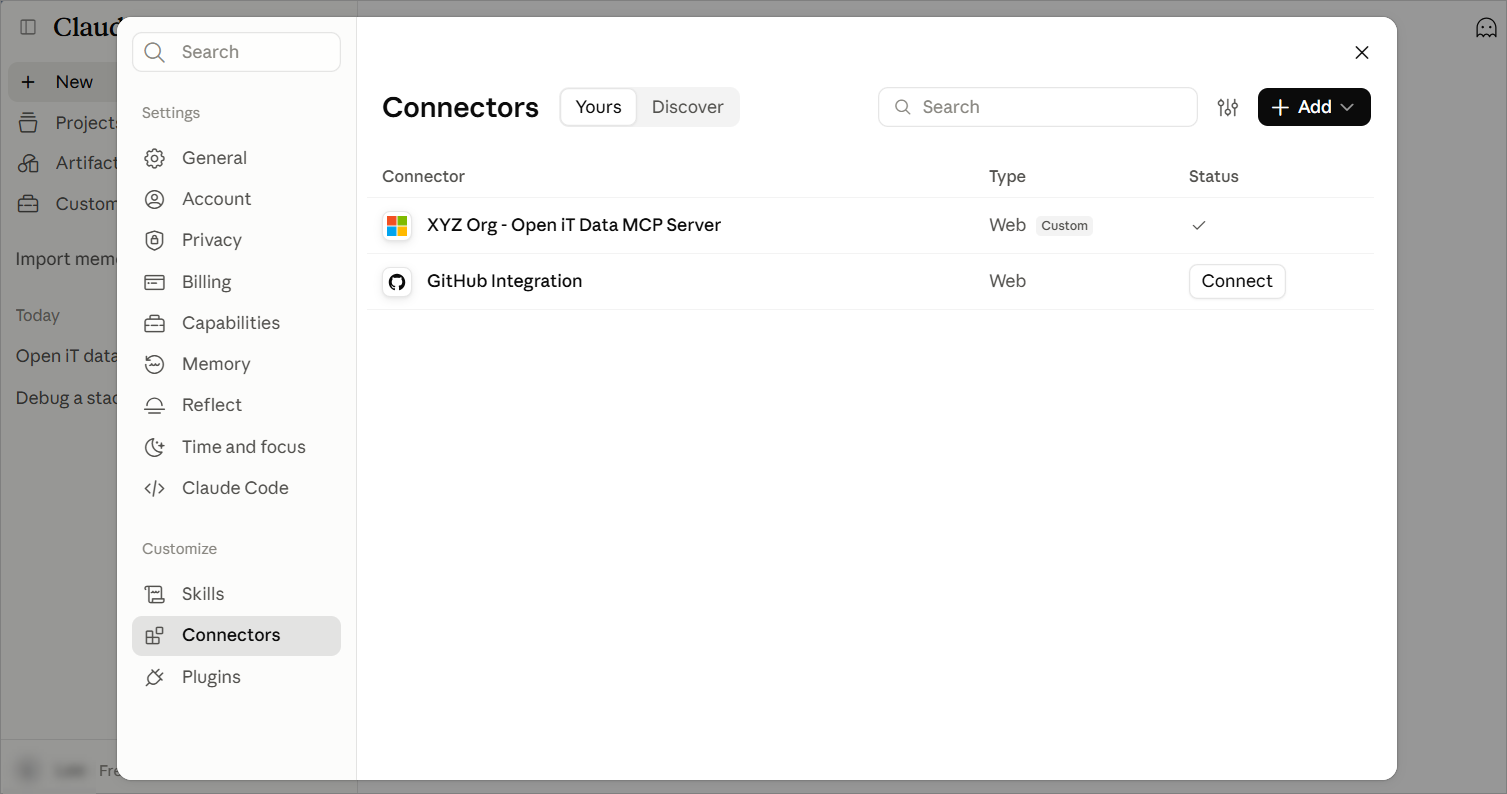 Verify Server Connection
To further verify that the Open iT MCP Server is successfully connected to Claude, ask a question related to Open iT data in the Claude conversation interface. A successful response using data retrieved from the MCP Server indicates that the connection is working properly.
Next Step?
After successfully creating your custom MCP server, you may proceed to Uploading Open iT Data Reporting Skills.
Uploading Open iT Data Reporting Skills
Open iT Data Reporting Skills provides Claude with predefined instructions and reporting workflows for interpreting, analyzing, and presenting software license usage data retrieved through the Open iT MCP Server.
These skills work alongside the Open iT MCP Server to help Claude process retrieved data and generate structured reports and insights based on Open iT reporting capabilities.
Follow these steps to upload the Open iT Data Reporting Skills in Claude.
-
Open Claude in a web browser and sign in to your account.
-
Click your profile icon, then select Settings.
Go to Settings
-
Under Customize, select Skills.
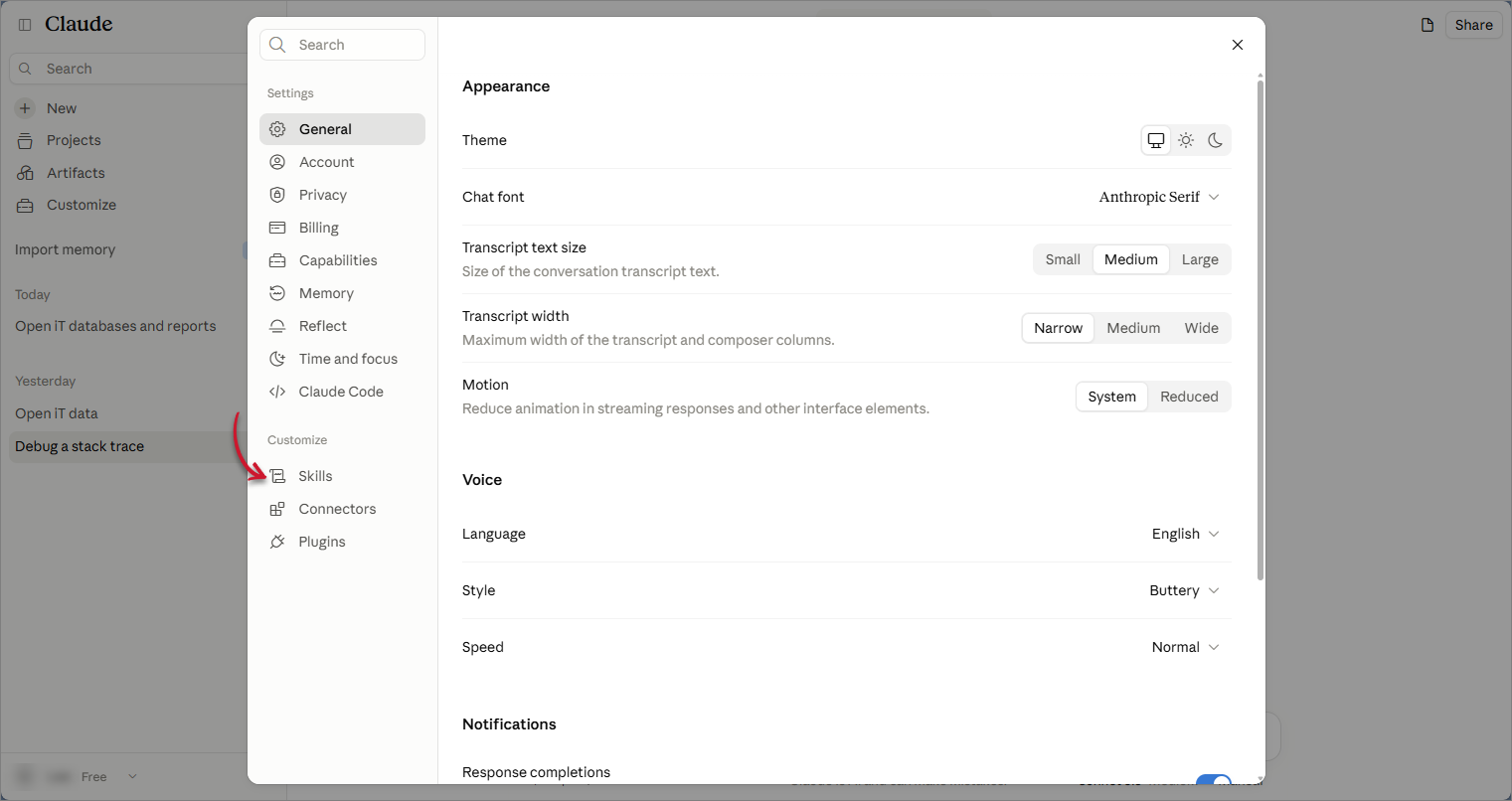 Select Skills
-
Click + Add, then select Upload skill.
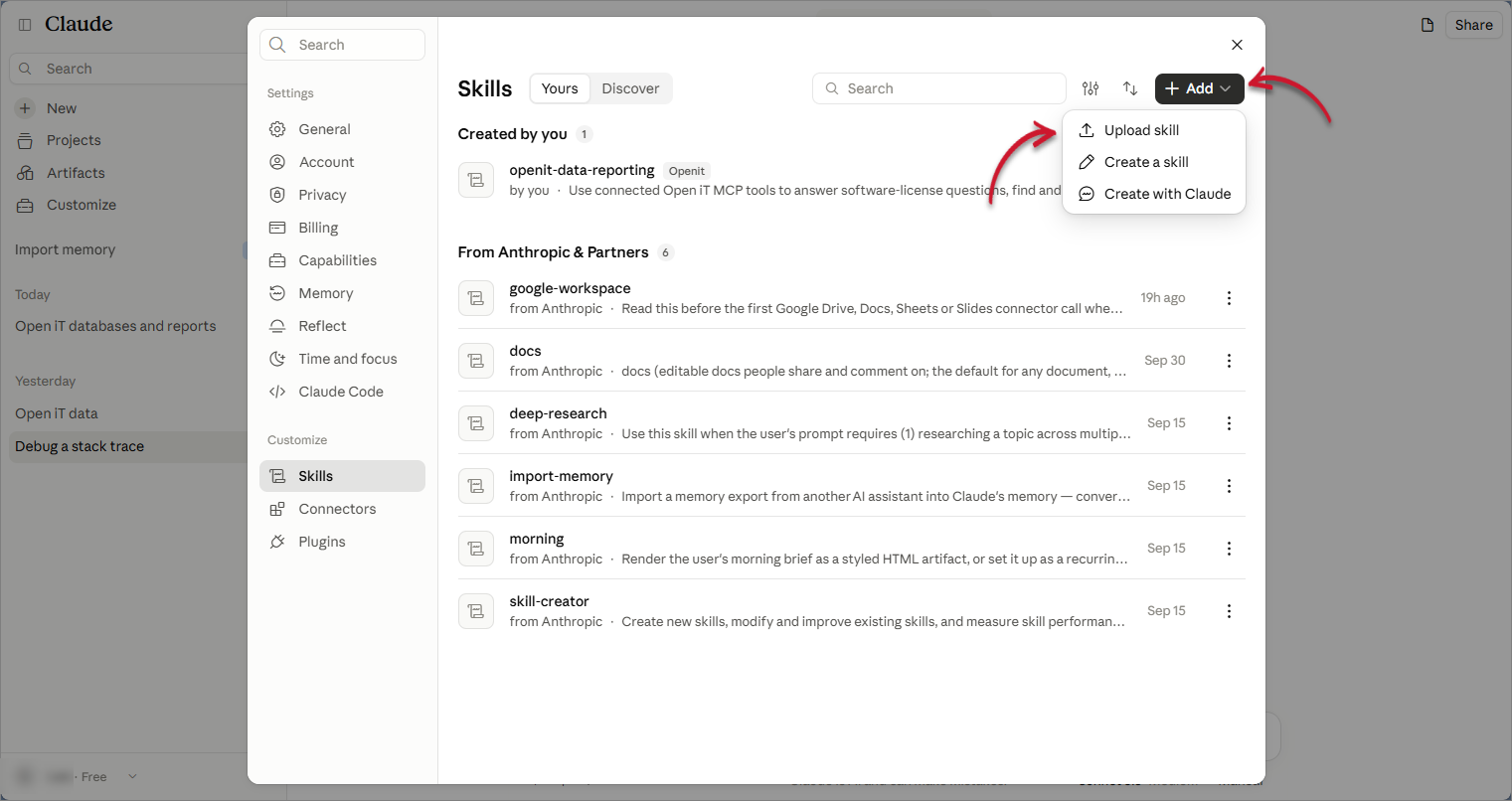 Add Skill
-
Drag and drop the downloaded Open iT Data Reporting Skills archive (
openit-data-reporting-skill.zip) into the upload area, or click the area to browse and select the file.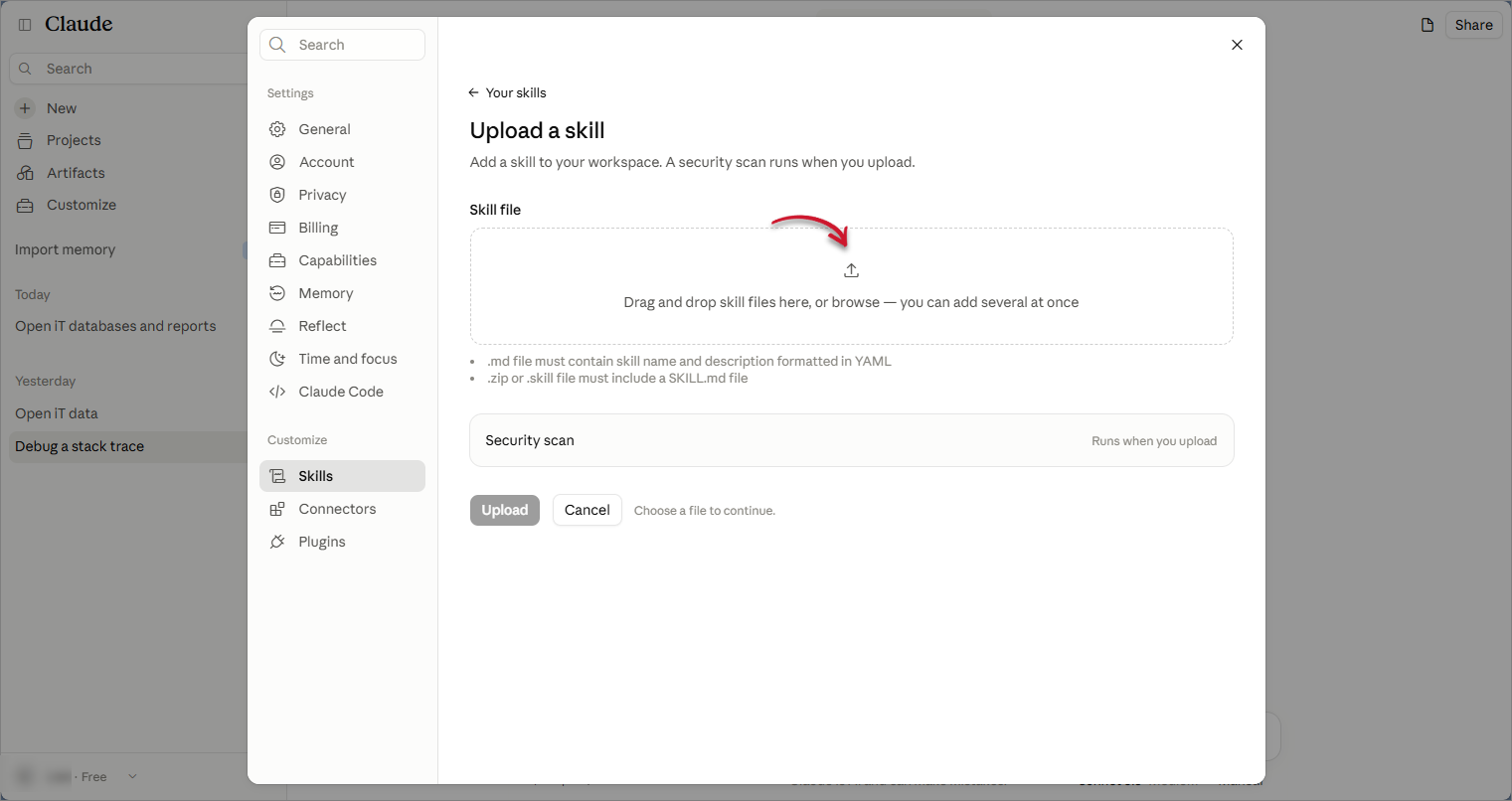 Upload Open iT Data Reporting Skills Archive
-
Once the upload is complete, click Upload.
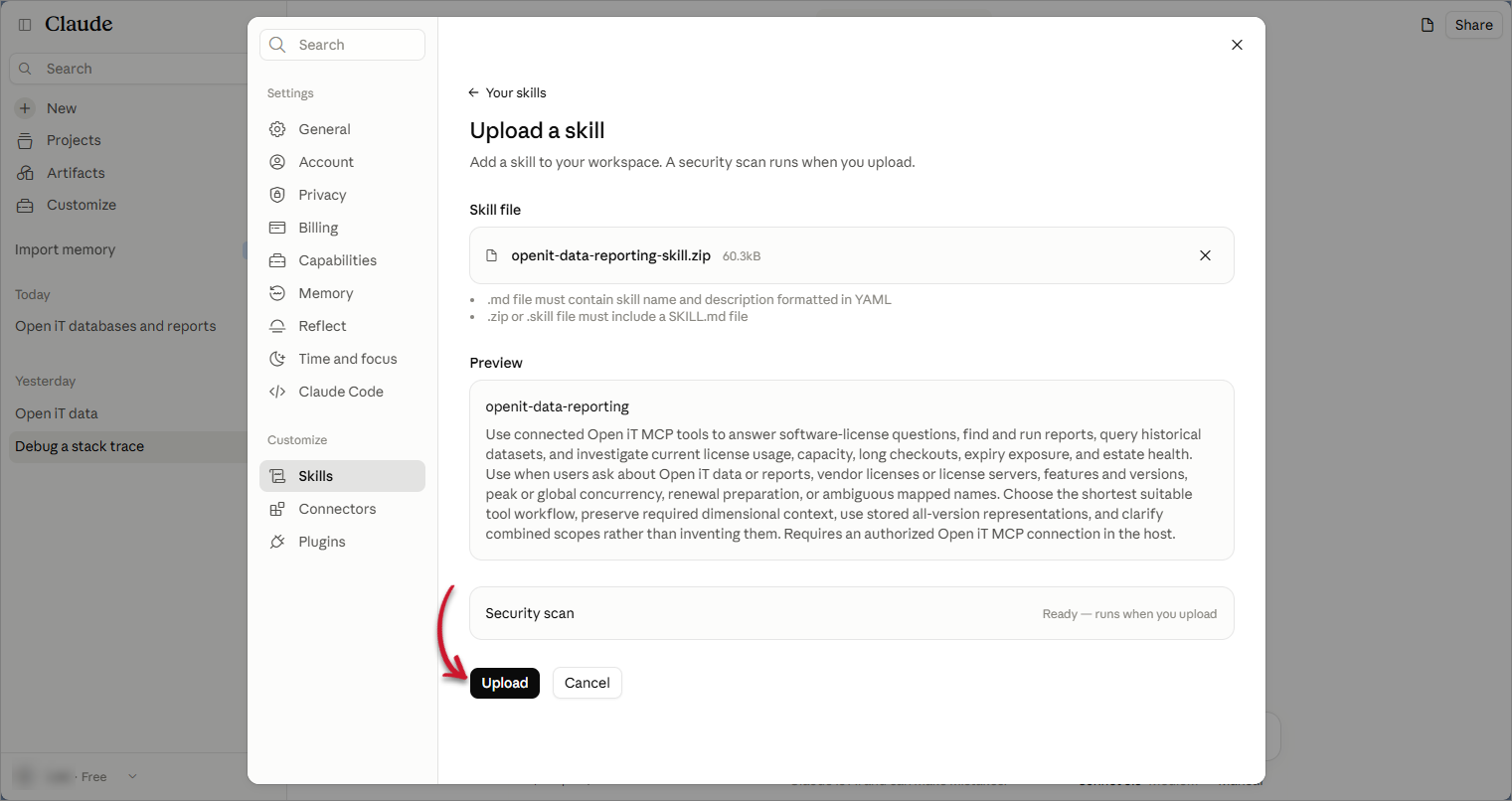 Click Upload
-
A notification appears once the Open iT Reporting Skills is uploaded to Claude.
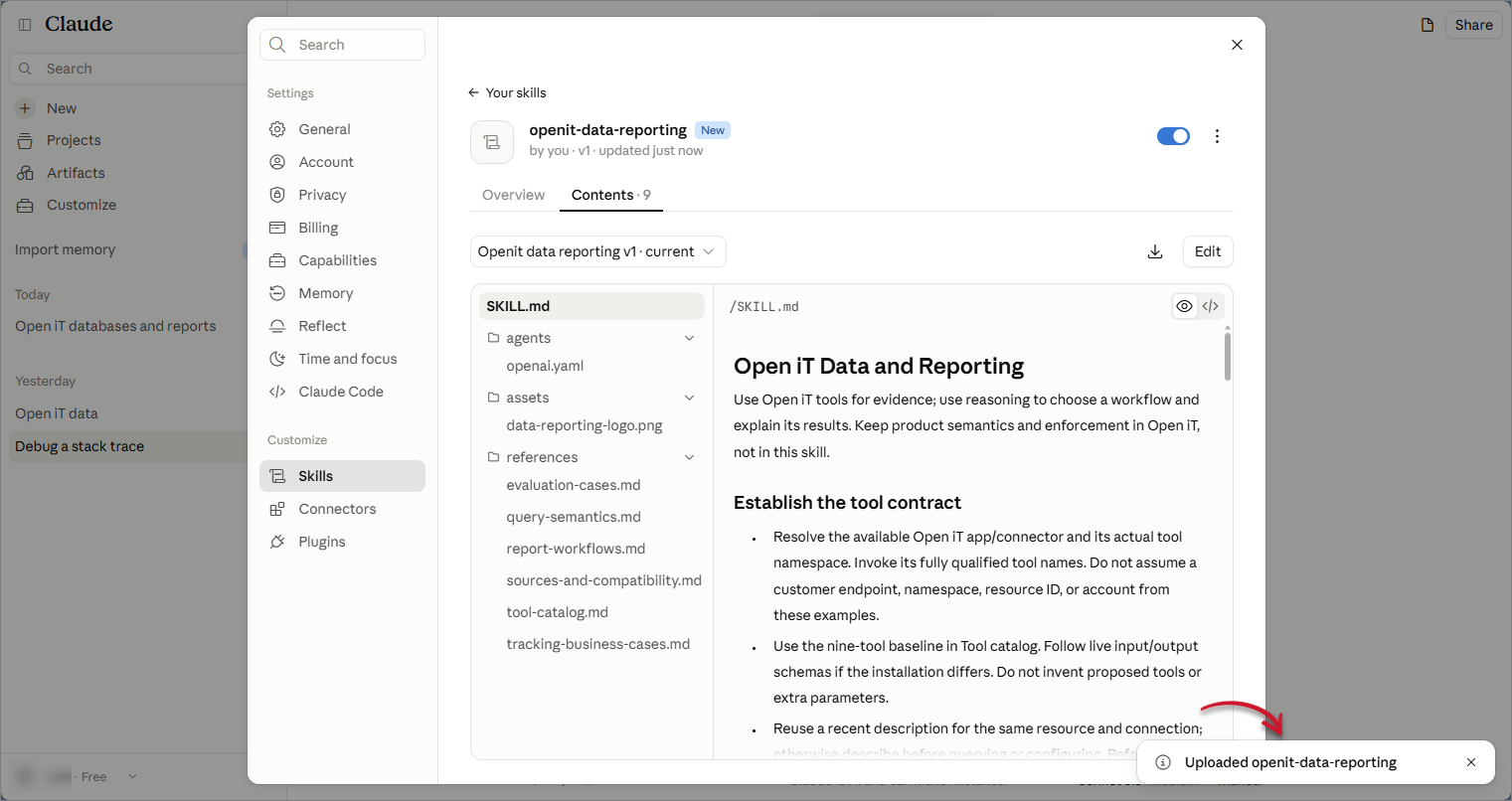 Successful Skill Upload Notification
-
Verify that openit-data-reporting appears in the list of skills to confirm that the upload was successful.
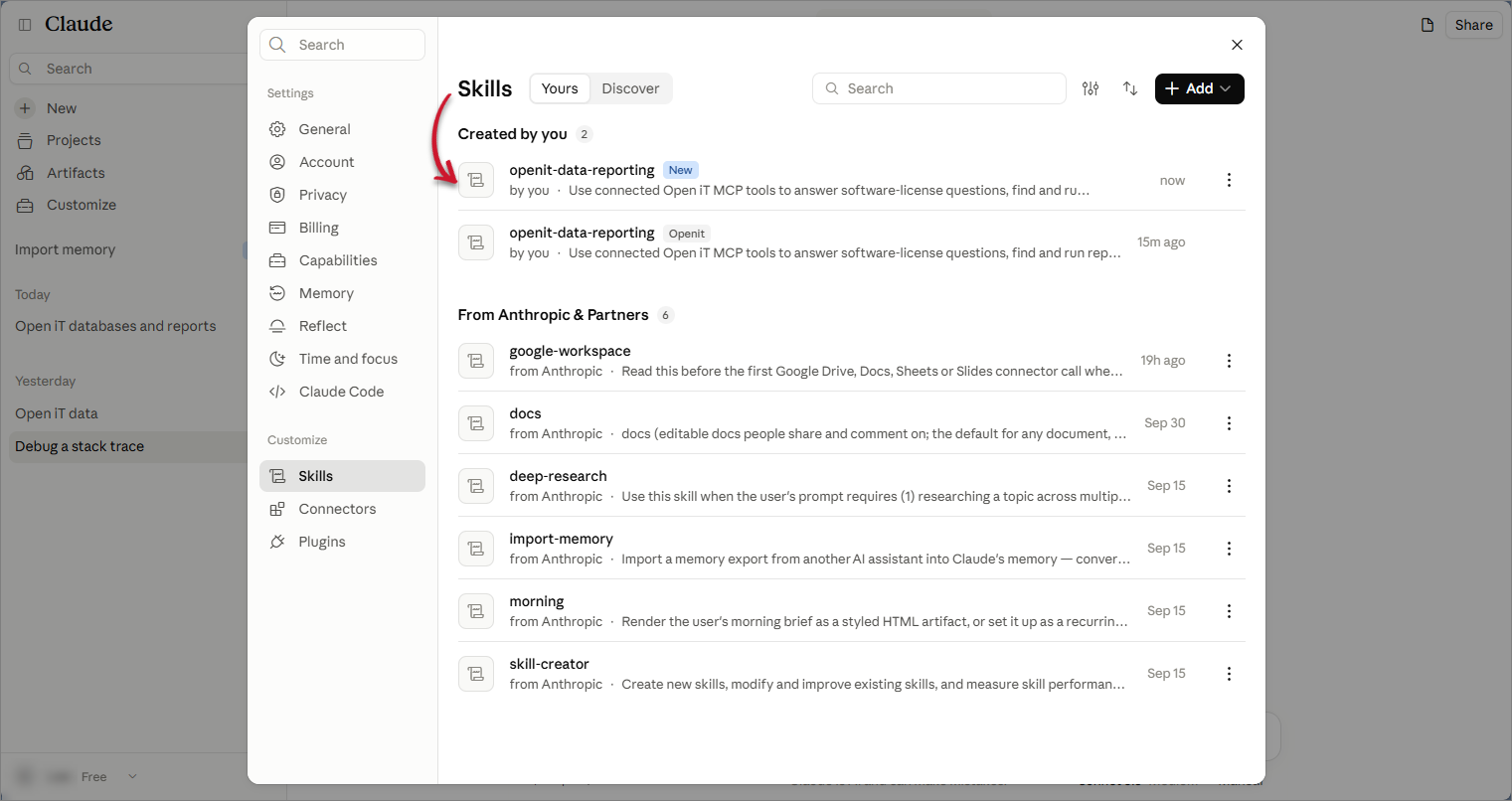 Verify Uploaded Skill