Backend Services
The Backend Services interface provides centralized management and visibility for services connected to Open iT Ingress.
The table view presents key routing information at a glance, including the service name, path, target endpoint, match behavior, and current health state. This allows administrators to quickly verify routing rules and detect potential service issues.
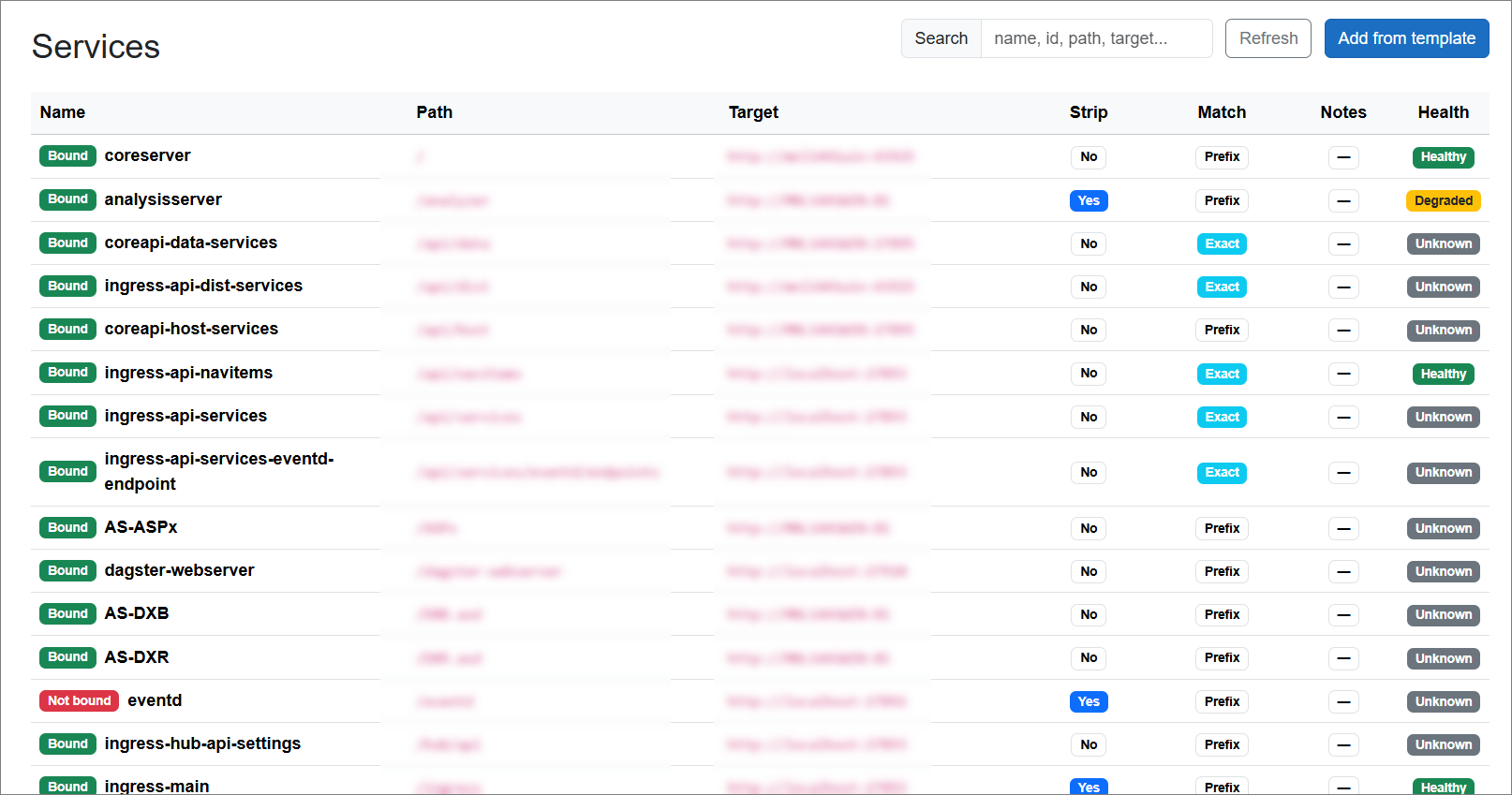
Each row in the table represents a backend service with the following information:
| Column | Description |
|---|---|
| Name | The unique identifier of the service registered with Ingress. A status tag appears before the service name:
|
| Path | The external request path exposed by Ingress where the service is accessible. |
| Target | The backend endpoint (URI) to which matching requests are forwarded. |
| Strip | Determines whether the defined path is removed before the request is sent to the backend service.
|
| Match | Specifies how incoming requests are evaluated against the configured path. When multiple match types could apply, Exact match takes priority over Prefix and Suffix matches.
|
| Notes | Displays configuration guidance or recommendations related to the service setup. |
| Health | Indicates the overall operational status of the service based on backend health checks. |
To view detailed information about a service, click the corresponding service row in the table. This expands the entry and displays its configuration and operational status.
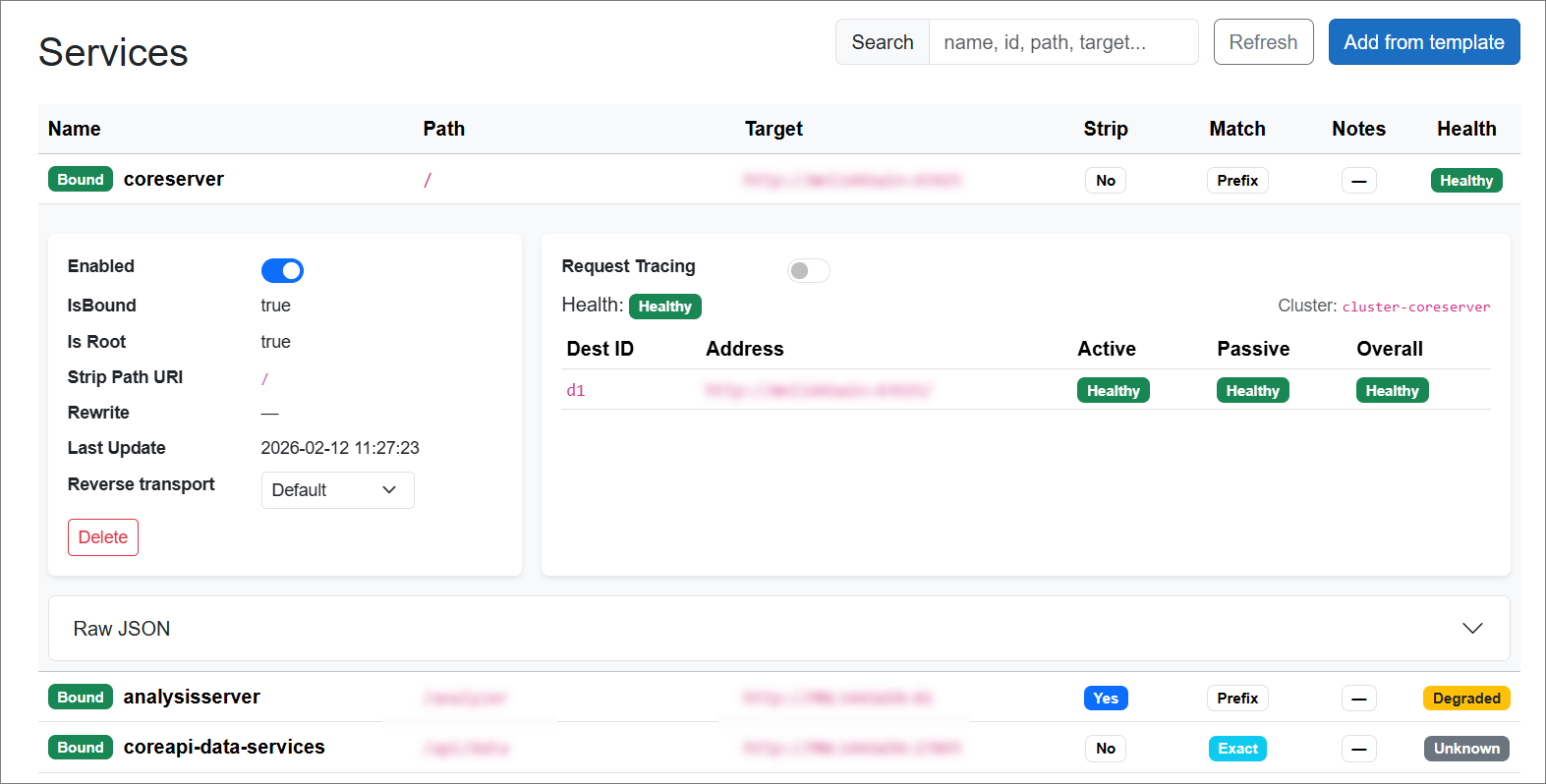
The details view contains the following sections:
Service Configuration
This panel displays the configuration and operational settings of the service.
| Details | Description |
|---|---|
| Enabled | Toggles whether the service is active. When enabled, the service can receive requests routed through Ingress. |
| IsBound | Indicates whether the service is successfully bound to the Ingress routing system. |
| IsRoot | Indicates whether the service handles requests for the root path (/). |
| Strip Path URI | Shows the path that will be removed from incoming requests before they are forwarded to the backend service. |
| Rewrite | Displays any configured path rewriting rules applied before forwarding requests. |
| Last Update | Shows the timestamp of the most recent configuration update for the service. |
| Reverse Transport | Specifies the transport configuration used when forwarding requests to the backend service. |
| Delete | Removes the service configuration from Ingress. |
Health and Cluster Information
This panel shows the health status and backend destinations associated with the service.
| Details | Description |
|---|---|
| Request Tracing | Enables or disables request tracing for the service. When enabled, request activity can be monitored on the Proxy Traces page. |
| Health | Displays the overall health status of the service. |
| Cluster | Indicates the backend cluster associated with the service. |
| Dest ID | The identifier of the backend destination within the cluster. |
| Address | The network address of the backend service instance. |
| Health Check | Displays the status of backend service health based on active polling, passive monitoring of request traffic, and the combined overall health result.
|
Access Control
Authentication
Ingress supports multiple authentication methods to verify the identity of users or clients accessing services.
The following authentication methods can be configured in Ingress:
| Authentication | Description |
|---|---|
| Negotiate | Uses Windows Integrated Authentication. The system attempts Kerberos authentication first and falls back to NTLM if Kerberos is not available. |
| OIDC | Uses OpenID Connect (OIDC) to authenticate users through an external identity provider, such as Azure AD or other OIDC-compatible services. |
| IPWhitelist | Allows requests only from IP addresses that are explicitly included in a configured whitelist. |
Service Authorization Policy
In addition to authentication, services connected to Ingress can also enforce an authorization policy that determines who is allowed to access a specific service.
While Ingress may require authentication, this does not automatically mean that all proxied services will use the same authentication rules. An authorization policy allows each service to define its own access control requirements.
This ensures that only requests meeting the configured policy—such as authenticated users, administrators, local requests, or approved IP addresses—are permitted to access the service.
The following authorization policies can be applied to a service:
| Authorization Policies | Description |
|---|---|
| WindowsAuthentication | Allows access only to users who successfully authenticate using Windows authentication. |
| IngressAuthentication | Allows access only to users who successfully authenticate using the authentication method configured in Ingress. The service will use whichever authentication method is currently enabled in the Ingress configuration. |
| IngressAuthenticationAdministratorOnly | Allows access only to administrator users authenticated through Ingress. The list of administrators is defined in the Authentication.json configuration file. |
| LocalMachineOnly | Allows access only from the local machine where the service is running. |
| WhitelistedIPOnly | Allows access only to requests coming from IP addresses included in a configured whitelist. |
Service Management
Adding Service from Template
You can manually add a service from a template by following these steps. This is particularly useful when automatic service registration fails.
Here you go—same content, just using #### for each step:
Step 1: Add a Service from Template
In the upper-right corner of the interface, click Add from Template.
Step 2: Select a Service
From the available drop-down list, select the service to register.
Step 3: Configure the Service
Provide the target URI of the service.
Step 4: Add the Service
Click Add Services.
The newly added service will appear in the Services table.
Enabling or Disabling Services
To enable or disable a service:
Step 1: Open the Service Details
In the Services table, click the service row to open the details view.
Step 2: Enable or Disable the Service
Locate Enable, then toggle the switch.
Changes take effect immediately. There is no Save button. Once the switch is toggled, the service is automatically enabled or disabled.
Advanced Configuration
Modifying the Service JSON Configuration
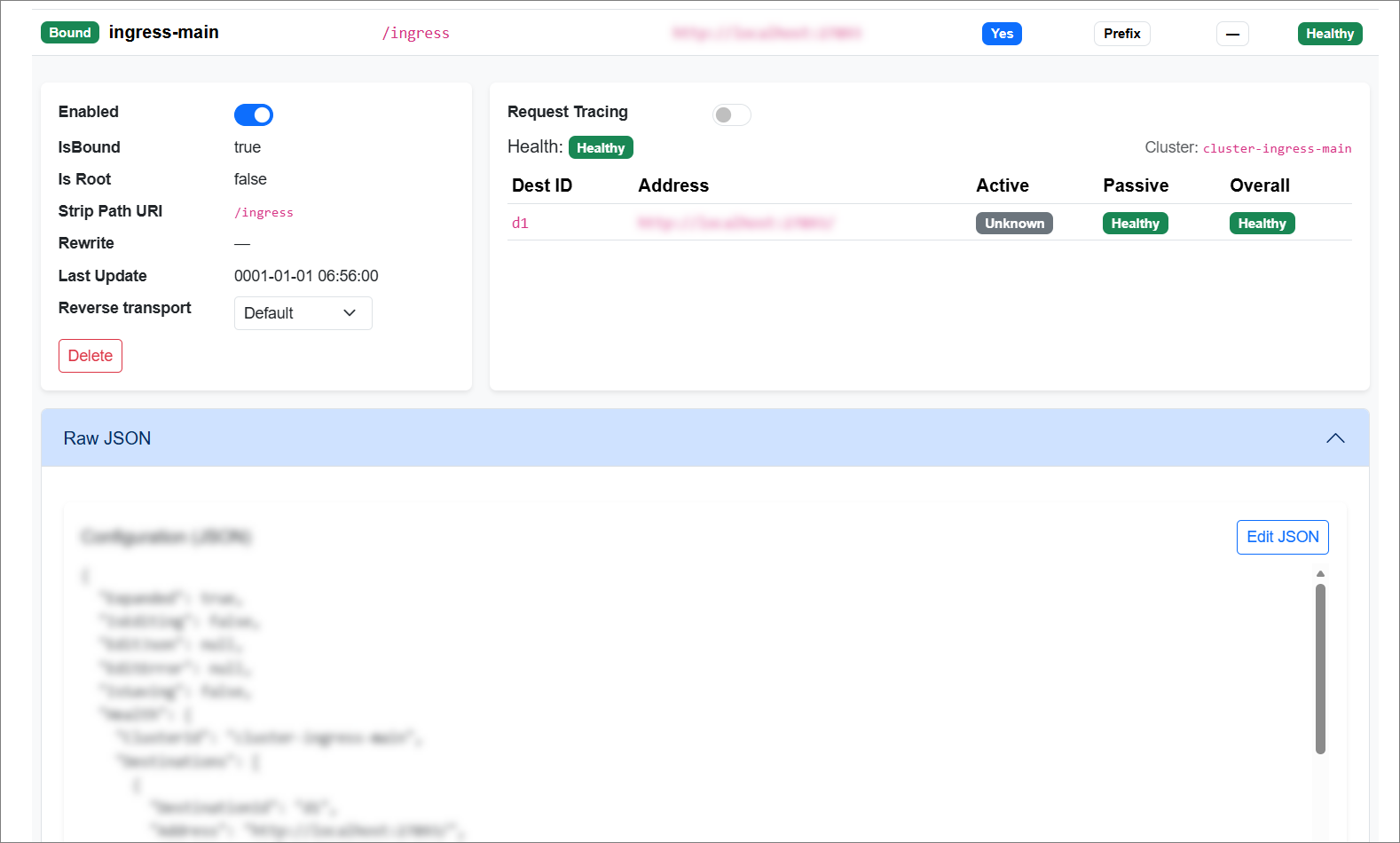
For advanced configuration, you can directly modify the service definition using its raw JSON representation.
The raw JSON configuration controls critical service settings. Only administrators should modify this section. Incorrect changes may disrupt routing or make services inaccessible.
To access this option:
Here it is in the same style:
Step 1: Open the Service Details
In the Services table, click the service row to open the details view.
Step 2: Go to the Raw JSON Section
Scroll down to the Raw JSON section.
Step 3: Edit the Configuration
Click Edit JSON to modify the configuration.
Step 4: Save the Changes
Apply the changes, then click Save.
Enabling Proxy Tracing
To enable proxy tracing for a service:
Here it is in the same format:
Step 1: Open the Service Details
In the Services table, click the service row to open the details view.
Step 2: Enable Request Tracing
Locate Request Tracing, then toggle the switch to enable it.
Step 3: View Proxy Traces
Proxy traces for the selected service will be enabled and can be viewed on the Proxy Traces page.