Uninstallation
- Windows
- Unix
Uninstalling through the Control Panel
-
Open the Control Panel.
-
Under Programs, click Uninstall a program.
-
Right-click on Open iT Ingress, then click Uninstall.
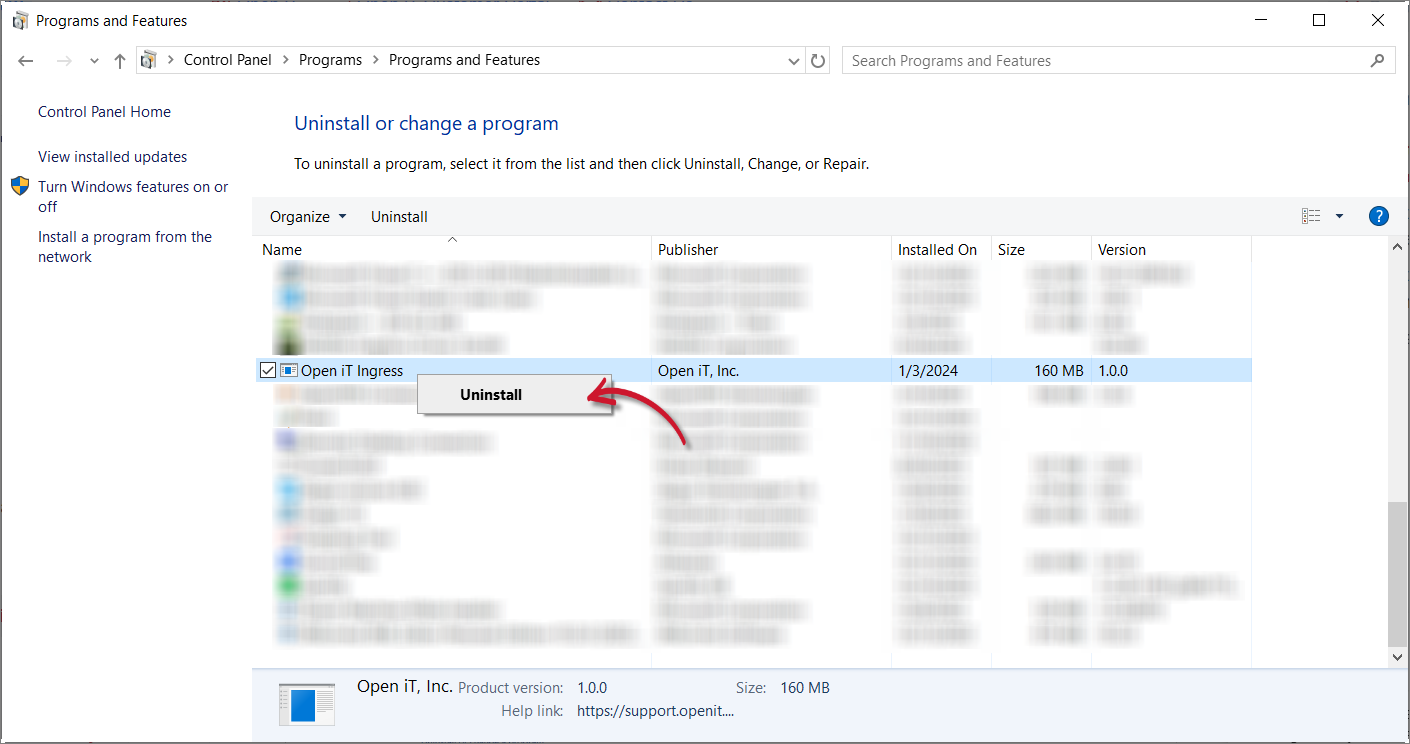 Control Panel: Uninstall Option 1
Alternatively, click on Open iT Ingress, then click Uninstall from the header.
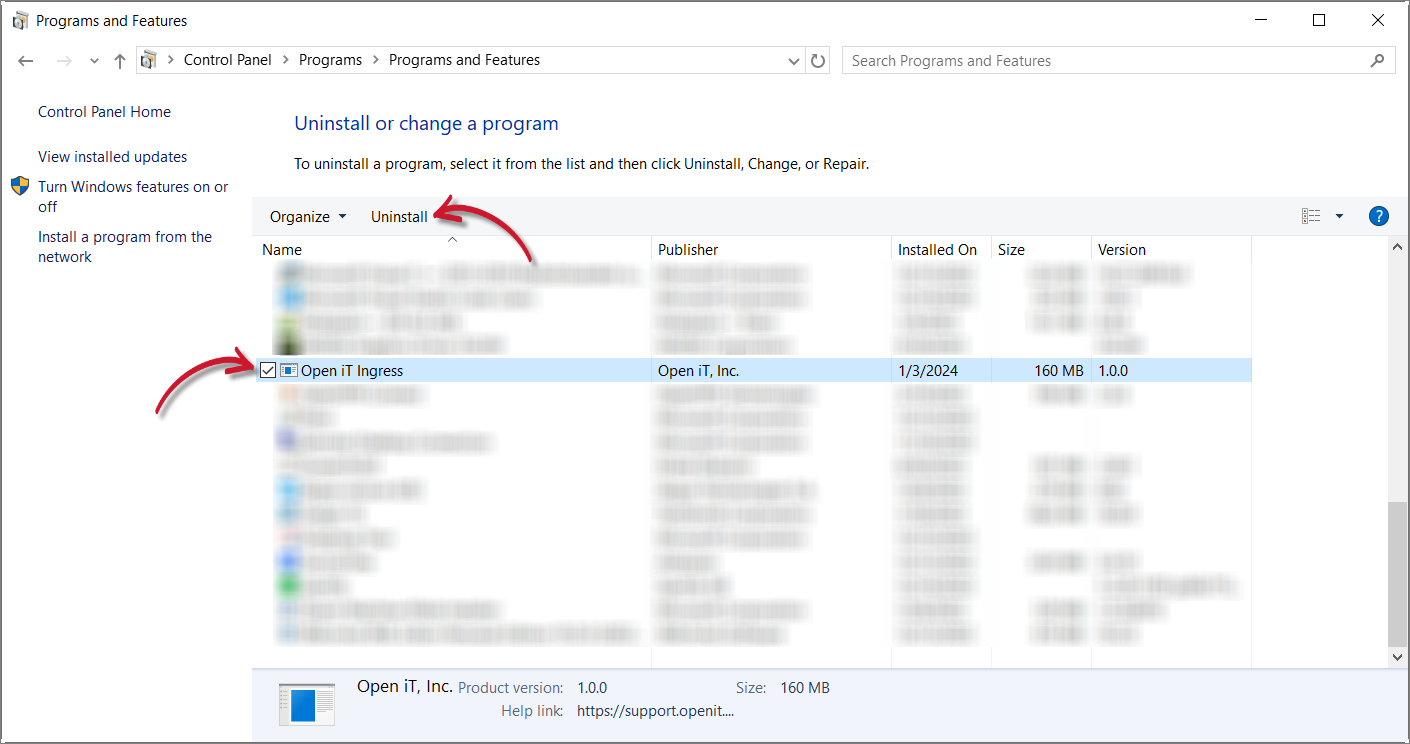 Control Panel: Uninstall Option 2
-
Click Yes to proceed.
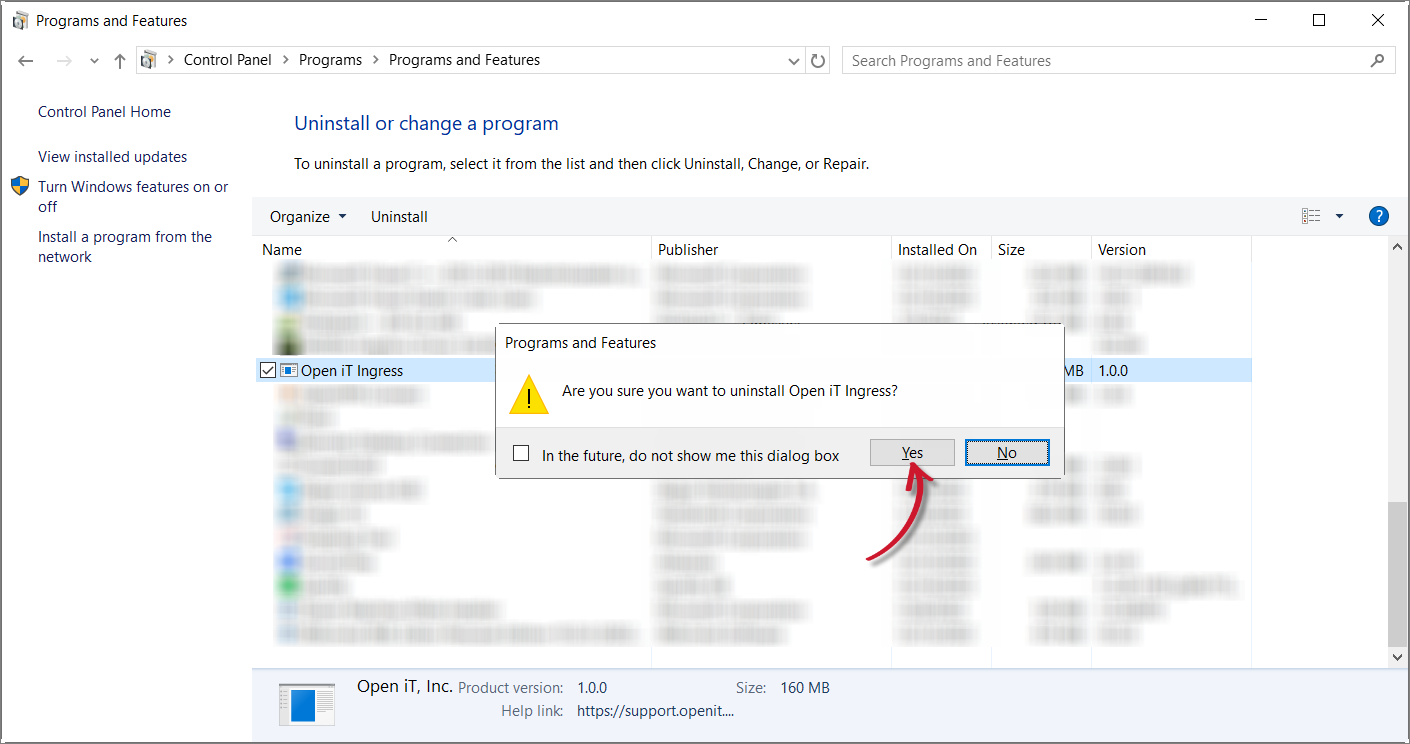 Control Panel: Confirm Uninstallation
-
Wait for Windows to configure the Open iT Ingress. Uninstallation should be done once the prompt closes.
 Control Panel: Configure Prompt
Uninstalling through the Windows Installer Interface
-
Double-click the installer file used to set up the software.
-
In the setup wizard, click Next.
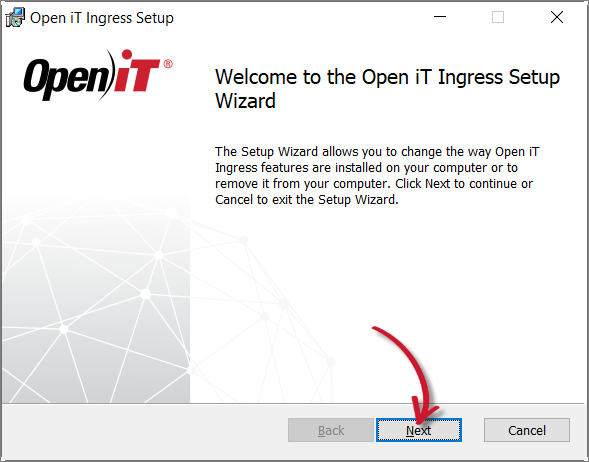 Welcome Screen
-
Click Remove.
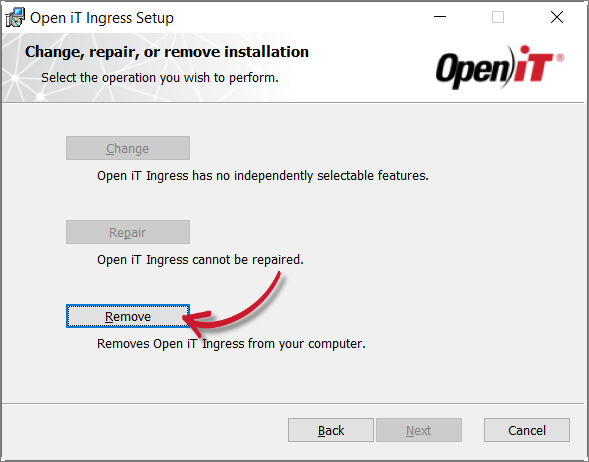 Operation Selection
-
Click Remove to proceed.
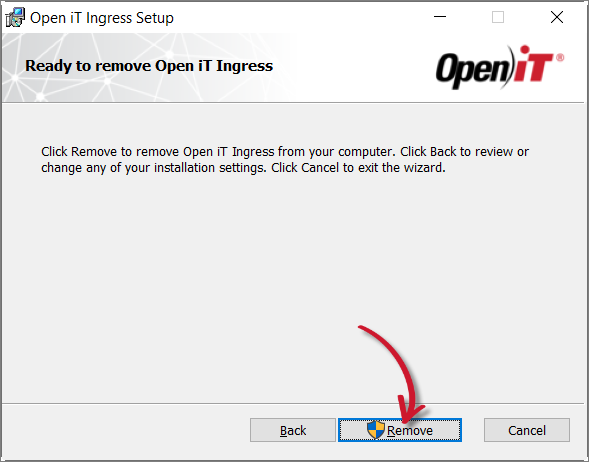 Ready to Remove
-
Click Finish.
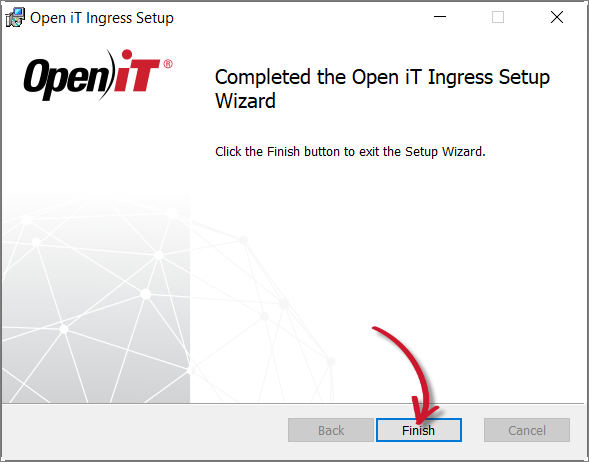 Complete Uninstallation
Uninstalling through the Command Line
-
Open a command prompt with Administrator level privileges.
-
Run the following command:
Command Syntaxmsiexec /x [msi_file] /l*v [log_file] [/quiet] [/passive]Required:
Parameter Description /x [msi_file]The path of the Windows installer file used to install the Open iT Ingress. /l*v [log_file]The path of the log file that contains the detailed uninstallation messages. Uninstalling through the Command Line: Required Parameters
Optional:
Parameter Description /quietRun the command in silent mode, meaning no user interaction required. /passiveRun the command in unattended mode, showing only a progress bar Uninstalling through the Command Line: Optional Parameters
noteThe installer will use the Windows Installer Interface if the process mode (
/quietor/passive) is unspecified.Example
To uninstall
openit_ingress_1_x64.msi, located atC:\Installers, in unattended mode with all logging information stored in an output log file atC:\uninstall.log:Examplemsiexec /x "C:\Installers\openit_ingress_1_x64.msi" /l*v "C:\uninstall.log" /passivenoteWhen using the passive mode, wait until the process bar dialog disappears.
When using the quiet mode, verify that the uninstallation is complete by opening the Task Manager and checking in the Details tab if the msiexec process is still running.
Uninstalling through the Terminal
Open a terminal with root user privileges and run the following command:
rpm -ev openit-ingress