Installation
Installation Requirements
Open iT Ingress is required for Core Server version 10.
| Application | Version |
|---|---|
| Core Server | 10 and later |
| Analysis Server | 10 and later |
| CLIMS | 10 and later |
| Application Launcher | 10 and later |
For fresh installation, install Open iT Ingress first before installing other Open iT applications.
- Windows
- Unix
Installing through the Windows Installer Interface
-
Double-click the installer file.
-
In the setup wizard, click Next.
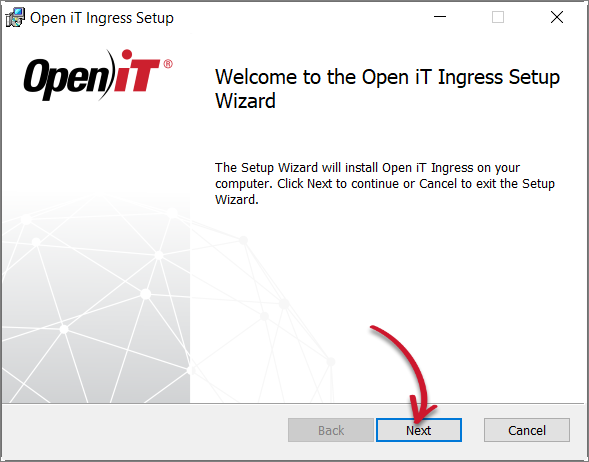 Welcome Screen
-
Read and accept the License Agreement, then click Next.
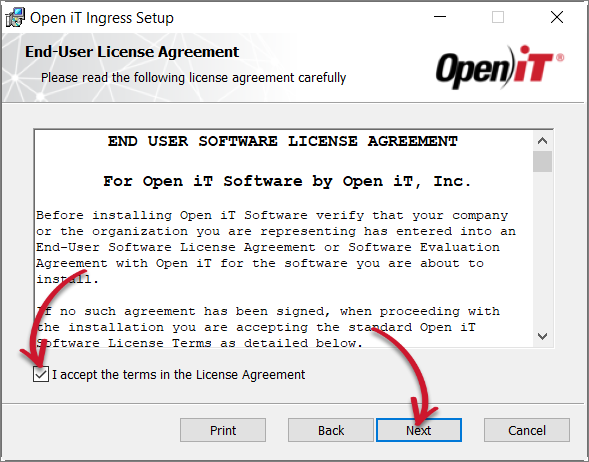 End-User License Agreement
-
Specify the installation directory. Click Change to set a different directory or click Next to use the default folder.
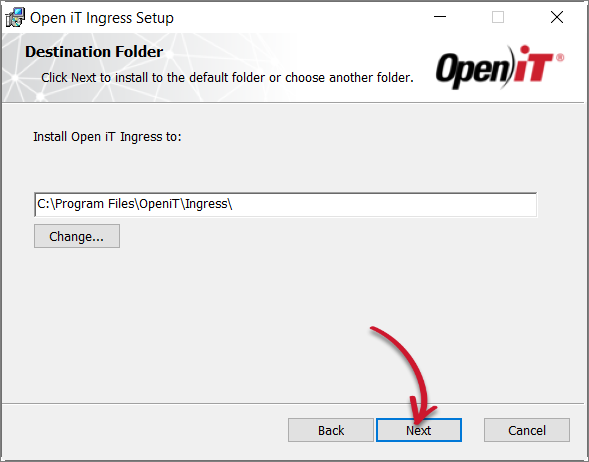 Destination Folder
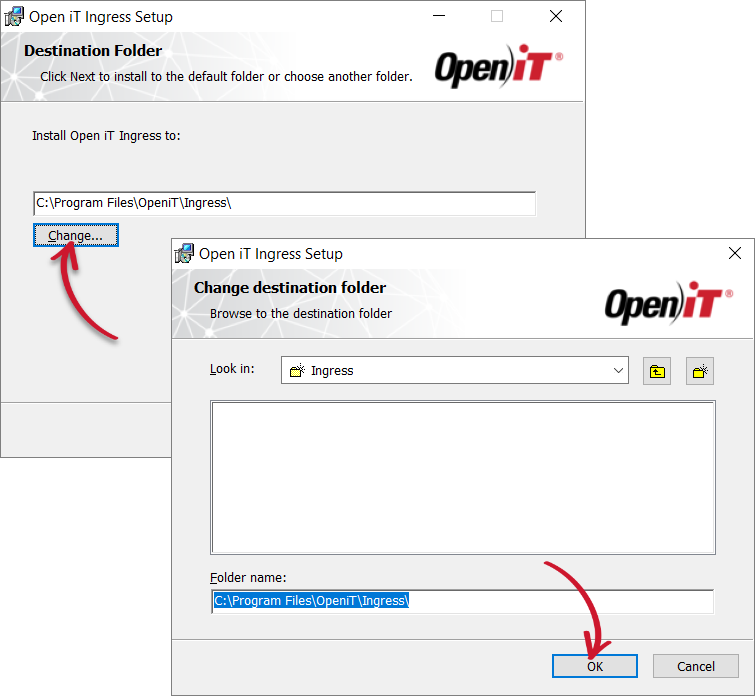 Changing the Destination Folder
-
Specify the web server port number or use the default values, 443 for HTTPS and 8080 for HTTP. This option enables access to the Open iT web application using the address
http(s)://<ingress_hostname>:<port_number>.noteStarting Open iT version 10.2, Ingress is set to HTTPS by default.
- Using the SSL certificate and key, choose the HTTPS setup option that you prefer:
- Clear the values of the SSL Cert and SSL Key fields. Caddy will automatically create the certificate and key using Let's Encrypt for the setup
- Use the default values of the SSL Cert and SSL Key fields. After installation, you need to Configure HTTPS using Let's Encrypt
- Provide your own values for the SSL Cert and SSL Key fields
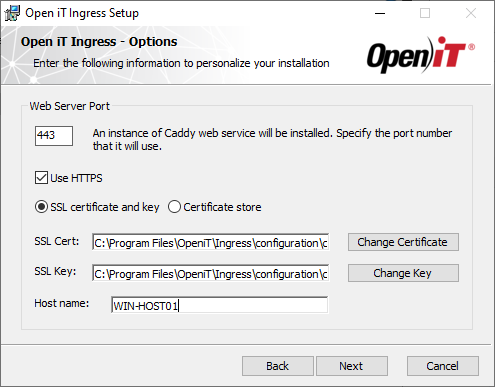 Default Installation Options
- Using Certificate store - specify the Certificate Store and Location.
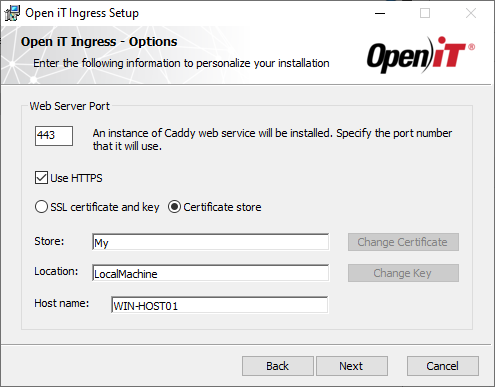 HTTPS Option: Certificate Store
- Using HTTP - allows you to browse the Open iT web application without encryption.
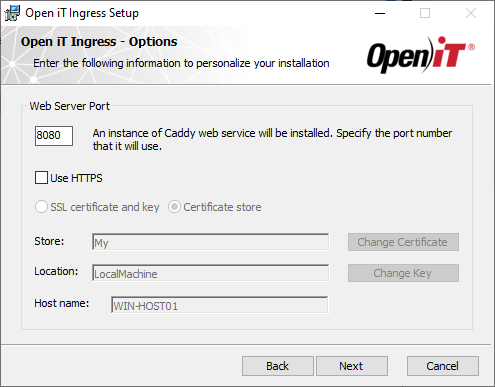 HTTP Option
Click Next to proceed with the installation.
- Using the SSL certificate and key, choose the HTTPS setup option that you prefer:
-
Click Install to start the installation process.
Alternatively, click Back to review any installation setting.
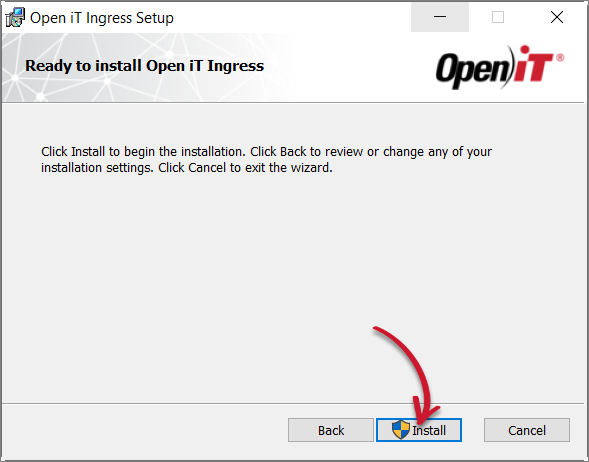 Ready to Install
-
The installer will set up all necessary files on the computer. Click Finish.
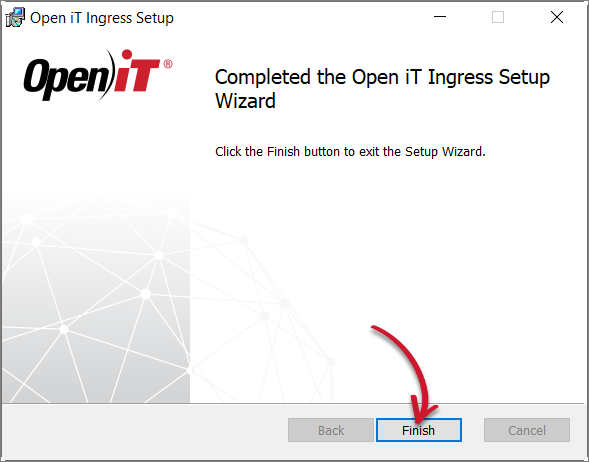 Complete Installation
Installing through the Command Line
-
Open a command prompt with Administrator level privileges.
-
Run the following command:
Command Syntaxmsiexec /i <path_to_installer> /l*v <path_to_logfile> [/quiet] [/passive] <INSTALLDIR> <ENABLEHTTPS> <PORT> <SSLPORT> <CERTSTOREHOST> <CERTOPTION> <CERTCONFIG1> <CERTCONFIG2>Parameter Description /iUse this parameter for a normal installation <path_to_installer>Use this parameter to specify the path to the installer file /l*vUse this parameter to turn on logging of all information, including verbose output <path_to_logfile>Use this parameter to specify the path to the output log file /quietUse this optional parameter to run the installation in silent mode, meaning no user interaction required /passiveUse this optional parameter to run the installation in unattended mode, showing only a progress bar <INSTALLDIR>Use this optional property to specify the location where the Open iT files will be installed; the default path is C:\Program Files\OpeniT\Ingress<ENABLEHTTPS>Use this optional property to specify whether the installation uses HTTPS or HTTP. The default value is 1, which enables HTTPS. Set the value to 0 to use HTTP. <PORT>Use this optional property to specify a custom HTTP port when ENABLEHTTPS=0. IfENABLEHTTPS=0is specified withoutPORT, the default HTTP port 8080 is used.<SSLPORT>Use this optional property to specify the port number when using HTTPS; the default value is 443 <CERTSTOREHOST>Use this optional property to specify the hostname of the machine where the certificate is located <CERTOPTION>Use this optional property to specify the HTTPS configuration; the default value is 1 which configures HTTPS with an SSL certificate and key; set the value to 2 to configure HTTPS with Windows Certificate Store <CERTCONFIG1>Use this optional property to specify the path to the SSL certificate (if you opt for CERTOPTION="1") or the Certificate Store where your SSL certificate is stored (if you opt forCERTOPTION="2")<CERTCONFIG2>Use this optional property to specify the path to the SSL key (if you opt for CERTOPTION="1") or the store location (if you opt forCERTOPTION="2")Command Parameters
noteThe installation will use the default directories and port number if these properties are unspecified.
Also, the installer will use the Windows Installer Interface if the process mode (
/quietor/passive) is unspecified.
Examples
To install openit_ingress_1_0_0_x64.msi from C:\Installers in unattended mode with all logging information stored in an output log file at C:\install.log, and using the default installation directory and SSL port number (HTTPS):
msiexec /i "C:\Installers\openit_ingress_1_0_0_x64.msi" /l*v "C:\install.log" /passive
To install openit_ingress_1_0_0_x64.msi from C:\Installers in silent mode with all logging information stored in an output log file at C:\install.log, and using a preferred installation directory and default SSL port number (HTTPS):
msiexec /i "C:\Installers\openit_ingress_1_0_0_x64.msi" /l*v "C:\install.log" /quiet INSTALLDIR="C:\OpeniTIngress"
To install openit_ingress_1_0_0_x64.msi from C:\Installers, in unattended mode with all logging information stored in an output log file at C:\install.log, and using the default installation directory and 8080 as the HTTP port number:
msiexec /i "C:\Installers\openit_ingress_1_0_0_x64.msi" /l*v "C:\install.log" /passive ENABLEHTTPS=0
To install openit_ingress_1_0_0_x64.msi from C:\Installers, in unattended mode with all logging information stored in an output log file at C:\install.log, and using the default installation directory and 8081 as the port number (HTTP):
msiexec /i "C:\Installers\openit_ingress_1_0_0_x64.msi" /l*v "C:\install.log" /passive ENABLEHTTPS=0 PORT="8081"
To install openit_ingress_1_0_0_x64.msi from C:\Installers, in unattended mode with all logging information stored in an output log file at C:\install.log, and using the default installation directory and default HTTPS settings using Windows Certificate Store:
msiexec /i "C:\Installers\openit_ingress_1_0_0_x64.msi" /l*v "C:\install.log" /passive ENABLEHTTPS="1" CERTOPTION="2"
To install openit_ingress_1_0_0_x64.msi from C:\Installers, in unattended mode with all logging information stored in an output log file at C:\install.log, and using the default installation directory, customized HTTPS settings using an SSL certificate and key, 4435 as the SSL port, and WIN-HOST01 as the machine hostname where the certificate is located:
msiexec /i "C:\Installers\openit_ingress_1_0_0_x64.msi" /l*v "C:\install.log" /passive ENABLEHTTPS="1" SSLPORT="4435" CERTSTOREHOST="WIN-HOST01" CERTOPTION="1" CERTCONFIG1="C:\OpeniT\certificate\sample.cert" CERTCONFIG2="C:\OpeniT\certificate\sample.key"
- When using the passive mode, wait until the process bar dialog disappears.
- When using the quiet mode, verify that the installation is complete by opening the Task Manager and checking in the Details tab if the msiexec process is still running.
Installing through the Terminal
-
Open a terminal with root user privileges.
-
Run the following command:
Command Syntaxrpm -ivh "<path_to_installer>"Parameter Description -ivhUse this parameter to install with verbose output and hash marks to show the installation progress <path_to_installer>Use this parameter to specify the path to the installer file Command Parameters
noteStarting Open iT version 10.2, Ingress is set to HTTPS by default.
Example
To install openit-ingress-1.0.0-0.x86_64.rpm from /root/Installers/:
rpm -ivh "/root/Installers/openit-ingress-1.0.0-0.x86_64.rpm"