Template Manager
This provides steps on using the provided functionalities to create, delete, and edit report template.
Folder Management
The Template Manager requires folders to organize report templates. Follow these instructions to manage report template folders.
Creating a New Folder
Follow these instructions to create a new folder:
-
Click the New Folder button.
The Create New Folder dialog will appear.
-
Type the desired name for the folder you want to create.
-
Click Create.
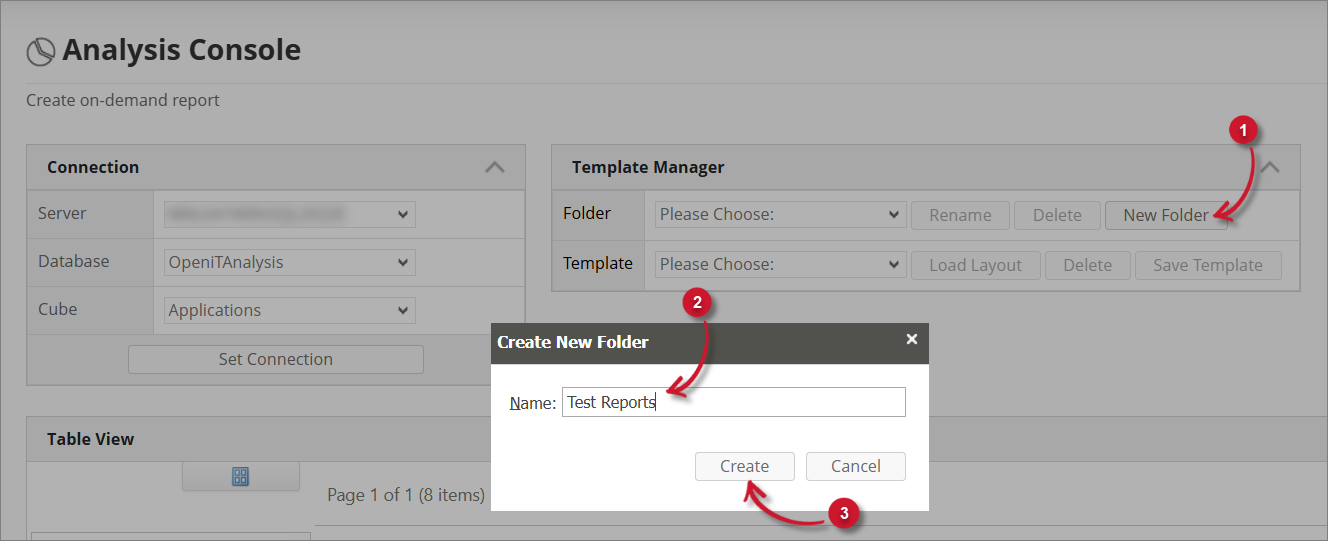 Create Folder
Notice that the Folder drop-down list includes the newly created folder.
Renaming a Folder
Follow these instructions to rename a folder:
-
Click the Rename button.
The Update Folder dialog will appear.
-
Update the name as desired.
-
Click Update to apply the changes.
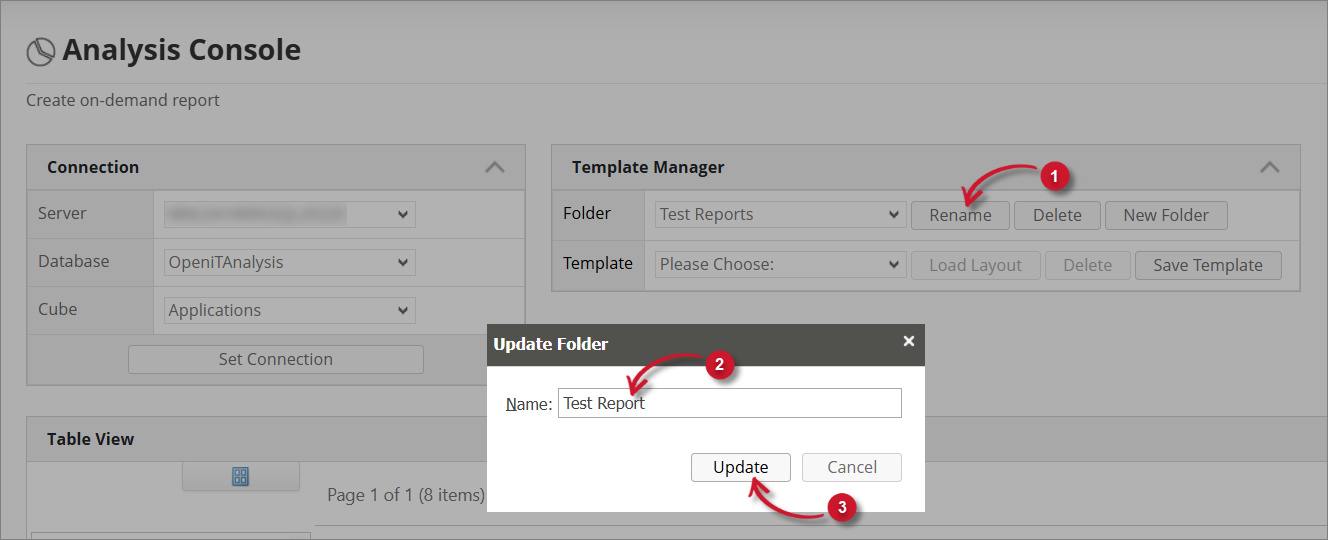 Rename Folder
Notice that the list contains the updated folder name.
Deleting a Folder
Follow these instructions to delete a folder:
-
Click the Delete button.
A warning message will appear confirming the deletion of the folder.
-
Click OK to continue.
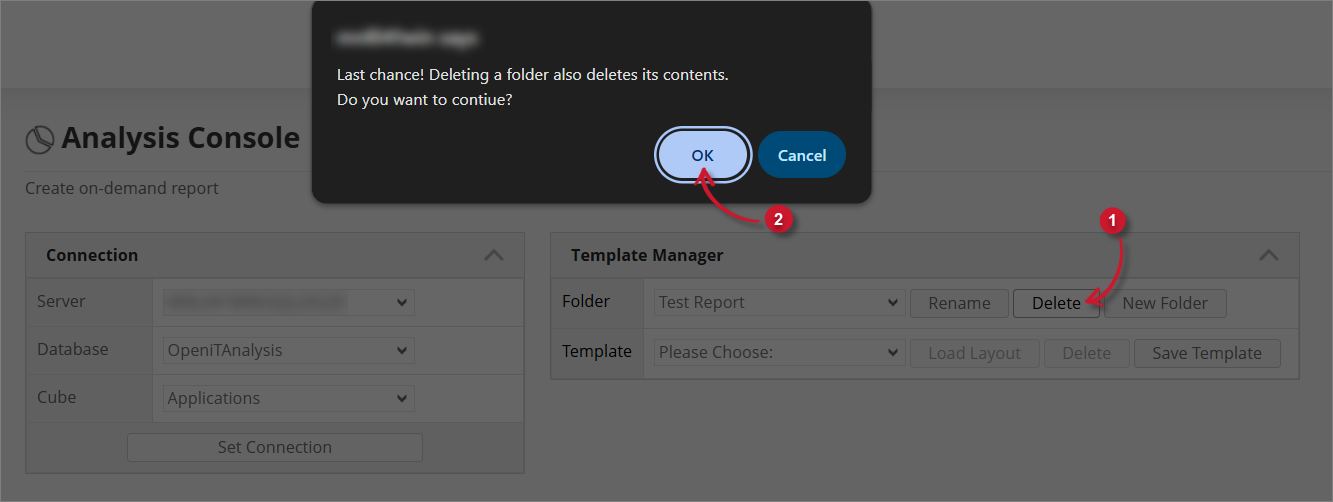 Delete Folder
Notice that the list does not include the deleted folder.
Template Management
The Template Manager contains functionalities for creating, viewing, and deleting report templates. To utilize these functionalities, follow these instructions.
Saving a Template
Follow these instructions to save the current report created in the Table and Chart View as a report template:
-
Click the Save Template button.
The Create New Template dialog will appear.
-
Type the desired name for the template you want to create.
-
Click Save Template.
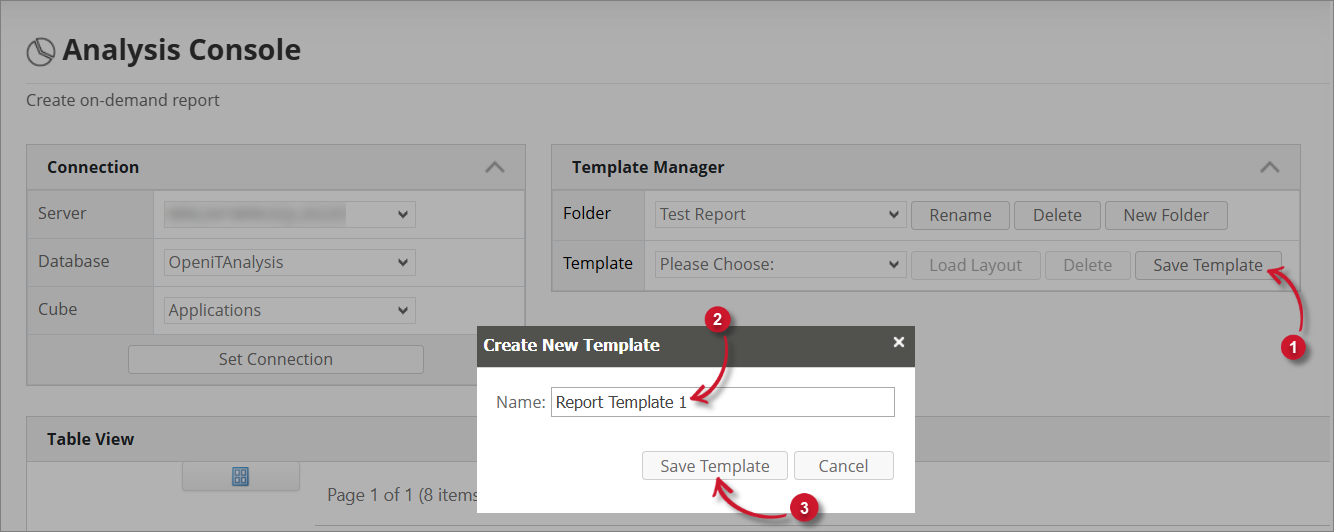 Save Template
Notice that the template list includes the newly created template.
Loading a Template
Follow these instructions to load a specific template:
-
Choose among the available report templates.
-
Click the Load Layout button.
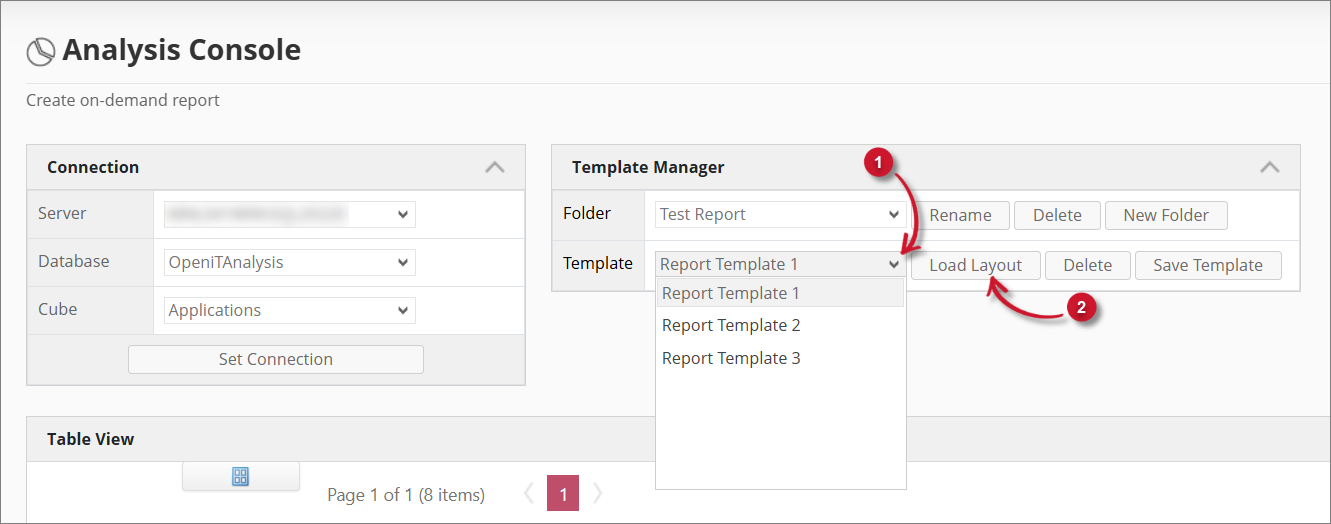 Load Template
The Table and Chart views will be reuploaded with the layout of the selected template.
Deleting a Template
Follow these instructions to delete a specific template:
-
Choose among the available reports to update.
-
Click the Delete button.
A warning message will appear confirming the deletion.
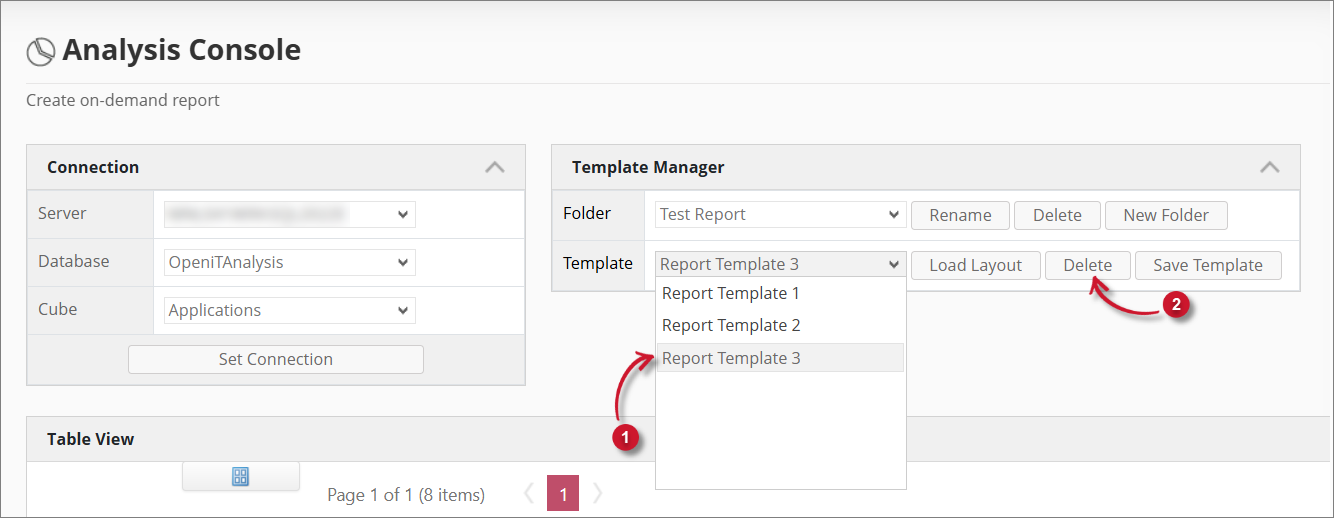 Delete Template
 -
Click OK.
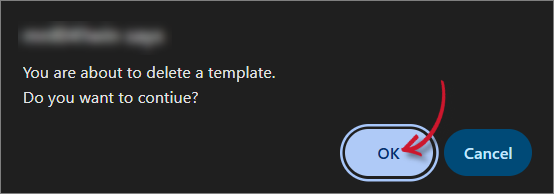 Delete Template
Notice that the list does not include the deleted folder.