This page is intentionally hidden from navigation but remains accessible via direct link. It is retained for internal reference purposes only and may contain outdated or transitional content.
Confbackup
The confbackup (openit_confbackup) is an application that periodically tracks configuration revisions in the Configuration directory, which is by default in C:\Program Files\OpeniT\Core\Configuration in Windows and /var/opt/openit/etc in Unix. It then creates a backup of the modified or new files and a text file containing the changes.
Requirements
- Windows
- Unix
- Open iT Core Server version 10
- Python version 3.1 or later
- Portable Git version 2.0 or later
- Open iT Core Server version 10
- Python version 3.1 or later
- Git version 2.0 or later
Activating Configuration Revision Tracking and Backup
- Windows
- Unix
This application is activated by default, given that portable git is available on your machine before installing Open iT. If you installed git after installing Open iT, you are required to activate this application manually.
These are the required steps to activate configuration revision tracking and backup:
-
Open a command prompt with Administrator level privileges.
-
Go to the bin directory, which is by default in
C:\Program Files\OpeniT\Core\bin, run the command:Command Syntaxcd <bin_dir>Examplecd C:\Program Files\OpeniT\Core\bin -
Run the following command to enable the
core_config_backupasset:Command Syntaxopenit_yamlinit coreserver update asset core_config_backup:general.active=true -
Open the Task Manager.
-
Under Services, restart the OpeniTCoreServerPipeline service.
This application is activated by default, given that git is available on your machine before installing Open iT. If you installed git after installing Open iT, you are required to activate this application manually.
These are the required steps to activate configuration revision tracking and backup:
-
Go to the bin directory, which is by default in
/opt/openit/bin, run the command:Command Syntaxcd <bin_dir>Examplecd /opt/openit/bin -
Run the following command to enable the
core_config_backupasset:Command Syntax./openit_yamlinit coreserver update asset core_config_backup:general.active=true -
Restart the Open iT Core Server Pipeline service, run the command:
Command Syntaxsystemctl restart openit-coreserverpipeline
Changing the Interval of Revision Tracking
This application tracks revisions every 3 hours by default. If you want to change the interval, follow these steps:
- Windows
- Unix
-
Open a command prompt with Administrator level privileges.
-
Go to the bin directory, which is by default in
C:\Program Files\OpeniT\Core\bin, run the command:Command Syntaxcd <bin_dir>Examplecd C:\Program Files\OpeniT\Core\bin -
To change the scheduling, run the command:
Command Syntaxopenit_yamlinit coreserver update asset core_config_backup:scheduling.start-triggers.0.period="<period>"noteThe default value of <period> is
0 */3 * * *, which means it runs every 3 hours, starting at midnight. Change its value to your desired interval based on the crontab(5) manual page.Exampleopenit_yamlinit coreserver update asset core_config_backup:scheduling.start-triggers.0.period="0 */6 * * *"This will set the configuration revision tracking and backup to run every 6 hours, starting midnight.
-
Open the Task Manager.
-
Under Services, restart the OpeniTCoreServerPipeline service.
-
Go to the bin directory, which is by default in
/opt/openit/bin, run the command:Command Syntaxcd <bin_dir>Examplecd /opt/openit/bin -
To change the scheduling, run the command:
Command Syntax./openit_yamlinit coreserver update asset core_config_backup:scheduling.start-triggers.0.period="<period>"noteThe default value of <period> is
0 */3 * * *, which means it runs every 3 hours, starting at midnight. Change its value to your desired interval based on the crontab(5) manual page.Example./openit_yamlinit coreserver update asset core_config_backup:scheduling.start-triggers.0.period="0 */6 * * *"This will set the configuration revision tracking and backup to run every 6 hours, starting midnight.
-
Restart the Open iT Core Server Pipeline service, run the command:
Command Syntaxsystemctl restart openit-coreserverpipeline
Locating the Backup Files
- Windows
- Unix
This application creates a backup of the modified or new files and a text file containing the changes made in the configurations. New directories are created in the configchanges directory, which is by default in C:\ProgramData\OpeniT\Data\confbackupfiles\configchanges.
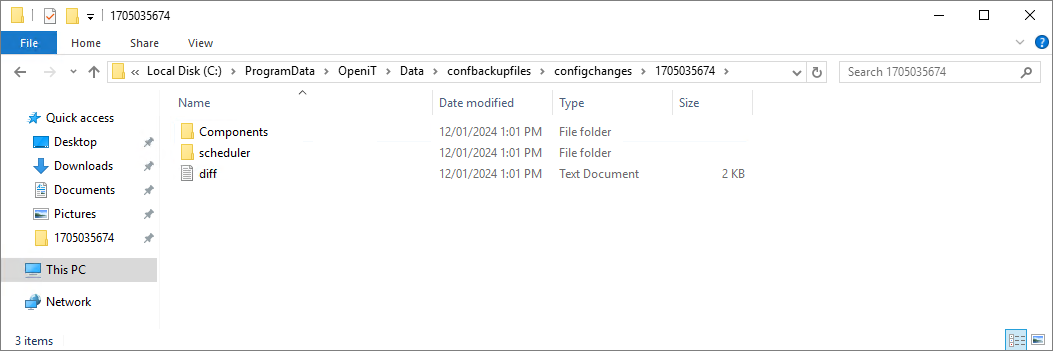
This application creates a backup of the modified or new files and a text file containing the changes made in the configurations. New directories are created in the configchanges directory in your defined data_dir ($ROOT_DATA_DIR) upon Open iT server installation.

Troubleshooting
This section lists the errors you may encounter when running openit_confbackup; and the suggested solutions. You can find the error logs in ConfBackup.log in the debug directory, which is by default in C:\Program Files\OpeniT\Core\Log on Windows and /var/opt/openit/debug/ on Unix.
Cannot Find Git
Problem
openit_confbackup requires git to function correctly. You may encounter this on a Windows machine if portable git is not installed, showing the error, [Winerror 2] Cannot find file specified in the debug logs.
Resolution
Install portable git in the External directory, which is by default in C:/Program Files/OpeniT/Core.
Git-backup Content Not Updating after Reinstallation
Problem
You may encounter this when you uninstall then reinstall an Open iT server and use the same location for data storage; either on a Windows or Unix machine.
Resolution
Delete git-backup.zip in the configbackup directory, which is by default in C:/ProgramData/OpeniT/Data/confbackupfiles/ on Windows and in the confbackupfiles directory in your defined data_dir ($ROOT_DATA_DIR) upon Open iT server installation on Unix; then wait for the next scheduled run of openit_confbackup.