Installation
This guide provides instructions for installing the Open iT MCP Server.
Before proceeding, ensure that the system meets the Installation Requirements.
- Windows
- Unix
Open iT MCP Server can be installed using either of the following available methods:
Installing through the Windows Interface
Follow these steps to install the Open iT MCP Server using the Windows graphical installer.
Step 1: Launch the Installer
-
Double-click the
openit_<version>_data_mcp__<architecture>.msifile. The Open iT MCP Server Setup Wizard will appear. -
Click Next to continue.
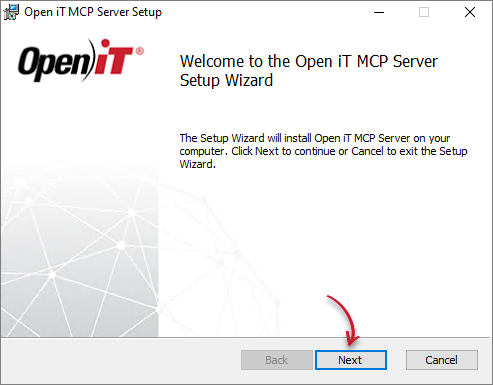 Setup Wizard Welcome Screen
Step 2: Select the Installation Directory
-
Specify where the Open iT MCP Server will be installed.
-
If you want to install the server in a different directory, click Change, then select your preferred location.
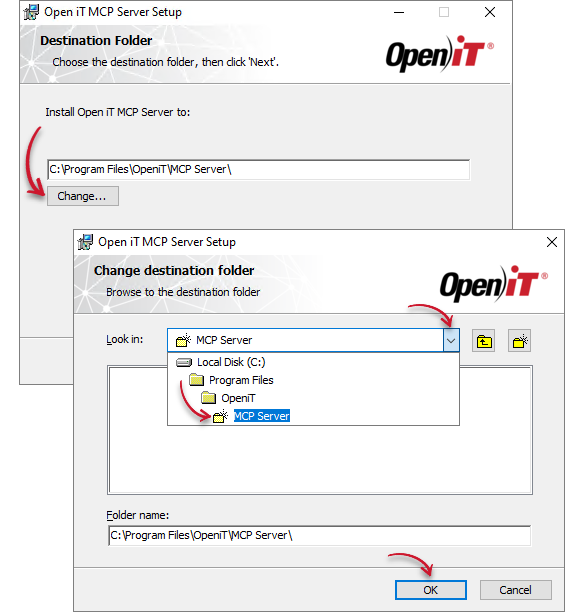 Destination Folder Configuration
-
Click Next to continue.
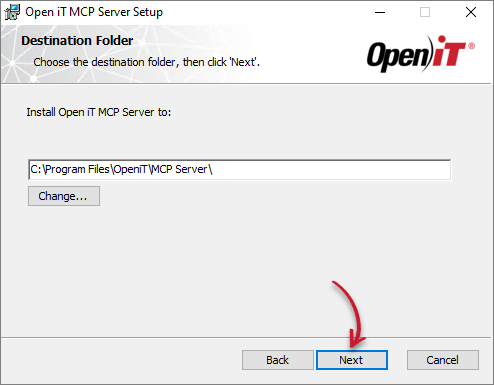 Destination Folder
NoteIf you click Next without changing the installation directory, the default directory will be used.
Step 3: Complete the Installation
-
Wait for the installation to complete.
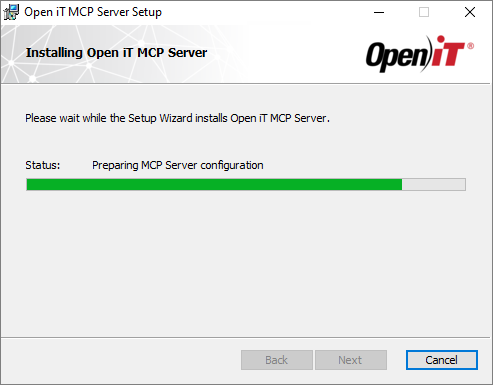 Installation In-progress
 -
Click Finish to exit the installer.
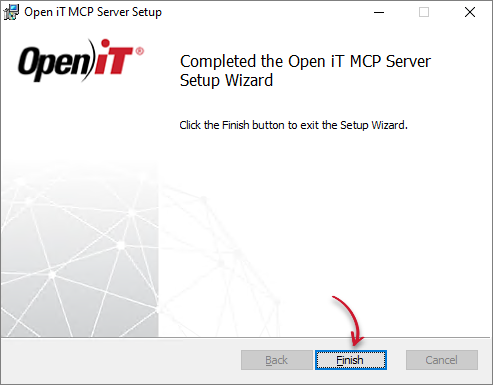 Installation Complete
Installing through the Command Line
Follow these steps to install the Open iT MCP Server using the Windows command line.
Step 1: Open Command Prompt
- Open a Command Prompt with Administrator privileges.
Step 2: Execute the Installation Command
-
Execute the following command:
Command Syntaxmsiexec /i "<path_to_installer>" [/l*v "<path_to_logfile>"] [/quiet | /passive]Parameter Description /iInstalls the Open iT MCP Server using the specified MSI installer. <path_to_installer>Specifies the full path to the Open iT MCP Server MSI installer. /l*vOptional. Enables installation logging, including verbose output. <path_to_logfile>Specifies the full path where the installation log file will be saved. Required when /l*vis used./quietOptional. Runs the installation in silent mode, without displaying the installation interface or requiring user interaction. /passiveOptional. Runs the installation in unattended mode, displaying only a progress bar without requiring user interaction. Command Parameters
note- The Open iT MCP Server installer automatically configures the installation directory, service, and port. No additional installation properties are required.
- If neither
/quietnor/passiveis specified, the installation uses the Windows Installer Interface. - The
/quietand/passiveparameters are alternative installation modes and should not be used together. - Installation logging is optional but recommended for troubleshooting.
Step 3: Verify Installation Completion
-
Wait for the installation process to complete.
- If using passive mode, wait until the installation progress bar disappears.
- If using quiet mode, wait until the installation command finishes. No installation interface or progress bar is displayed.
-
Verify that the Open iT MCP Server appears in the list of installed applications in Windows.
-
Open the Services application (
services.msc) and verify that the Open iT Data MCP Server service is installed. -
Verify that the service status is Running.
noteIf installation logging was enabled, review the specified installation log file for errors or warnings if the installation or service verification fails.
Examples
Example 1: Install in Unattended Mode
To install openit_1_0_0_data_mcp_x64.msi from C:\Installers in unattended mode, displaying only the installation progress bar:
msiexec /i "C:\Installers\openit_1_0_0_data_mcp_x64.msi" /passive
Example 2: Install in Silent Mode
To install openit_1_0_0_data_mcp_x64.msi from C:\Installers in silent mode, without displaying the installation interface:
msiexec /i "C:\Installers\openit_1_0_0_data_mcp_x64.msi" /quiet
Example 3: Install in Silent Mode with Logging
To install openit_1_0_0_data_mcp_x64.msi from C:\Installers in silent mode, with detailed installation information saved to C:\Installers\install.log:
msiexec /i "C:\Installers\openit_1_0_0_data_mcp_x64.msi" /l*v "C:\Installers\install.log" /quiet
Follow these steps to install the Open iT MCP Server on Unix-based systems.
Step 1: Navigate to the Installer Directory
Open a terminal and navigate to the directory containing the Open iT MCP Server installer archive.
cd <installer-directory>
cd /root/openit-installer
Step 2: Extract the Installer
Extract the contents of the Open iT MCP Server installer archive using the following command:
tar -xzvf <installer-archive>.tar.gz
tar -xzvf Unix_MCP_Server.tar.gz
The extracted archive contains the RPM installation package.
openit_1_0_0_data_mcp_x86_64.rpm
Step 3: Install the Open iT MCP Server
Run the following command with administrative privileges to install the Open iT MCP Server RPM package:
sudo rpm -ivh ./openit_<version>_data_mcp_<architecture>.rpm
sudo rpm -ivh ./openit_1_0_0_data_mcp_x86_64.rpm
Once started, the installer verifies the package, prepares the installation, and installs the Open iT MCP Server.
Verifying...                          ################################# [100%]
Preparing...                          ################################# [100%]
Updating / installing...
   1:openit-data-mcp-1.0.0-201.el8    ################################# [100%]
Created symlink /etc/systemd/system/multi-user.target.wants/openit-data-mcp.service → /usr/lib/systemd/system/openit-data-mcp.service.
The output indicates that the Open iT MCP Server package has been installed and its systemd service has been enabled.