Alerts Management
CLIMS sends notifications when the following events occur:
| Event | Description |
|---|---|
| Vendor daemon is down | Triggered when the vendor daemon becomes unavailable |
| License server is down | Triggered when the license server is unreachable or not responding |
| License file modified locally | Triggered when changes are detected in the local license file |
| License file modified (semantic license comparison) | Triggered when meaningful changes are detected using the semantic comparison (supported license managers only) |
| License revoked | Triggered when a license is revoked or invalidated |
| License denials | Triggered when license requests are denied |
| License availability | Triggered when licenses become available |
| Feature expiry nearing or recently expired | Triggered when features are approaching expiration or have recently expired, based on configured threshold values |
Configure Email Settings for Administrators
Administrators can receive email notifications for all of the events above.
To configure and enable email alerts for administrators:
-
Log in using an Administrator account.
-
Go to Administration > Configurations.
-
Select Configurations/EmailSettings from the list of available configuration files.
-
Set the value of SenderAddress to the preferred sender's address.
-
Specify the recipient's email address in AdminRecipients.
Add multiple recipients by separating the email addresses using a comma.
-
Under Smtp, specify the Host and Port.
-
Configure SSL if needed.
a. Set the value of EnableSsl to true.
b. Under Credential, specify the Username and Password. -
Click Save.
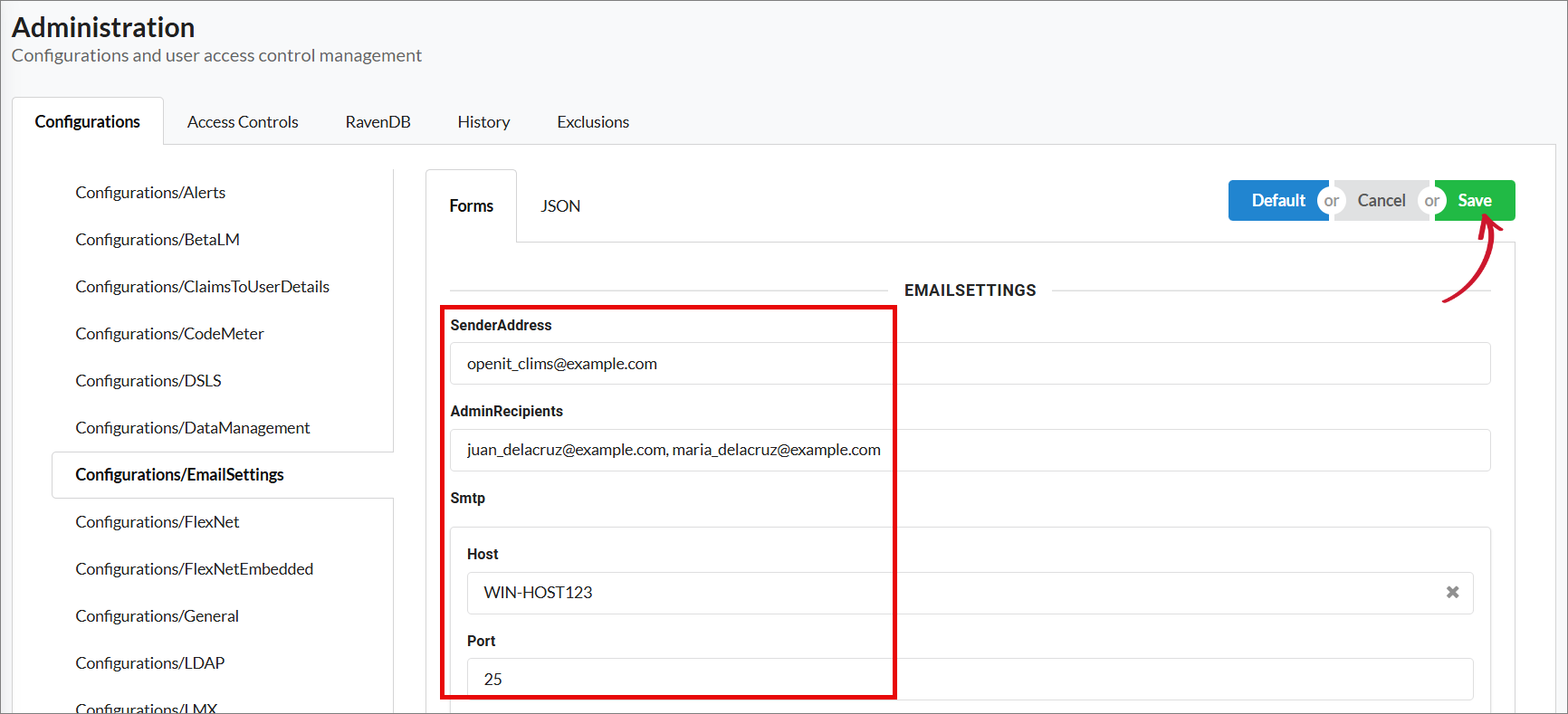 Saving Configurations/EmailSettings
Configure Email Settings for Users
Non-admin users can also receive email notifications for the following events:
- License denials
- License availability
Administrators must configure the LDAP settings first to get the user information (email address).
-
Log in using an Administrator account.
-
Go to Administration > Configurations.
-
Select Configurations/LDAP from the list of available configuration files.
-
Set the value of FilePath to the complete file path to the LDAP file.
-
Set the value of Delimiter to the delimiter used in the LDAP file.
noteThe default delimiter value is tab. Therefore, there is no need to specify the delimiter when the LDAP file specified in FilePath is in TSV format.
-
Click Save.
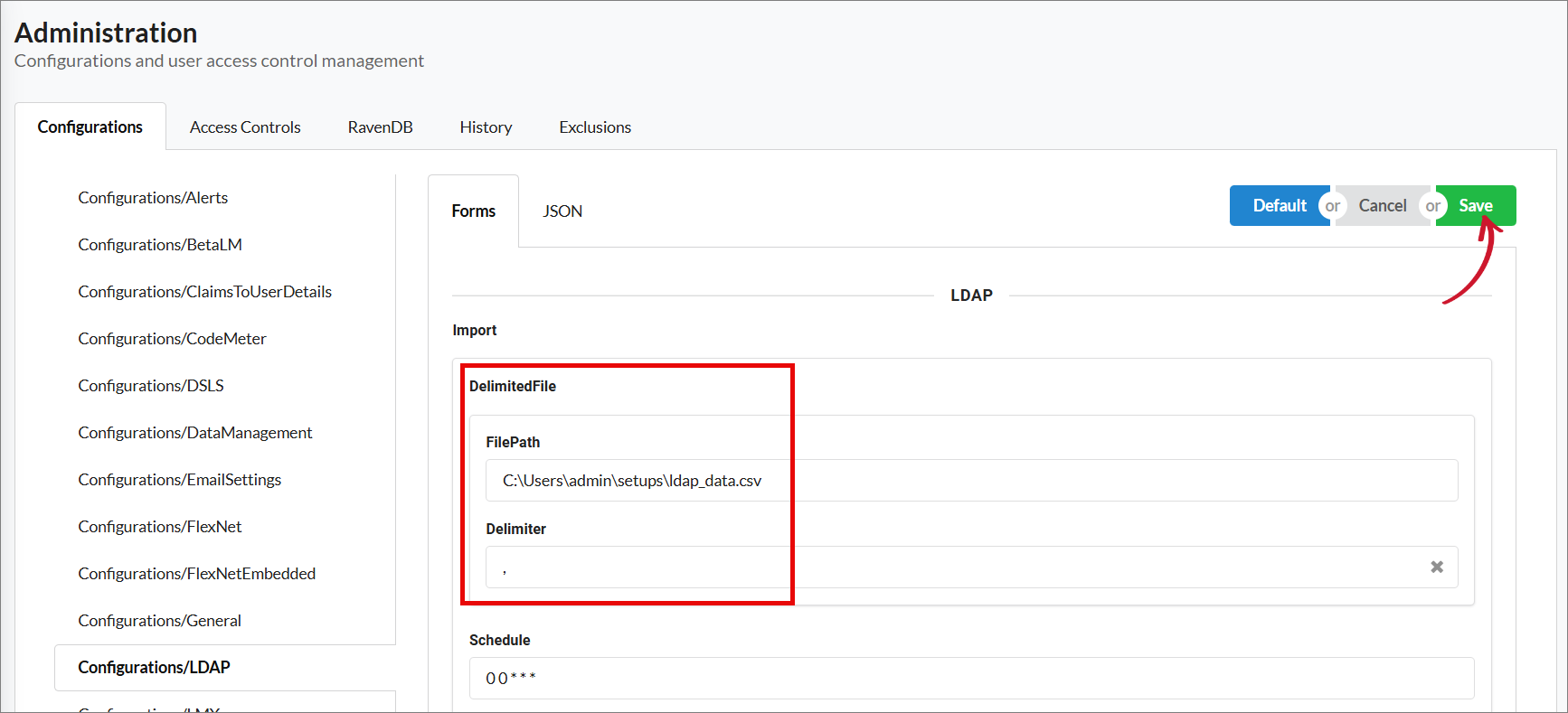 Saving Configurations/LDAP
Enable Email Notifications for Users
-
Log in using an Administrator account.
-
Go to Administration > Configurations.
-
Select Configurations/Alerts from the list of available configuration files.
-
Under DeniedUser, set the value of Active to True.
-
Click Save.
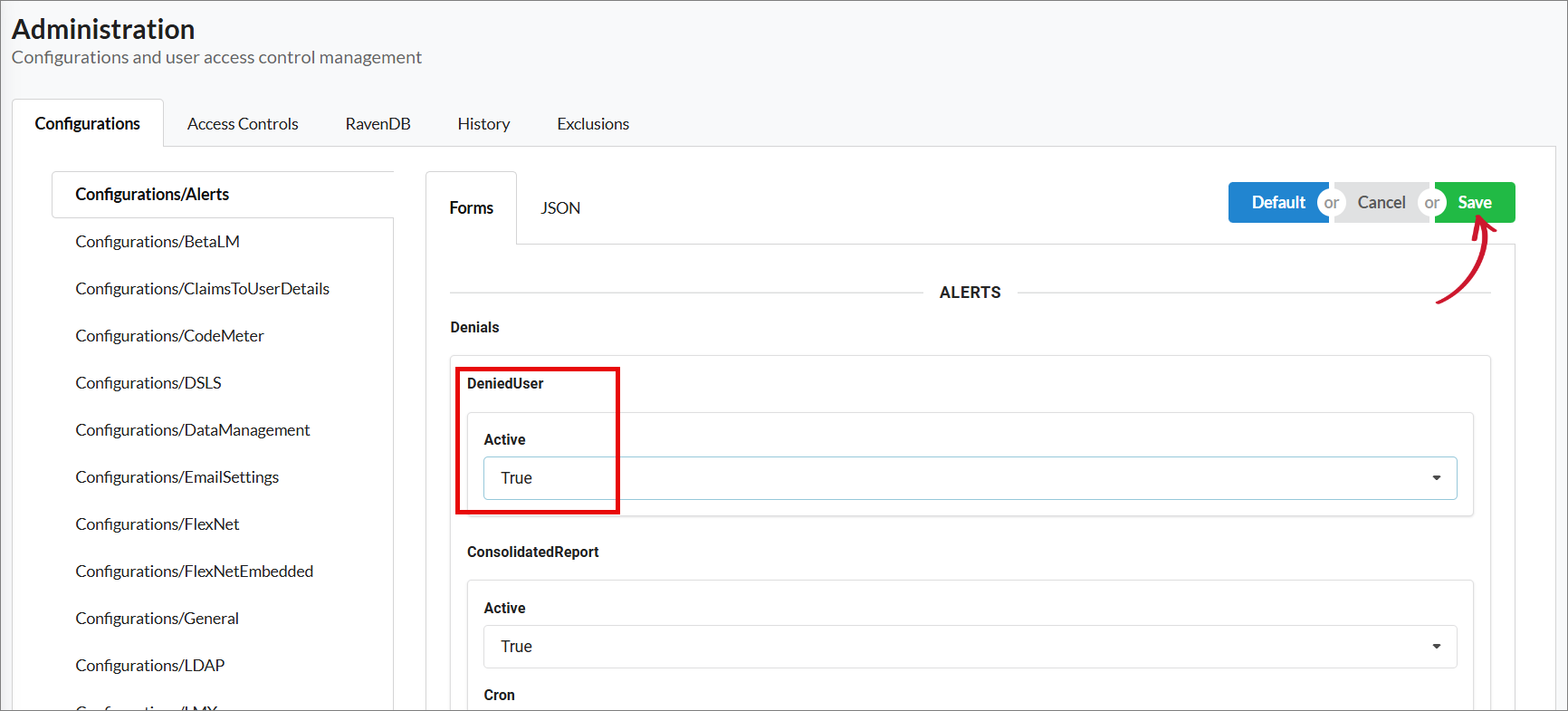 Saving Configurations/Alerts
Alternatively, set the value of DeniedUser to False to turn off email notification for users.
This only mutes license denials and availability alerts for the users. Administrators will still receive email alerts for these events.
Add Additional Email Recipients for License Modifications Alert
Administrators can add email recipients who can also receive alerts when license files are modified.
The license modifications alert summarizes the semantic changes in a license file. This alert is only available for FlexNet, RLM, and LM-X (license managers supported with semantic license comparison).
-
Log in using an Administrator account.
-
Go to Administration > Configurations.
-
Select Configurations/Alerts from the list of available configuration files.
-
Under SemanticDiffReport, specify the recipient's email address in AdditionalEmailRecipients.
Add multiple recipients by separating the email addresses using a comma.
-
Click Save.
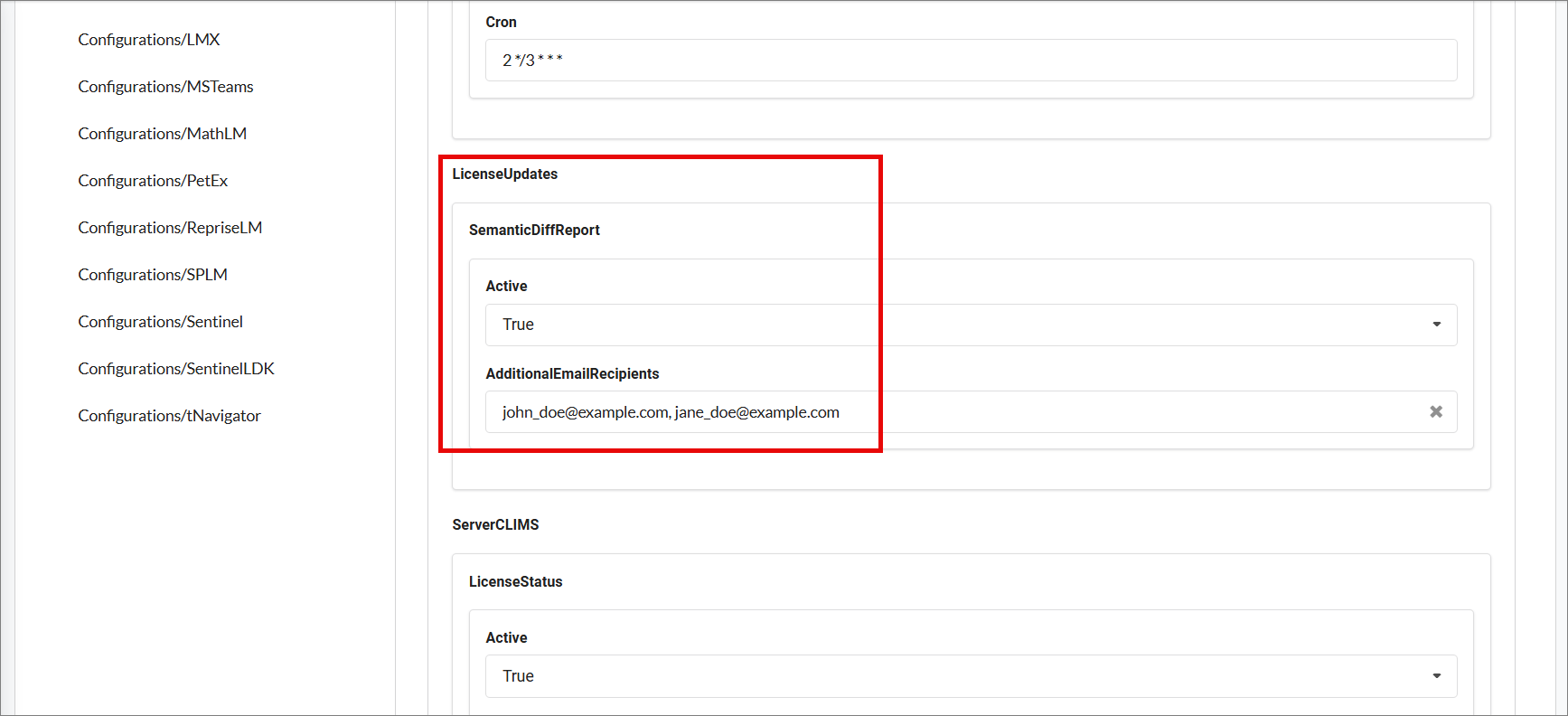 Saving Configurations/Alerts
Integrate Alerts with Microsoft Teams
CLIMS can display notifications for the following events in a Microsoft Teams channel:
- Vendor daemon is down
- License server is down
- License file modified locally
- License denials (consolidated)
First, Create an Incoming Webhook and make sure to copy the unique webhook URL.
To configure on CLIMS:
-
Log in using an Administrator account.
-
Go to Administration > Configurations.
-
Select Configurations/MSTeams from the list of available configuration files.
-
In Url, paste the copied unique webhook URL.
If you want to integrate CLIMS alerts to multiple Microsoft Teams channels, click on the edit icon, then click the add icon.
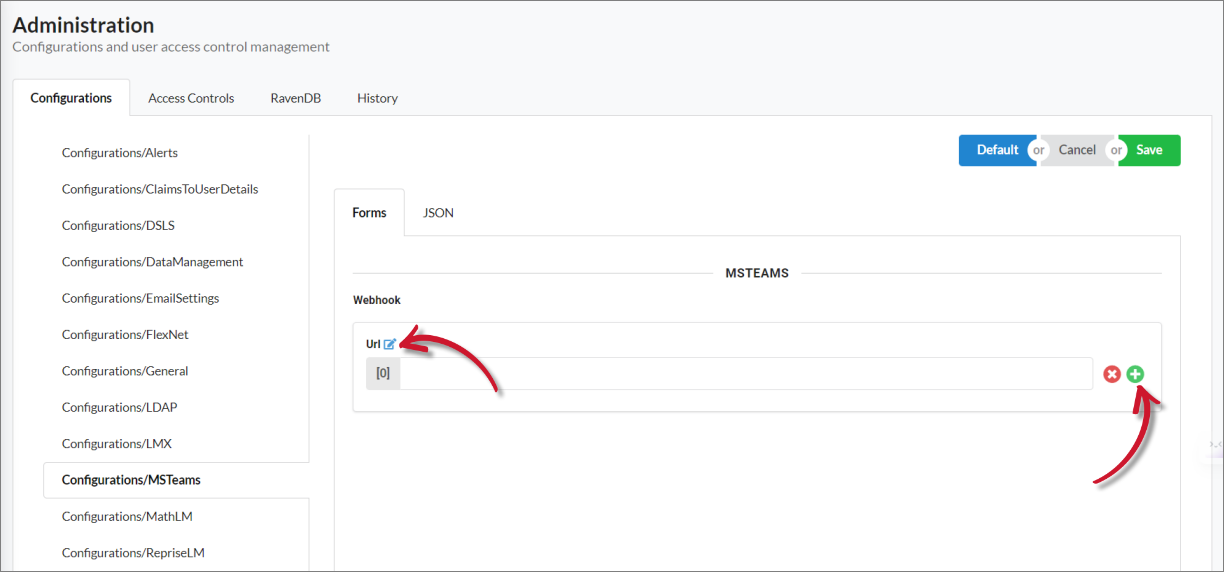 Configurations/MSTeams: Adding a New Webhook URL field
This adds another field where you can paste another webhook URL. Add new fields as desired.
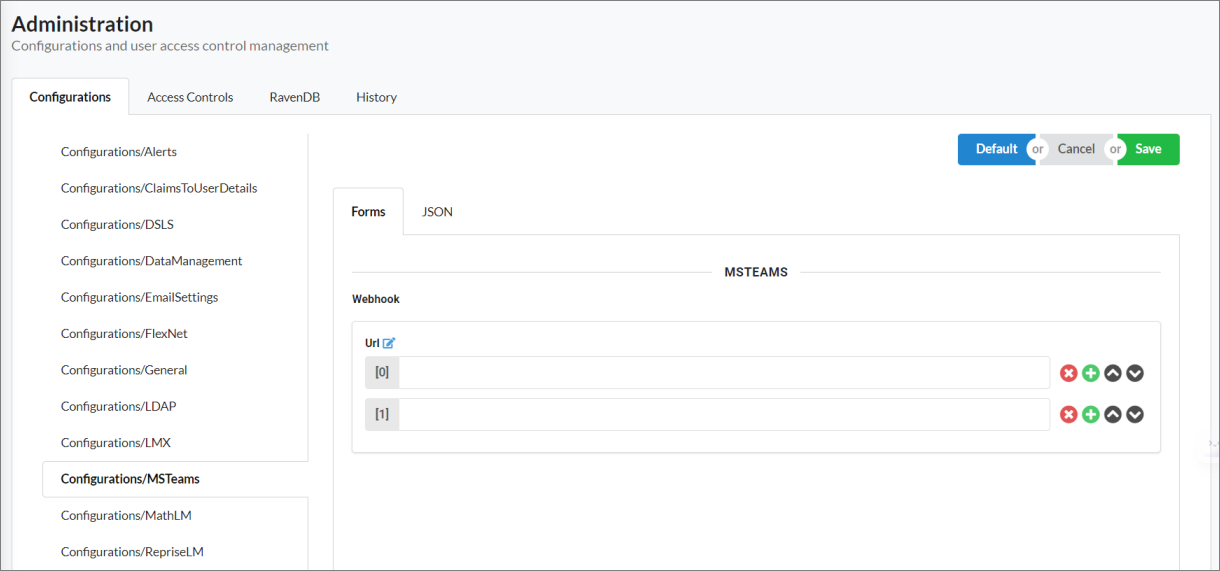 Configurations/MSTeams: Multiple Webhook URL fields
-
Click Save.
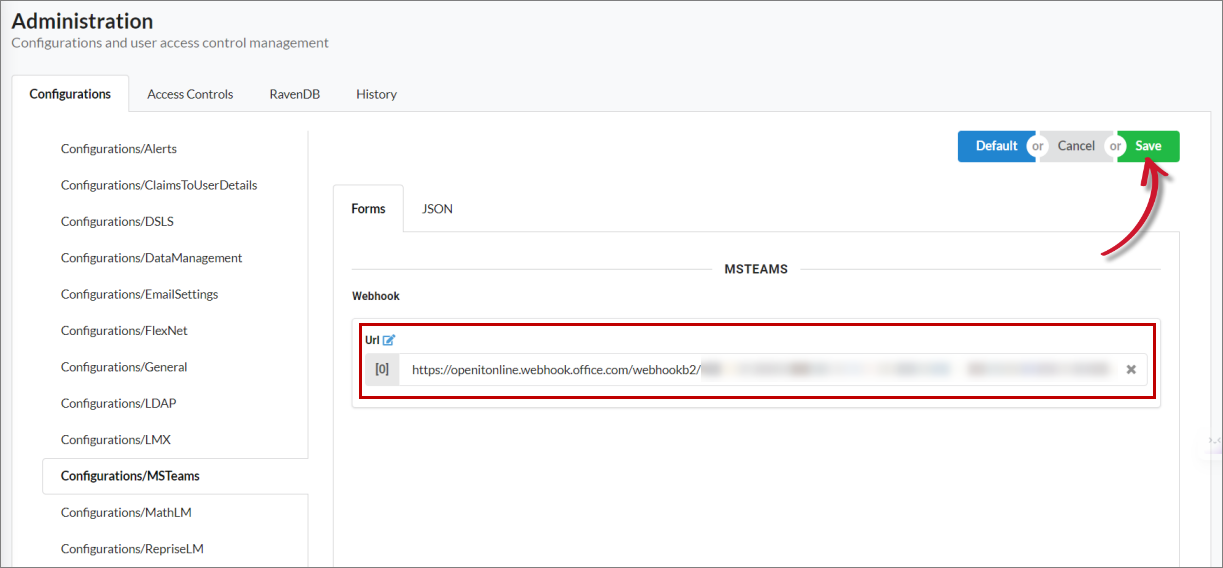 Saving Configurations/MSTeams
Disable/Mute Notifications
CLIMS supports muting of alerts per vendor. You may turn off alerts for the following events:
- Vendor daemon is down
- License server is down
- License file modified locally
Moreover, this applies to alerts received by administrators via email and in the Microsoft Teams channel.
-
Go to the Manage page, select the target vendor.
-
In Mute Alerts under the General tab, select the events you want to mute and specify the duration.
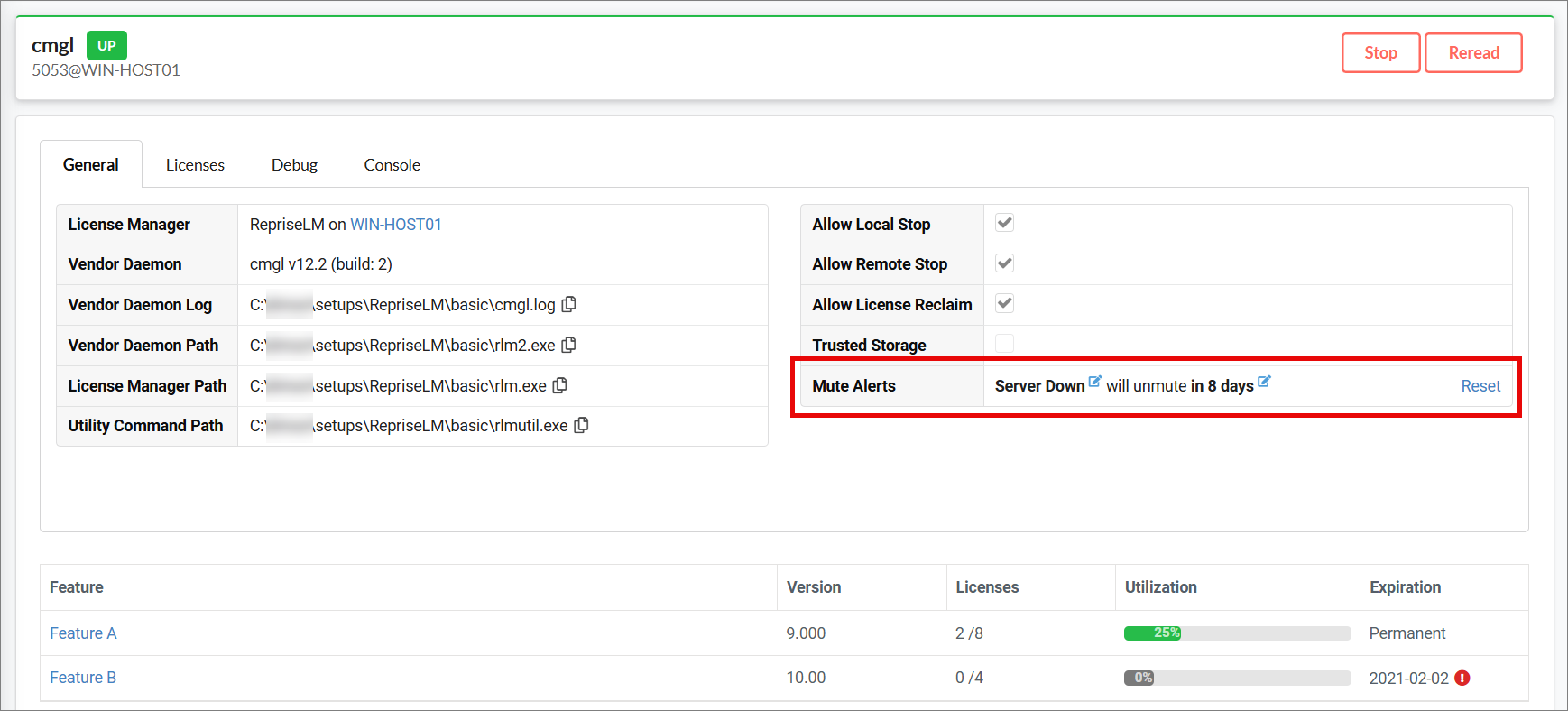 General Tab: Mute Alerts
Click Reset to remove the selected event(s) and duration.
In the Manage page, the bell icon next to the vendor name indicates muted alerts.