Account Management
Logging in
Log in using your registered local account
- With Ingress
- Standalone CLIMS (without Ingress)
-
Open a web browser and go to
http(s)://<ingress_hostname>:<port_number>/clims.<ingress_hostname>- hostname of the machine where Ingress is installed<port_number>- port number used by the web service, which is 8080 by default; this is specified upon Ingress installation/clims- designated endpoint to access the CLIMS Server
-
In the login page, provide valid credentials.
-
Click Login.
-
Open a web browser and go to
http(s)://<clims_hostname>:<port_number>.<clims_hostname>- hostname of the machine where the CLIMS Server is installed<port_number>- port number used by the web service, which is 8888 by default; this is specified upon CLIMS Server installation
-
In the login page, provide valid credentials.
-
Click Login.
Log in using your Windows account
The user must belong to the domain group of the network.
- With Ingress
- Standalone CLIMS (without Ingress)
-
Open a web browser and go to
http(s)://<ingress_hostname>:<port_number>/clims.<ingress_hostname>- hostname of the machine where Ingress is installed<port_number>- port number used by the web service, which is 8080 by default; this is specified upon Ingress installation/clims- designated endpoint to access the CLIMS Server
-
In the login page, click the Windows button.
-
Open a web browser and go to
http(s)://<clims_hostname>:<port_number>.<clims_hostname>- hostname of the machine where the CLIMS Server is installed<port_number>- port number used by the web service, which is 8888 by default; this is specified upon CLIMS Server installation
-
In the login page, click the Windows button.
Logging out
On the upper-right corner of the page, click on the username, then select Logout.
Managing your Local Account
Update Profile Settings
-
Log into CLIMS using your registered local account.
-
On the upper-right corner of the page, click on the username, then select Manage.
-
Update your profile details as needed.
-
Click Save.
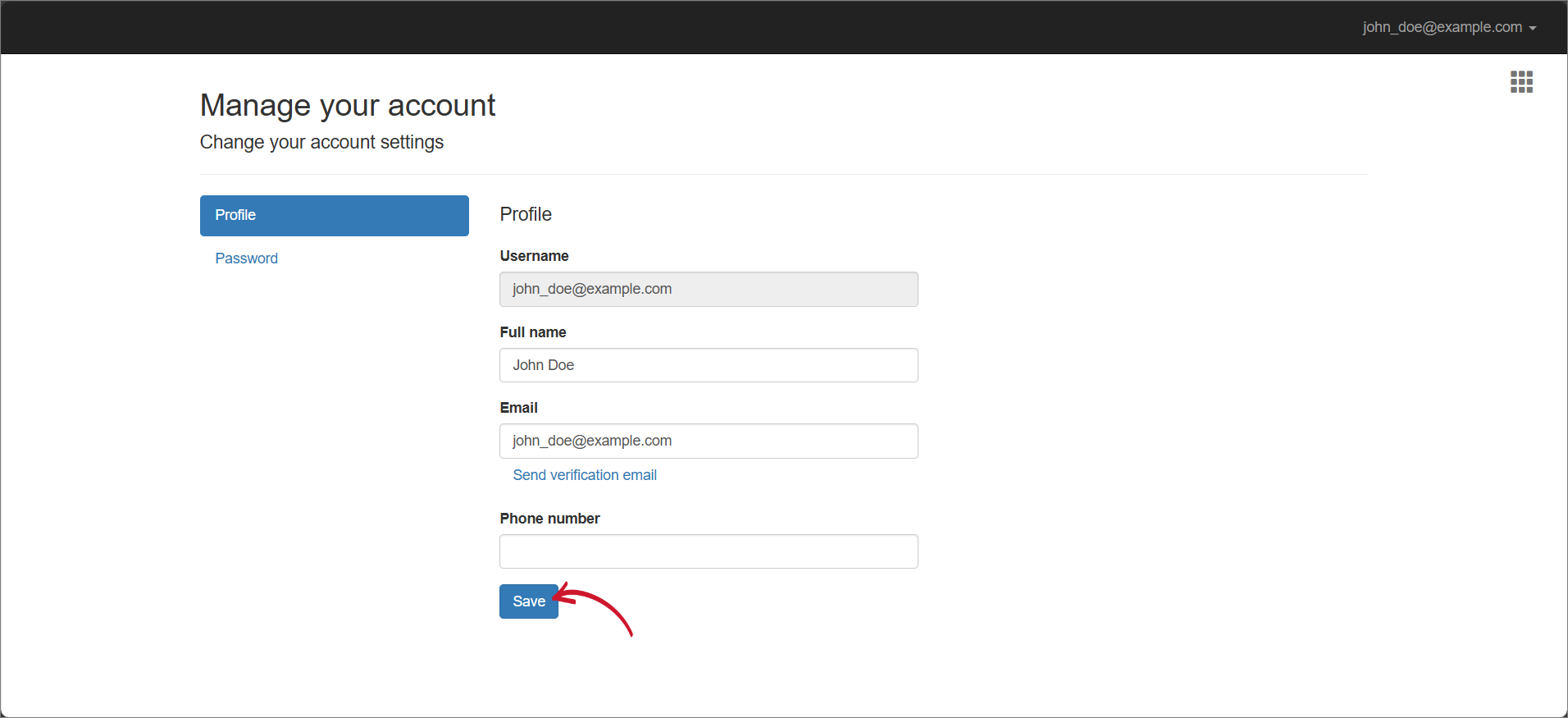 Updating Local Account Details
Change Password
-
Log into CLIMS using your registered local account.
-
On the upper-right corner of the page, click on the username, then select Manage.
-
Under Manage your account, select Password.
-
Provide the necessary information.
-
Click Update password.
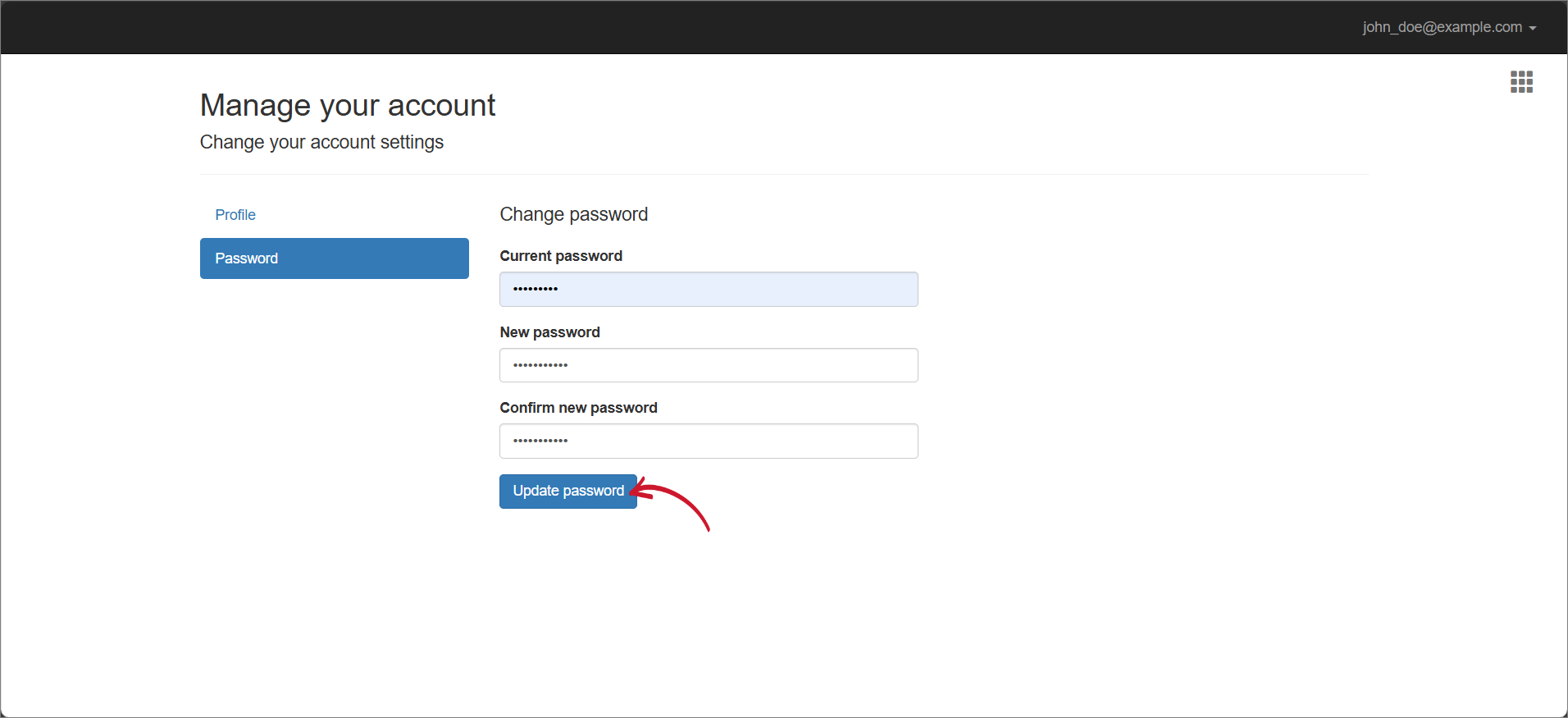 Updating Local Account Password