Usage
The Usage page provides information about the current status and historical usage of cloud resources across connected cloud accounts. It allows users to monitor resource distribution, review individual resource details, and analyze changes in resource counts and statuses over time.
The page provides Current and History tabs for viewing resource information. To access this page, go to Monitor > Usage, then select a cloud service provider from the Cloud Service drop-down in the upper-right corner.
The Last Updated timestamp indicates when cloud resource information was most recently updated.
Viewing Current Resource Usage
The Current tab displays the latest available information about cloud resources for the selected cloud service provider.
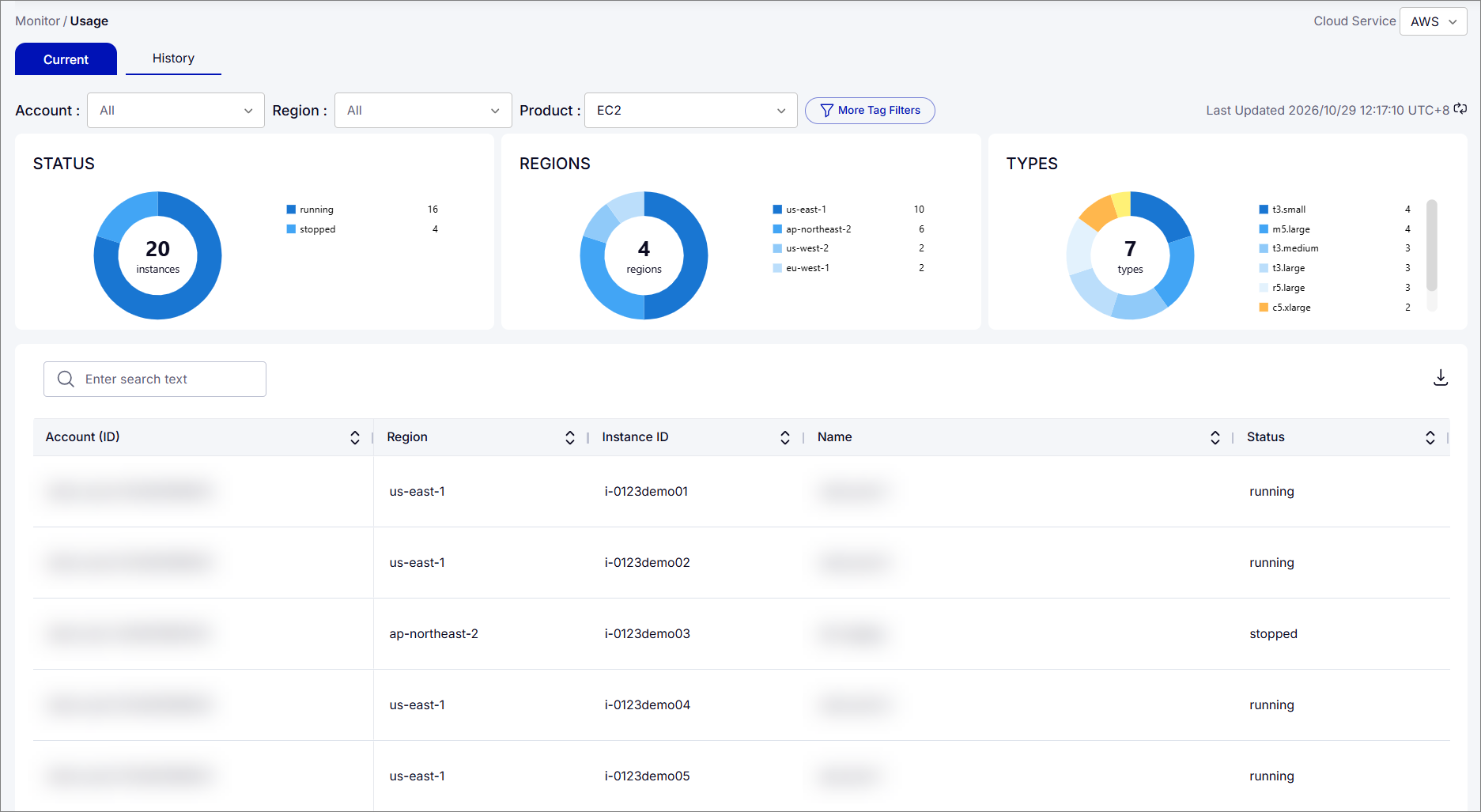
Use the following filters to narrow the displayed resource information:
| Filters | Description |
|---|---|
| Account | Displays resources associated with the selected cloud account. |
| Region | Displays resources located in the selected cloud region. |
| Product | Displays resources associated with the selected cloud product. |
| More Tag Filters | Allows users to further filter resources based on their assigned tags. |
Understanding Current Resource Usage
The Current tab provides graphical summaries of cloud resources based on the selected filters.

The following graphs are displayed:
| Graph | Description |
|---|---|
| Status | Displays the total number of instances grouped by their current status, such as running or stopped. |
| Regions | Displays the number and distribution of instances across cloud regions. |
| Types | Displays the number and distribution of instances based on their instance types. |
These graphs provide a visual overview of resource distribution and help users identify how resources are allocated across different regions, types, and statuses.
Viewing Resource Details
The resource information table below the graphs displays individual cloud resources that match the selected filters.
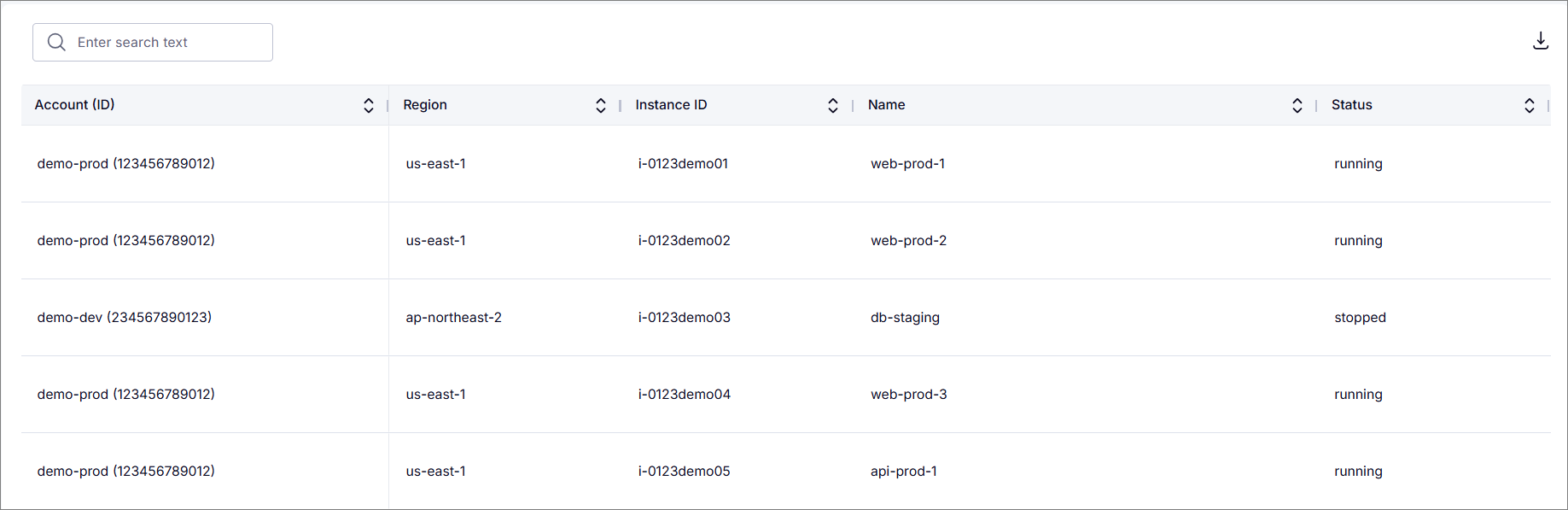
The table includes the following information:
| Column | Description |
|---|---|
| Account (ID) | The cloud account name and identifier associated with the resource. |
| Region | The cloud region where the resource is located. |
| Instance ID | The unique identifier assigned to the instance. |
| Name | The name assigned to the instance. |
| Status | The current state of the instance, such as running or stopped. |
Use the search field above the table to locate specific resources. Click a column's sorting control to arrange the displayed information, or use the pagination controls at the bottom of the table to navigate through the available records.
Viewing Historical Resource Usage
The History tab displays historical cloud resource usage for the selected cloud service provider. It allows users to review changes in resource usage over time and compare resource statuses within a specified period.
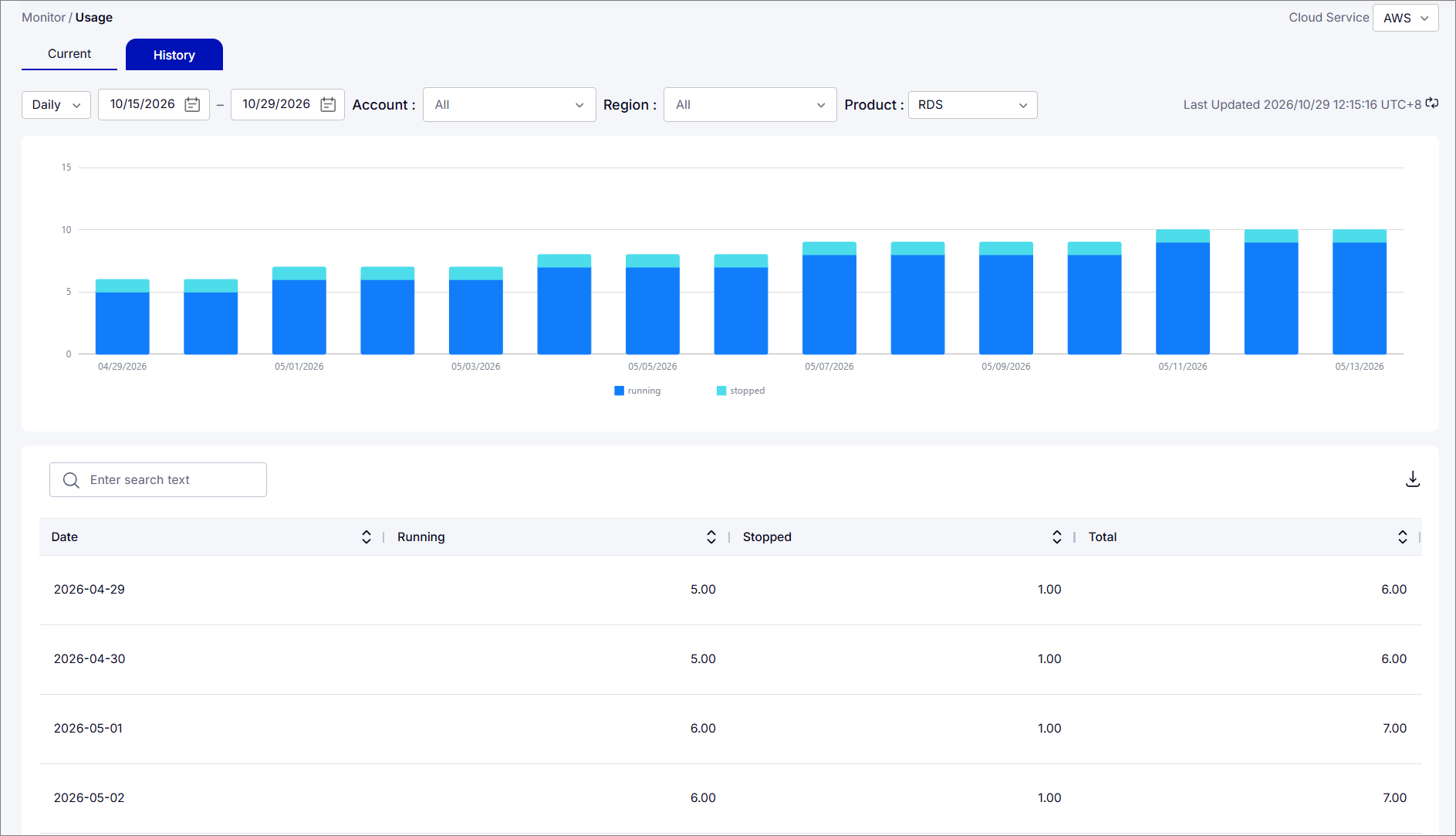
Use the following filters to narrow the displayed information:
| Filters | Description |
|---|---|
| Time Interval | Select the interval for displaying historical resource data, such as Hourly, Daily, Weekly, or Monthly. |
| Date Range | Specify the start and end dates of the period to review. |
| Account | Display historical resource information for the selected cloud account. |
| Region | Display historical resource information for the selected cloud region. |
| Product | Display historical resource information for the selected cloud product. |
Understanding Historical Resource Usage
The History tab displays a stacked bar chart illustrating resource usage over time based on the selected filters.

Each bar represents the number of resources recorded for a particular date or time interval, categorized by resource status, such as Running and Stopped.
The chart allows users to compare resource counts across different periods and observe changes in resource availability and usage.
Viewing Historical Resource Details
The resource information table below the chart provides a breakdown of historical resource counts for the selected period.

The table displays the following information:
| Column | Description |
|---|---|
| Date | The date associated with the recorded resource information. |
| Running | The number of resources recorded as running on the specified date. |
| Stopped | The number of resources recorded as stopped on the specified date. |
| Total | The total number of resources recorded for the specified date. |
Use the search field above the table to locate specific records. Click a column's sorting control to arrange the displayed information, or use the pagination controls at the bottom of the table to navigate through the available records.
Exporting Resource Information
The Usage page allows users to download the displayed resource information in Excel format for further review and analysis.
To export the displayed resource information:
-
Select the cloud service provider from the Cloud Service drop-down in the upper-right corner of the page.
-
Select the Current or History tab, depending on the information you want to export.
-
Apply the appropriate filters to display the required resource information.
-
Click the download icon in the upper-right corner of the resource information table to export the data in Excel format.
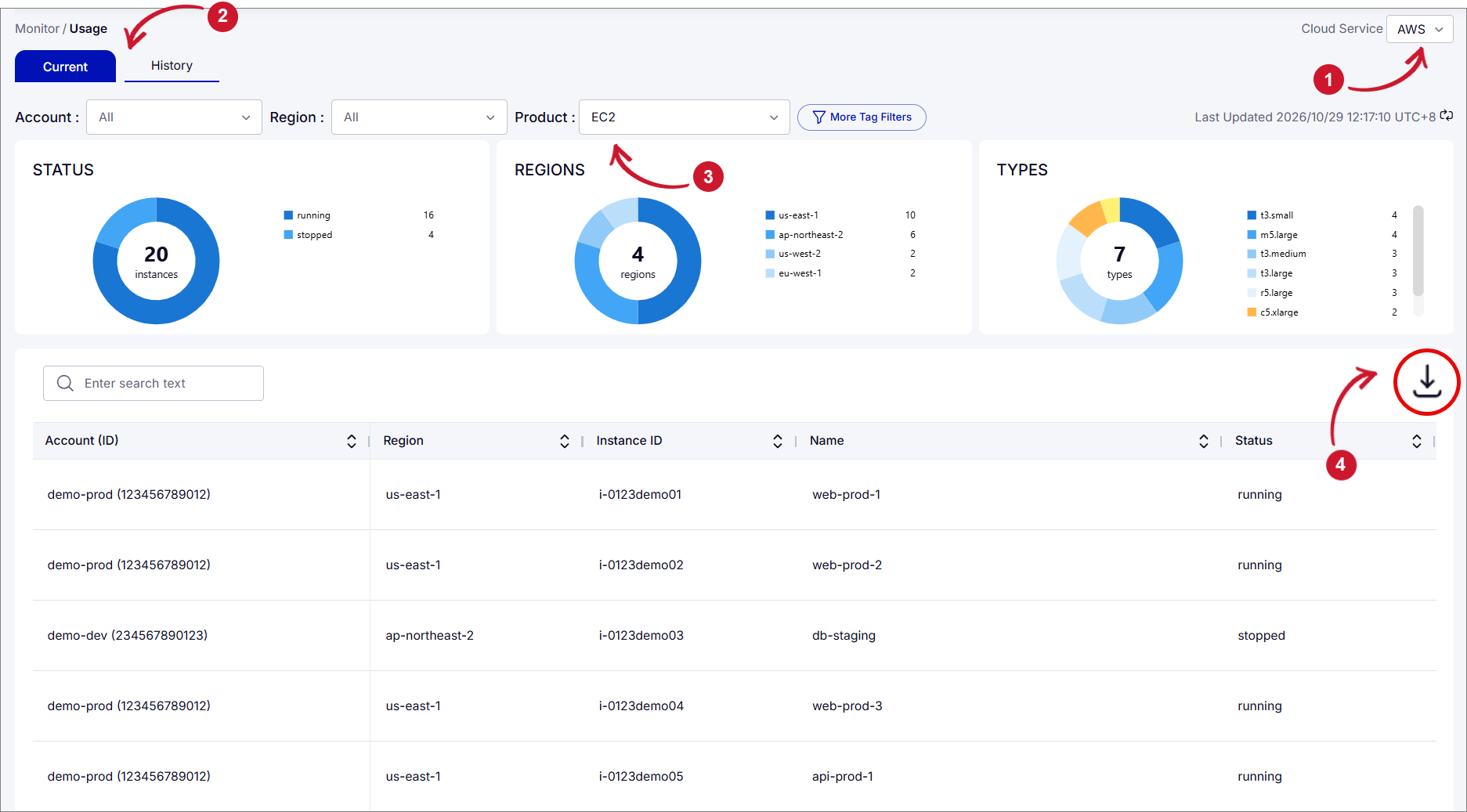 Exporting Resource Usage Information