Resource Alert
The Resource Alert page allows users to monitor alerts generated for cloud resources and manage alert configurations across connected cloud accounts. It helps users identify resource conditions that require attention, review previously generated alerts, and configure alerts based on specific monitoring requirements.
The page provides two tabs: Alert History and Alert Settings. To access this page, go to Monitor > Resource Alert.
Viewing Alert History
The Alert History tab displays a list of previously generated alerts for monitored cloud resources. It allows users to review alert details and identify resource conditions that have triggered configured alert rules.
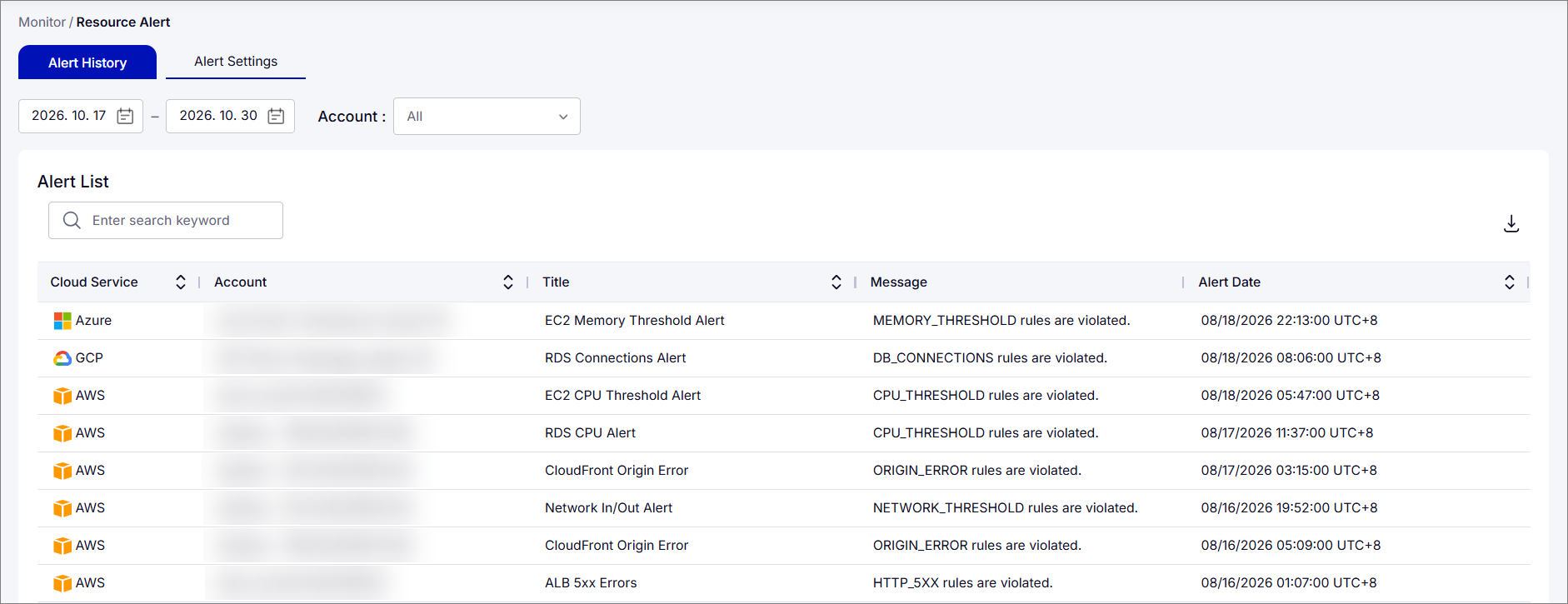
Use the following filters to narrow the displayed information:
| Filters | Description |
|---|---|
| Date Range | Specify the start and end dates of the period to review. |
| Account | Display alerts associated with the selected cloud account. |
Viewing Alert Information
The Alert List table provides information about alerts generated during the selected period.
The table displays the following information:
| Column | Description |
|---|---|
| Cloud Service | The cloud service provider associated with the alert, such as AWS, Azure, or GCP. |
| Account | The cloud account associated with the resource that triggered the alert. |
| Title | The name or title of the generated alert. |
| Message | The message describing the condition or rule that triggered the alert. |
| Alert Date | The date and time when the alert was generated. |
Use the search field above the table to locate specific alerts. Click a column's sorting control to arrange the displayed information.
Managing Alert Settings
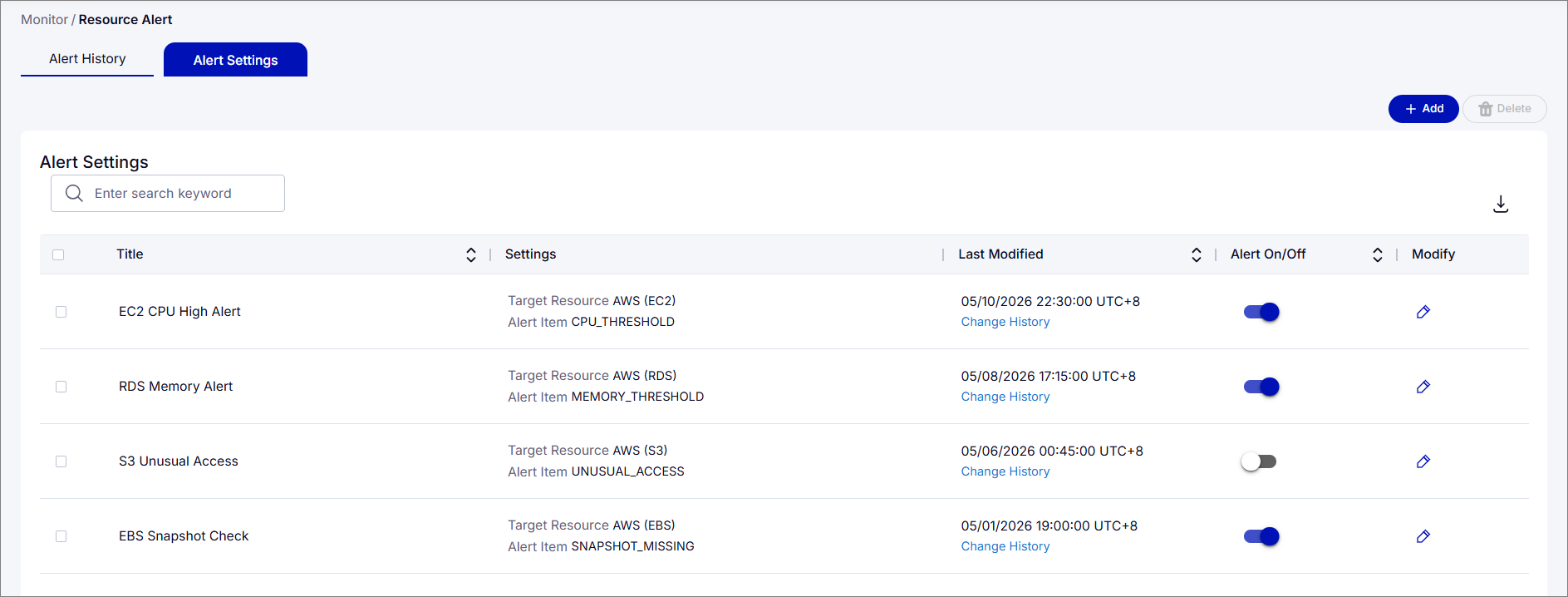
The Alert Settings tab allows users to view and manage alert configurations for monitored cloud resources. It provides options for adding, modifying, enabling, disabling, and deleting alert settings.
Viewing Alert Configurations
The Alert Settings table displays the existing alert configurations and their current status.
The table includes the following information:
| Column | Description |
|---|---|
| Title | The name assigned to the alert configuration. |
| Settings | Displays the target cloud resource and the alert item associated with the configuration. |
| Last Modified | Displays the date and time when the alert configuration was last modified. The Change History link provides access to its modification history. |
| Alert On/Off | Indicates whether the alert configuration is enabled or disabled. |
| Modify | Provides an option to edit the selected alert configuration. |
Use the search field above the table to locate specific alert configurations. Click a column's sorting control to arrange the displayed information.
Adding an Alert Configuration
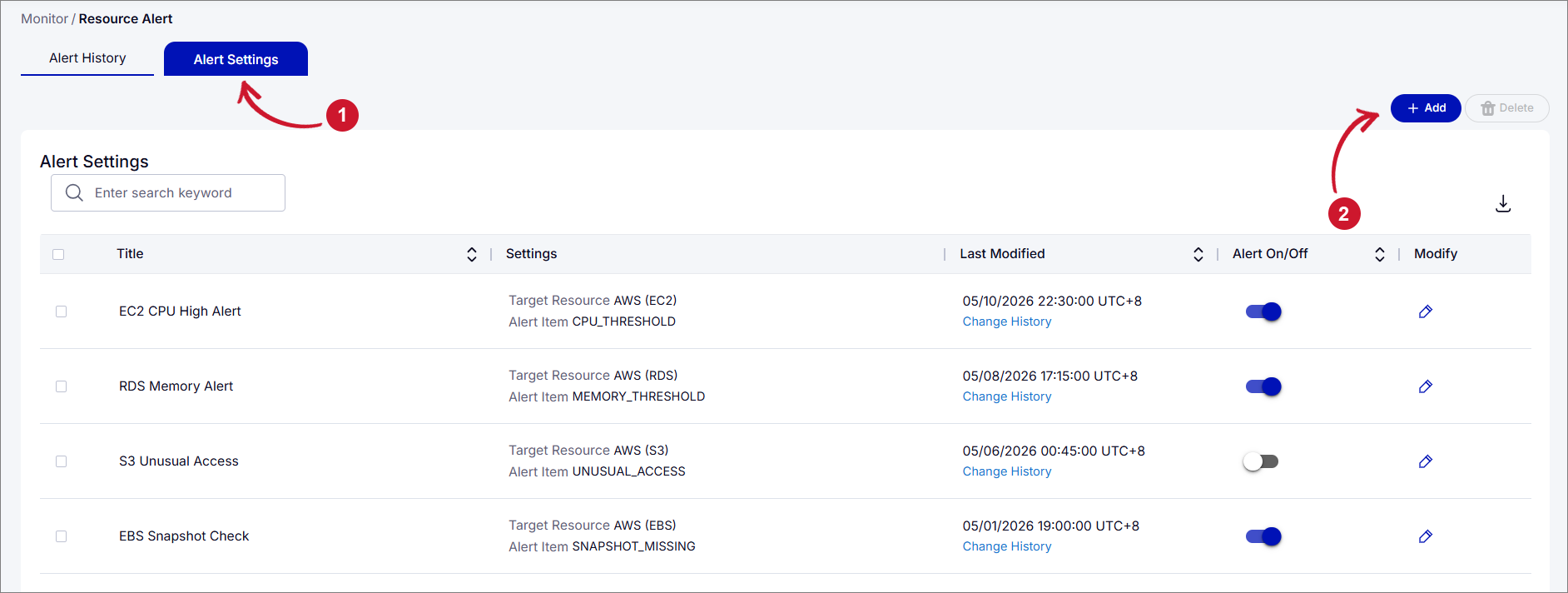
To create an alert configuration:
-
Click the Alert Settings tab.
-
Click the Add button in the upper-right corner of the page.
 Add Alert Settings
-
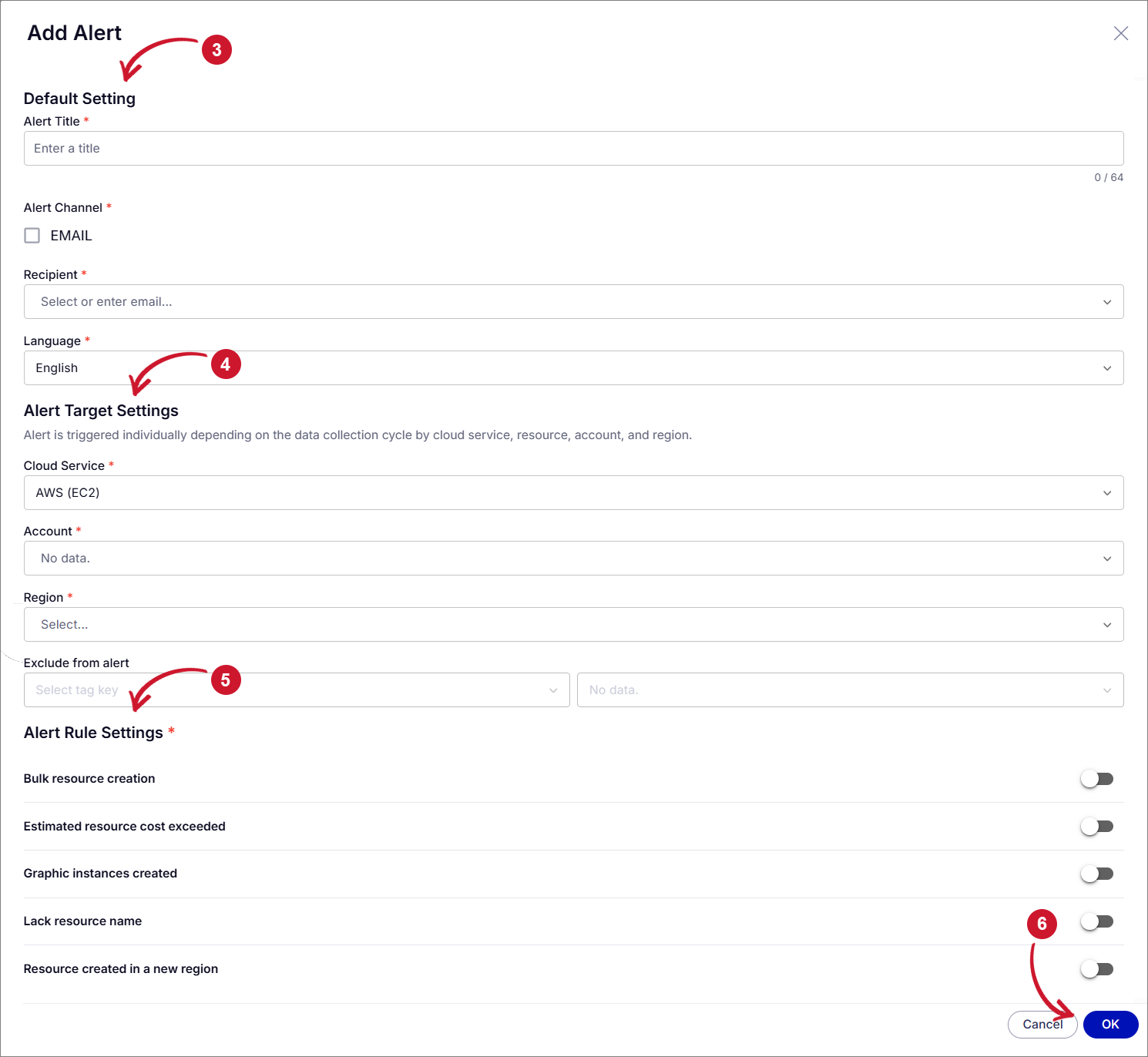
Under Default Setting, specify the following details:
- Alert Title - Enter a name for the alert configuration.
- Alert Channel - Select EMAIL to enable email notifications.
- Recipient - Select or enter the email addresses of the alert recipients.
- Language - Select the language for the alert notifications.
-
Under Alert Target Settings, specify the cloud resources to monitor:
- Cloud Service - Select the cloud service to monitor.
- Account - Select the cloud account associated with the resources.
- Region - Select the region containing the resources to monitor.
- Exclude from alert - Optionally, select a tag key and its corresponding value to exclude matching resources from alert monitoring.
-
Under Alert Rule Settings, enable the toggle switch for one or more of the following alert rules:
- Bulk resource creation
- Estimated resource cost exceeded
- Graphic instances created
- Lack resource name
- Resource created in a new region
Configure any additional settings required for the enabled rules.
-
Click OK to save the alert configuration.
 Add Alert Settings Details
Modifying an Alert Configuration
To modify an existing alert configuration:
-
Click the Alert Settings tab.
-
Locate the alert configuration you want to modify.
-
Click the pencil icon in the corresponding row.
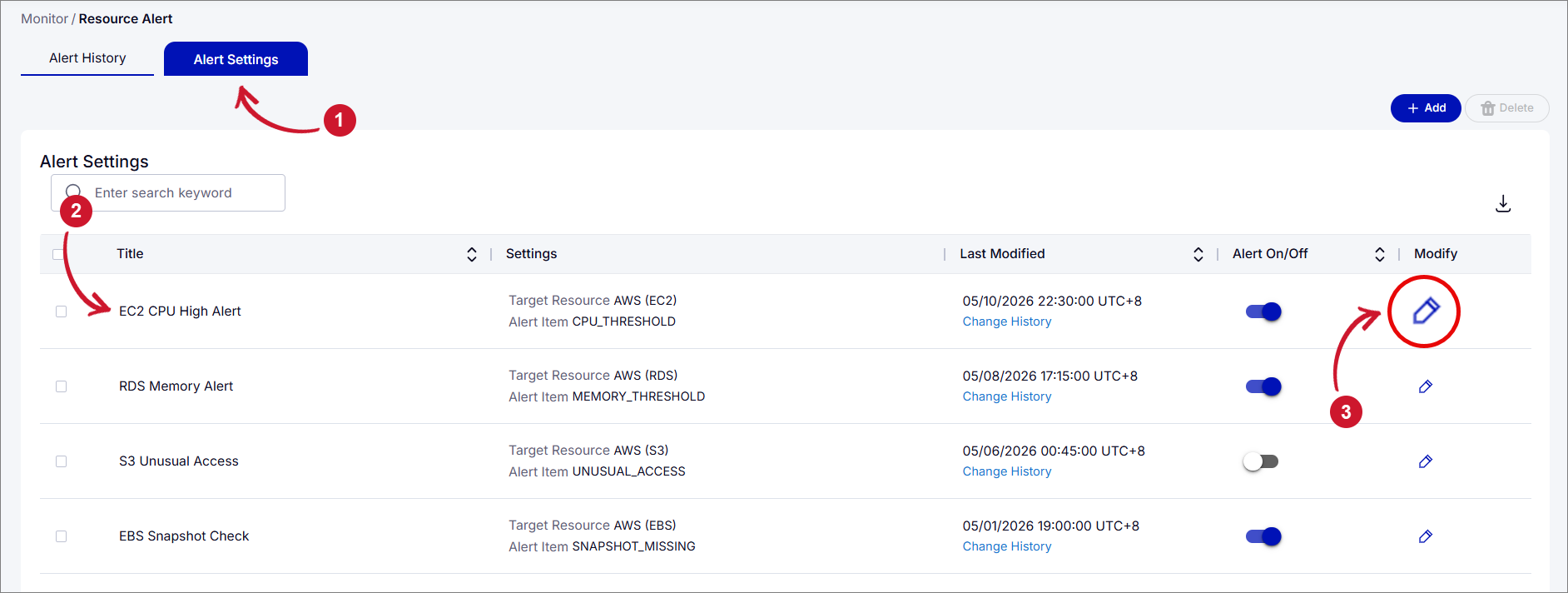 Modify Alert Settings Details
-
In the Modify Alert window, update the applicable settings:
- Default Setting - Modify the alert title, notification channel, recipients, or language.
- Alert Target Settings - Update the cloud service, account, region, or resource exclusions.
-
Click OK to save the changes.
To review previous modifications, click Change History under the Last Modified column.
Enabling or Disabling an Alert Configuration
To enable or disable an existing alert configuration:
-
Click the Alert Settings tab.
-
Locate the alert configuration you want to enable or disable.
-
Use the toggle switch under the Alert On/Off column to change its status.
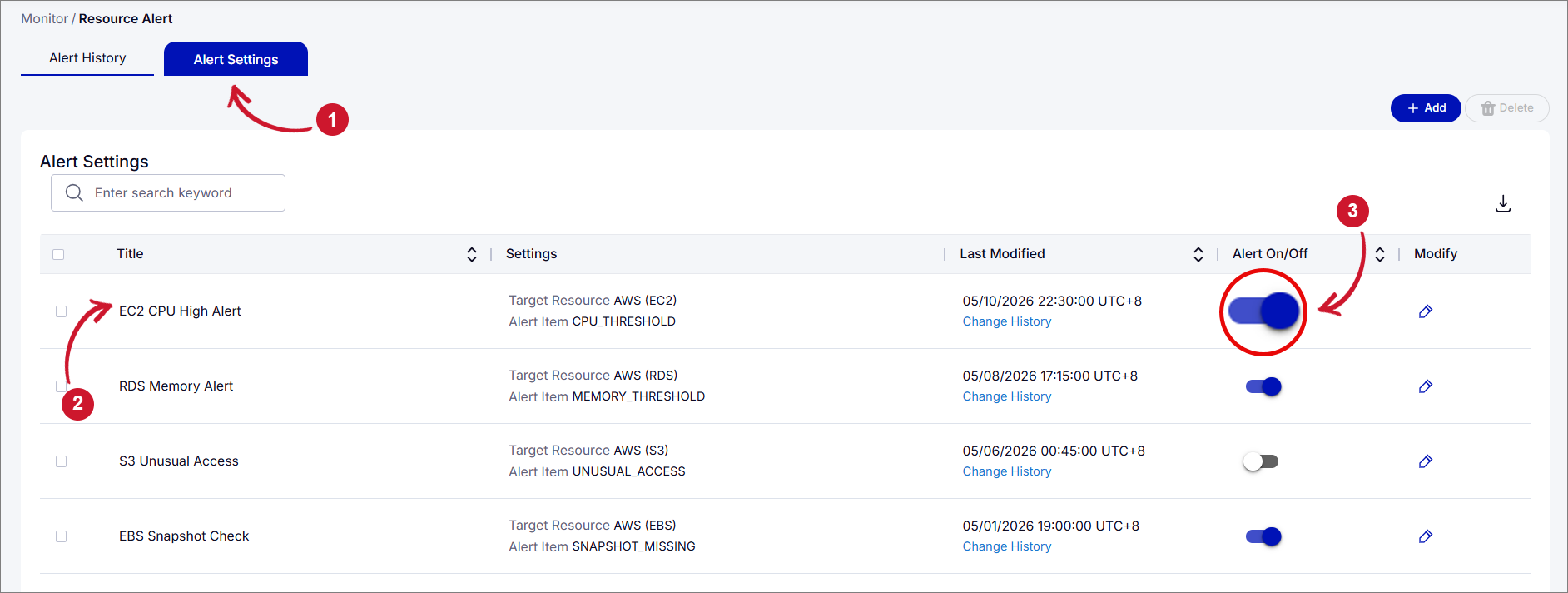 Enabling or Disabling an Alert Configuration
An enabled toggle indicates that the alert configuration is active, while a disabled toggle indicates that it is inactive.
Deleting an Alert Configuration
To delete an existing alert configuration:
-
Click the Alert Settings tab.
-
Select the checkbox beside the alert configuration you want to delete.
-
Click Delete button in the upper-right corner of the page.
-
Confirm the deletion if prompted.
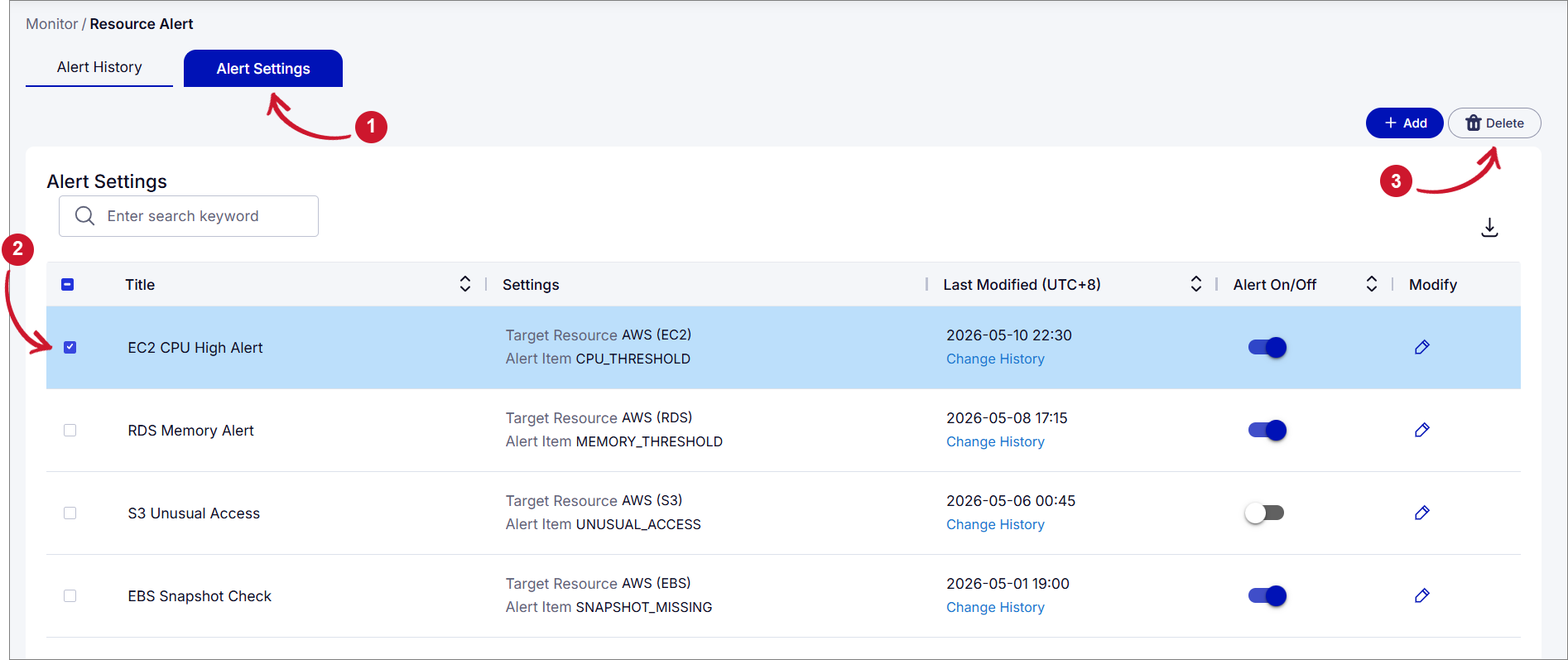 Deleting an Alert Configuration
Exporting Alert Settings
The Alert Settings tab allows users to download the displayed alert configuration information.
To export the information:
-
Click the Alert Settings tab.
-
Locate the Alert Settings table.
-
Click the download icon in the upper-right corner of the table.
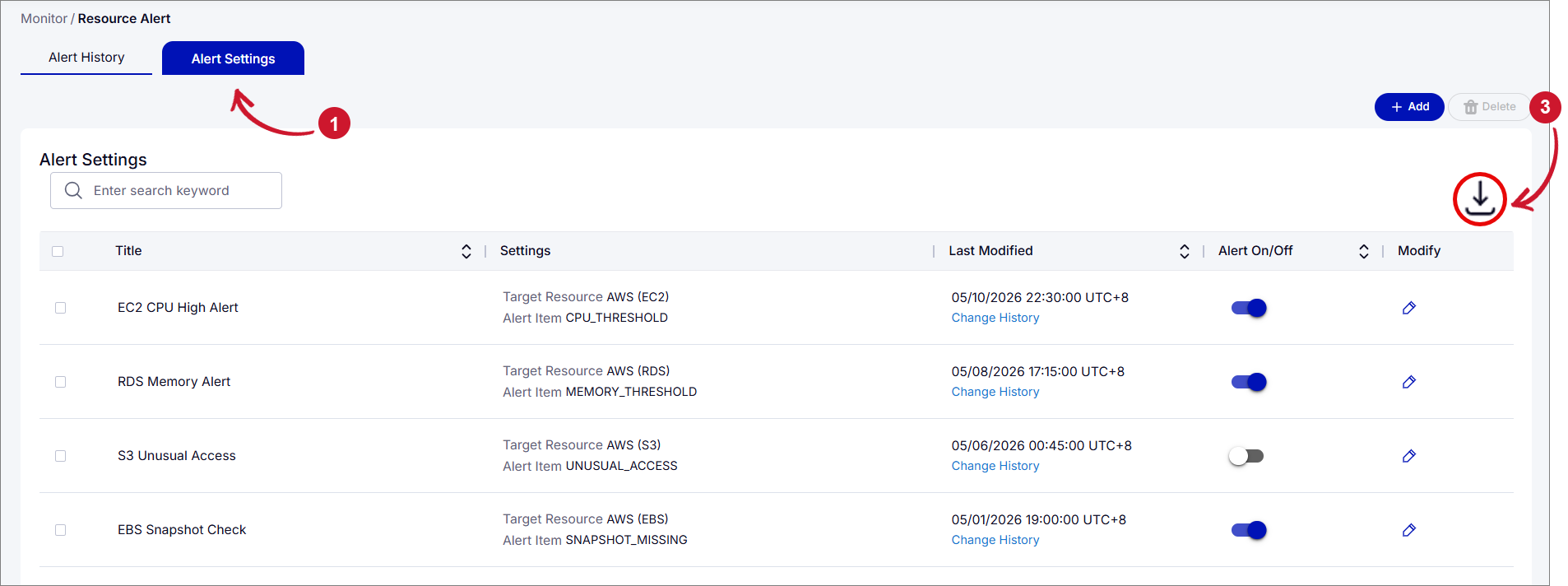 Exporting Alert Settings