Budgets
The Budgets page allows users to monitor cloud spending against configured budgets across connected cloud accounts. It provides information about budget utilization, remaining balances, actual spending, and forecasted costs to help users track cloud expenses and identify potential budget overruns.
To access this page, go to Cost > Budgets, then select the cloud service provider from the drop-down menu in the upper-right corner of the page.
Viewing Budget Summary
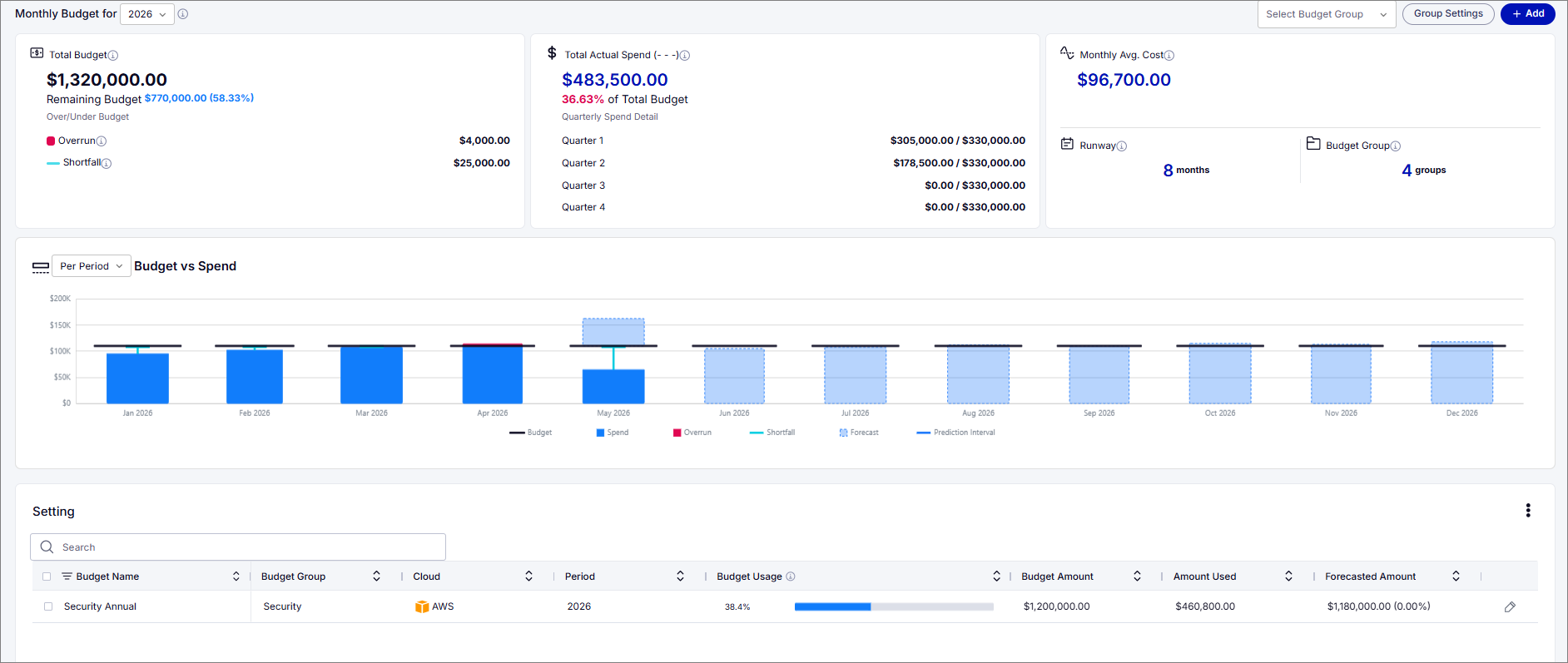
The upper section of the Budgets page provides an overview of allocated budgets, actual spending, and estimated future costs for the selected year.

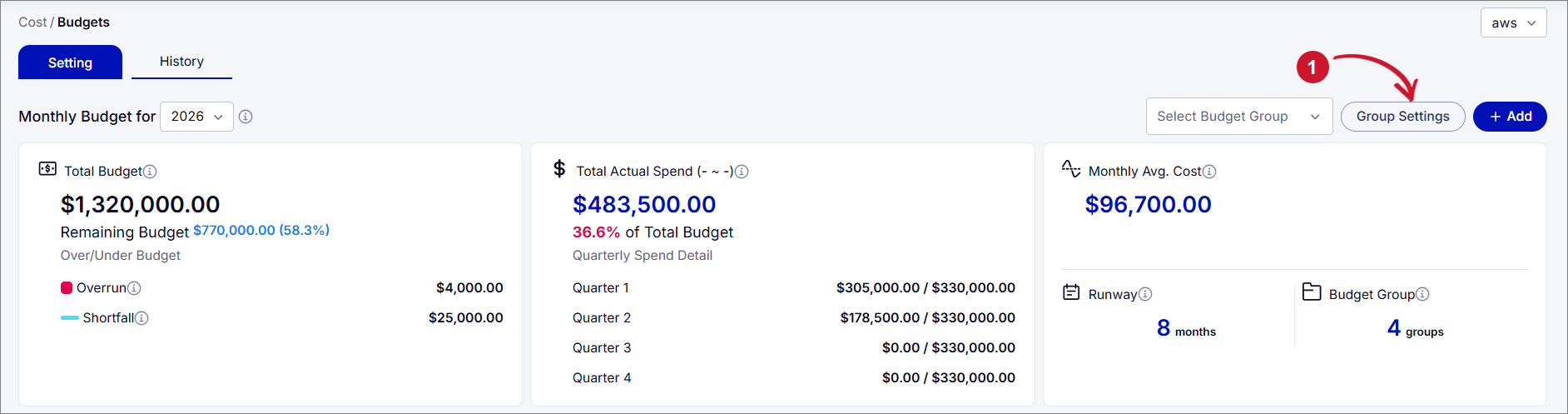
Select the reporting year from the Monthly Budget for drop-down. Use Select Budget Group to display information for a specific budget group.
The summary includes the following information:
| Metric | Description |
|---|---|
| Total Budget | Displays the total allocated budget for the selected year. |
| Remaining Budget | Displays the available budget balance and its percentage of the total allocated budget. |
| Overrun | Displays the amount by which spending has exceeded the configured budget for applicable periods. |
| Shortfall | Displays the amount by which spending is below the configured budget for applicable periods. |
| Total Actual Spend | Displays the total recorded cloud spending and its percentage of the allocated budget. |
| Quarterly Spend Detail | Displays actual spending against the allocated budget for each quarter of the selected year. |
| Monthly Avg. Cost | Displays the average monthly cloud spending. |
| Runway | Displays the estimated number of months the remaining budget can support based on projected spending. |
| Budget Group | Displays the number of configured budget groups. |
Analyzing Budget and Spending Trends
The Budget vs Spend chart provides a visual comparison of allocated budgets and actual cloud spending over the selected year. It helps users identify periods of overutilization or underutilization and review forecasted spending for upcoming periods.

Use the drop-down beside Budget vs Spend to select one of the following display modes:
- Per Period - Displays budget allocations, actual spending, and forecasts separately for each period.
- Cumulative - Displays accumulated budget and spending information over time, allowing users to compare overall spending progress against the allocated budget.
The chart includes the following indicators:
| Indicator | Description |
|---|---|
| Budget | Represents the allocated budget for the corresponding period. |
| Spend | Represents the actual cloud spending recorded during the period. |
| Overrun | Highlights spending that exceeds the allocated budget. |
| Shortfall | Highlights the difference when actual spending is below the allocated budget. |
| Forecast | Displays estimated spending for future periods. |
| Prediction Interval | Displays the projected range of possible spending values. |
Managing Budgets
The Setting tab provides information about existing budget configurations and options for managing individual budgets.
Viewing Budget Configurations

The budget information table displays the following details:
| Column | Description |
|---|---|
| Budget Name | The name assigned to the budget configuration. |
| Budget Group | The budget group associated with the configuration. |
| Cloud | The cloud service provider associated with the budget. |
| Period | The period or year covered by the budget. |
| Budget Usage | The percentage of the allocated budget that has been used. |
| Budget Amount | The total amount allocated to the budget. |
| Amount Used | The cloud spending recorded against the allocated budget. |
| Forecasted Amount | The estimated spending amount based on available cost information. |
Use the search field to locate specific budget configurations and the column sorting controls to arrange the displayed information.
Adding a Budget
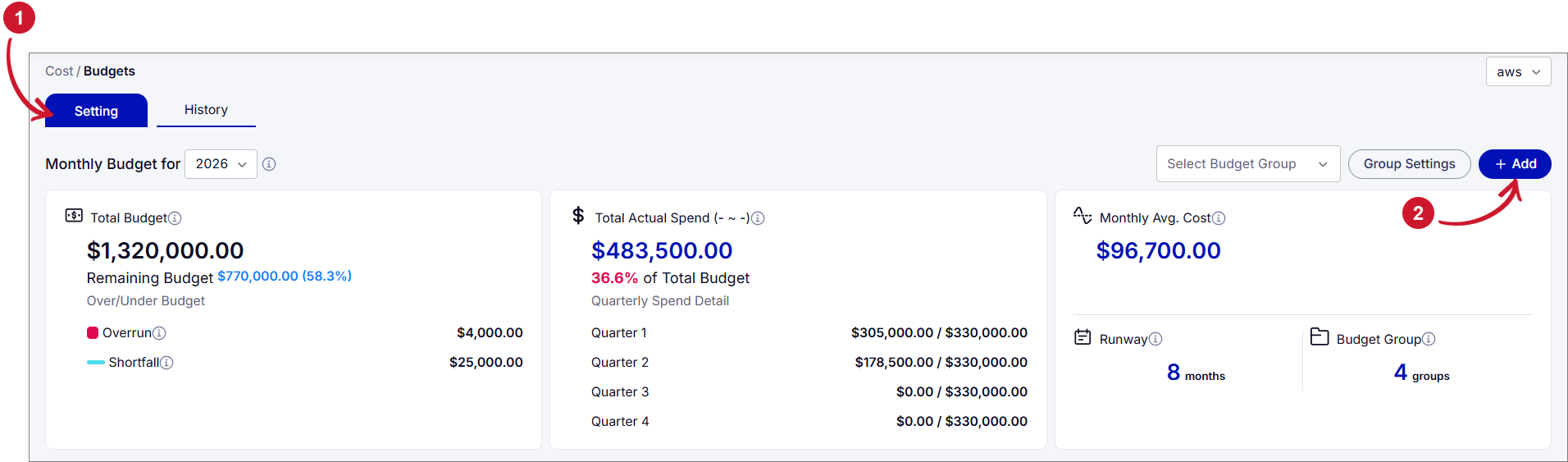
To create a budget configuration:
-
Open the Setting tab.
-
Click Add in the upper-right corner of the page.
 Adding a Budget
-
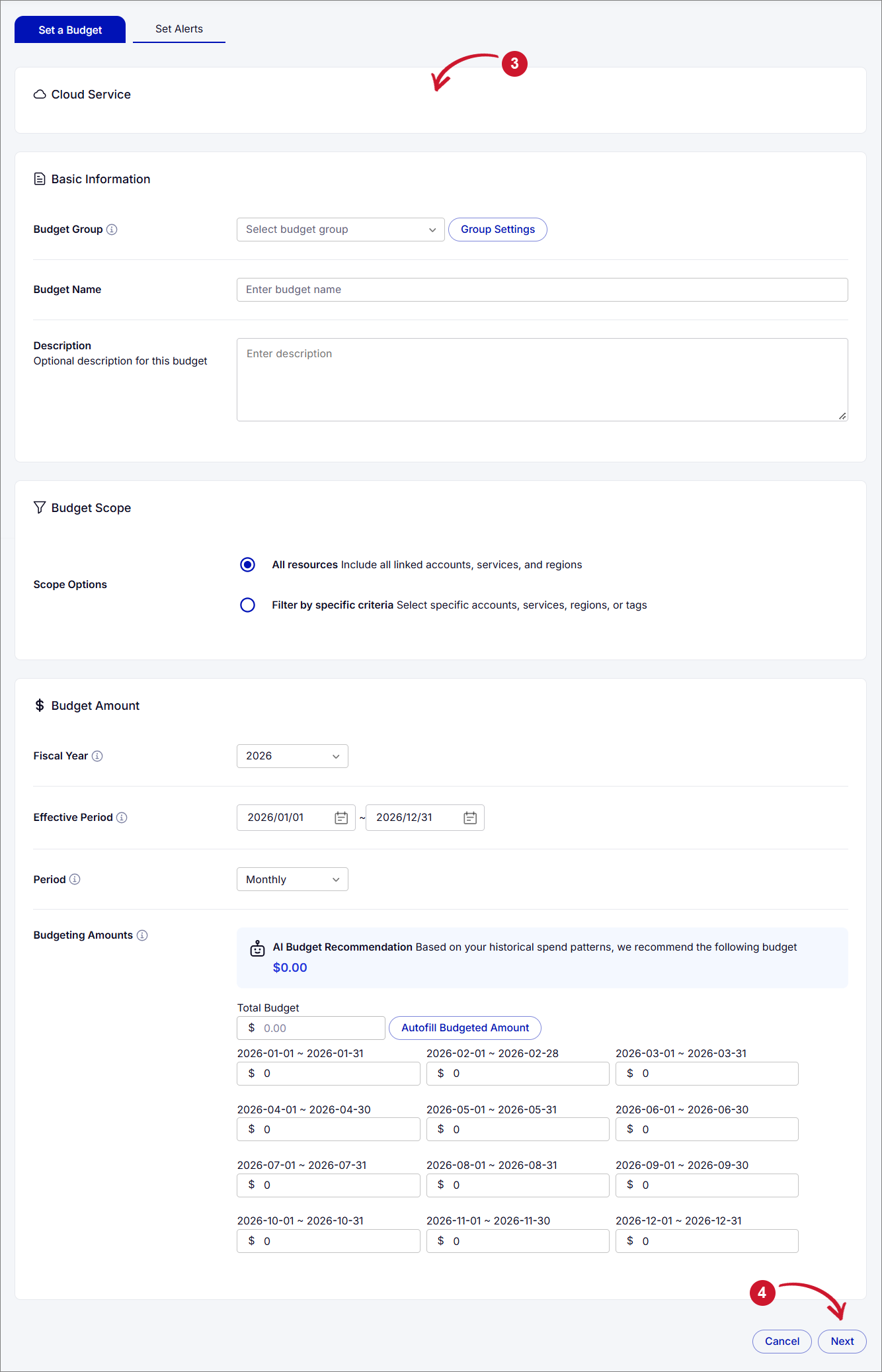
Under the Set a Budget tab, configure the following settings:
- Cloud Service - Select the cloud service for the budget.
- Basic Information - Specify the following details:
- Budget Group - Select the budget group to which the budget belongs. Click Group Settings to manage budget groups.
- Budget Name - Enter a name for the budget.
- Description - Optionally, enter a description of the budget.
- Budget Scope - Select the resources to include in the budget:
- All resources - Includes all linked accounts, services, and regions.
- Filter by specific criteria - Limits the budget to selected accounts, services, regions, or tags.
- Budget Amount - Configure the following settings:
- Fiscal Year - Select the fiscal year for the budget.
- Effective Period - Specify the start and end dates of the budget.
- Period - Select the budgeting period, such as Monthly.
- Budgeting Amounts - Enter the total budget amount and specify the budget allocation for each period. You can also use Autofill Budgeted Amount or refer to the AI Budget Recommendation based on historical spending patterns.
-
Click Next to proceed to the Set Alerts tab.
 Set a Budgettip
Hover over the info icon to view additional information about each field.
-
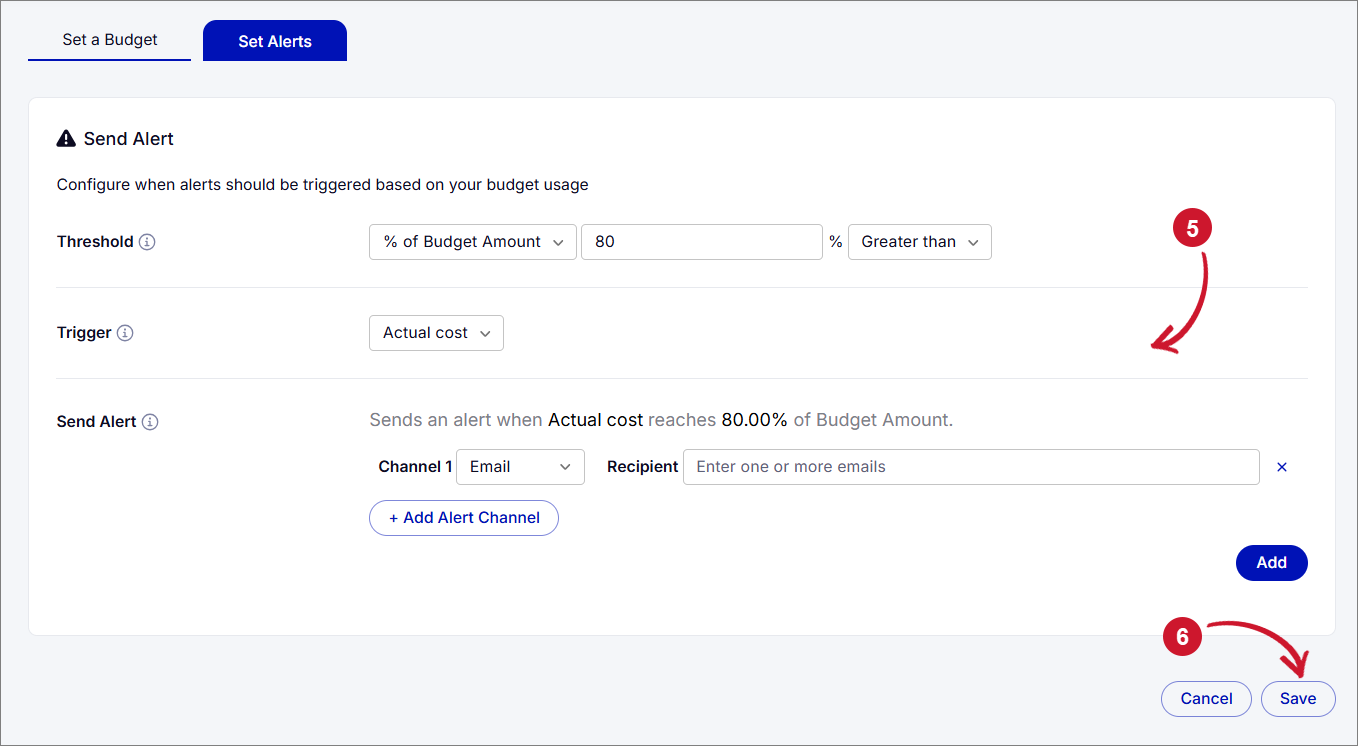
Under Set Alerts, configure the following settings:
- Threshold - Select the threshold type, enter the threshold value, and specify the comparison condition used to trigger an alert.
- Trigger - Select the cost type used to evaluate the threshold, such as Actual cost or Forecasted cost.
- Send Alert - Configure the notification details:
- Channel - Select the notification channel, such as Email.
- Recipient - Enter the email addresses of the alert recipients.
- Click + Add Alert Channel to configure additional notification channels, if necessary.
- Click Add to add the configured alert condition.
-
Click Save to add the budget.
 Set Alert
Managing Budget Groups
Budget groups allow users to organize related budget configurations.
To manage budget groups:
-
Click Group Settings in the upper-right corner of the page.
-
Make the required changes using the available management options.
-
Click Save to update the budget groups.
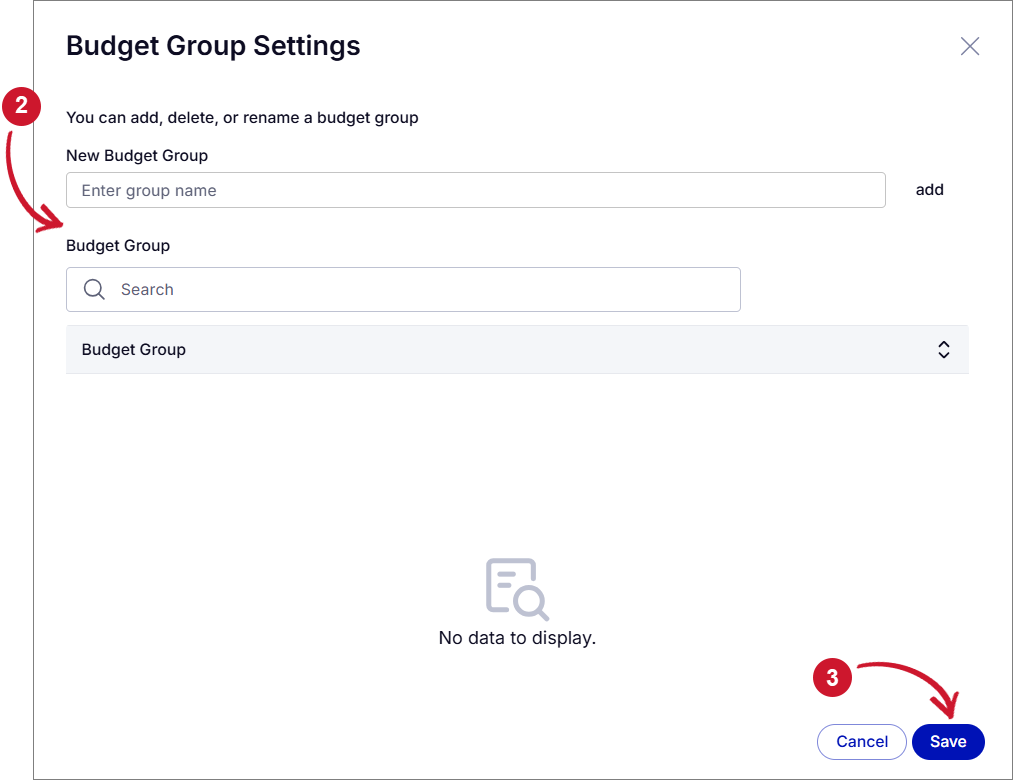 Managing Budget Group Settings
Managing Budget Configurations
The Setting section provides options to download, duplicate, or delete budget configurations. These options are accessible through the three-dot menu in the upper-right corner of the section.
| Option | Description |
|---|---|
| Download CSV | Downloads the budget configuration information in CSV format. |
| Duplicate Selected | Creates copies of the selected budget configurations. |
| Delete Selected | Deletes the selected budget configurations. |
To duplicate or delete budget configurations:
-
Open the Setting tab.
-
In the Setting section, select the checkboxes beside the budget configurations you want to duplicate or delete.
-
Click the three-dot menu in the upper-right corner of the section.
-
Select Duplicate Selected or Delete Selected, depending on the required action.
-
Follow any additional prompts to complete the operation.
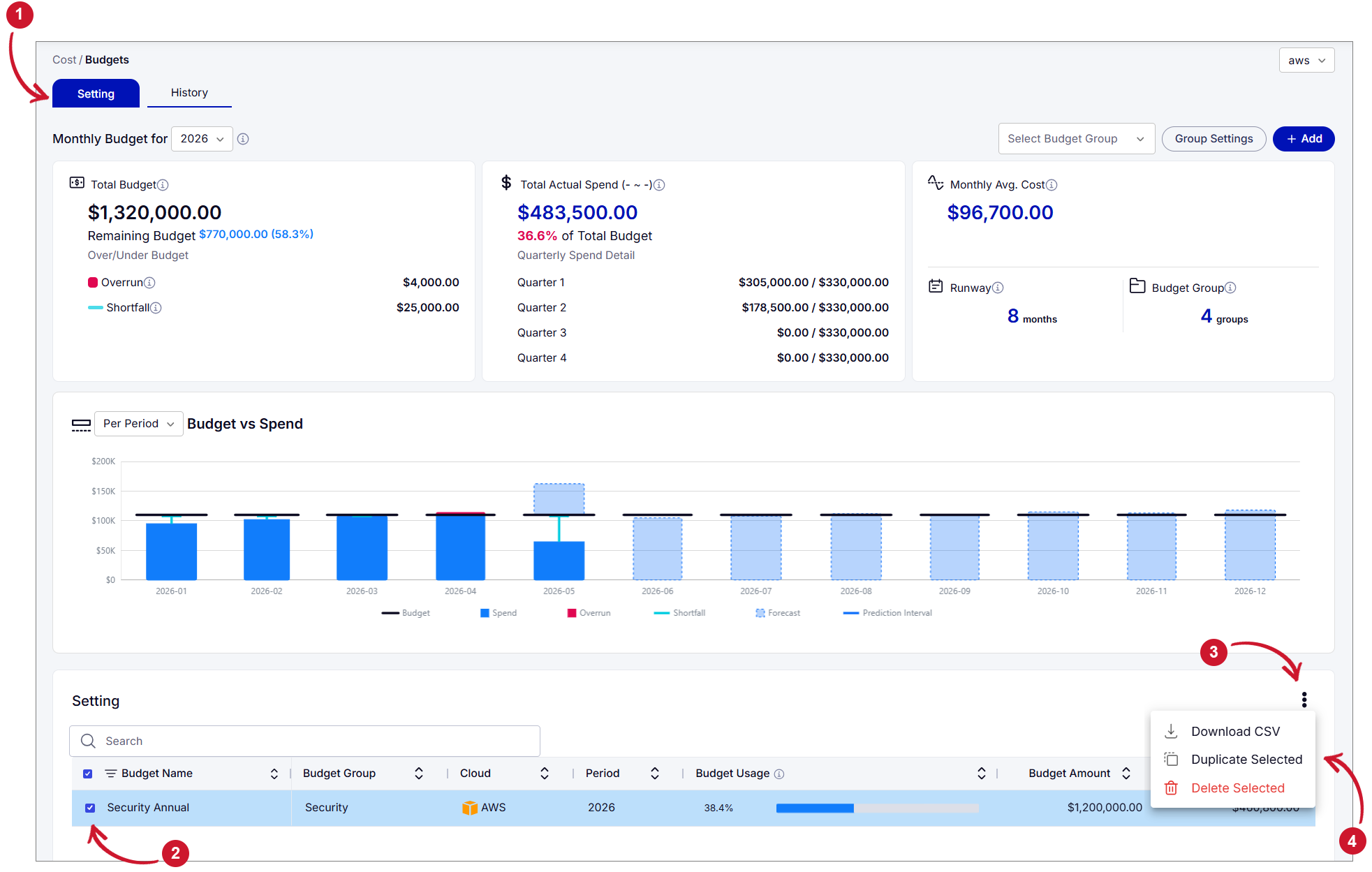 Managing Budgets
To download the budget configuration information:
- Open the Setting tab.
- Click the three-dot menu menu in the upper-right corner of the Setting section.
- Select Download CSV to download the budget configuration information in CSV format.
Viewing Budget Alert History
The History tab displays records of previously sent budget alert notifications. It allows users to review notification details, including the associated budgets, alert thresholds, recipients, and delivery dates.
To review budget alert history:
-
Open the History tab.
-
Specify the start and end dates using the date selectors.
-
Click Apply to display the available records for the selected period.
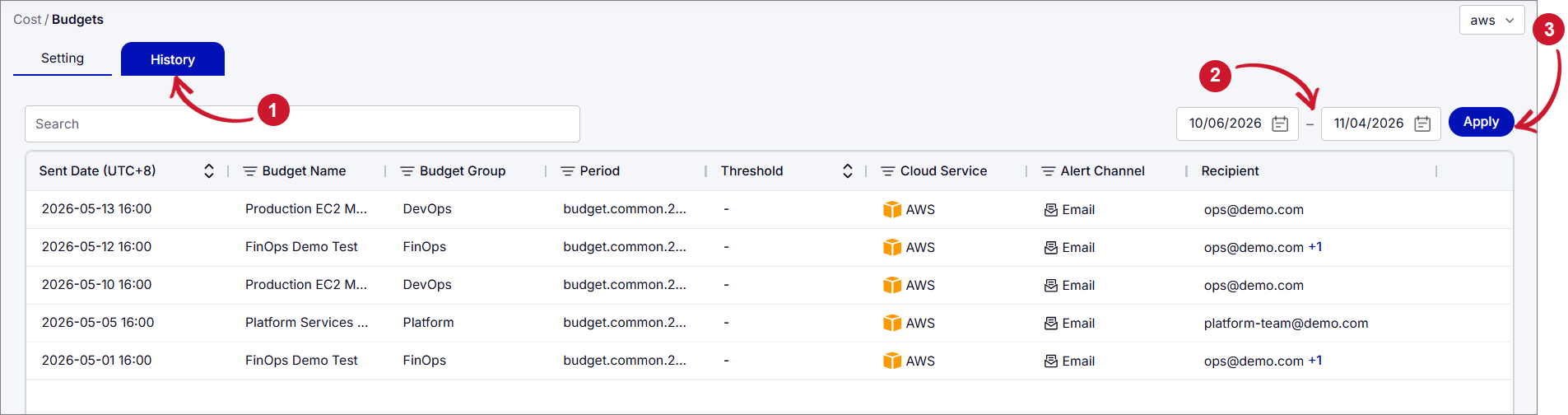 Budget Alert History
The History table displays the following information:
| Column | Description |
|---|---|
| Sent Date | The date and time when the budget alert notification was sent. |
| Budget Name | The name of the budget configuration associated with the notification. |
| Budget Group | The budget group associated with the configuration. |
| Period | The budget period associated with the notification. |
| Threshold | The configured threshold associated with the budget alert. |
| Cloud Service | The cloud service provider associated with the budget. |
| Alert Channel | The notification method used to send the budget alert, such as Email. |
| Recipient | The email address or recipient associated with the notification. |
Use the search field to locate specific notification records and the column-sorting controls to arrange the displayed information.