License Monitor Portal
The License Monitor Portal displays the real-time monitoring interface of all the collected data from various supported license managers.
The data displayed on the License Monitor Portal page is loaded and refreshed every 5 minutes. This is embedded in the Open iT Alerts service, along with the sending of configured email alerts. If immediate loading is necessary, please use the instructions in the SyncLicenseStatus section to run the command SyncLicenseStatus /reload.
If data is still not showing, please use the instructions in the License Monitor Portal - No data displayed section to troubleshoot the issue.
With Single Sign-On (SSO), roles cannot be assigned and all loaded and processed data will be accessible to all users.
The interface varies depending on the value of the Root.Level configuration key.
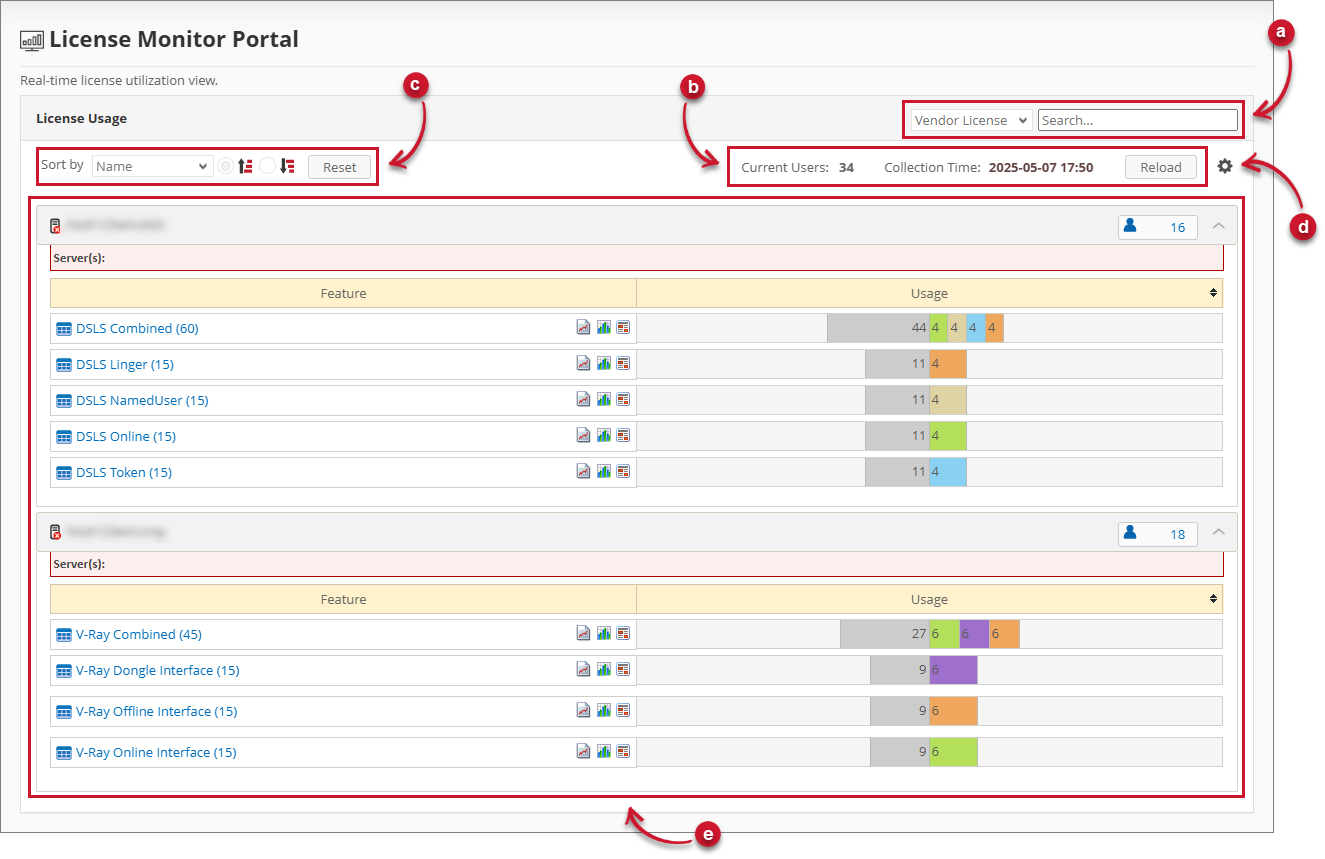
This is how it will look like if the value of your Root.Level is Level1:
This is how it will look like if the value of your Root.Level is Level2 or Level3:
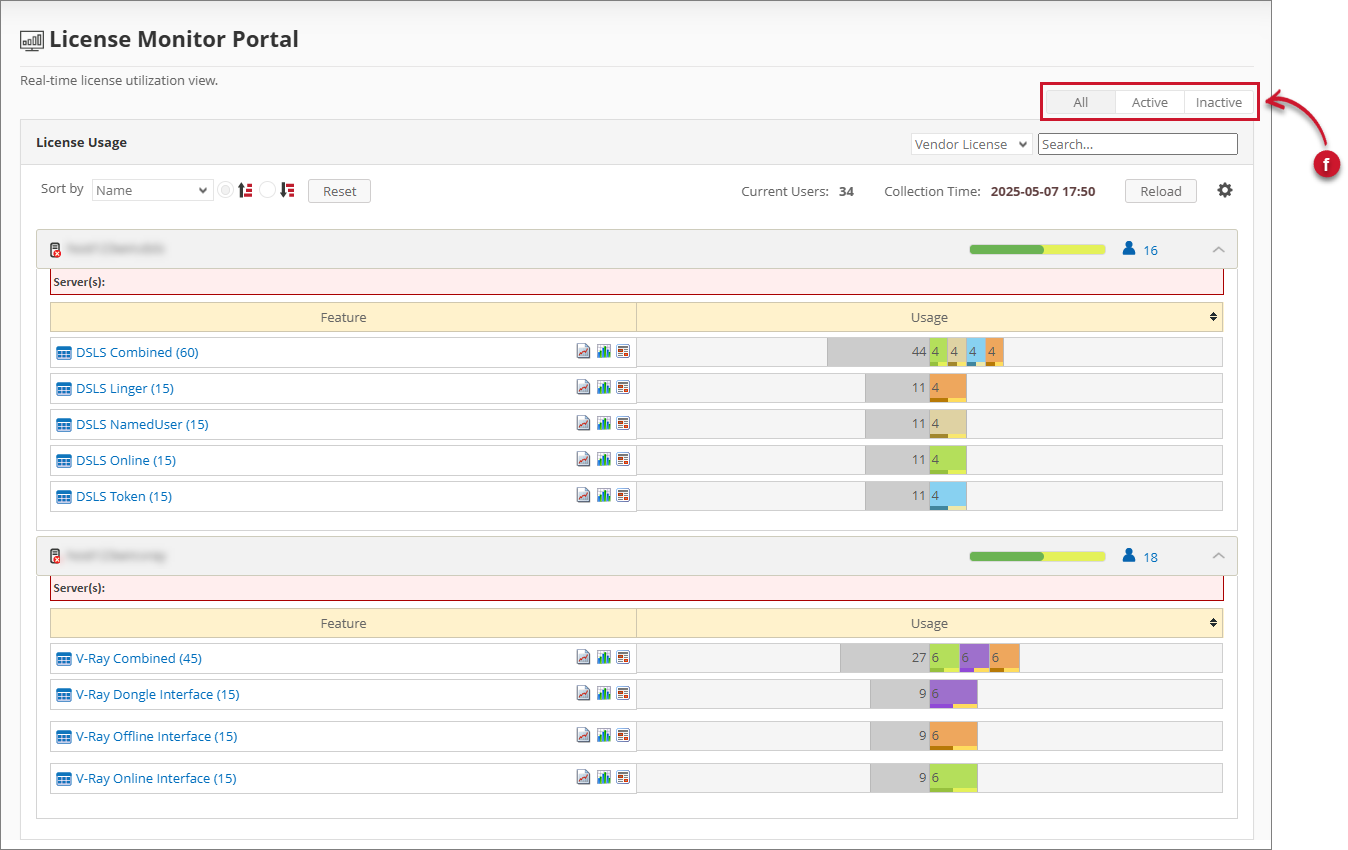
Notice that global filters are added when your selected Open iT level is Level2 or Level3.
The following sections explain each part:
a. Search
b. Collection Details and Data Reload
c. Sort and Reset
d. Filter Portal
e. Details View
f. Global Filters
Search
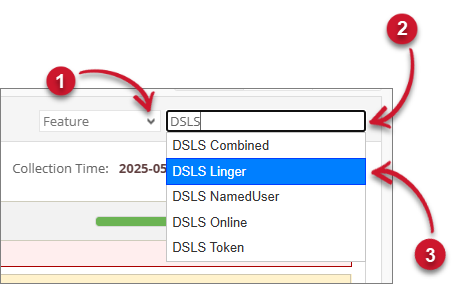
Follow these steps to use the search bar for finding information on a specific vendor license, package, feature, or user.
-
Choose from the search by options.
-
Type in the keyword to search in the provided textbox.
Autocomplete options will appear.
-
Click the desired item from the autocomplete options.
 Search
The details view will be filtered accordingly.
Collection Details and Data Reload
Use the collection details to monitor data consistency and the data reload to synchronize web interface data from the background processing. The collection details contain:
- Current Users - the number of distinct users for all the vendor licenses.
- Collection Time - the date and time the data was collected.
Beside this information is the Reload button used to reload the data. Clicking this updates the collection details and the details view.

Sort and Reset
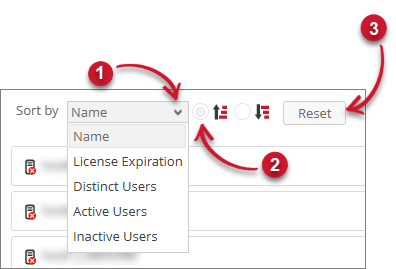
Use the sort functionality to arrange the items in the details view in ascending or descending order based on the sorting criteria. Follow these steps to sort and reset:
-
Choose whether to sort the information by name, license expiration, distinct users, active users, or inactive users.
noteIf the Root.Level configuration key is set to either Level1 or Level3, only Name, License Expiration, and Distinct Users will be available.
-
Click the desired order (ascending or descending) of arrangement.
The details view will be sorted accordingly.
-
Click the Reset button to set the filter and search selection to its default state.
 Sort and Reset
Filter Portal
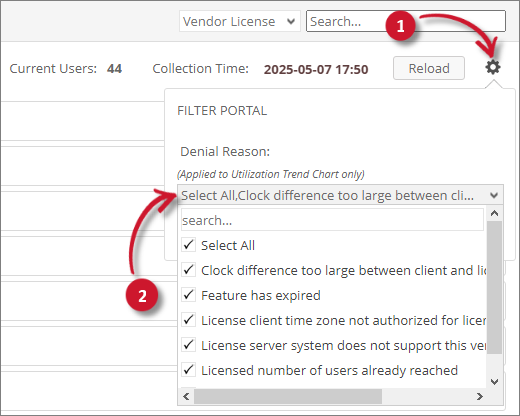
Use the Filter Portal functionality to refine the data presented to various components of the License Monitor Portal. You can filter the Denial Reason included in the Utilization Trend quick chart. Follow these instructions to filter:
This functionality is only available for service account and web interface administrators.
-
In the upper-right corner of the page, beside the Reload button, click the gear icon.
-
The Filter Portal pane will appear. Choose among the available Denial Reasons.
noteAt least one (1) selected Denial Reason is required. Use the search option to further filter the items in the list.
 Filter
-
Click Save to apply changes.
Details View
This part contains the lists of vendor licenses, features, and users. It provides essential information about the license usage from vendor license level up to the user level.
Follow these steps to navigate the details view:
-
Click the desired item from the list of vendor licenses.
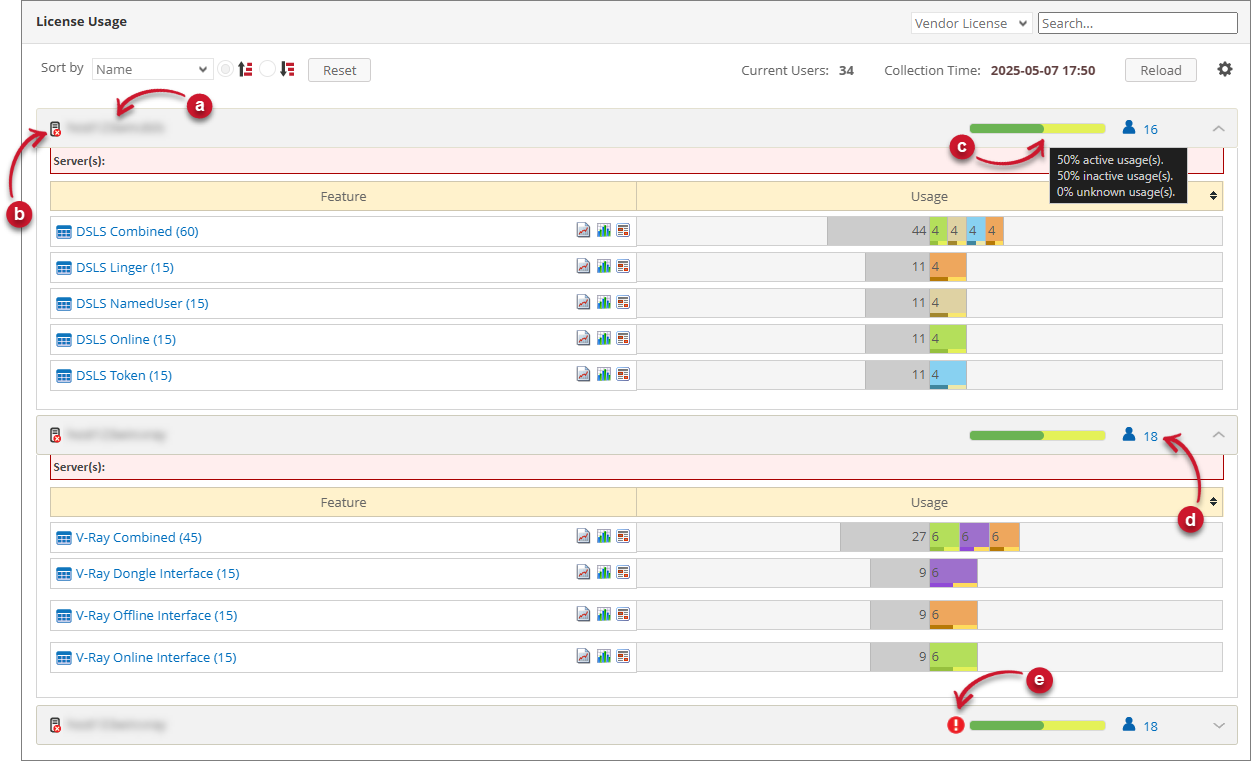 Vendor License Details View
The vendor license item contains the following information:
a. Vendor License Name
b. Server Status - the icon beside the vendor license name that indicates whether the server is collecting data or not. This icon can be one of the following:- Server - a server or vendor license directly collected without any mapping
- Globe - a grouped vendor license or a result of product mapping
c. Active/Inactive Usage Bar - displays the percentage of licenses that are currently in active and inactive state. Hover over the bar to see the exact number of usage.
noteThis is only visible if Root.Level is set to either Level2 or Level3.
d. Distinct User - number of distinct users.
e. License Expiry Indicators - the icon beside the Active/Inactive Usage Bar that indicates the license expiration of the features. The icon’s color changes depending on the license expiration status of the features.
- Yellow - at least one feature will expire within the next 60 days
- Red - at least one feature has already expired
-
The vendor license information will appear containing the following:
- Server(s) - list of server hostnames with its port.
- Daemon - the name of the running daemon or background process.
- License File - the full path of the license file.
Hover over the vendor license information to show the Daemon status.
 Details View
noteThe vendor license information is not available in a grouped vendor license.
-
Click the desired item from the list of features.
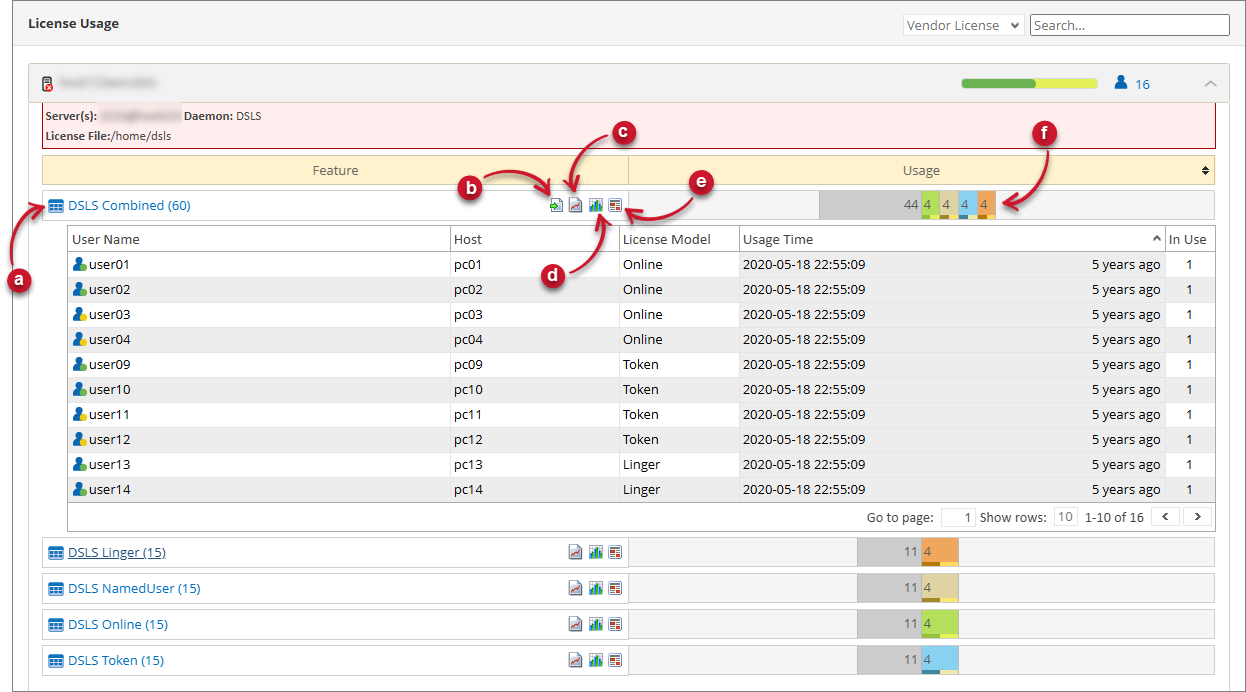 Features Details View
The feature item contains the following information:
a. Feature Name
NOTEThe total number of usage can be seen next to the Feature Name.
b. Export - export the list of users under the feature. Only visible when users are available.
c. Utilization Trend - a quick link to the Utilization Trend chart of the specific feature. It provides a historical view of its license usage.
d. License Efficiency - a quick link to the License Efficiency chart of the specific feature. It provides information on how efficient the licenses are used.
e. Week Hour Heatmap - a quick link to the Week Hour Heatmap chart of the specific feature. It provides a weekly overview in hourly basis of the license usage.
f. License Usage - a progress bar that shows the available licenses and the licenses in use. The licenses in use bar are separated into various colors:
Color Description Dark Gray Unused (Reserve). The number of available reserved licenses. Only applicable for Flex. Gray Unused. The number of available licenses. Green In Use (Online). The maximum number of licenses in use (online). Light Green In Use (Shadow Package). The number of licenses in use for features with package. Dark Blue In Use (Reserve). The maximum number of licenses in use (reserved). Only applicable for Flex. Orange In Use (Offline) or In Use (Linger). The number of licenses in use categorized as Offline or Linger. Only applicable to DSLS, Flex, and V-Ray license managers. Blue In Use (Token). The number of licenses in use categorized as Token-based. Only applicable to AVEVA and DSLS license managers. Brown In Use (NamedUser). The number of licenses in use categorized as NamedUser. Only applicable to Bluebeam Revu 21, Esri, DSLS, RLM, and SketchUp license managers. Violet In use (Dongle). The number of licenses in use categorized as Dongle. Only applicable to V-Ray license manager. License Usage Colors
The smaller progress bar at the bottom of each license usage bar indicates the number of active (darker) and inactive (lighter) licenses.
 Active/Inactive
Showing Package
To show the Package name where the specific component belongs, follow these instructions:
a. Display the package in the License Monitor Portal.
b. Go to the LM Portal > License Monitor Portal, and verify that the feature name (components) that belongs to a package have the format
<package_name>-<component_name>.Showing Feature Version
To show the Feature Version, follow these instructions:
a. Display the feature version in the License Monitor Portal.
b. Go to LM Portal > License Monitor Portal, and verify that the feature name have the format
<feature_name> [<feature_version>].NOTEWhen the Feature Version is shown, Denials measure in the Utilization Trend chart is not available.
-
The users list will be displayed containing the following information:
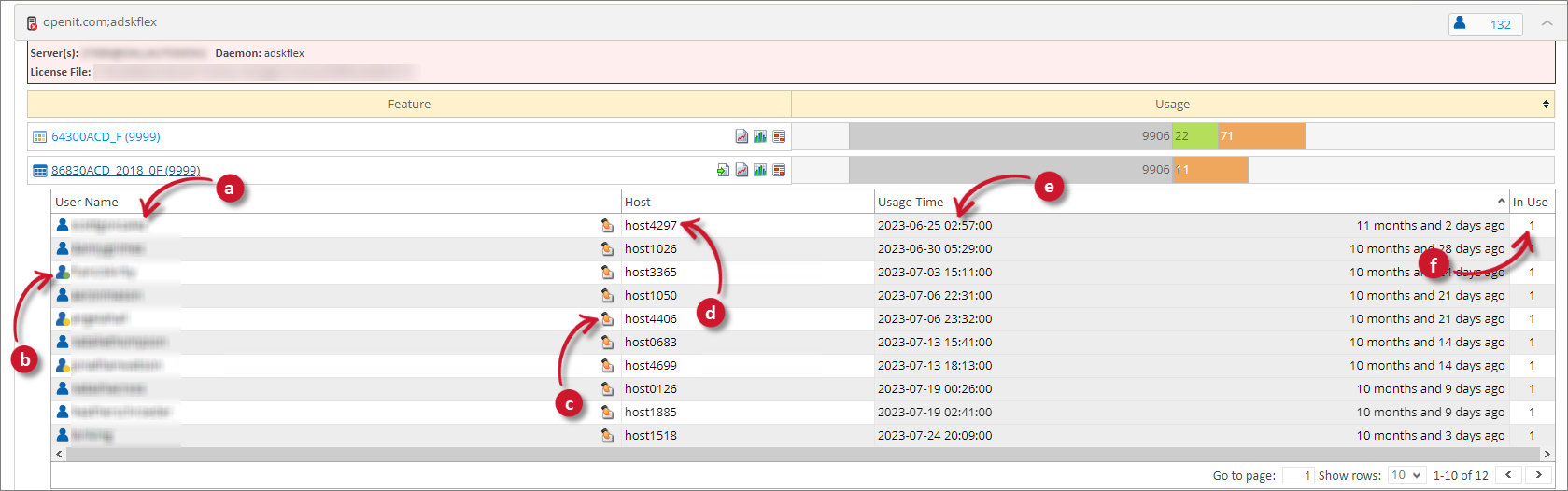 Users
Users
a. User Name - the name of the feature user.
By default, this only displays the name of the feature user.
You can configure the mapping sources so that user names become clickable, allowing you to view their Active Directory information.
b. User Activity Status - an indicator about the license usage activity status of the user. The following colors indicate the status:
noteThis is only visible if Root.Level is set to either Level2 or Level3.
Color Description Green Active Yellow Inactive User Activity Status Colors
Hover over the username to see the active or inactive duration.
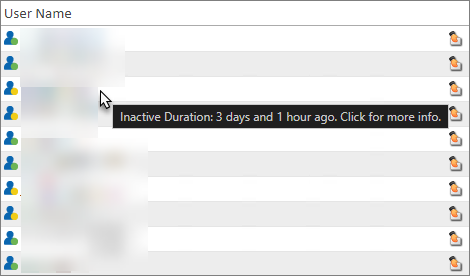 Inactive Duration
The system computes the active duration by subtracting the activity start time to the current time.
Active Duration = Current Time - Activity Start Timewhile it computes inactive duration by subtracting the inactivity start time to the current time.
Inactive Duration = Current Time - Inactivity Start Timewhere inactivity start time starts once the criteria defined for the idle inactivity in the handle attribute is met.
c. Offline License Expiration - an icon indicating that the license in use by the user is offline or borrowed.
NOTEHovering over the icon displays the date and time when the offline license expires.
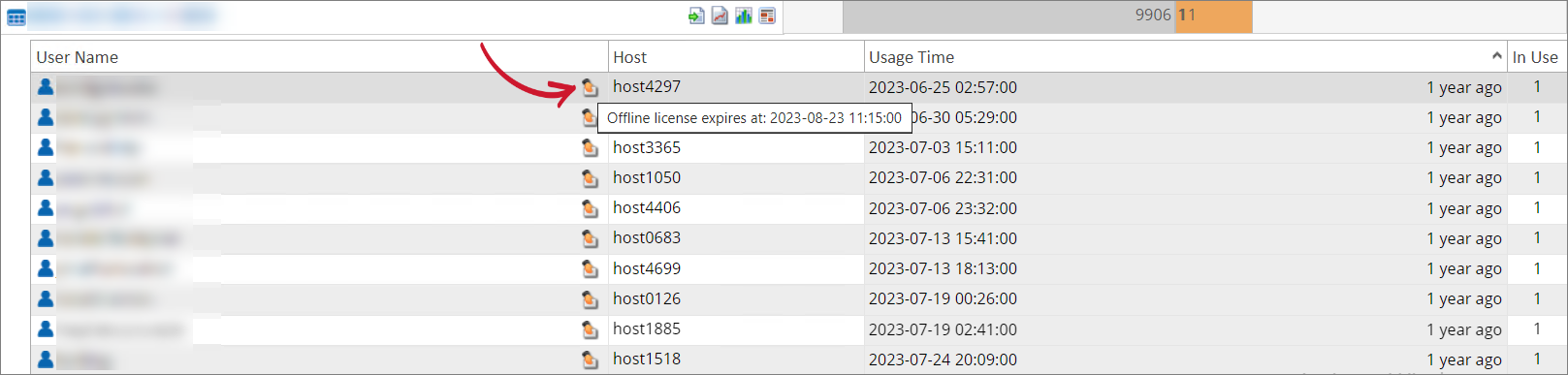 Offline License Expiration
d. Host Name - the host used by the user to checkout the license.
e. Usage Time - based on the license manager, it can be one of the following:
- For DSLS, it is the date and time the license was last used by the user.
- For other license managers, it is the date, time, and duration the user checked out a license.
f. In Use - the number of license in use by the user.
Global Filters
You can see this in the interface if your selected Open iT level is Level2 or Level3.
Follow these steps to use global filters and refine the details view:
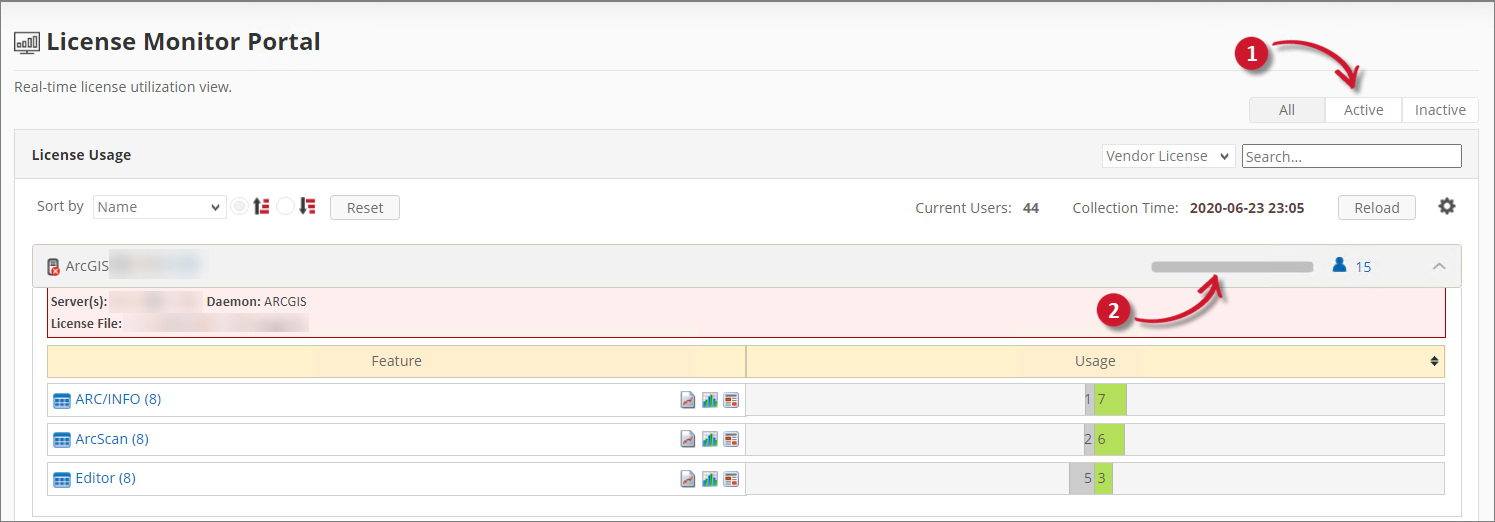
-
Click the desired button to filter the details view.
Filter Description All Displays all users whether active or inactive. Active Displays all active users. Inactive Displays all inactive users. Global Filters
The Active and Inactive license usage details will be displayed when you set the Root.Level configuration key to Level2 or Level3, and the corresponding app-status data is available in the Core Server database. Follow the instructions in the Setting Open iT Level section to change the Root.Level value accordingly.
warningMake sure to restart the OpeniTAlerts service after changing the value of the Root.Level configuration key. Follow the instructions in the Alerts Service Jobs Configuration section to restart the service.
NOTEtimeout is not included in the criteria for the Active and Inactive real-time status.
-
The details view will be filtered accordingly. The following colors indicate the status:
Color Description Green Active Yellow Inactive User Activity Status Colors
Notice that the active and inactive users details are based on the filter.
Recommended Reading
The following configuration is applied to the License Monitor Portal, review and determine if necessary.