Installation
Installing through the ServiceNow Instance
ServiceNow offers an easy way to install applications from the ServiceNow Store via the ServiceNow instance. To install the Open iT LicenseAnalyzer, follow these instructions:
-
Log in to the ServiceNow instance with an Administrator account.
-
In the upper-left corner of the page, click All.
-
In the filter option, type
System Applicationsto filter the displayed items. -
Go to System Applications > All Available Applications > All to open the Application Manager.
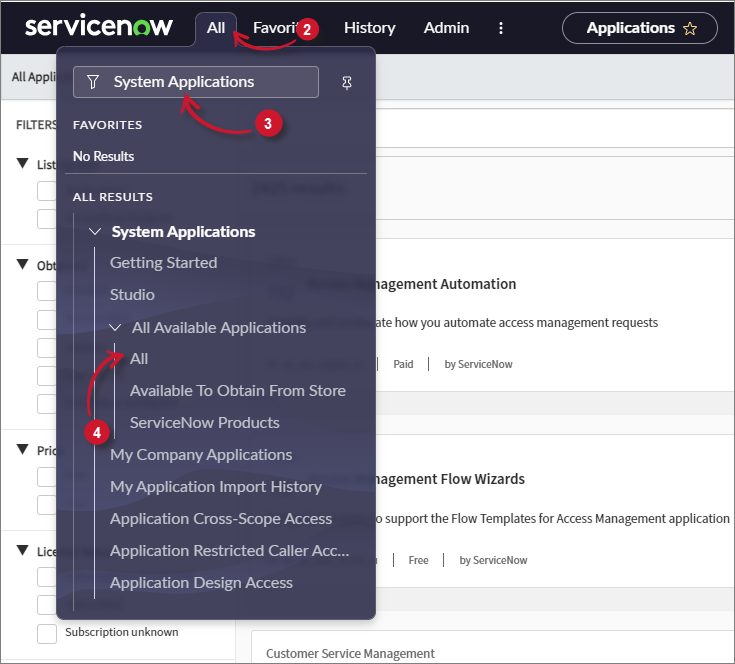 Navigate to Application Manager
-
In the top-right tab, click on Open Store button. Alternatively, if you are using the Classic Application Manager, click on the Find in Store button.
-
In the search bar, search for
LicenseAnalyzerto filter the displayed items. -
Select OpeniT LicenseAnalyzer.
-
Click Get.
For regulated instances, selecting Get in the ServiceNow Store does not immediately install the application. The request must first go through an approval process. After approval, the application may take up to 24 hours before it becomes available in your instance.
Refer to the official ServiceNow documentation on how to get a free app for a regulated environment to learn more.
See the official ServiceNow documentation on how to get an application directly from the ServiceNow Store to learn more.