Configuring Microsoft Entra ID Sign-in Logs Collection
Introduction
Open iT collects Microsoft Entra ID sign-in logs data and sends it over to the server.
This will produce the following aggregated data types used for historical reporting:
Apply the configurations shown in the Open iT Core Client.
Requirements
- An Open iT Core Client connected to an Open iT Core Server or a coexistent Open iT Core setup
- Activated SystemAnalyzer collection
- Automatic Generation Config includes (133) IdP Signin Events (see Configuring Periodically Regenerated Data)
- Configured Microsoft Entra Credentials
Configuring Microsoft Entra ID Sign-in Logs Collection
- Windows
- Unix
Step 1: Open Command Prompt
- Open a command prompt with Administrator level privileges.
Step 2: Navigate to the bin Directory
-
Go to the bin directory, which is by default in
C:\Program Files\OpeniT\Core\bin, run the command:Command Syntaxcd <bin_dir>Examplecd C:\Program Files\OpeniT\Core\bin
Step 3: Activate Microsoft Entra ID Sign-in Logs Collection
-
Run the following command to enable Microsoft Entra ID sign-in logs collection:
Command Syntaxopenit_oconfinit -u "collect_usage_signinazure.root.scheduler.jobs.collect_azure_signins.general.active=true"
Step 4: (Optional) Activate Collection for a Specific Microsoft Entra ID Account
If you configured multiple Microsoft Entra ID accounts and want to collect sign-in logs from a specific account, include the --name argument followed by the configured account name.
Run the following command:
openit_oconfinit -u "collect_usage_signinazure.root.scheduler.jobs.collect_azure_signins.operations.arguments=azure collect signinlogs --output \"${Openit.directories.temp)/IdpConnector/Azure/SigninLogs/{1900epoch}-{pid}.data\" --name <name>"
where <name> is the name of the account you want to use for data collection.
openit_oconfinit -u "collect_usage_signinazure.root.scheduler.jobs.collect_azure_signins.operations.arguments=azure collect signinlogs --output \"${Openit.directories.temp)/IdpConnector/Azure/SigninLogs/{1900epoch}-{pid}.data\" --name azure1"
Step 1: Navigate to the bin Directory
-
Go to the bin directory, which is by default in
/opt/openit/bin, run the command:Command Syntaxcd <bin_dir>Examplecd /opt/openit/bin
Step 2: Activate Microsoft Entra ID Sign-in Logs Collection
-
Run the following command to enable Microsoft Entra ID sign-in logs collection:
Command Syntax./openit_oconfinit -u "collect_usage_signinazure.root.scheduler.jobs.collect_azure_signins.general.active=true"
Step 3: (Optional) Activate Collection for a Specific Microsoft Entra ID Account
If you configured multiple Microsoft Entra ID accounts and want to collect sign-in logs from a specific account, include the --name argument followed by the configured account name.
Run the following command:
./openit_oconfinit -u "collect_usage_signinazure.root.scheduler.jobs.collect_azure_signins.operations.arguments=azure collect signinlogs --output \"${Openit.directories.temp)/IdpConnector/Azure/SigninLogs/{1900epoch}-{pid}.data\" --name <name>"
where <name> is the name of the account you want to use for data collection.
./openit_oconfinit -u "collect_usage_signinazure.root.scheduler.jobs.collect_azure_signins.operations.arguments=azure collect signinlogs --output \"${Openit.directories.temp)/IdpConnector/Azure/SigninLogs/{1900epoch}-{pid}.data\" --name azure1"
Verifying Data Collection
After configuration, you can verify that the Microsoft Entra ID sign-in logs are collected by following these steps:
- Windows
- Unix
Step 1: Open Command Prompt
- Open a command prompt with Administrator level privileges.
Step 2: Navigate to the bin Directory
-
Go to the bin directory, which is by default in
C:\Program Files\OpeniT\Core\bin, run the command:Command Syntaxcd <bin_dir>Examplecd C:\Program Files\OpeniT\Core\bin
Step 3: Run the Sign-in Logs Collection Command
-
Execute the following command:
Command Syntaxopenit_idpconnectorconsole azure collect signinlogs --output "C:\ProgramData\OpeniT\data\temp\IdpConnector\Azure\SigninLogs\{1900epoch}-{pid}.data"
Step 4: Verify the Output File
- Navigate to
C:\ProgramData\OpeniT\data\temp\IdpConnector\Azure\SigninLogs. - Verify that the file with the name format,
{1900epoch}-{pid}.data, is created.
Step 1: Navigate to the bin Directory
-
Go to the bin directory, which is by default in
/opt/openit/bin, run the command:Command Syntaxcd <bin_dir>Examplecd /opt/openit/bin
Step 2: Run the Sign-in Logs Collection Command
-
Execute the following command:
Command Syntaxopenit_idpconnectorconsole azure collect signinlogs --output "C:\ProgramData\OpeniT\data\temp\IdpConnector\Azure\SigninLogs\{1900epoch}-{pid}.data"
Step 3: Verify the Output File
- Navigate to
/var/opt/openit/temp/IdpConnector/Azure/SigninLogs. - Verify that the file with the name format,
{1900epoch}-{pid}.data, is created.
Sample Report
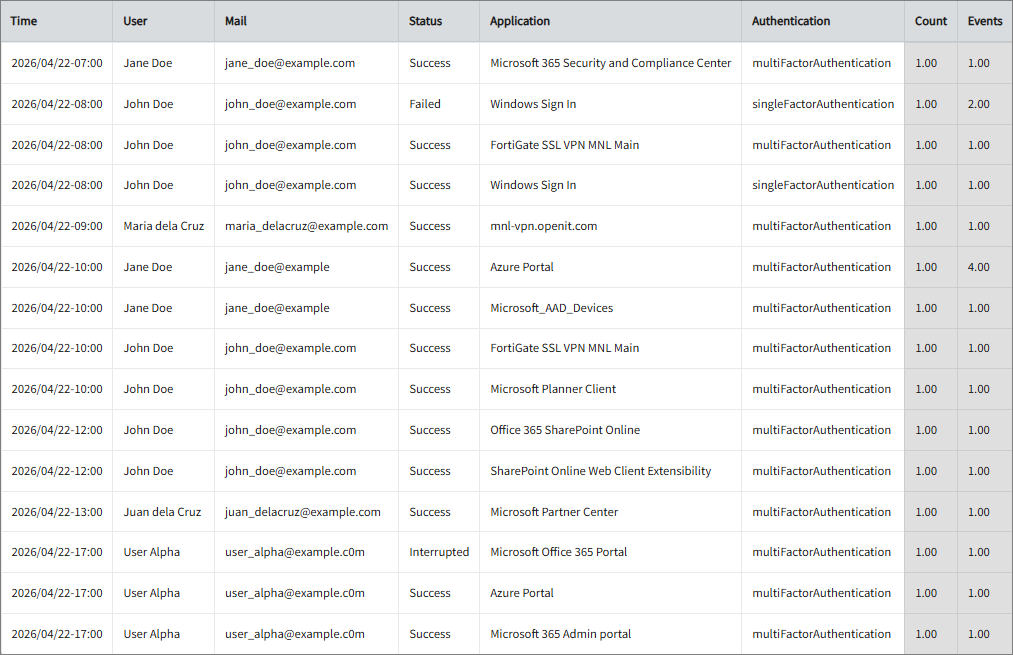
Hourly Application Sign-in Status per User
This report provides a detailed view of user authentication activity per hour, including sign-in status, accessed applications, authentication methods, and event counts.
It offers several key benefits:
- Centralized Sign-in Visibility – Delivers a clear overview of user login activity across applications, helping track access patterns in one place.
- Authentication Monitoring – Shows whether sign-ins use single-factor or multi-factor authentication (MFA), supporting stronger security enforcement.
- Failed Login Detection – Highlights unsuccessful and interrupted sign-in attempts, enabling quick identification of potential security risks.
- User Activity Insights – Reveals when and how users access systems, helping analyze behavior and peak usage periods.
- Application Access Tracking – Identifies which applications are frequently accessed, supporting usage analysis and resource planning.
- Security & Compliance Support – Provides auditable records of authentication activity to support security reviews and compliance requirements.
- Faster Incident Investigation – Enables efficient tracing of login events for troubleshooting and security incident response.