Integrating Application Launcher Data to the Analysis Server
The produced mapping file in Core Server can be integrated to the Analysis Server for data processing and reporting.
Make sure that the instructions in Integrating Application Launcher Data to the Core Server are completed before proceeding.
Configuring Project Mapping as Mapping Source in Analysis Server
-
Go to the Analysis Server web interface.
-
Log in using a Web GUI Administrator account.
-
Go to Administration > Mapping Sources.
-
Click New Mapping Source and provide the following values to the properties:
Field Value Name User Projects Enabled True Kind Multimap FilePath Path to the Core Server project.mapfile (e.g.,C:\Program Files\OpeniT\Core\Configuration\project.map)New Mapping Sources Field -
Click Save.
A new column in the Destination Field Sources should be added with the name, User Project.
-
Click Load Fields of the User Project source.
-
In the Destination Field Sources table, map the User Project column loaded field (e.g., Project) to any of the following destination:
- User.CostCenter
- User.Department
- User.Division
- User.Location
-
Click Save Configuration.
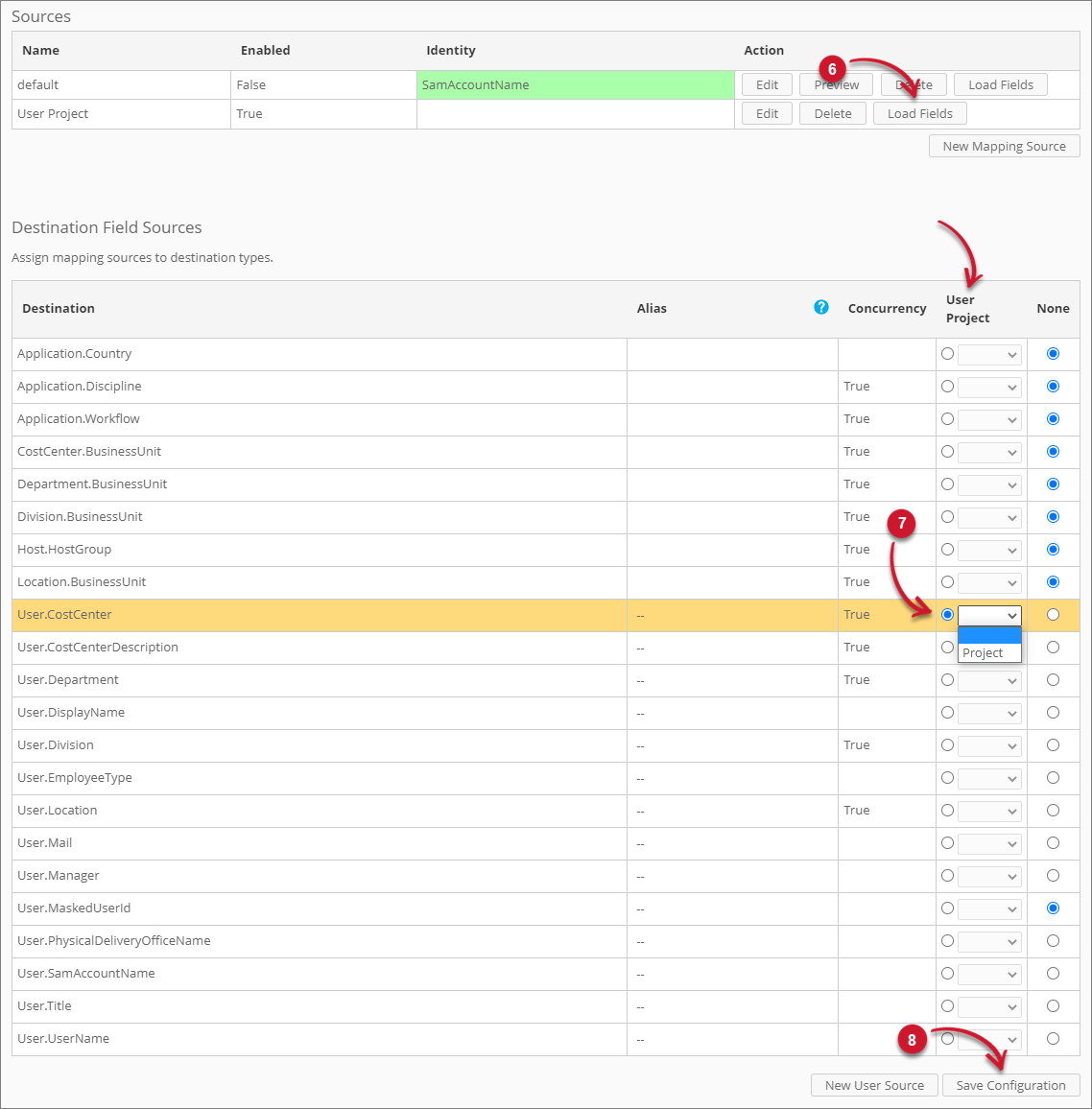 Project Mapping as Mapping Source
Next Steps?
After all necessary Analysis Server configurations, run the RunEtl command using the Analysis Server Console Application to immediately apply the updates. You may also wait for the next daily processing.
To report the configured project mapping in Analysis Server:
-
Use the classification, User Cost Center, User Department, User Division, or User Location, depending on the destination used in the mapping source configuration.
-
Try to combine with Application Hierarchy to specific application used by a project. Also, try to combine with User Id to see the specific users with usage in a project.