Launching Applications
This is applicable if launching of applications is enabled in the server (i.e., the Enable Launch option is on).
Make sure that the App Launcher Client is installed before launching applications.
To launch an application, follow these instructions:
-
In the machine where the App Launcher Client is installed, open a web browser and go to
http(s)://<app_launcher_server_hostname>:<port_number>when using Windows authentication.<app_launcher_server_hostname>- hostname of the machine where App Launcher Server is installed<port_number>- port number used by the web service, which is 80 by default; this is specified upon App Launcher Server installation
Alternatively, go to the URL created for the application in Okta when using SAML2 authentication.
-
For Windows authentication, provide a valid domain username and password. Click Sign in.
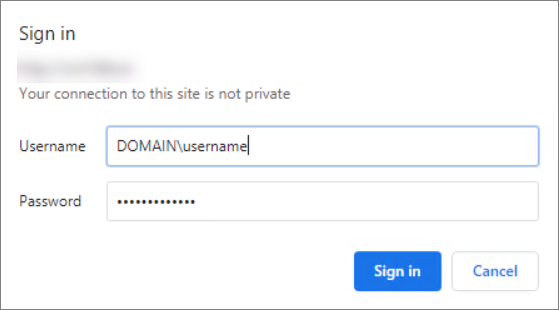 Sign in using Windows Authentication
For SAML2 authentication, the page will redirect to Okta Login Page. Sign in using a valid credential.
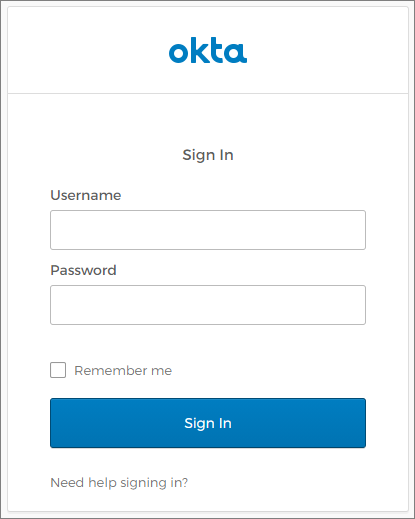 Sign in using SAML2 Authentication
-
The page will redirect to the home page.
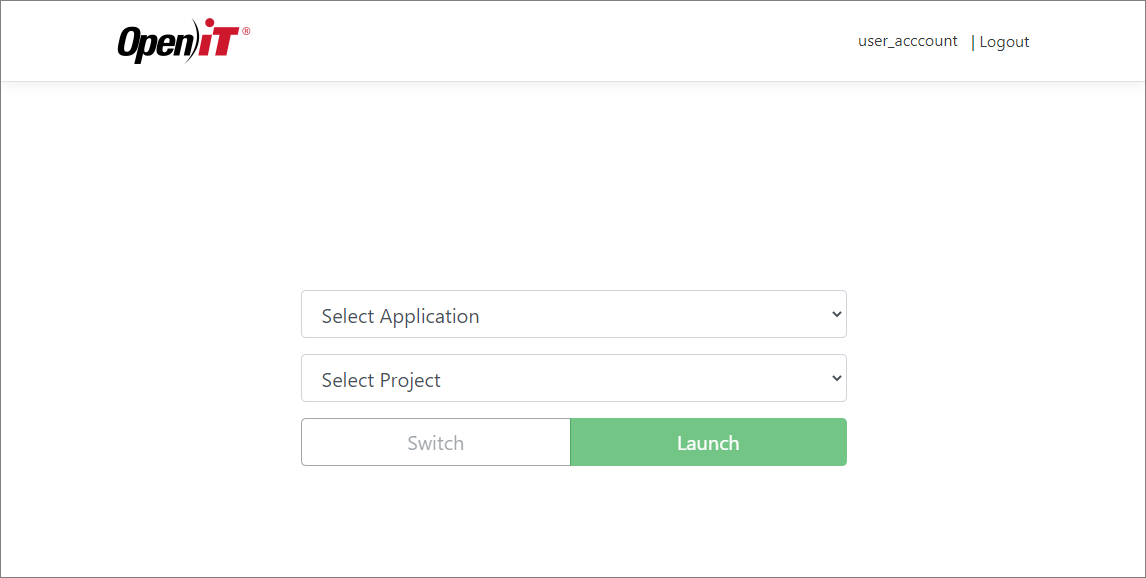 Home Page
-
Select the Application to launch and appropriate Project, then click Launch.
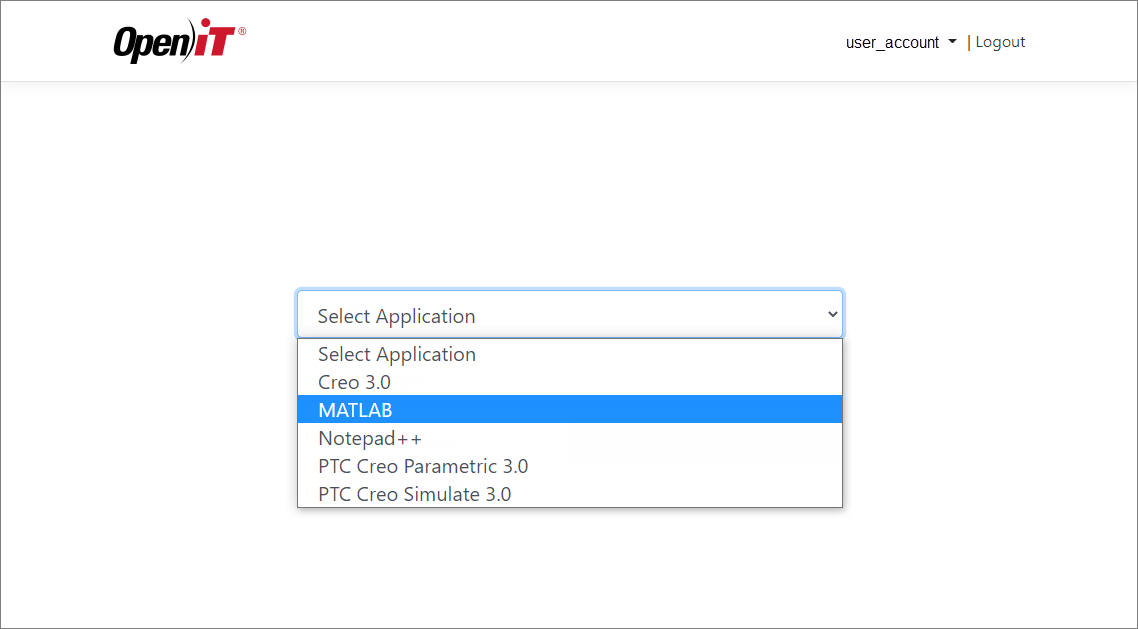 Select Application
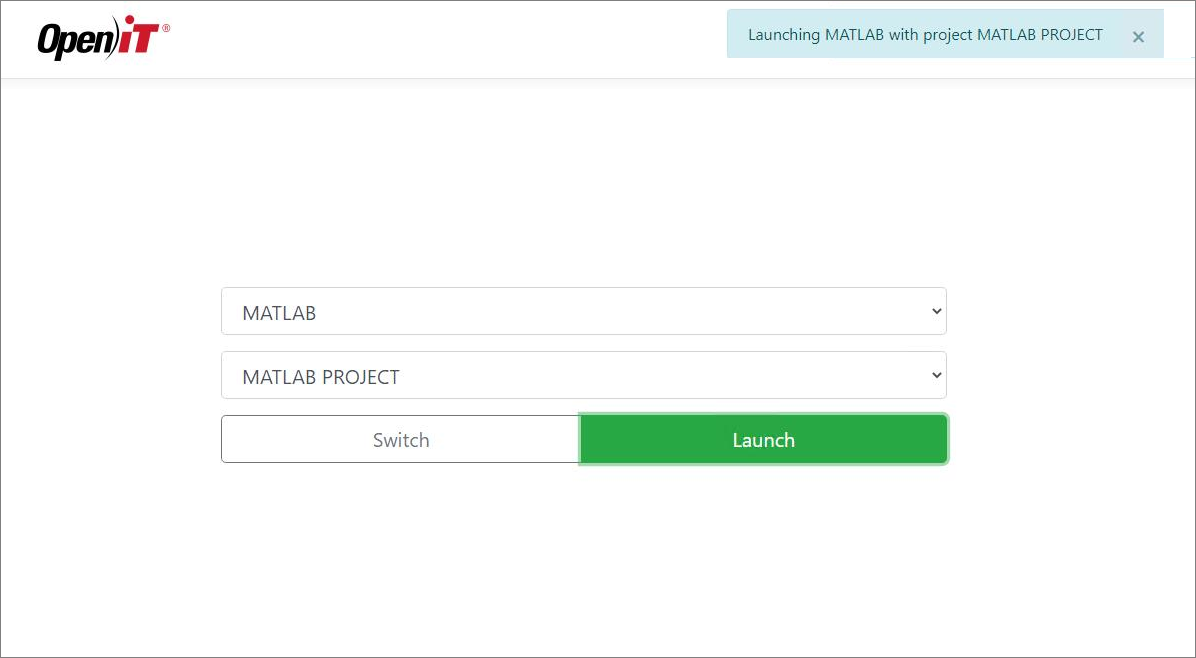 Select Project
noteContact the local administrator to be included in a specific project.
If project description is provided, it is appended to the project name with the
Project Name - Descriptionformat; otherwise, only the project name is displayed. -
Click Open Launcher to launch.
 Launch Application Prompt
The application will be launched.
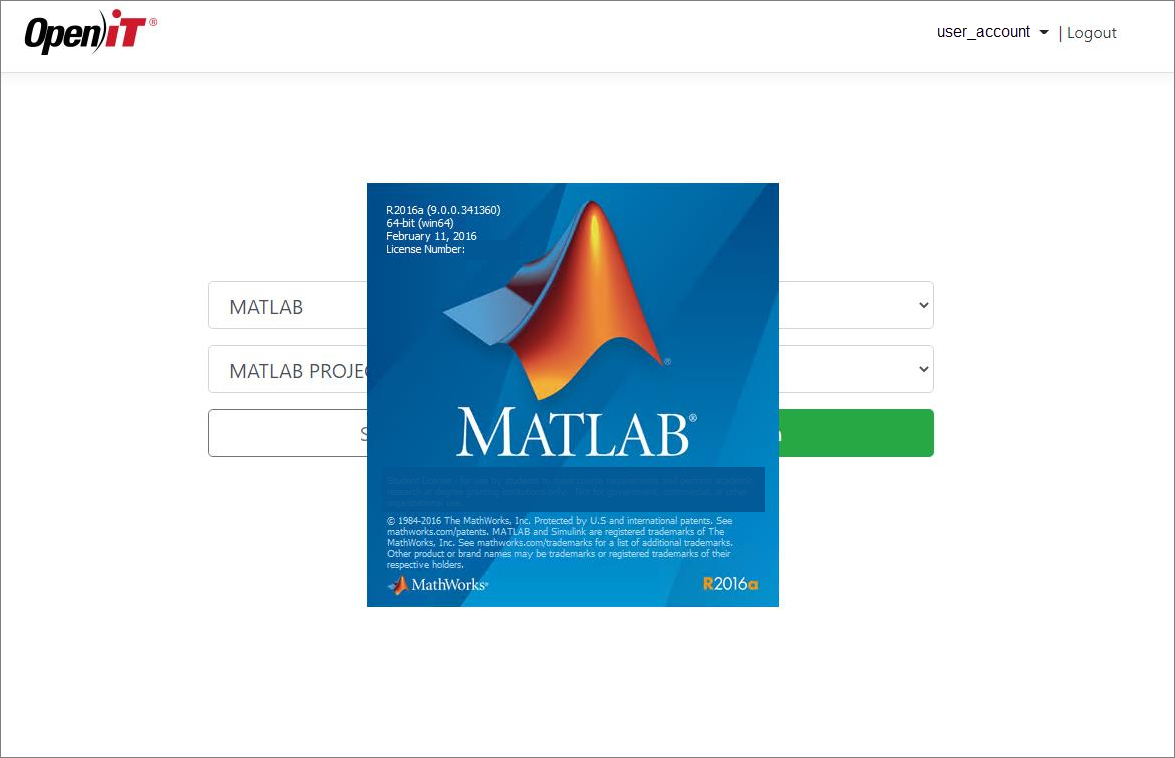 Launch Application
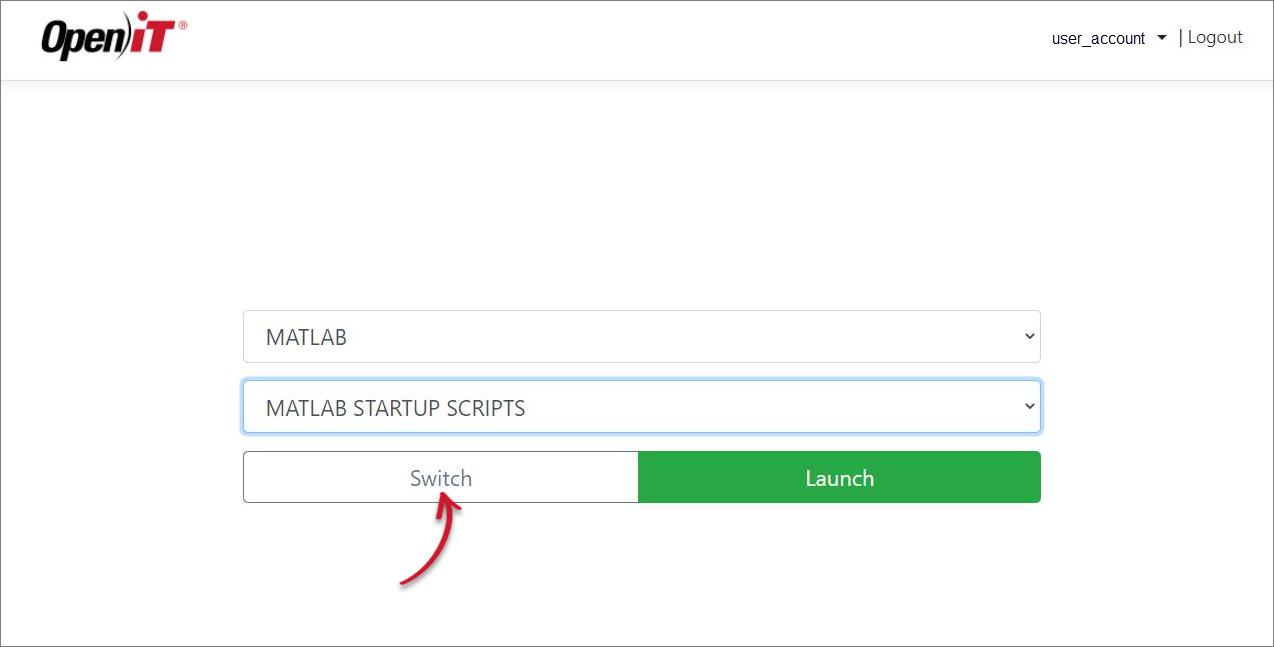
It also possible to start another session of the application with a different project. Just select another project and click Switch.
The user will encounter this error if the application is missing.
