Managing Configurations
Administrators can configure various functionalities such as automated exporting and importing of data and home page view settings.
Configuring Export Session Job
To configure the schedule and other details of exporting the data:
-
Click the drop-down beside the username, then select Configurations.
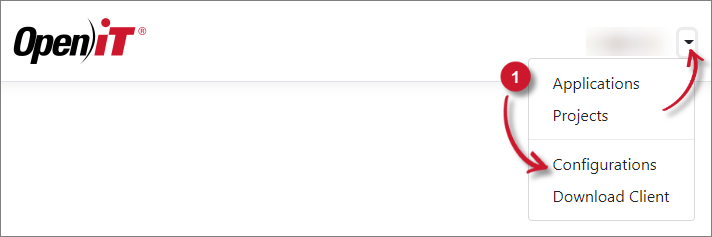 Configurations Menu
-
Set the Export Session Cron or use the default value,
0 0 * * *, as is. This will run once a day at midnight.Check the Cron Expression Examples table for reference.
-
Select File or SQLite as Export Method.
Method Description File A file containing all the exported data will be created. SQLite Direct export of data to the map.dblfile in Core Server.Export Methods
-
Provide the following path in Export Session Path based on the Export Method.
UNC (
\\path_to_file) path is accepted.Method Description File A valid directory where the file will be created. SQLite A valid path where the Core Server map.dblfile is located. This is located atC:\Program Files\OpeniT\Core\ReportingServer\db\mapby default.Export Method Path
-
Click Save.
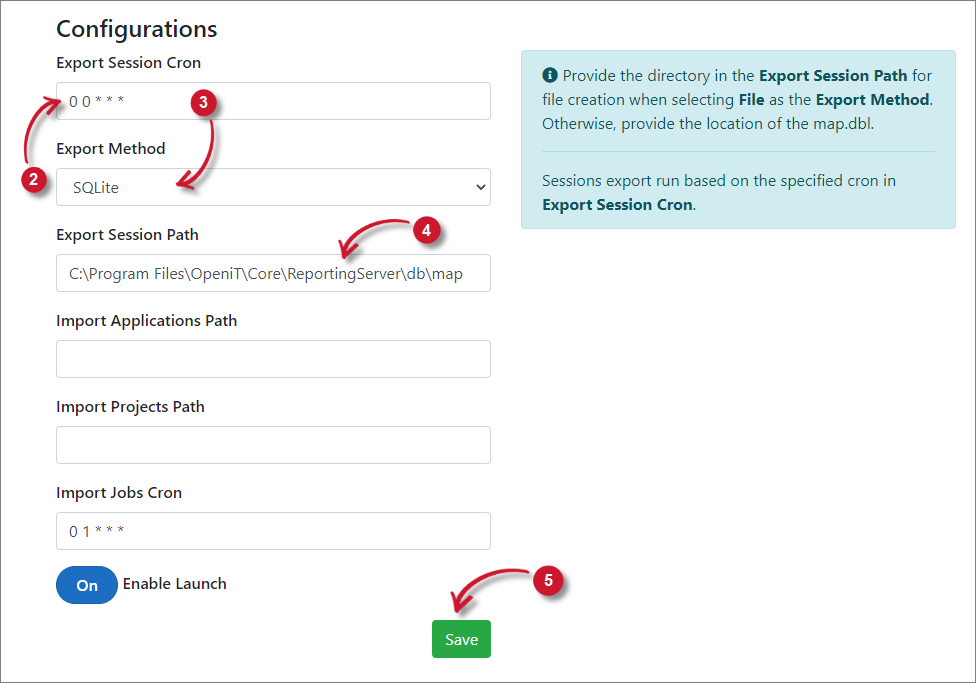 Configuring Export Session Job
You can Manually Trigger the Recurring Export Job.
When the Export Method is File, navigate to the configured Export Session Path and the created file should follow the filename format, project.data.<timestamp>.
Configuring Import Data Job
To configure the schedule and other details of importing data:
-
Click the drop-down beside the username, then select Configurations.
Configurations Menu
-
Set the Import Applications Path to a valid file path of the predefined list of applications.
UNC (
\\path_to_file) path is accepted.The file formats supported are
iniandcsv. -
Set the Import Projects Path to a valid file path of the predefined list of projects.
UNC (
\\path_to_file) path is accepted.The file formats supported are
oconfandcsv. -
Set the Import Jobs Cron or use the default value,
0 1 * * *, as is. This will run once a day at 1 AM.Check the Cron Expression Examples table for reference.
-
Click Save.
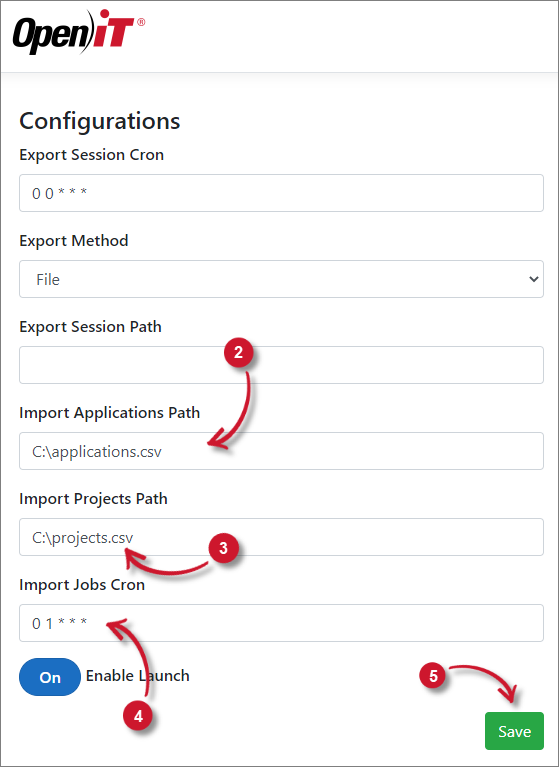 Configuring Import Data Job
You can Manually Trigger the Recurring Import Jobs.
After triggering, the imported applications should be visible in the Applications page.
The import will override the currently registered applications.
Configuring the Home Page View
-
Click the drop-down beside the username, then select Configurations.
Configurations Menu
-
Switch on or off the Enable Launch option.
-
On - the home page will have the default options
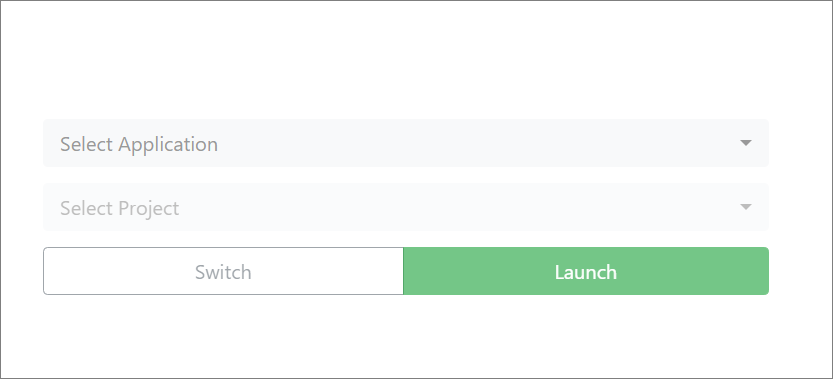 Home Page View Launch Enabled
-
Off - the home page will only have the Set Active Project button and the Projects drop-down; this limits the users' capabilities to launch applications and only set the active projects.
 Home Page View Launch Disabled
-
-
Click Save.
Cron Expression Examples
| Expression | Meaning |
|---|---|
0 12 * * ? | Runs at 12 noon every day |
15 10 ? * * | Runs at 10:15 AM every day |
15 10 * * ? 2005 | Runs at 10:15 AM every day during the year 2005 |
0/5 14 * * ? | Runs every 5 minutes starting at 2 PM and ending at 2:55 PM, every day |
10,44 14 ? 3 WED | Runs at 2:10 PM and at 2:44 PM every Wednesday in the month of March |
15 10 ? * 6L | Runs at 10:15 AM on the last Friday of every month |
15 10 ? * 6#3 | Runs at 10:15 AM on the third Friday of every month |